How do I show prices including VAT in Rekaz?
To review whether invoice prices are shown including VAT in Rekaz, open Invoice Settings and check the VAT settings and the way prices and tax are calculated. Always review the Preview before saving, as changes apply to future invoices.
Do not change tax settings without consulting your business accountant.
Steps
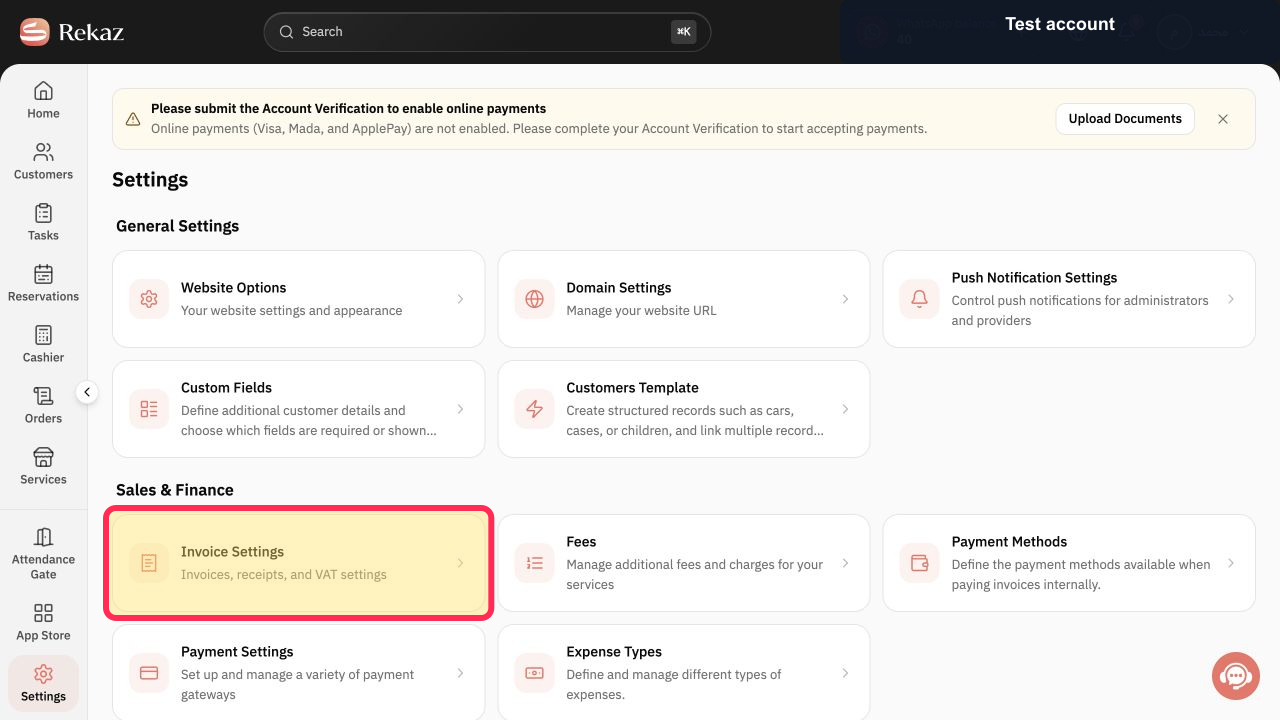
From Home, open Invoice Settings.
The Invoice Settings page opens.
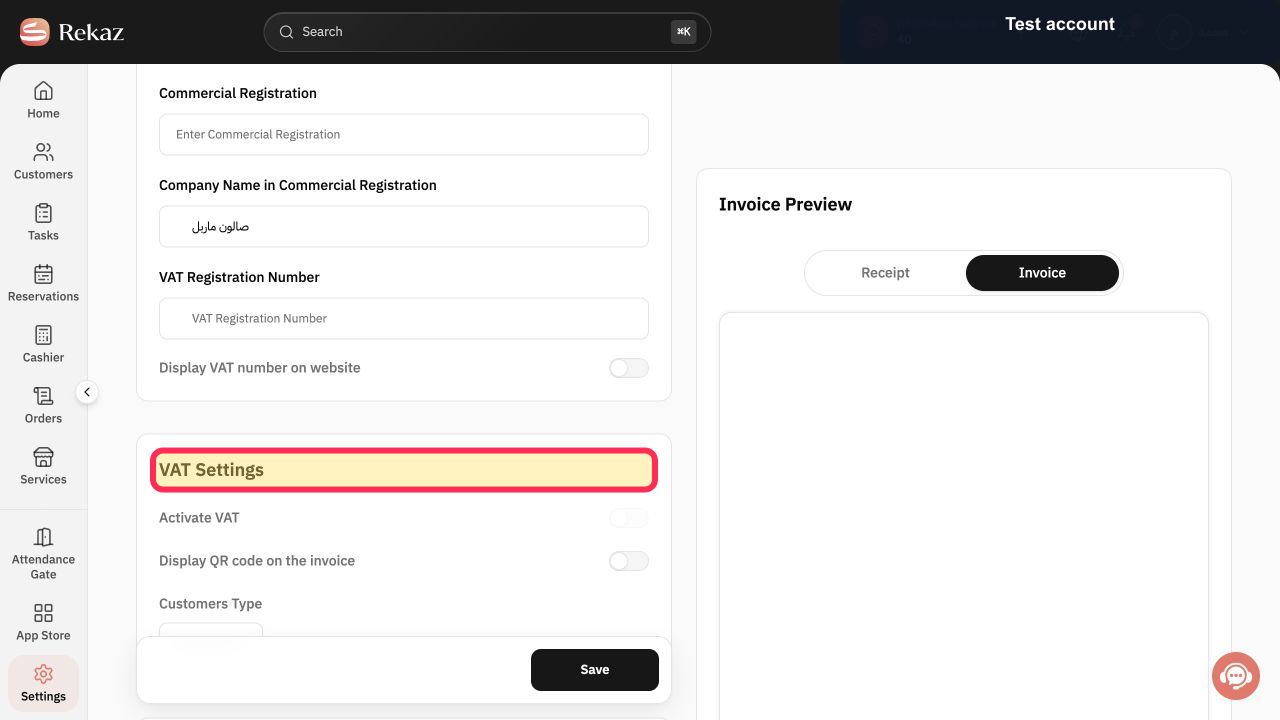
Review the VAT settings and how the price and tax are displayed and calculated.
The VAT and price-calculation options are visible for review.
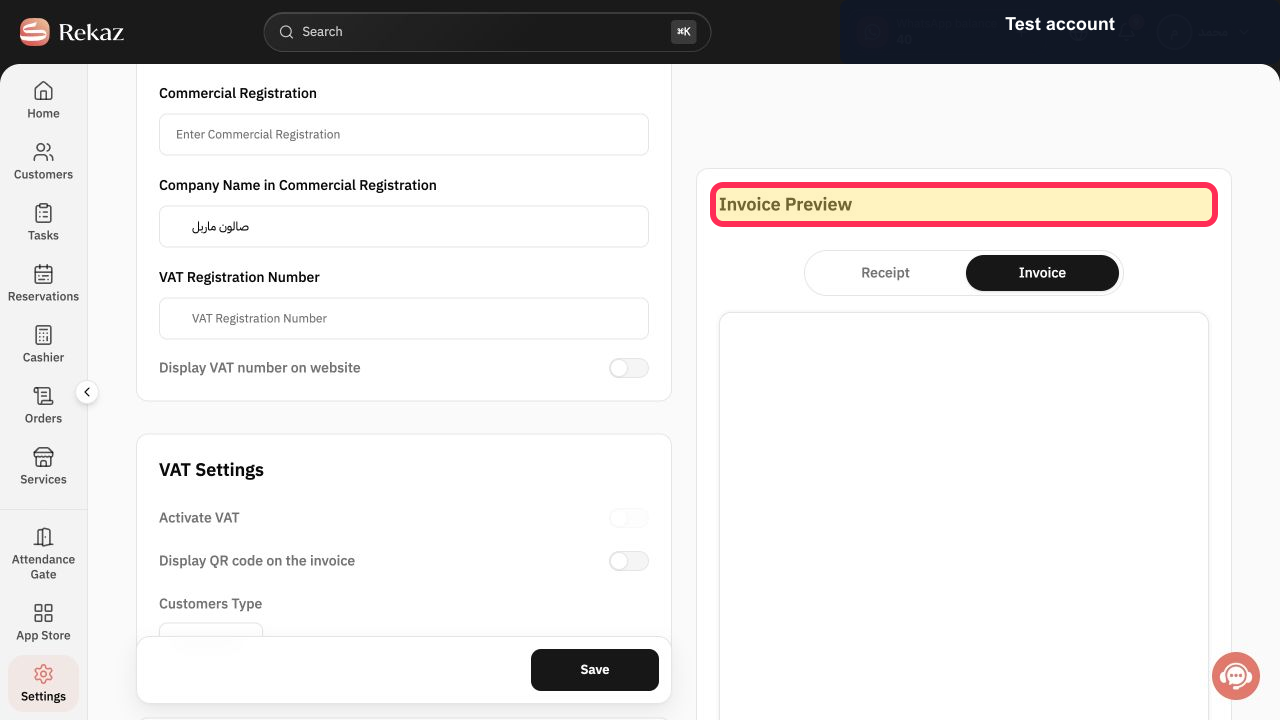
Open the Preview and check how the price and VAT will appear before applying any changes.
A preview of the invoice pricing and VAT display is available to review.
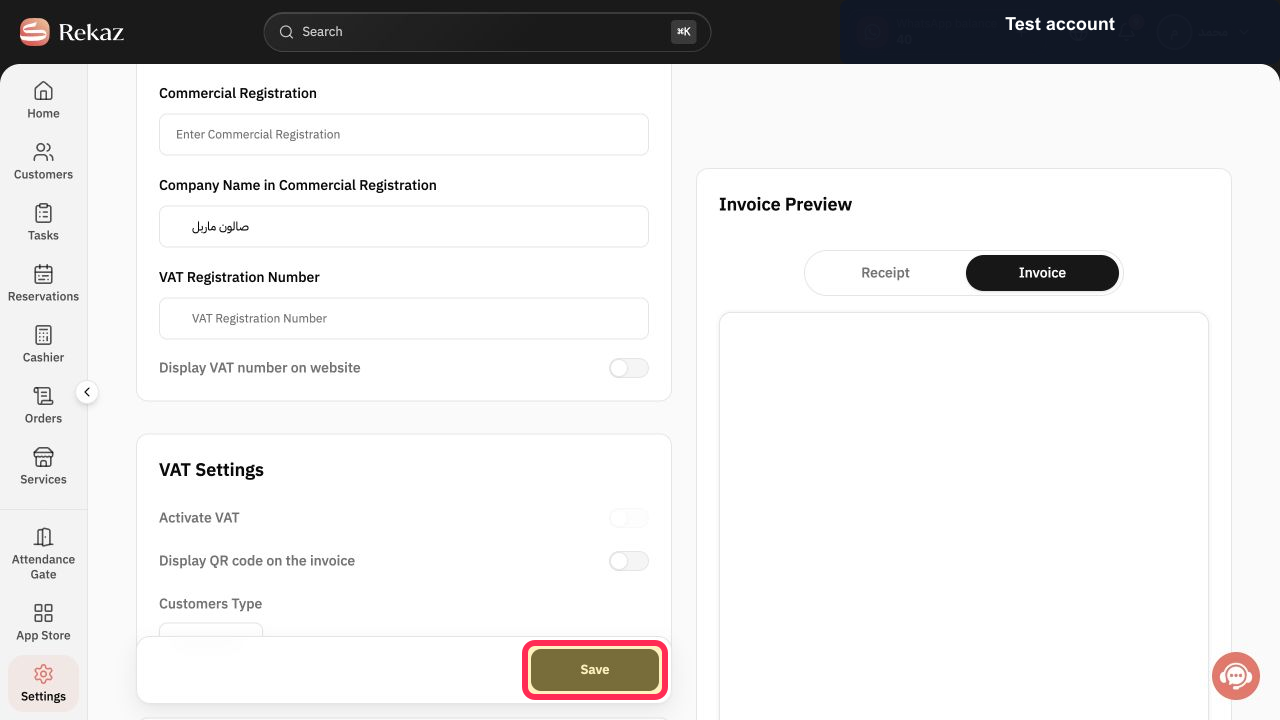
After confirming the Preview, select Save.
Your reviewed tax settings are saved for future invoices.
Illustrated guide
Step 1: Open Invoice Settings.
Step 2: Review the VAT and price-calculation settings.
Step 3: Check the Preview before saving.
Step 4: Save the reviewed settings.
Important notes
Check the Preview before saving any change.
Consult your business accountant before changing tax settings.
Related questions
How do I make invoice prices include VAT in Rekaz?
Where can I change VAT calculation in Rekaz?
How can I check whether an invoice price includes VAT in Rekaz?


