How do I configure store invoice settings in Rekaz?
Use Invoice Settings in Rekaz to review the company information, VAT configuration, customer type, and the details shown on invoices and receipts.
Before saving changes, use Invoice Preview to check the sample invoice. VAT cannot be activated when a required Tax Number has not been entered.
Steps
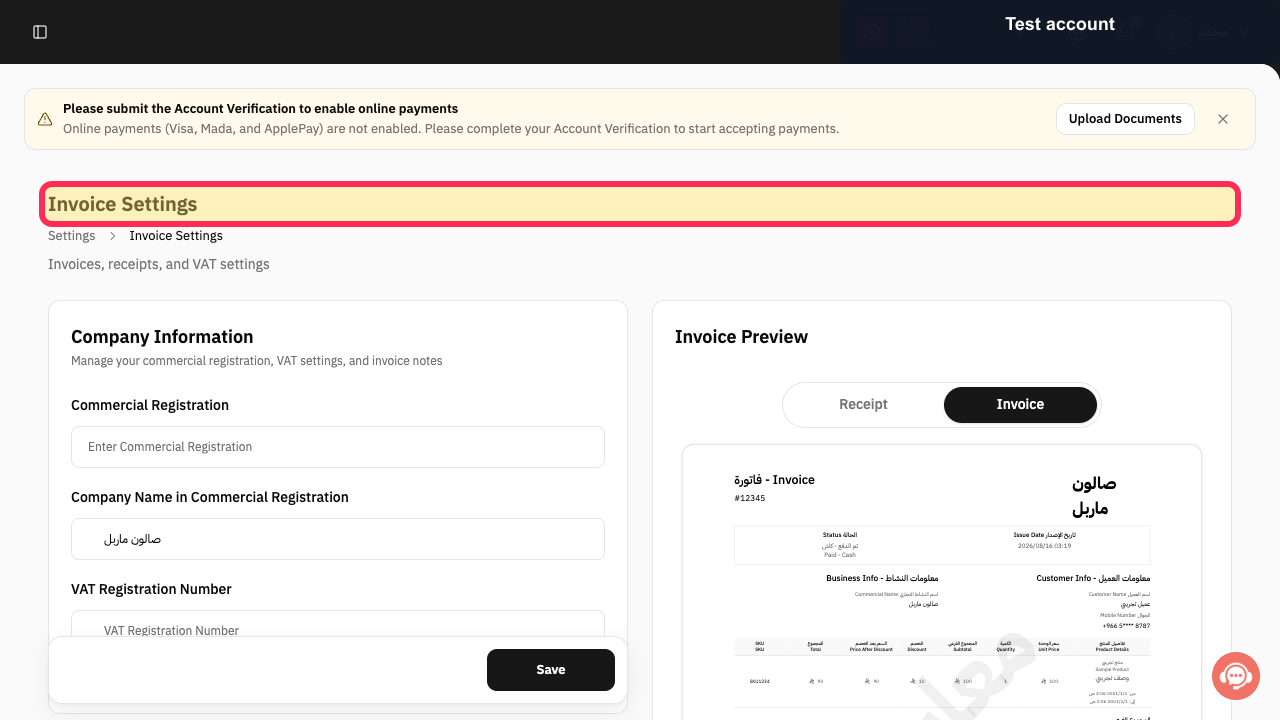
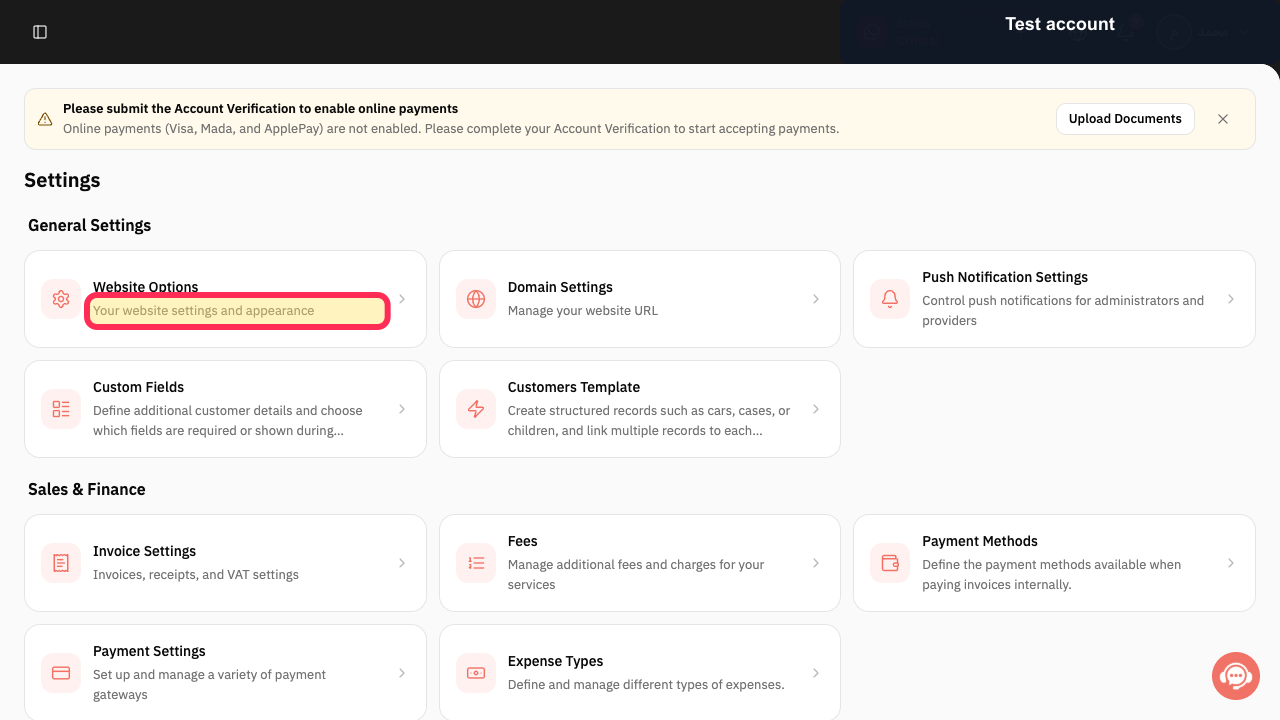
From Home, open Invoice Settings and review the Company Information.
The Invoice Settings page opens with the Company Information section available to review.
Open the VAT settings and review the activation status, Tax Number, and Customer Type.
The VAT settings are displayed, including the activation option, Tax Number, and Customer Type.
Open General Settings and choose the information to display on the invoice.
General Settings opens, where you can select what appears on the invoice and receipt.
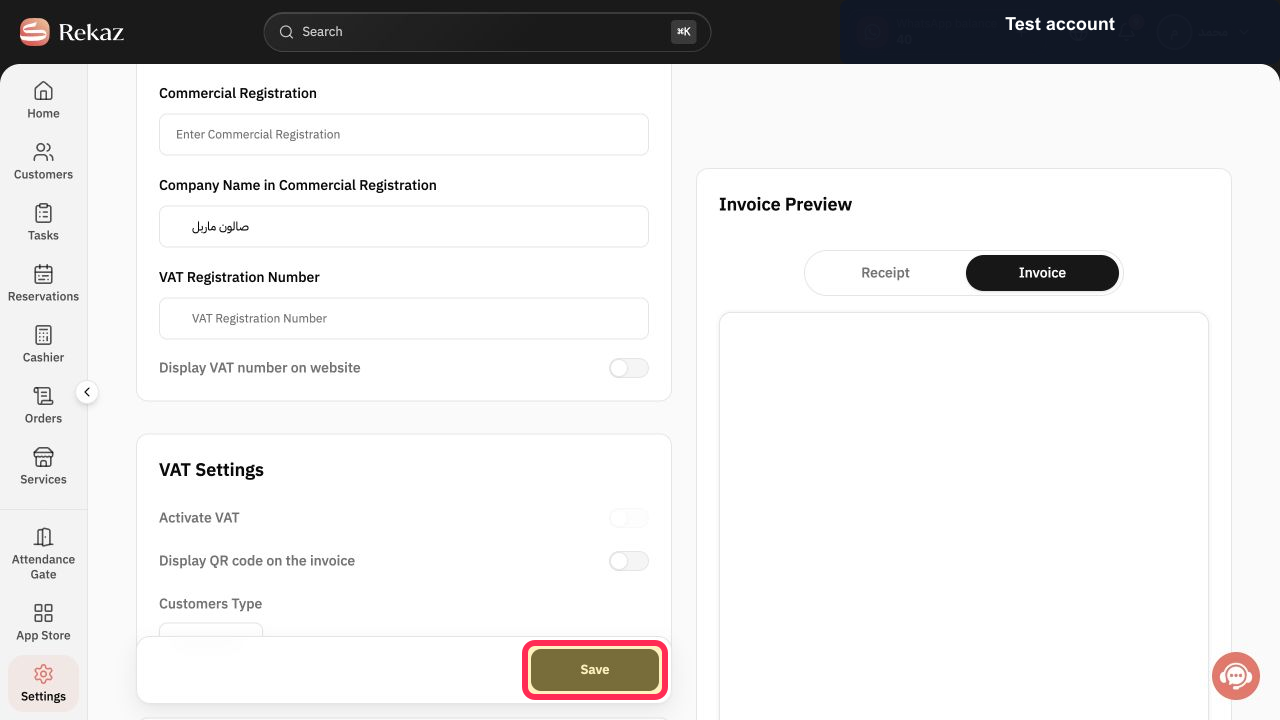
Review Invoice Preview. If the sample details are correct, select Save.
Your invoice settings are saved after you select Save.
Illustrated guide
Step 1: Open Invoice Settings and review Company Information.
Step 2: Review VAT activation, the Tax Number, and Customer Type.
Step 3: Choose the information to display on the invoice.
Step 4: Review the sample invoice, then save your settings.
Important notes
Invoice Preview shows sample data only. Review it before saving any changes.
If a Tax Number is required, you cannot activate VAT until you enter it.
Related questions
Where can I find Invoice Settings in Rekaz?
How do I configure company information and VAT in Rekaz?
How do I check the invoice layout before saving in Rekaz?


