How do I accept a partial payment in Rekaz?
A partial payment records only part of an order's Remaining Amount. Verify the order and customer before entering the amount, especially when recording cash or another offline payment.
For remote collection, use Partial Payment in the Payment link dialog and copy the amount-specific link instead of recording money that has not been received.
Steps
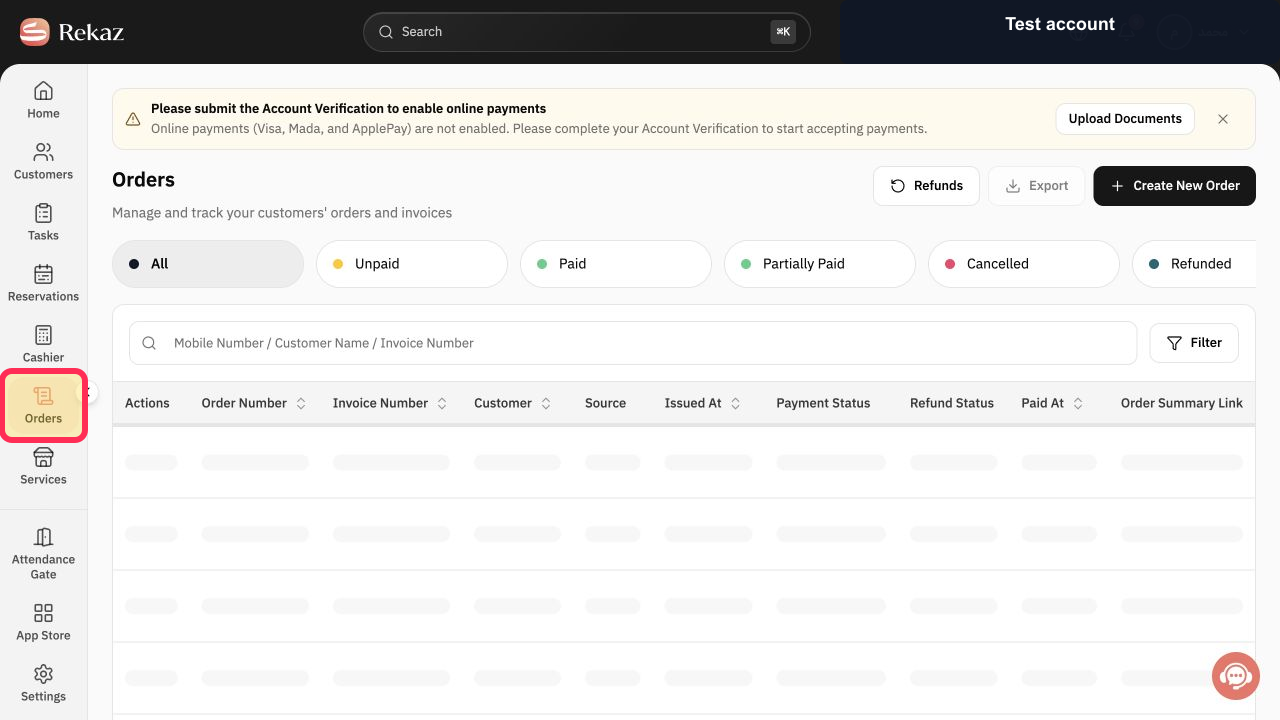
Select Orders in the Rekaz sidebar and open the order that is waiting for payment.
The order detail page opens.
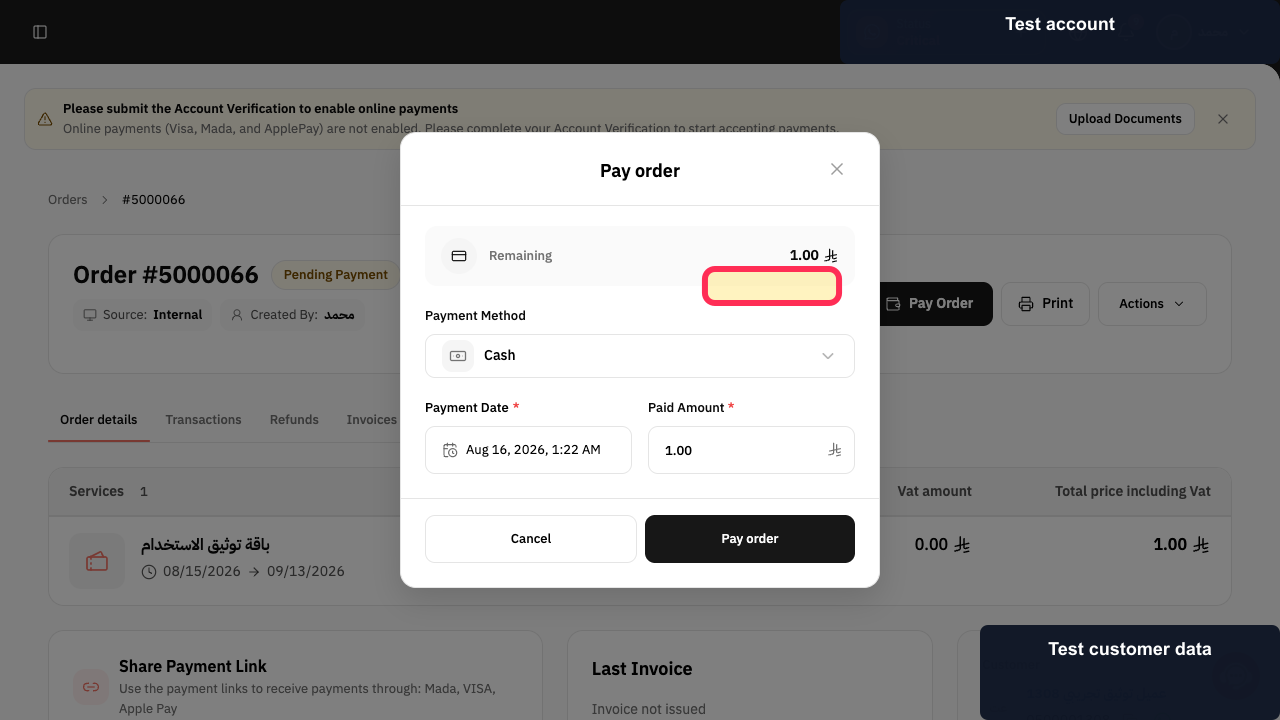
Verify Pending Payment and the displayed Remaining Amount before collecting anything.
The amount still due is confirmed for the correct order.
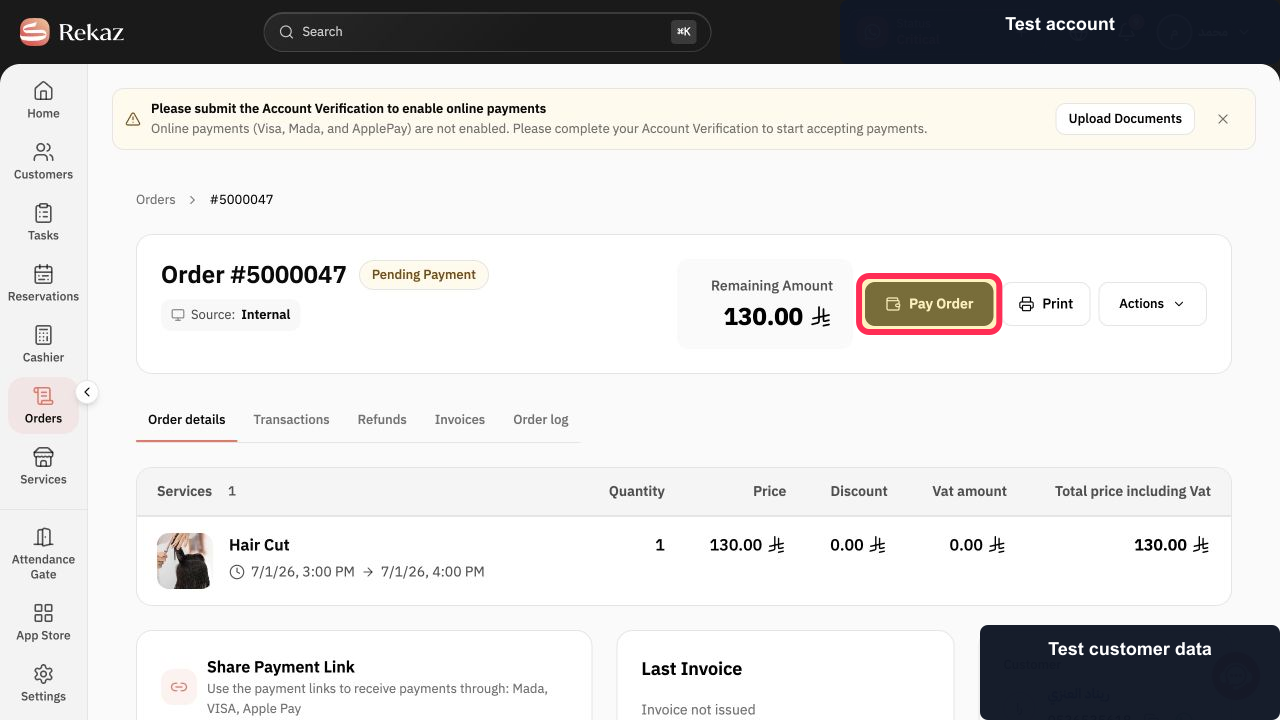
Select Pay Order.
The Pay order dialog opens.
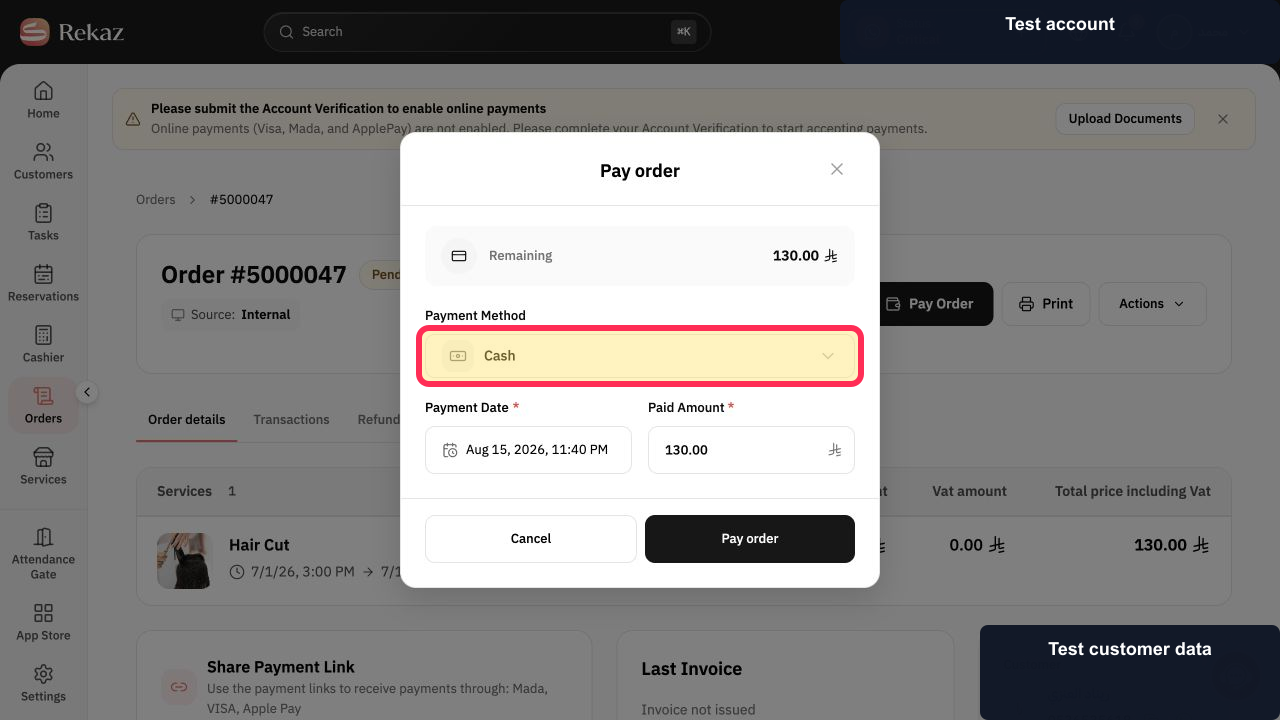
Open Payment Method and choose the method actually received, such as Cash.
The correct payment method is selected.
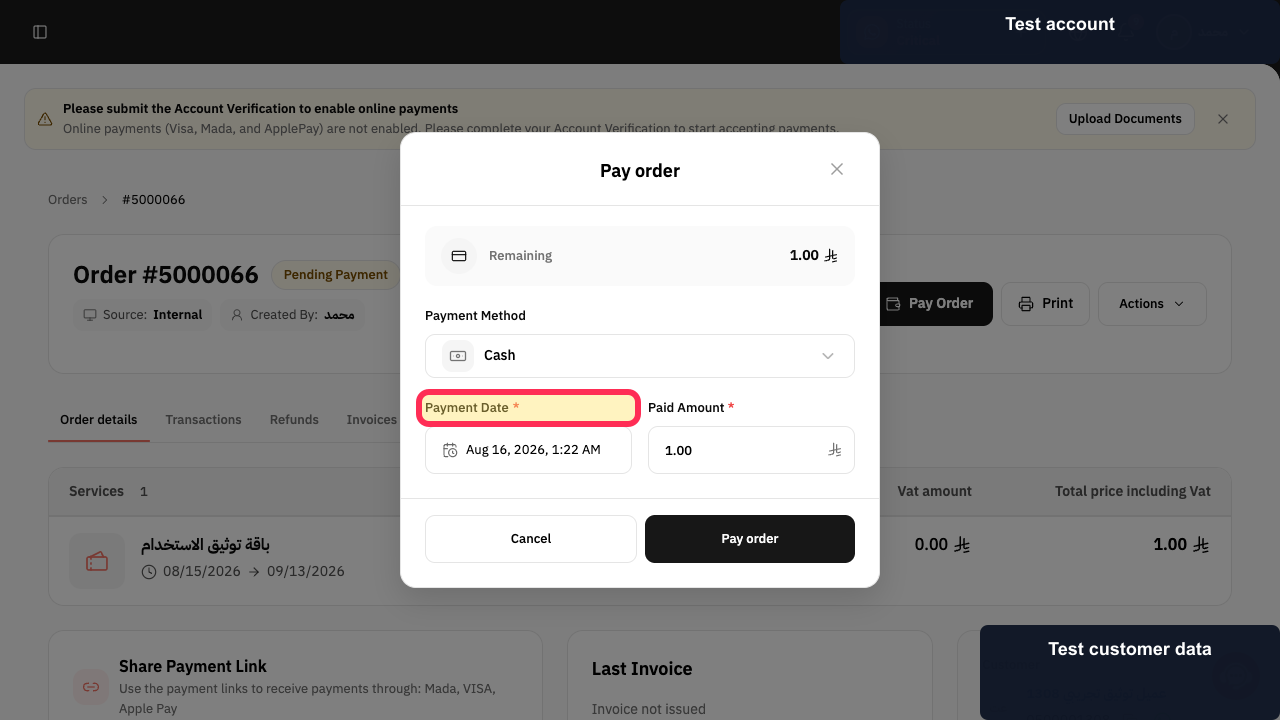
Set Payment Date to the date and time the payment was received.
The payment record uses the selected date.
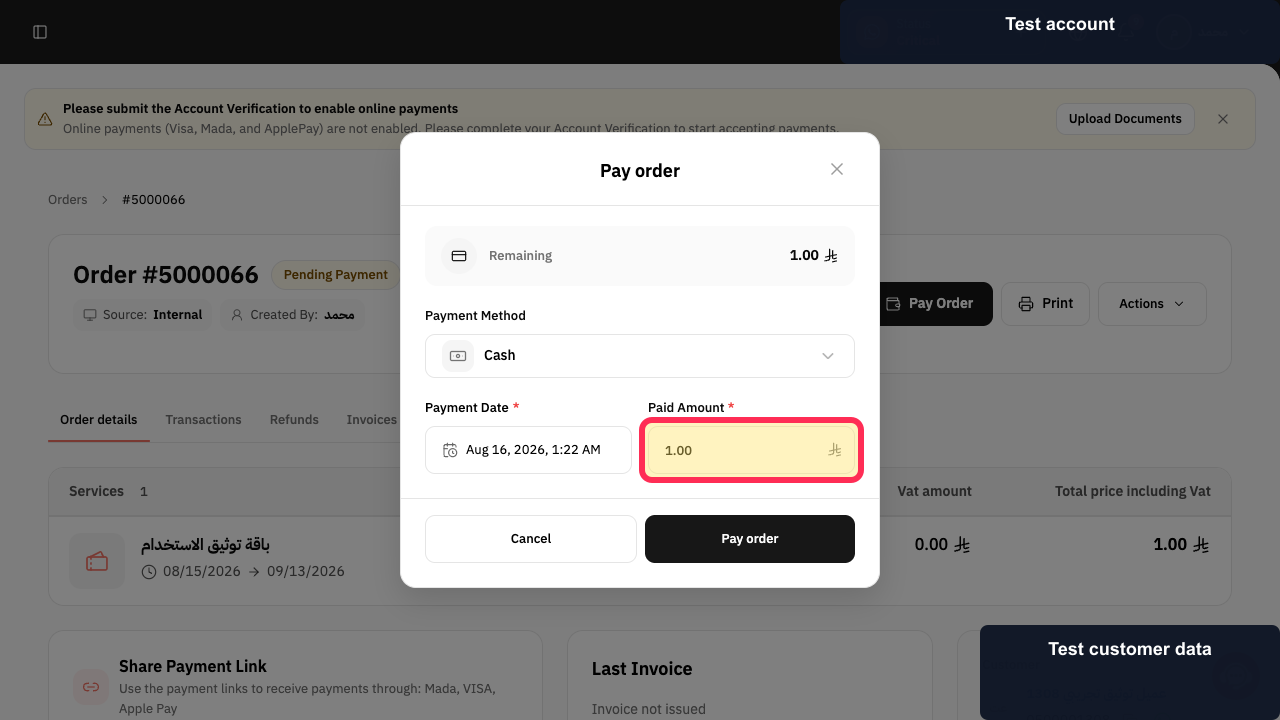
Enter a Paid Amount that is greater than zero and lower than the Remaining Amount.
The form contains the intended partial amount rather than the full balance.
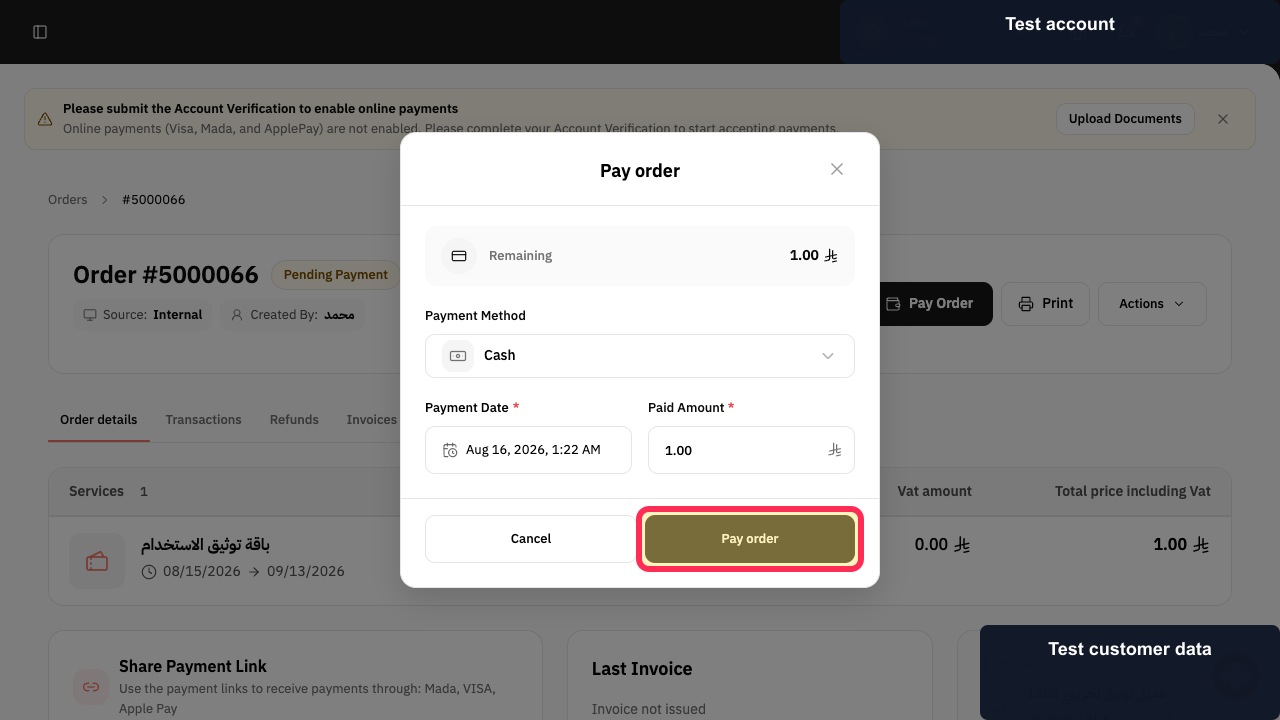
Review the method, date, and amount, then select Pay order.
The partial payment is submitted for the order.
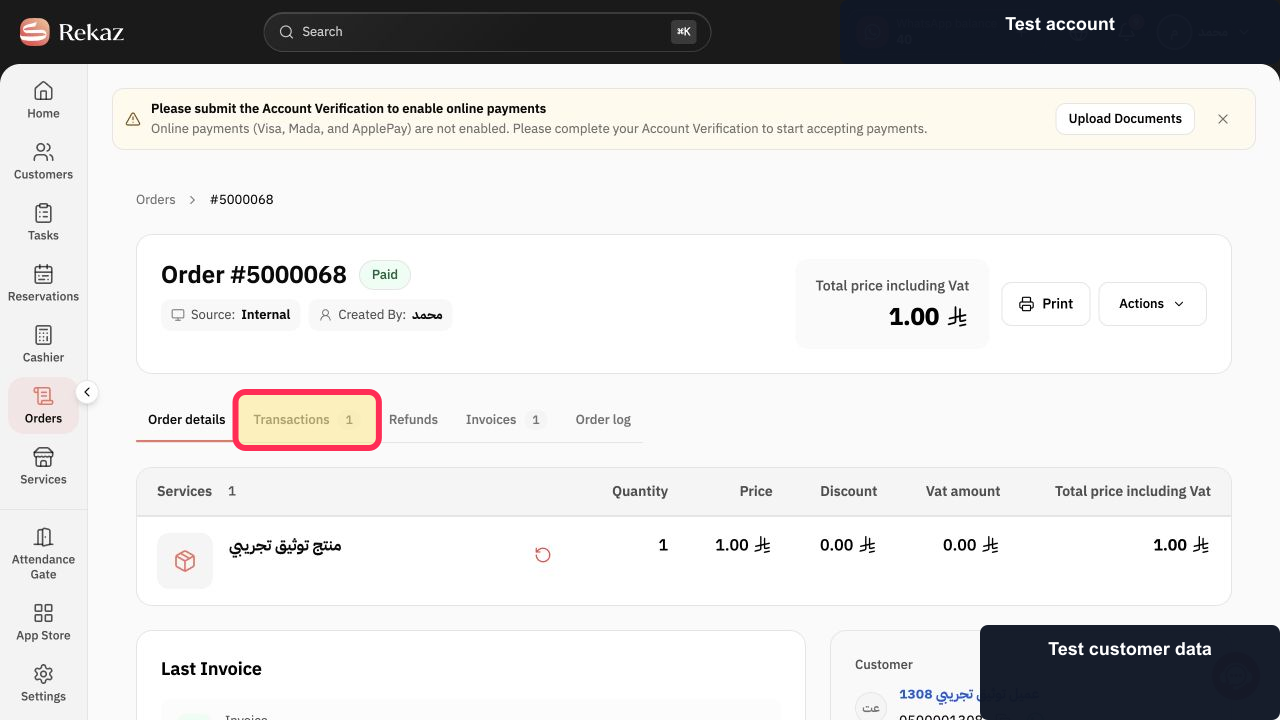
After saving, review the remaining balance and Transactions to verify the payment record.
The recorded transaction and remaining amount match the partial payment.
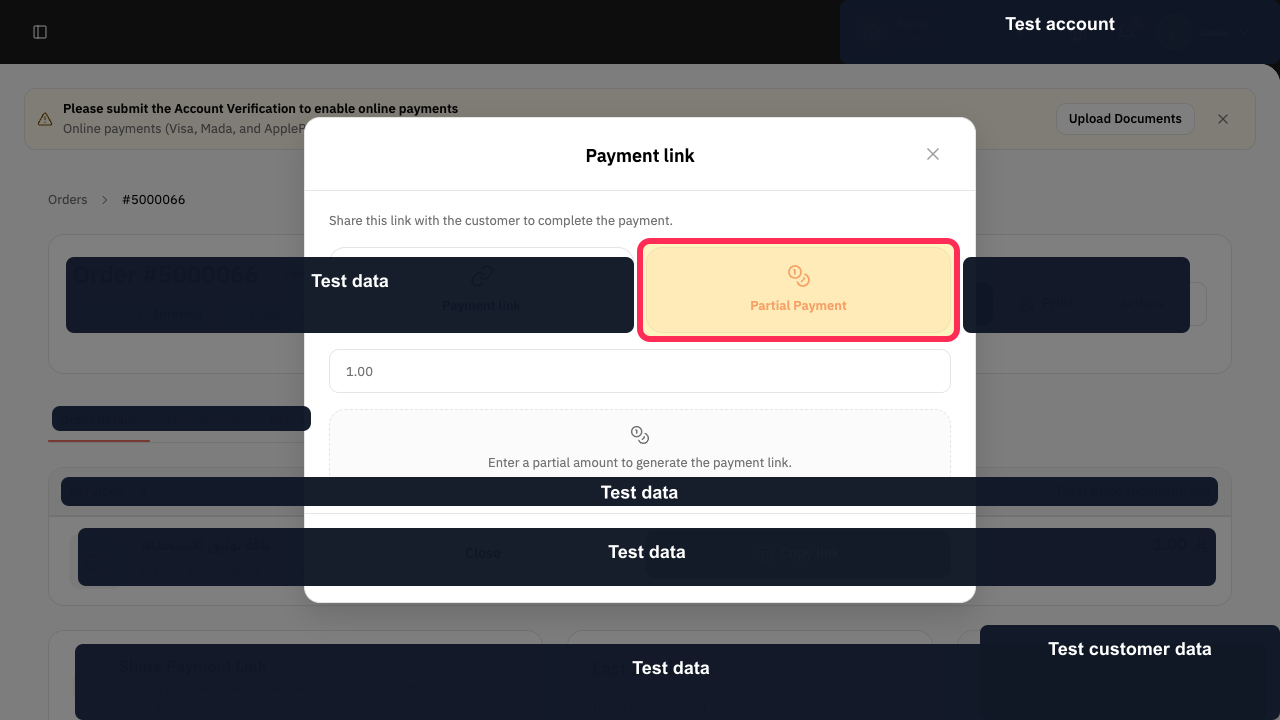
For a customer payment link instead, open the order's Payment link dialog and choose Partial Payment.
The partial-link amount field is displayed.
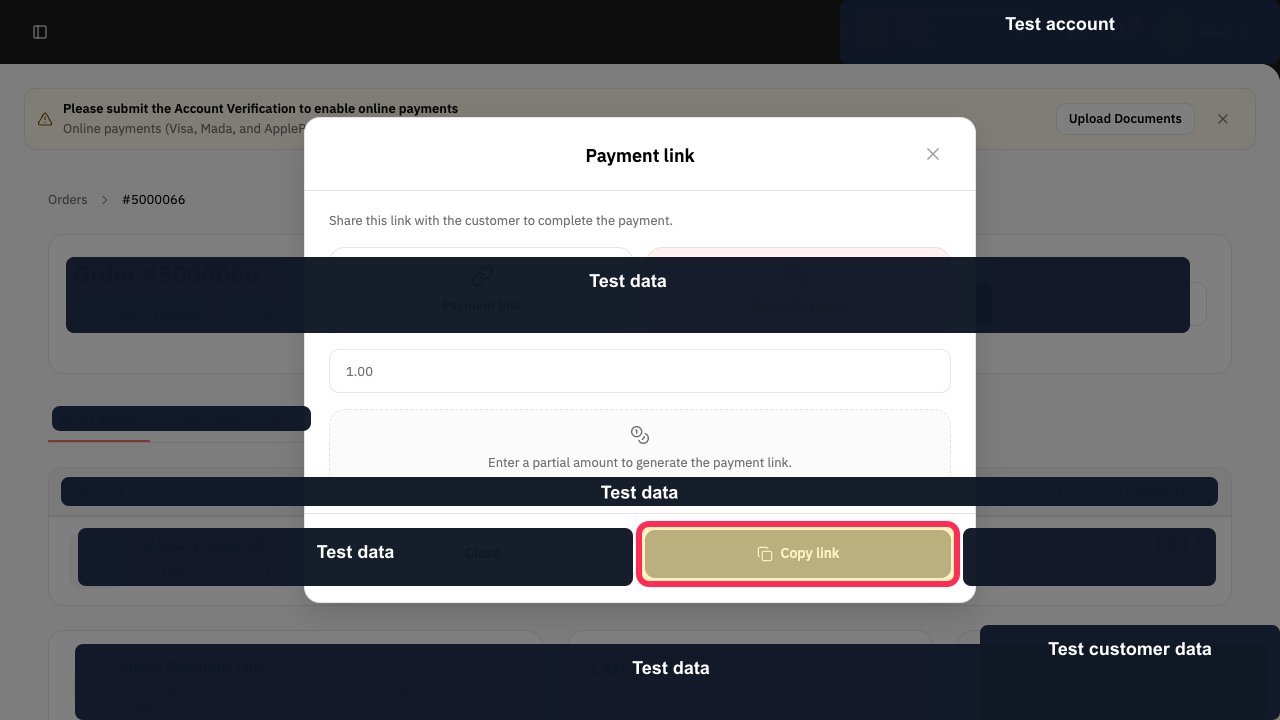
Enter the amount to request and select Copy link, then share it through your approved channel.
The amount-specific payment link is copied without recording an unreceived payment.
Illustrated guide
Step 1: Open the pending-payment order.
Step 2: Verify the order's Pending Payment status and Remaining Amount.
Step 3: Open the Pay order dialog.
Step 4: Choose the actual payment method, such as Cash.
Step 5: Set the partial-payment Payment Date.
Step 6: Enter the partial Paid Amount.
Step 7: Record the partial order payment.
Step 8: Verify the partial payment in Transactions.
Step 9: Choose Partial Payment for an amount-specific link.
Step 10: Copy the customer Partial Payment link.
Important notes
Review the Remaining Amount after recording the payment.
Do not record the payment again if the customer retries the payment.
Related questions
How do I record a deposit in Rekaz?
How can a customer pay only part of an order in Rekaz?
How do I create a link for a specific payment amount in Rekaz?


