How do I add a custom payment method in Rekaz?
To add a custom payment method in Rekaz, go to Settings, open Payment Methods, create a new method, enter its name, choose its Active Status, and save it.
Custom payment methods do not appear on the Website, as indicated by the notice on the Payment Methods page.
Steps
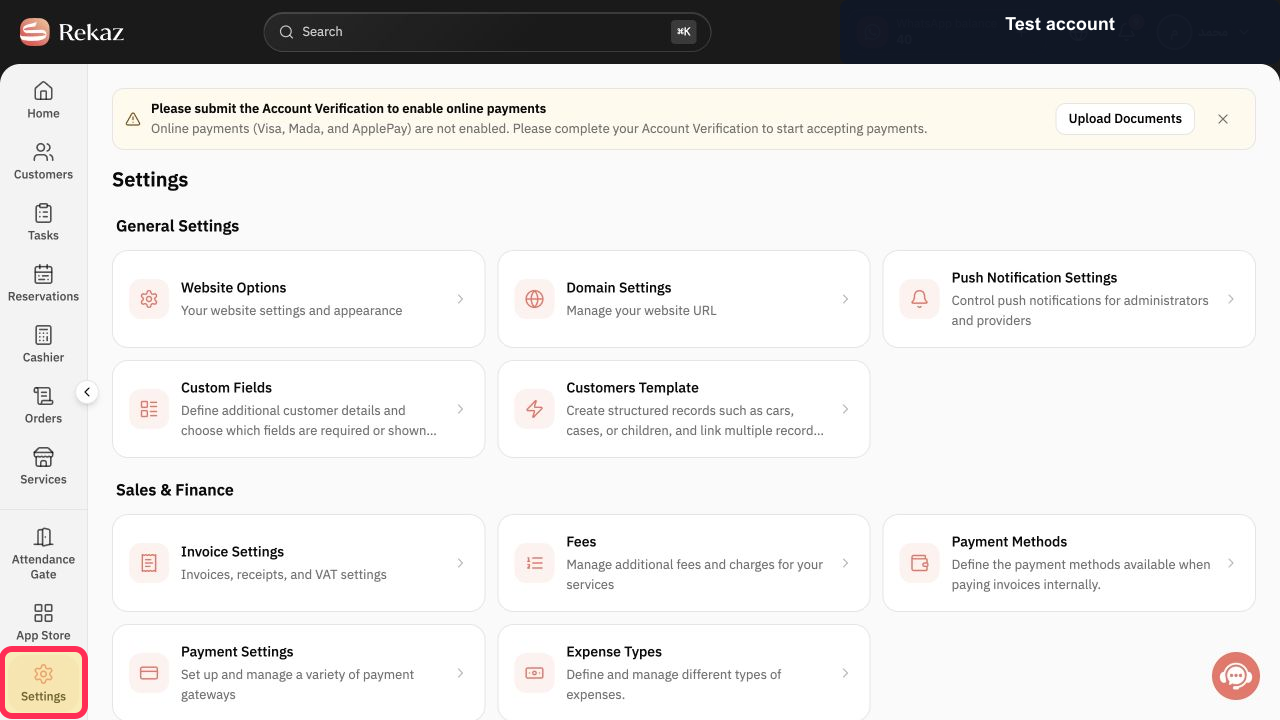
From Home, select Settings in the sidebar.
The Settings page opens.
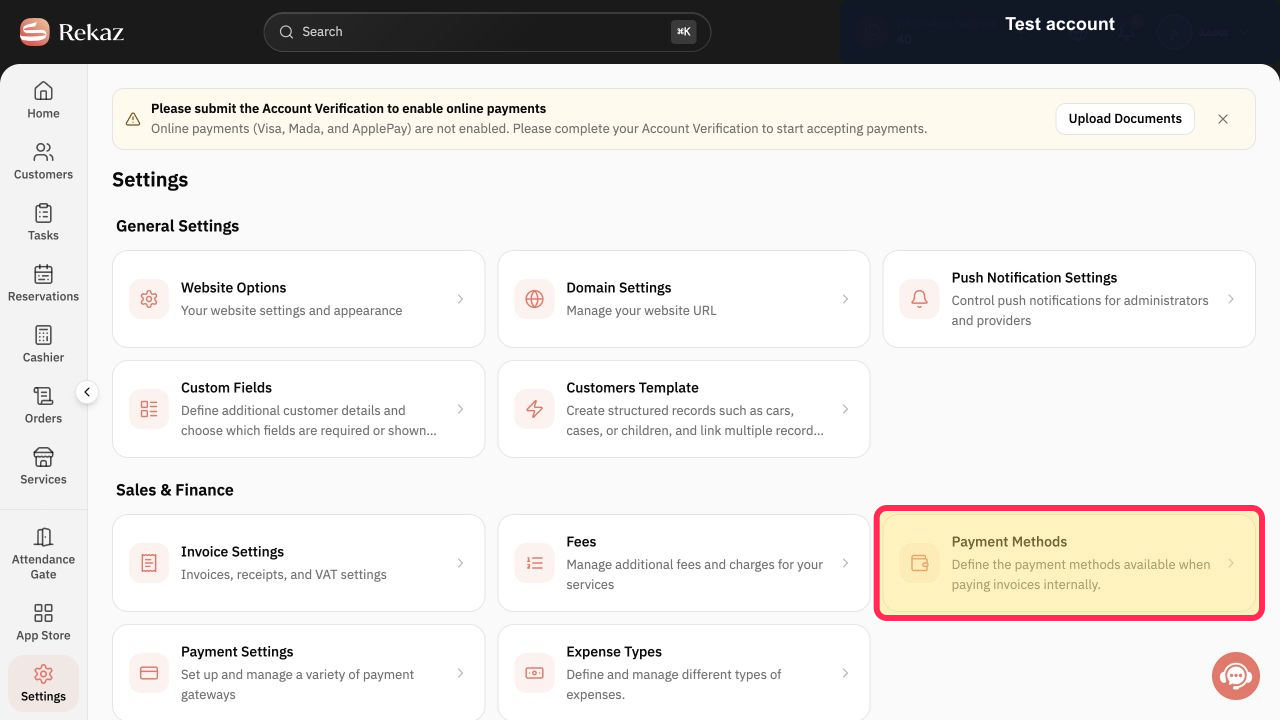
Select the Payment Methods card.
The Payment Methods settings page opens.
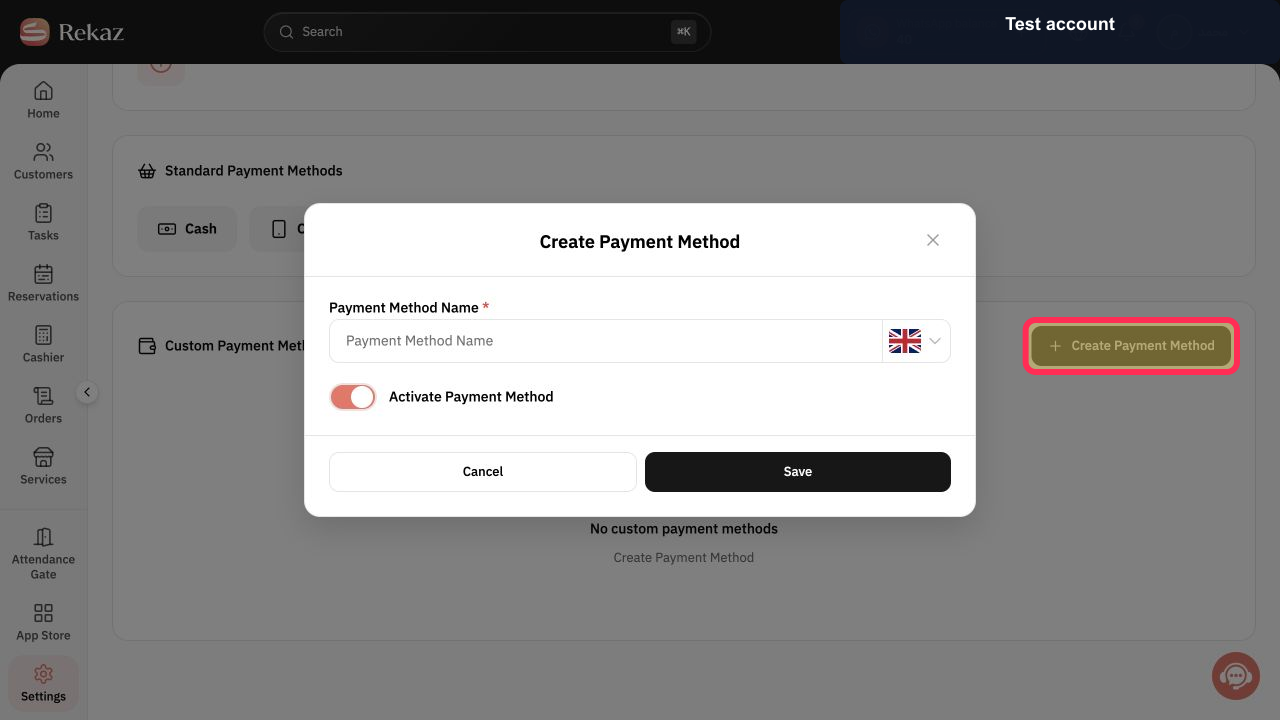
Select Create Payment Method.
A form for creating a custom payment method opens.
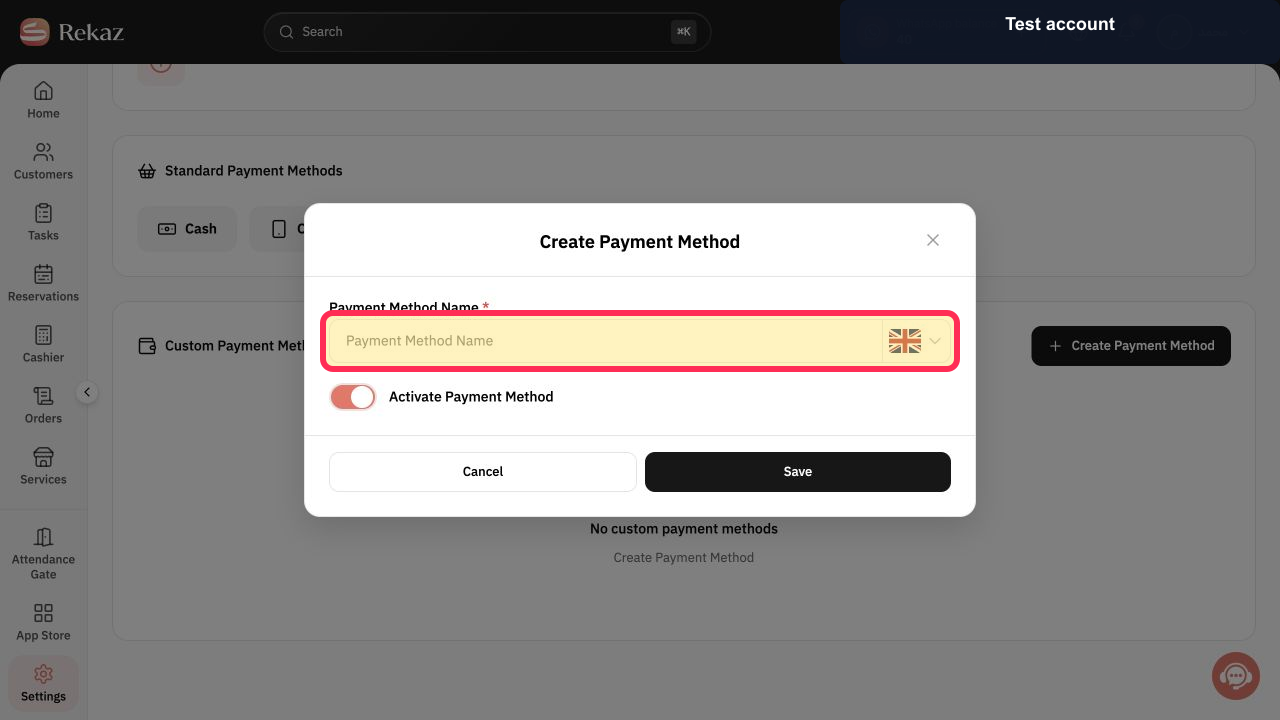
Enter a clear name in the Payment Method Name field.
The custom payment method name is shown in the field.
Set the Active Status. Turn it off if the payment method is not ready to use.
The selected activation status is shown for the payment method.
Review the payment method name and Active Status, then select Save.
The custom payment method is saved.
Illustrated guide
Step 1: Select Settings from the Rekaz sidebar.
Step 2: Open Payment Methods.
Step 3: Start creating a payment method.
Step 4: Enter the payment method name.
Step 5: Set the Active Status for the payment method.
Step 6: Save the custom payment method.
Important note
Custom payment methods do not appear on the Website.
Related questions
How do I add a payment method in Rekaz?
How can I add my own payment method in Rekaz?
Where can I create a new payment method in Rekaz?


