How do I add bank account details for verification in Rekaz?
To provide bank account details in Rekaz, open Rekaz Pay and start Account Verification from Online Payments. Continue to Bank Account Information after completing the business and document-owner details.
Make sure the bank account details match your business information. Review the name, status, amount, or date shown on screen before you save or take any final action.
Steps
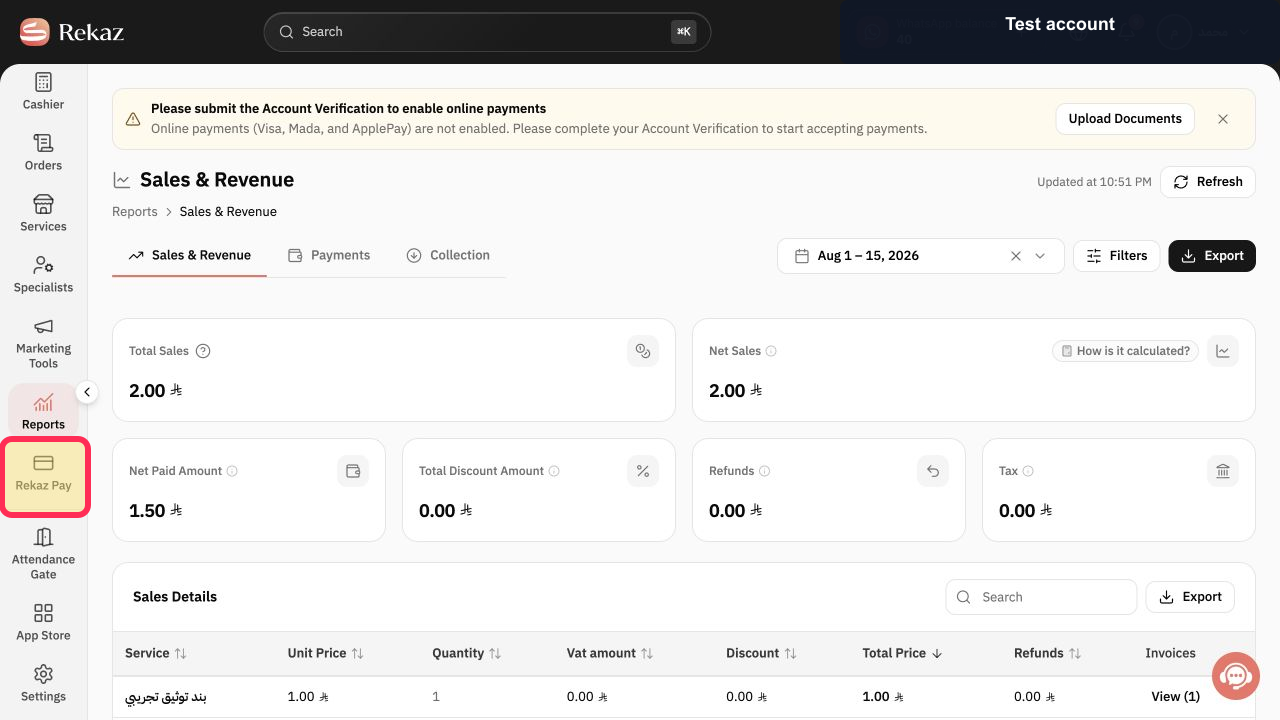
From the signed-in Rekaz sidebar, select Rekaz Pay.
The Rekaz Pay area opens.
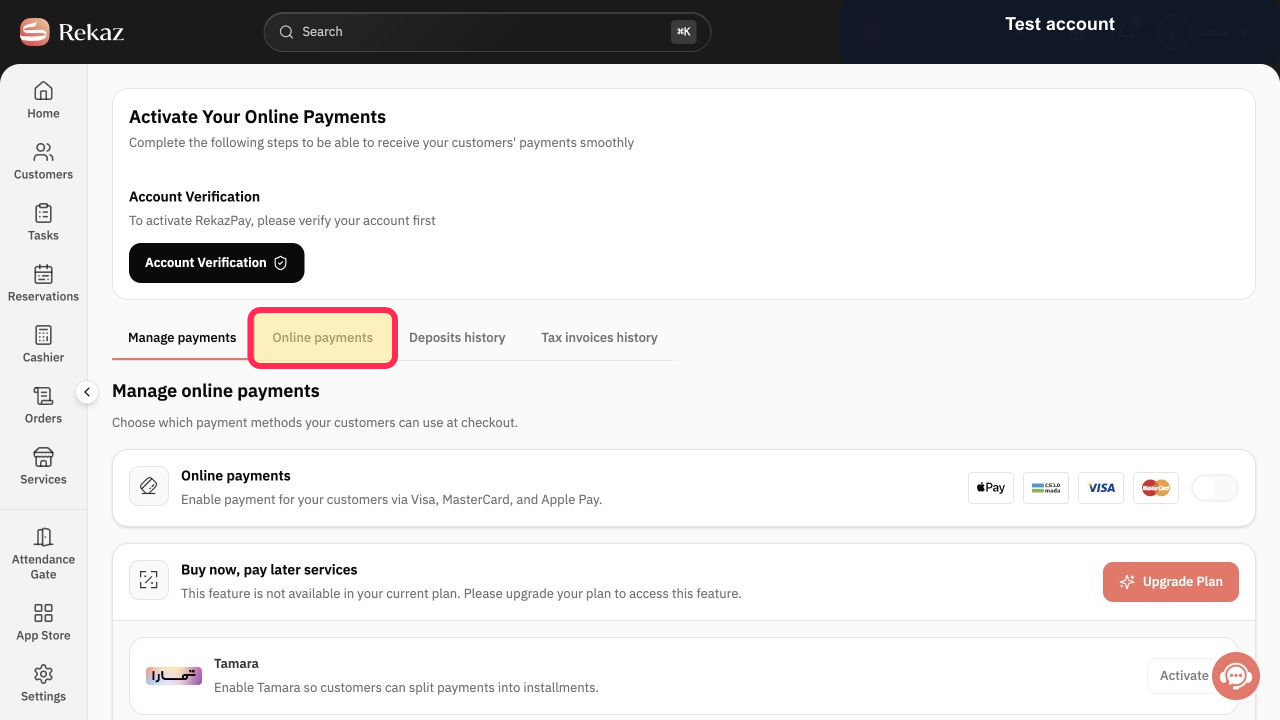
Open Online Payments in Rekaz Pay.
The Online Payments page is displayed.
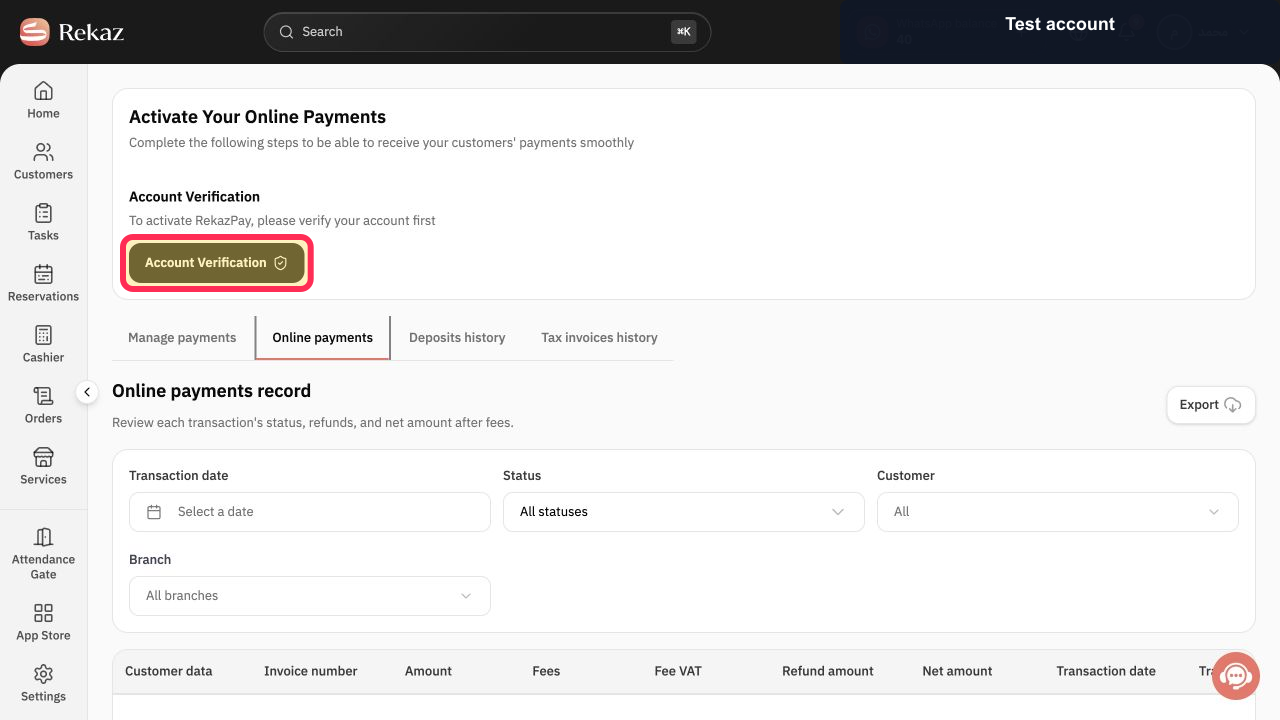
Select Verify Account. If your page shows Upload Documents instead, select that option to continue the verification flow.
The account-verification flow opens.
Continue to Bank Account Information after the Business details and document-owner stages.
The Bank Account Information stage is displayed.
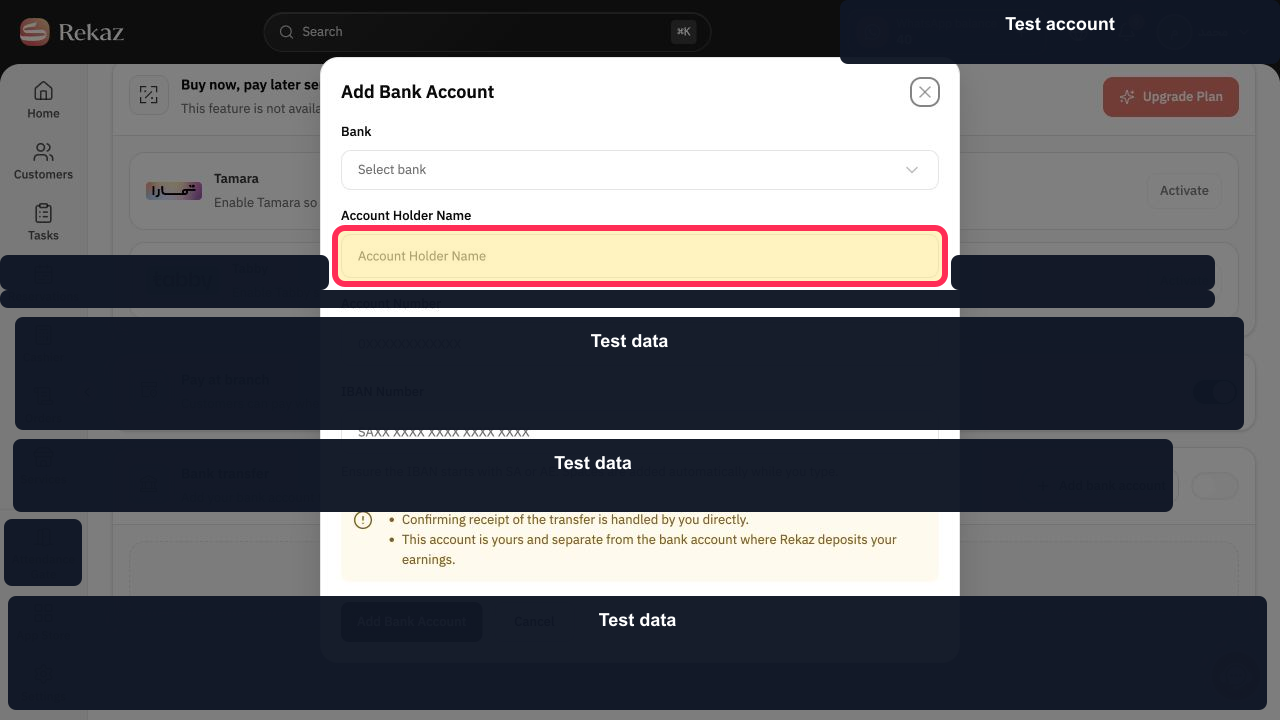
Enter bank account details that match the business details, then review the information before submitting it.
Your bank account information is ready for review before submission.
Illustrated guide
Step 1: Select Rekaz Pay from the sidebar.
Step 2: Open Online Payments.
Step 3: Start Account Verification or Upload Documents from Online Payments.
Step 4: Go to the Bank Account Information stage.
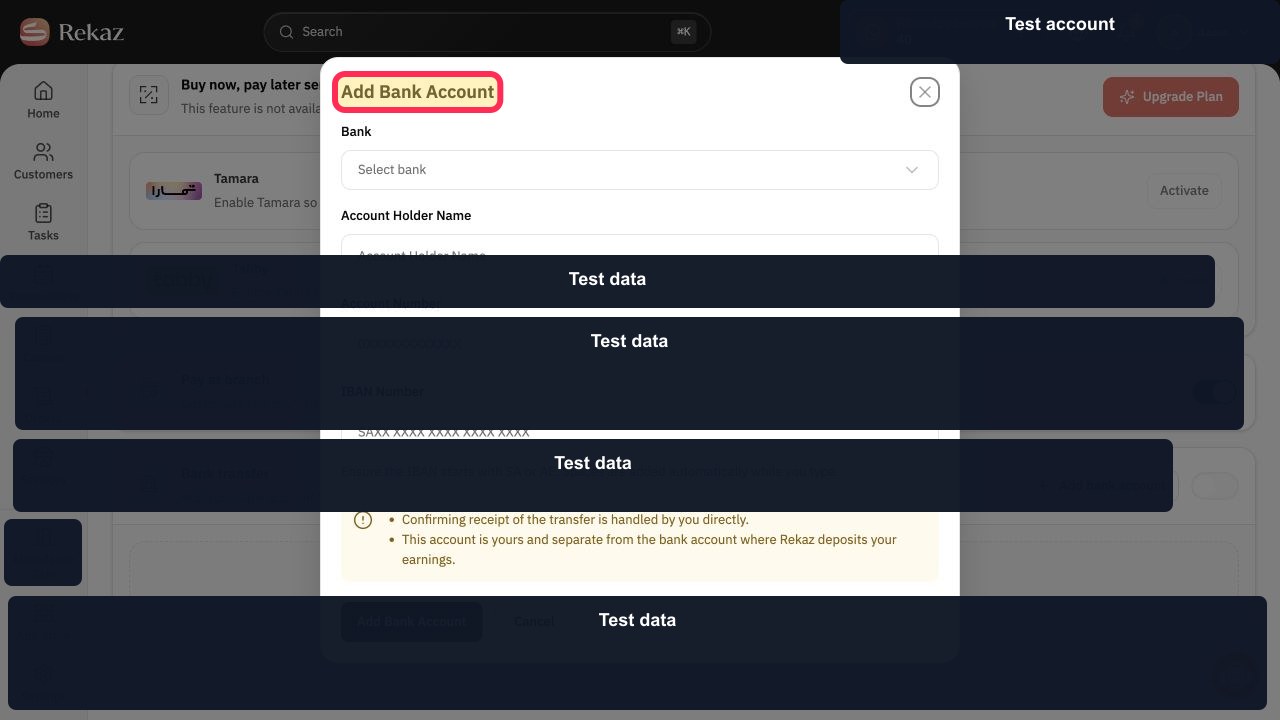
Step 5: Enter matching bank account details and review them before submitting.
Important notes
The documented flow confirms how to reach the bank account information stage in account verification. It does not confirm the labels or availability of individual bank-detail fields, navigation controls between verification stages, or the final submission control.
Options that were not visible in the current interface are treated as interface limitations, not as additional steps.
Check the displayed name, status, amount, or date before any save or final action.
Use bank account details that match your business information.
Related questions
Where can I find Bank Account Information in Rekaz?
How do I start Account Verification in Rekaz Pay?
How do I upload documents for account verification in Rekaz?


