How do I enable online payments in Rekaz?
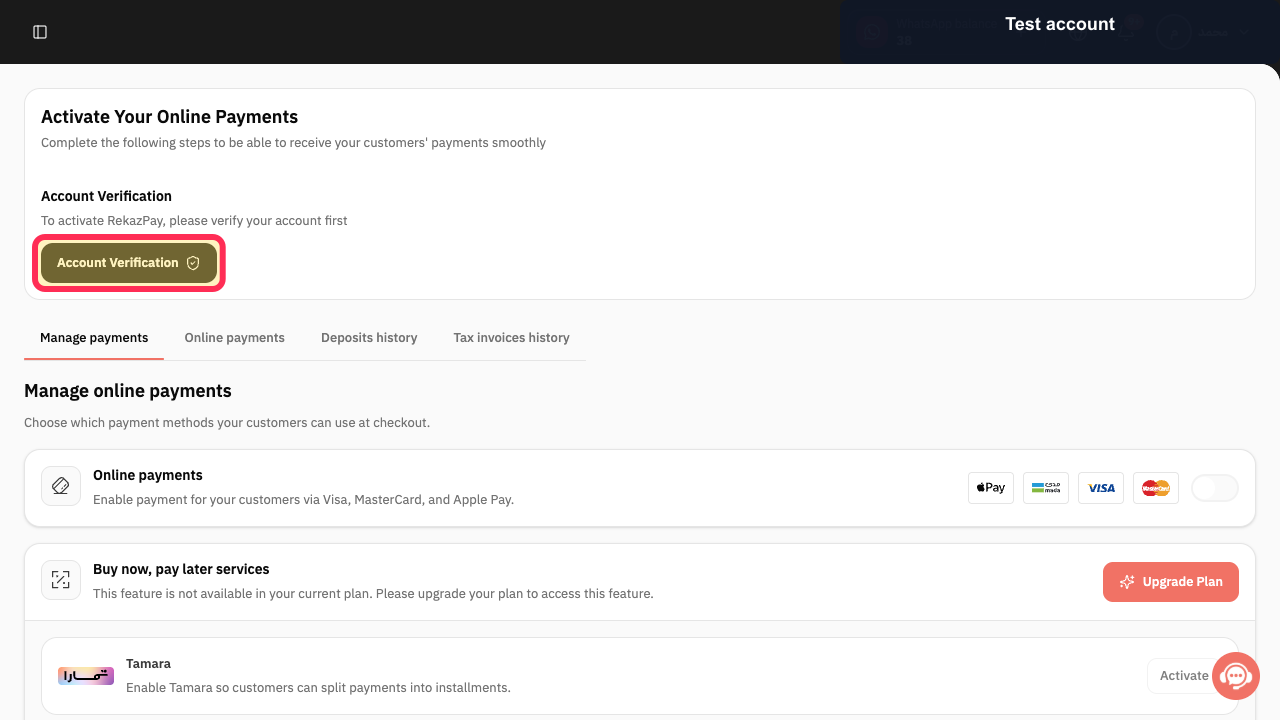
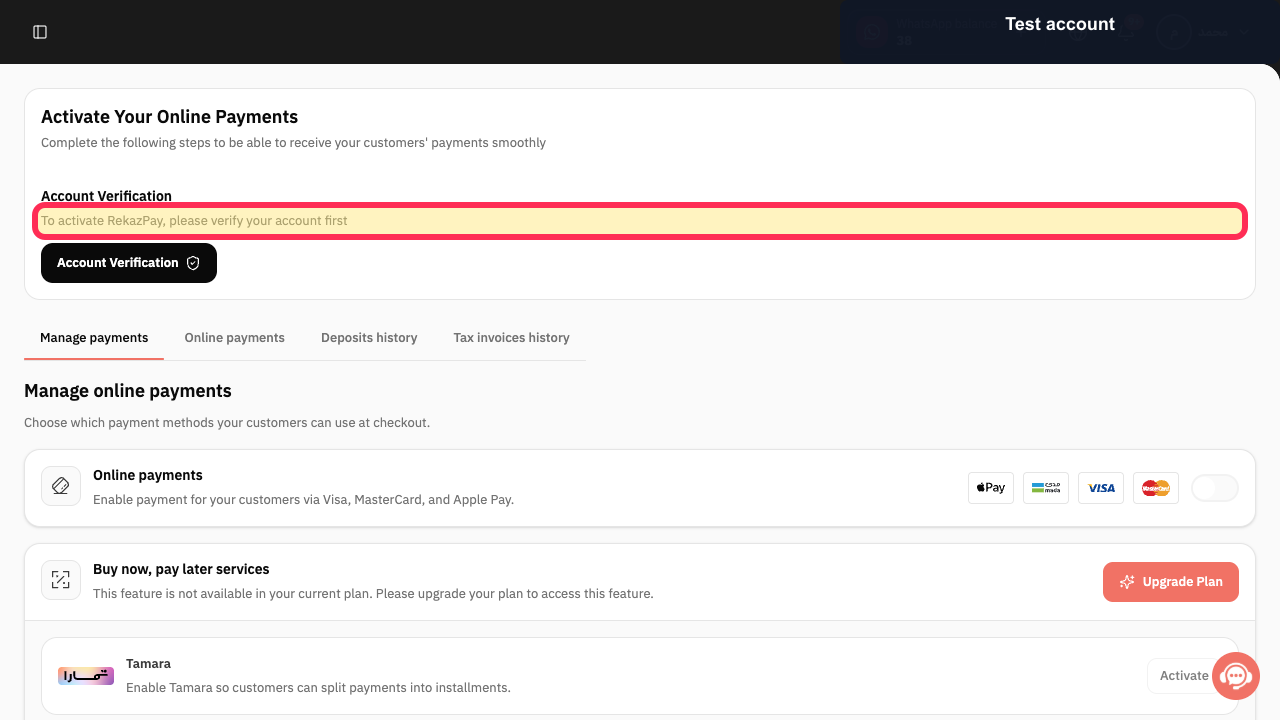
To enable online payments in Rekaz, open Account Verification from Rekaz Pay and provide the requested business, commercial-registration owner, and linked bank-account information and documents. Rekaz Pay states that you must verify your account first.
The current interface does not show the final actions to submit verification, wait for acceptance, return to payment management, or select an activation button. Online payments cannot be confirmed as enabled from the screens shown.
Steps
In Rekaz Pay, select Account Verification.
The Account Verification page opens.
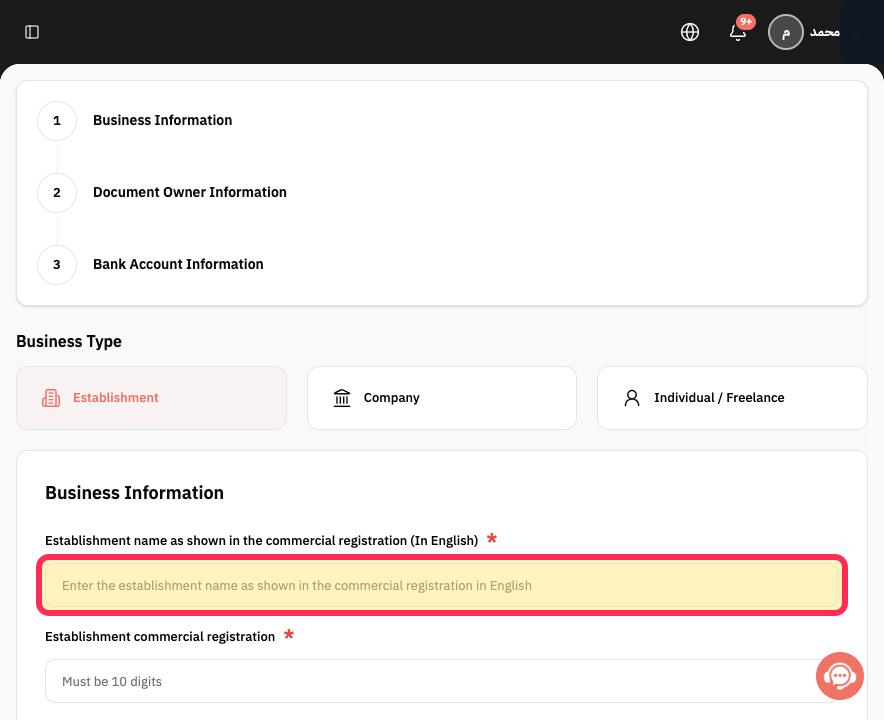
Under Business Information, enter the establishment name exactly as shown in the commercial registration, in English.
Select the commercial-registration upload area and choose the establishment commercial registration file.
Enter the commercial-registration owner name in English.
Select the national-identity upload area and choose the owner's national identity file.
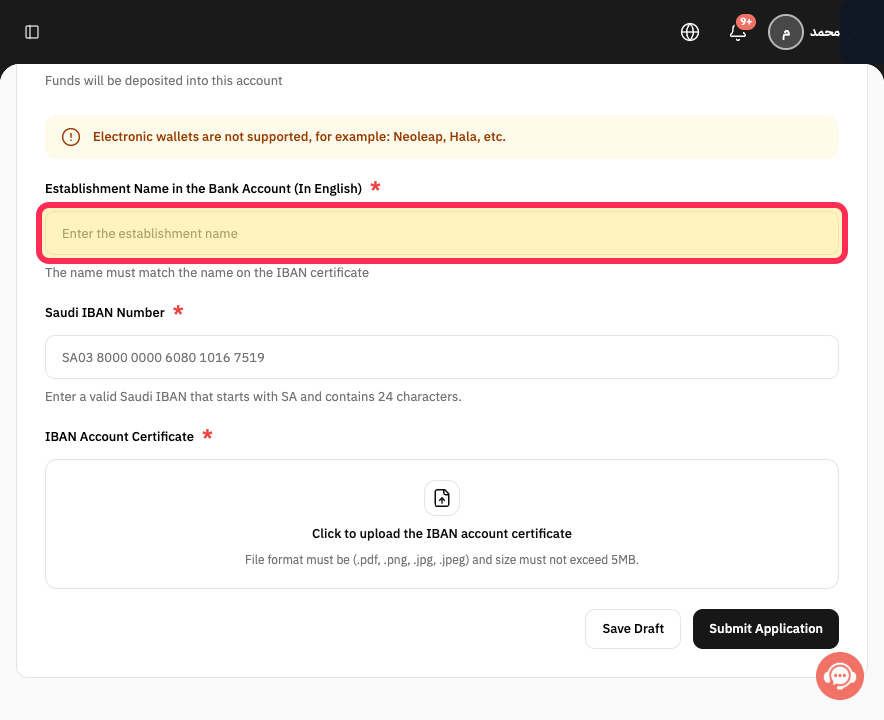
In Linked Bank Account Information, enter the establishment name so that it matches the name on the IBAN certificate.
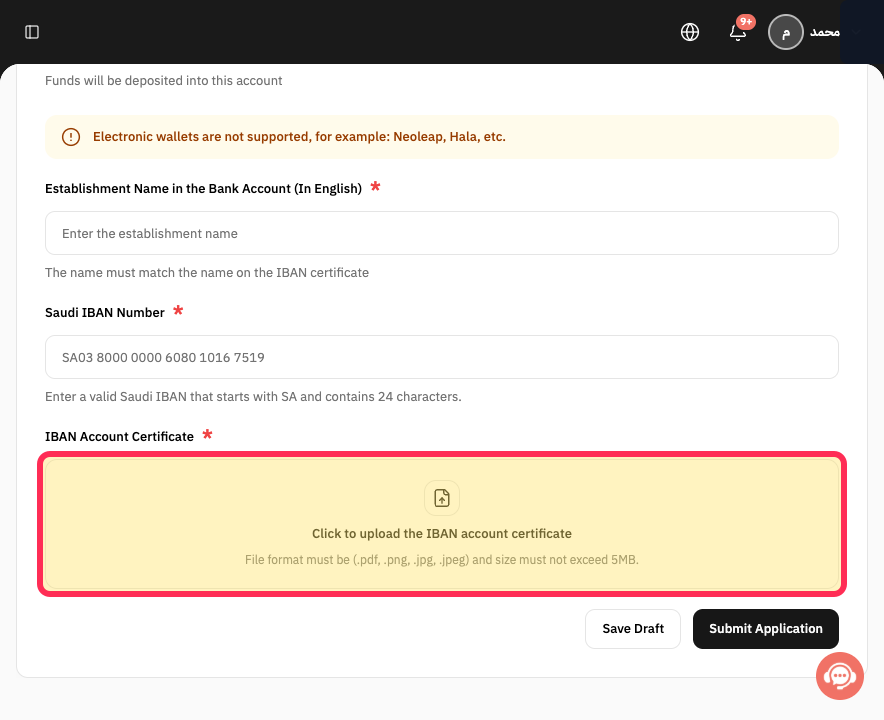
Select the IBAN-certificate upload area and choose the IBAN account certificate file.
After completing the information in the form, review the Rekaz Pay requirement message. The message “To activate RekazPay, please verify your account first” is visible.
Illustrated guide
Step 1: Open Account Verification from Rekaz Pay.
Step 2: Enter the establishment name for Business Information.
Step 3: Upload the establishment commercial registration.
Step 4: Enter the commercial-registration owner name.
Step 5: Upload the national identity document.
Step 6: Enter the establishment name for the linked bank account.
Step 7: Upload the IBAN account certificate.
Step 8: Rekaz Pay requires account verification before activation.
Important limitations
Final activation is not shown until account verification is complete and has been reviewed.
The payment methods available to enable may depend on your verified account.
Review all values and details before completing any final or financial action.
Do not use real documents or bank-account details while following a general guide or testing the process.
Related questions
Where can I find the option to enable online payments in Rekaz?
What are the correct steps to enable online payments in Rekaz?
Why can’t I enable payment methods before my account verification is accepted in Rekaz?


