How do I open and close a cashier shift in Rekaz?
Opening Cashier takes you directly to the Point of Sale and its New Order screen. Closing the drawer ends the current cashier session and signs the employee out.
Review the displayed shift period and payment totals before the final confirmation. If you opened the closing flow by mistake, use Cancel in the warning dialog.
Steps
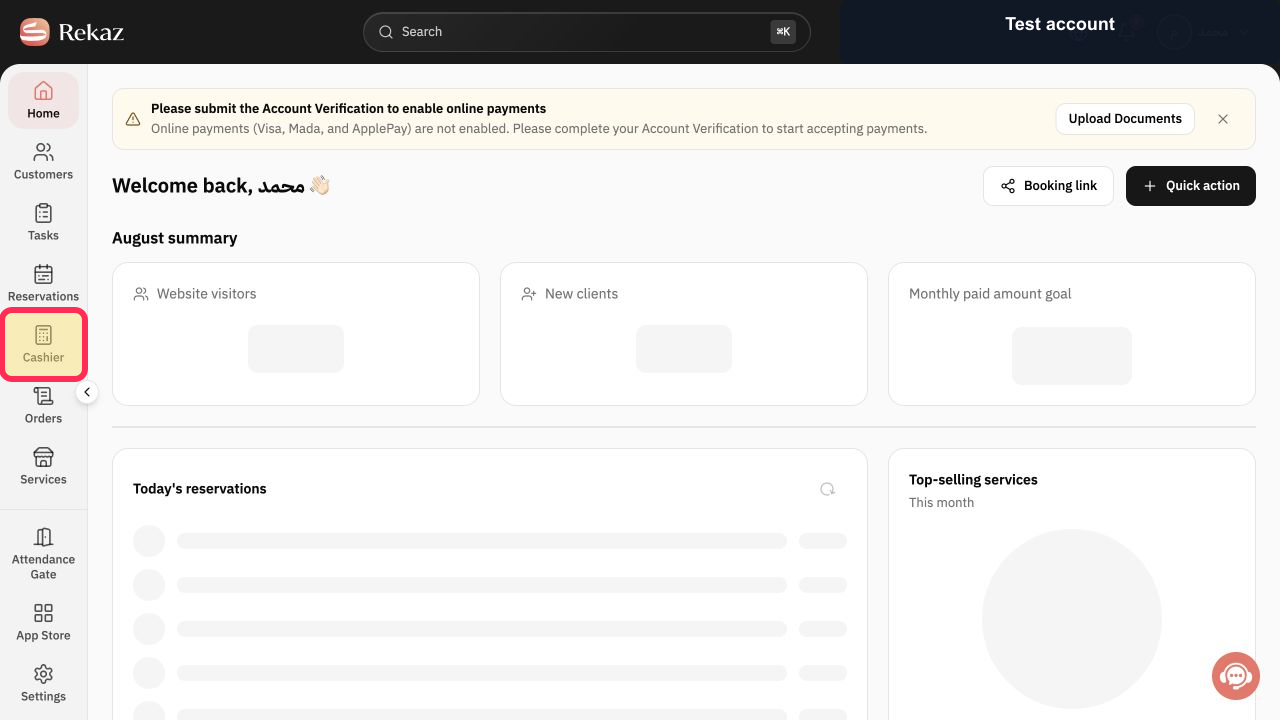
From the Rekaz navigation, select Cashier.
The Point of Sale opens.
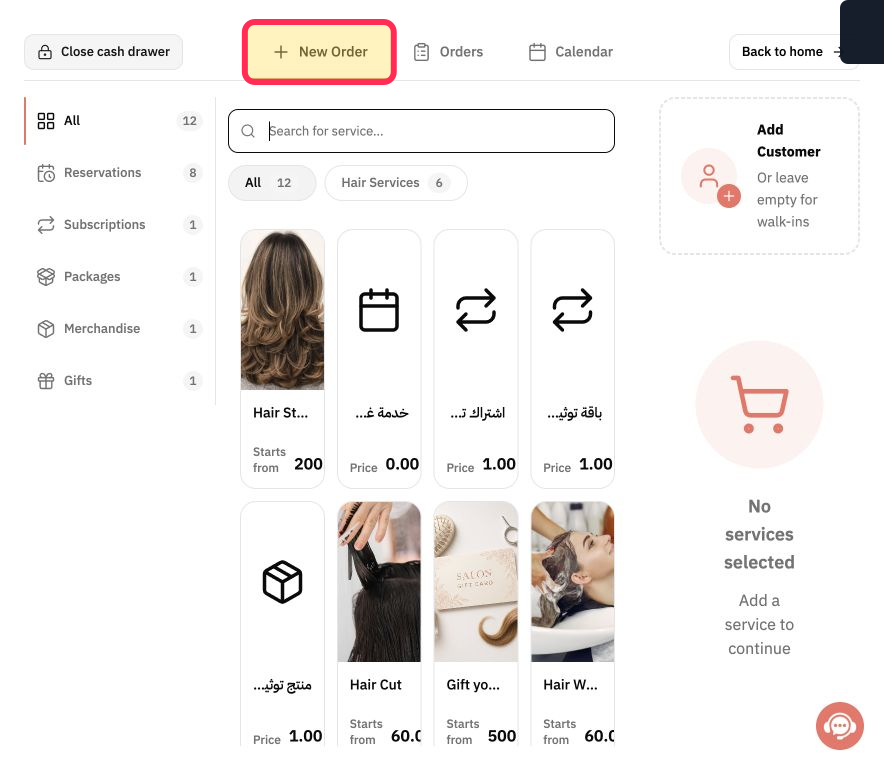
Confirm that New Order is selected before using the cashier.
The current cashier session is open and ready for an order.
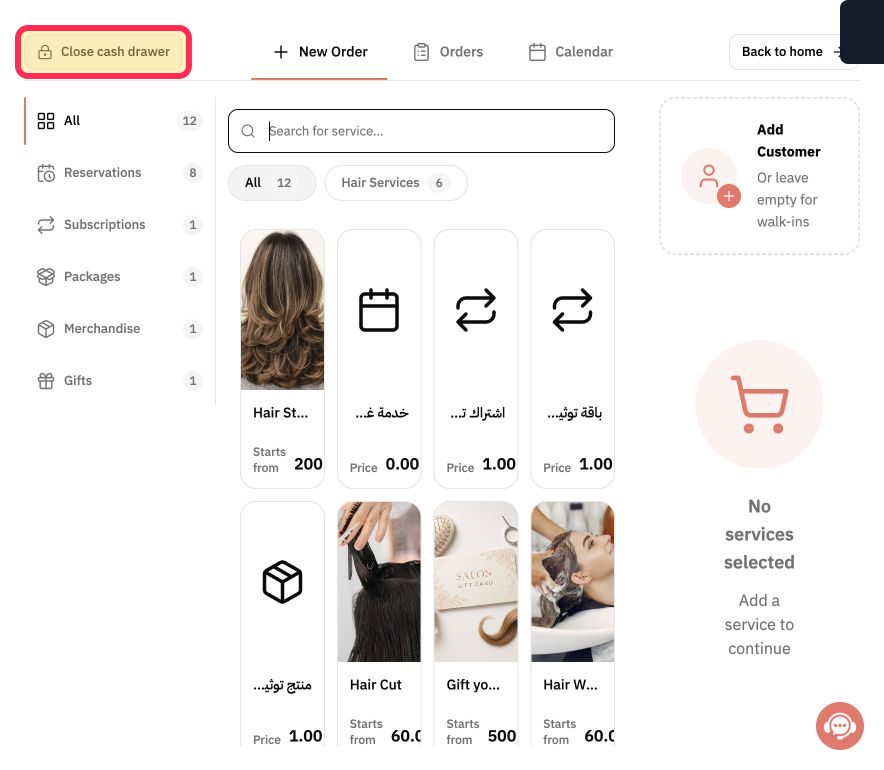
When you intend to end the shift, select Close cash drawer.
The current cash-drawer report opens.
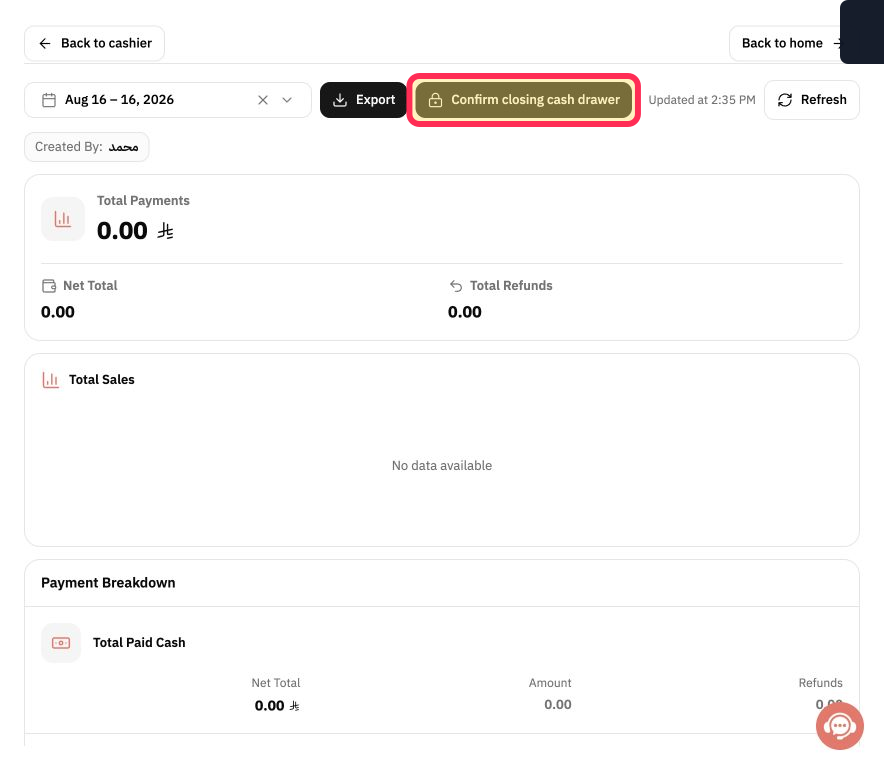
Review the shift period, Collections, and Payment Methods, then select Confirm closing cash drawer.
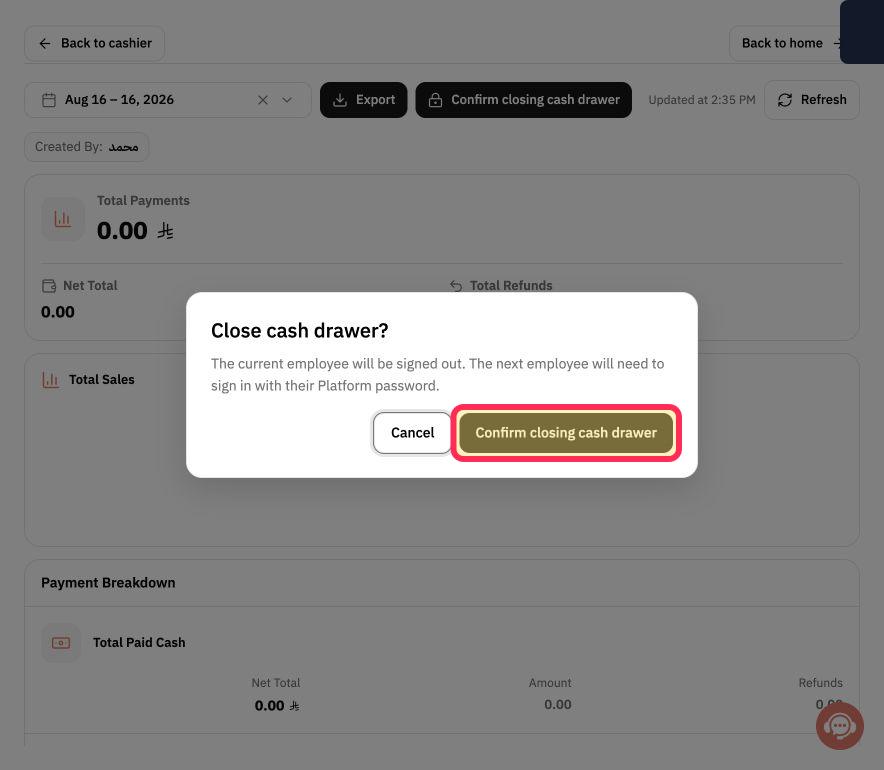
Rekaz shows the final sign-out warning before closing the drawer.
Read the warning. Select Confirm closing cash drawer only when you intend to close the drawer and sign the employee out; otherwise select Cancel.
The drawer closes only after the final confirmation.
Illustrated guide
Step 1: Open Cashier from the Rekaz navigation.
Step 2: Confirm that the Rekaz cashier is on New Order.
Step 3: Open the cash-drawer closing report.
Step 4: Review the shift totals and continue to the final warning.
Step 5: Confirm the cash-drawer closure only after reviewing the sign-out warning.
Before you close the cash drawer
Review Total Payments and the Payment Methods before confirming the closure.
Do not display or share an employee’s Platform password when opening the POS.
Related questions
How do I close a cashier shift in Rekaz?
How do I open the POS after closing the cash drawer in Rekaz?
Where can I view the cash-drawer shift summary in Rekaz?


