How do I print an order invoice in Rekaz?
To print an order invoice in Rekaz, open the required order from Orders and select Print at the top of Order details. If the invoice has already been issued, you can also select Print Invoice from the Last Invoice card.
Before printing, confirm that the invoice has been issued and review the business and customer details.
Steps
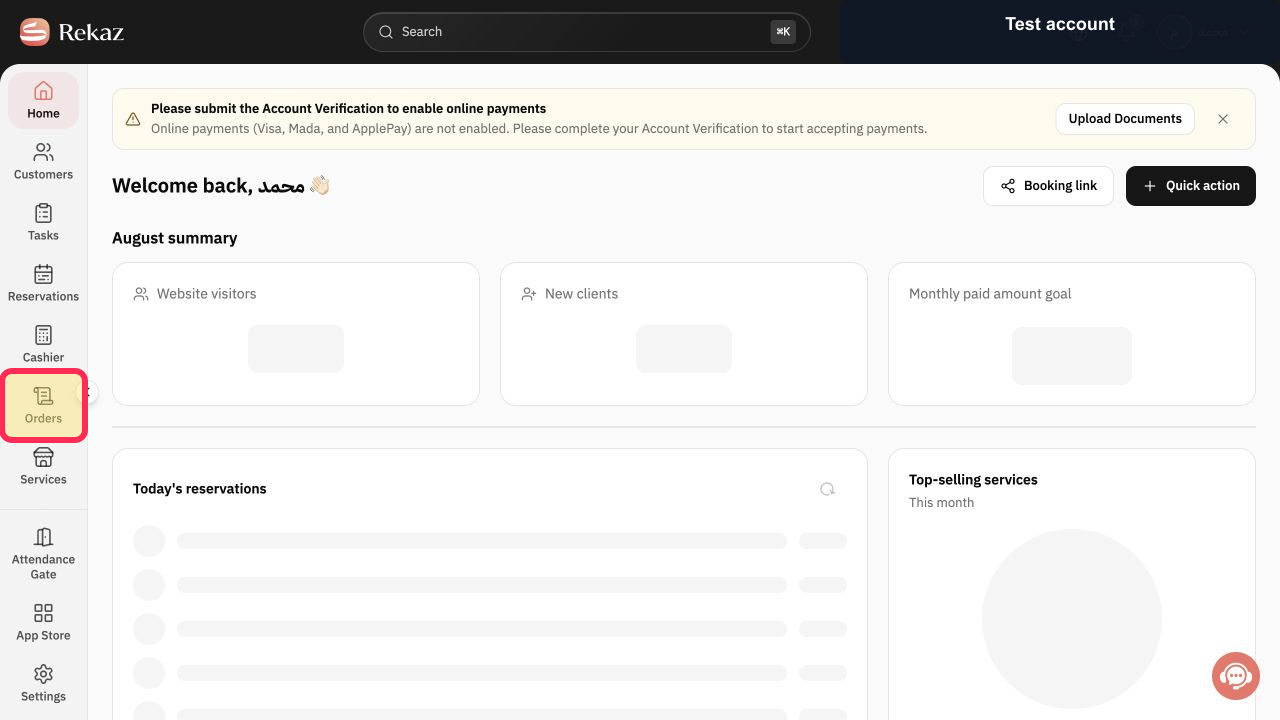
From the Rekaz sidebar, select Orders.
The Orders list opens.
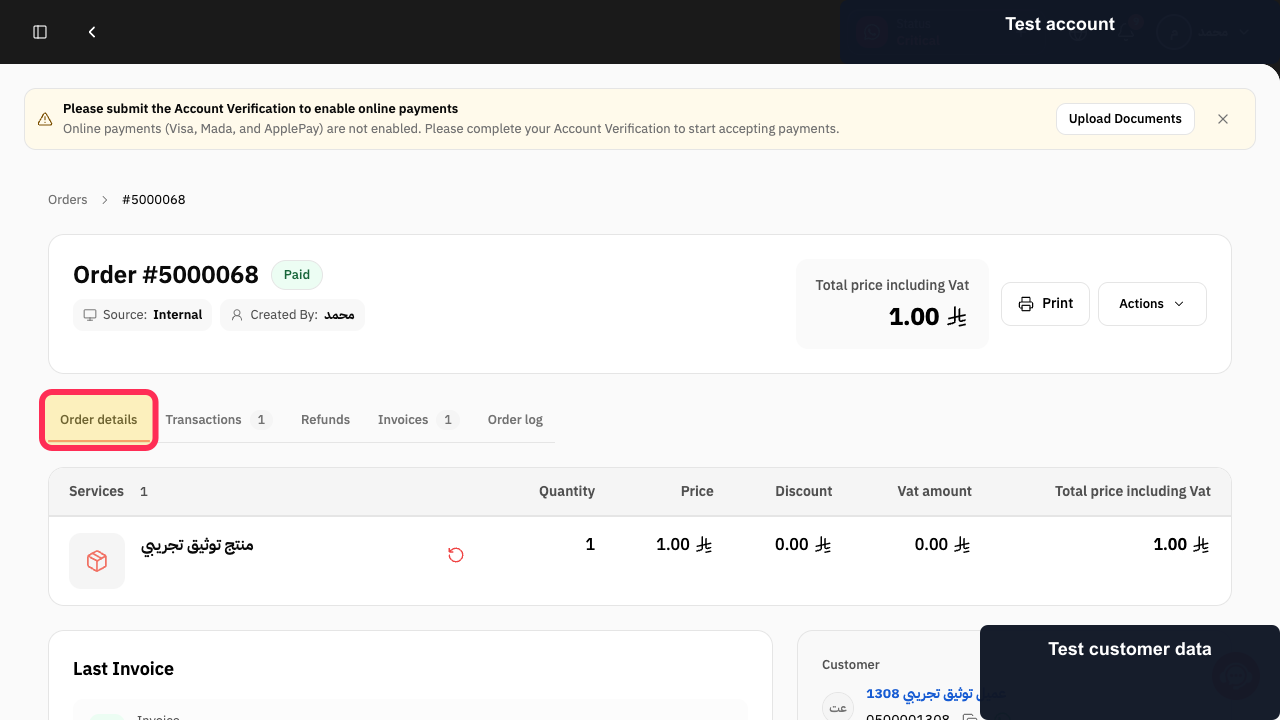
Open the order whose invoice you want to print, then verify that Order details is selected.
The selected order and its invoice controls are displayed.
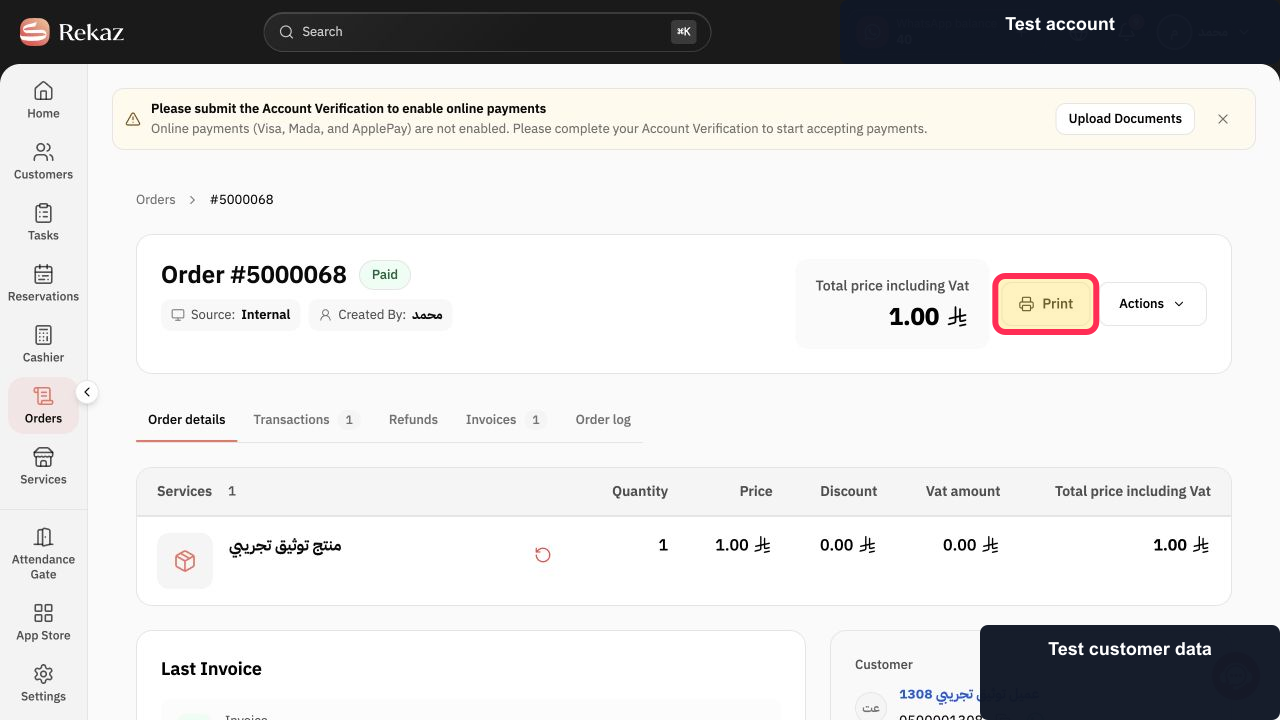
Select Print at the top of Order details.
The order is prepared for printing.
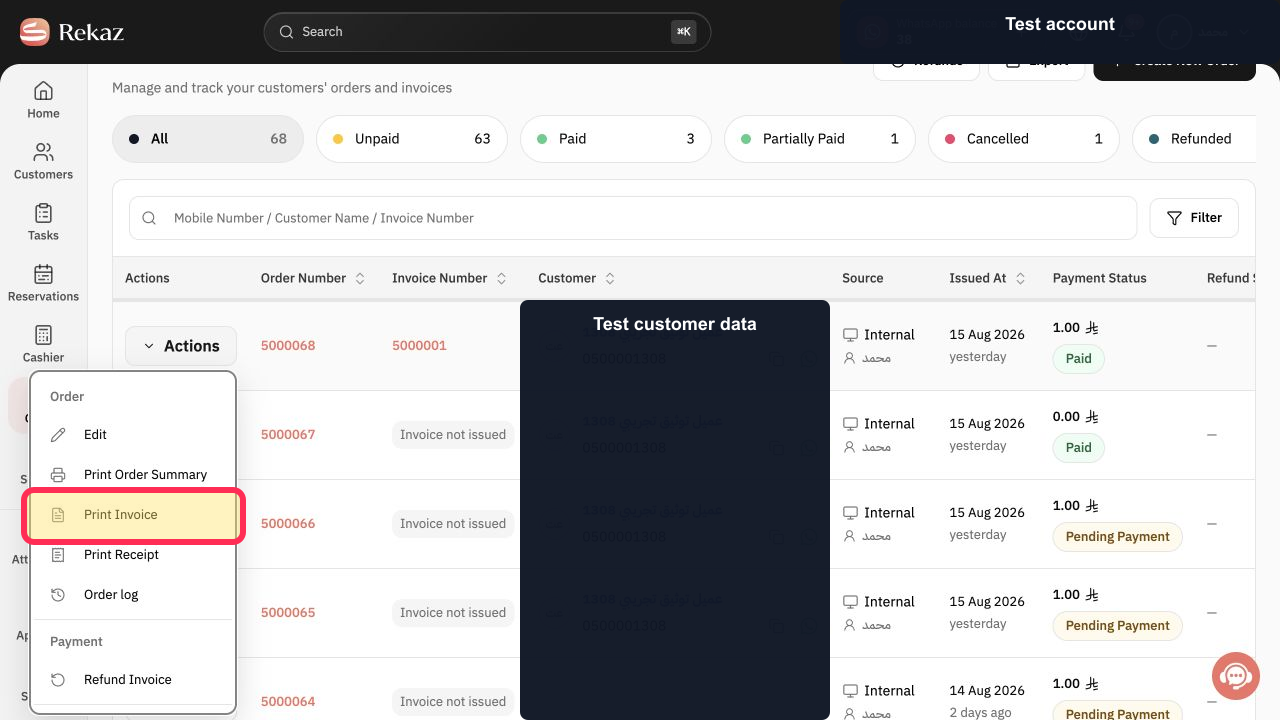
Alternatively, in the Last Invoice card, select Print Invoice.
The issued invoice is prepared for printing.
Illustrated guide
Step 1: Open Orders from the Rekaz sidebar.
Step 2: Open the order and review Order details.
Step 3: Select Print at the top of Order details.
Step 4: Select Print Invoice from the Last Invoice card.
Before you print
Make sure the invoice is issued and review the business and customer information before printing.
If no invoice has been issued, the order shows Invoice not issued.
Use Print Invoice in the Last Invoice card only when an invoice is available.
Related questions
Where can I print a customer invoice in Rekaz?
How do I print the last invoice in Rekaz?
How do I download an order invoice for printing in Rekaz?


