How do I filter orders by payment status or date in Rekaz?
In Rekaz, start from the Orders list and select Filter to open the available order filters.
Steps
From the sidebar, select Orders.
The Orders list opens.
Verify that the Orders page is open.
The page heading reads “Orders.”
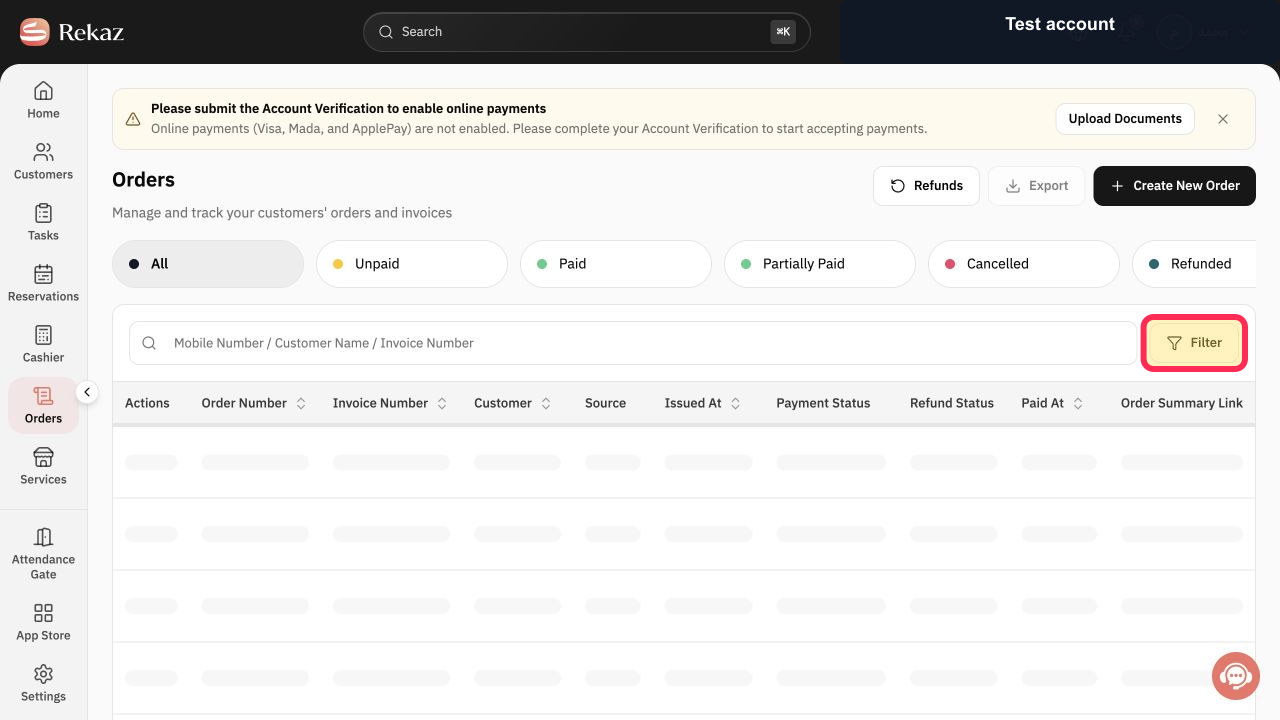
Select Filter to open the available order-filtering controls.
The order-filtering controls open.
Illustrated guide
Step 1: Select Orders in the Rekaz sidebar.
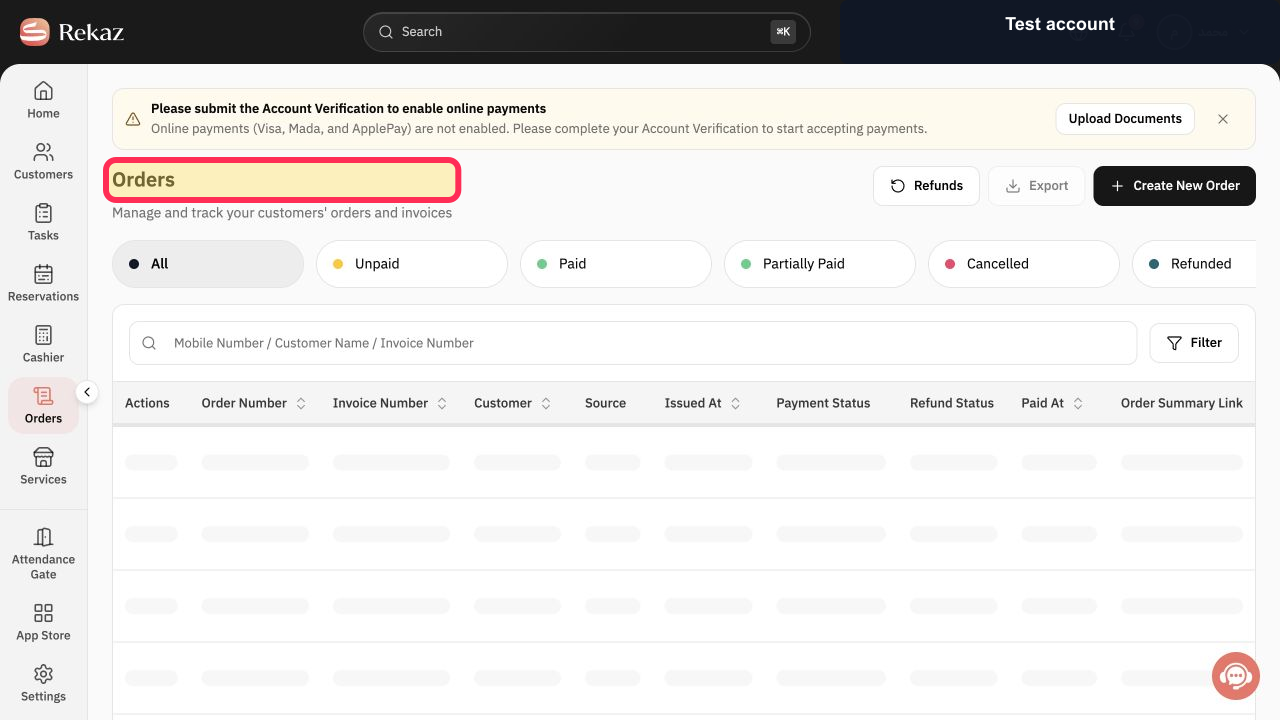
Step 2: The Orders page heading is visible.
Step 3: Select Filter on the Orders page.
Available filters
Use the payment-status buttons for a quick view of orders by status. The available statuses can include payment-pending, partially paid, canceled, and refunded orders.
Use Filter when you need more conditions, including customer, invoice number, price, creation date, payment date, branch, payment method, and creator.
Clear filters
After setting detailed filters, select Show Results to update the list.
To remove filters and return to the full orders list, select Reset.
Quick filtering: select a payment-status button above the list.
Detailed filtering: select Filter, set the criteria, then select Show Results.
Related questions
How do I view canceled orders in Rekaz?
How do I filter invoices by a specific date in Rekaz?
Where can I find the payment-status filter in Rekaz?


