How do I record an order payment in Rekaz?
To record a payment for an order in Rekaz, open the order from Orders, select Pay Order, choose a payment method, and confirm the payment. You can record the full remaining amount or enter a lower amount for a partial payment.
Steps
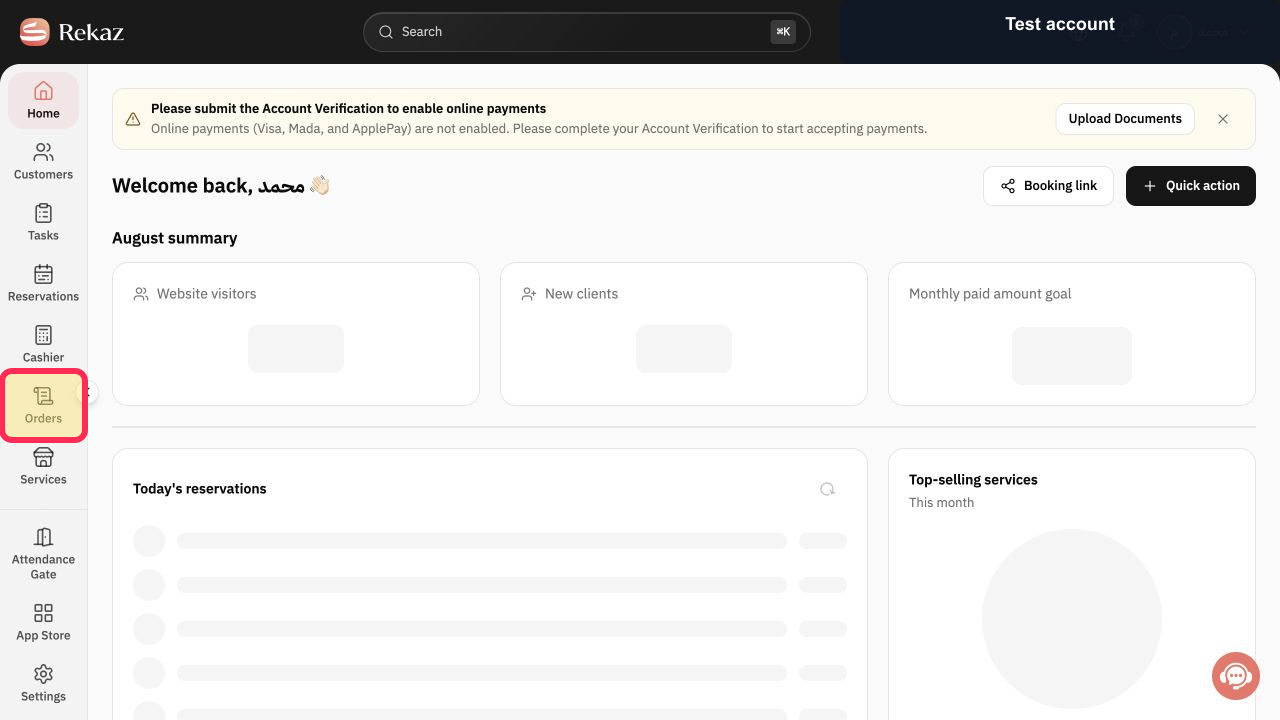
From the Home page, select Orders in the sidebar.
The Orders page opens.
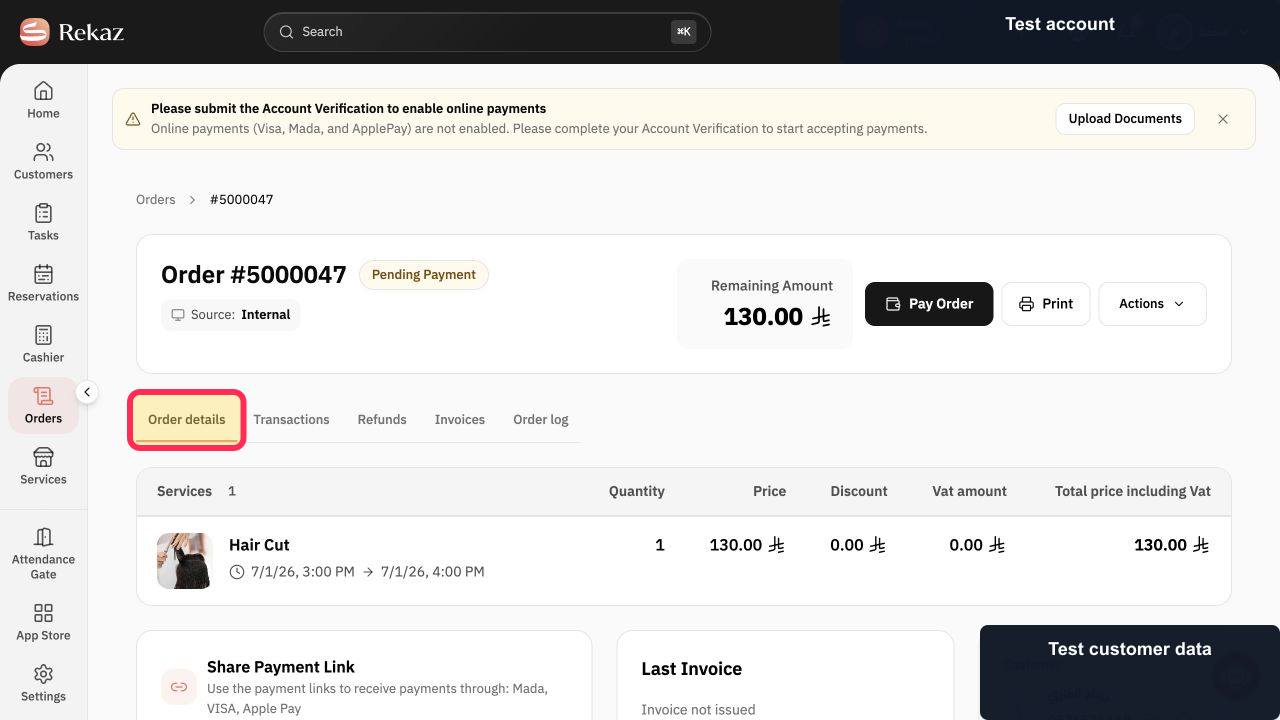
Open the pending-payment order, then verify that Order details is selected.
The pending-payment order detail page opens.
Select Pay Order.
The payment form opens.
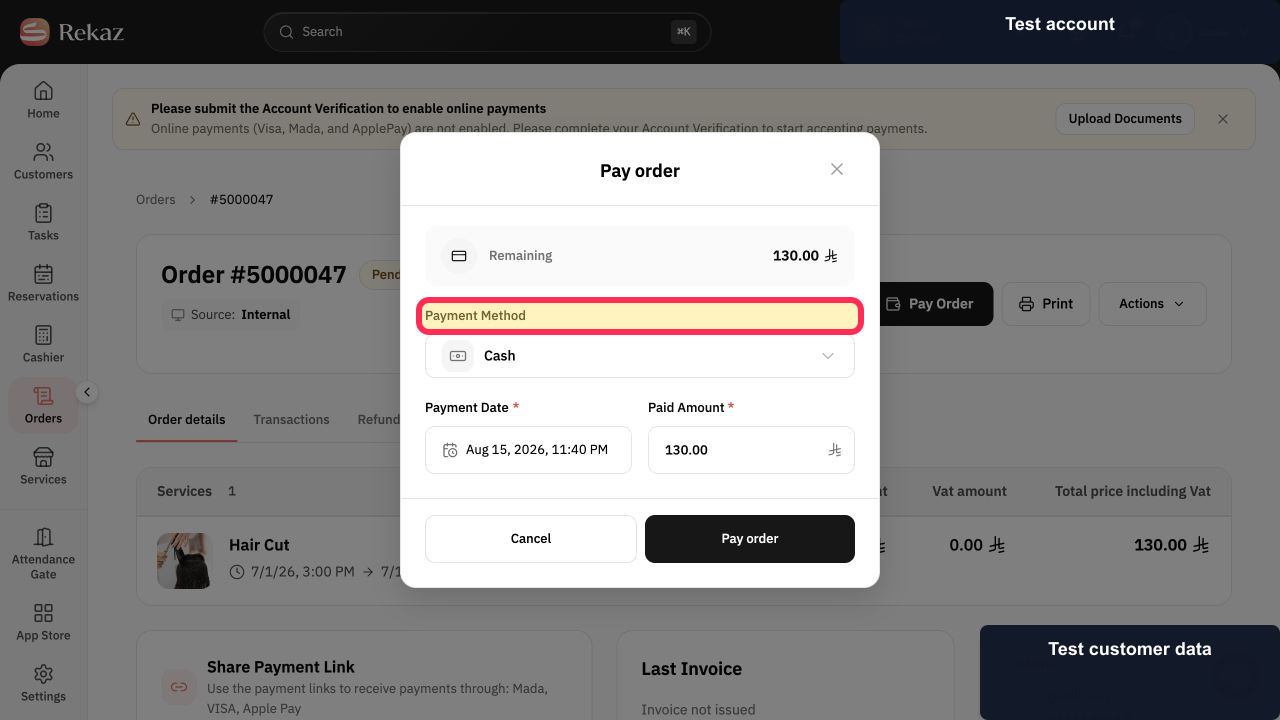
Select a Payment Method.
The selected payment method is applied to the payment.
Review the Payment Date and Amount Paid.
The payment date and amount to be recorded are shown on the form.
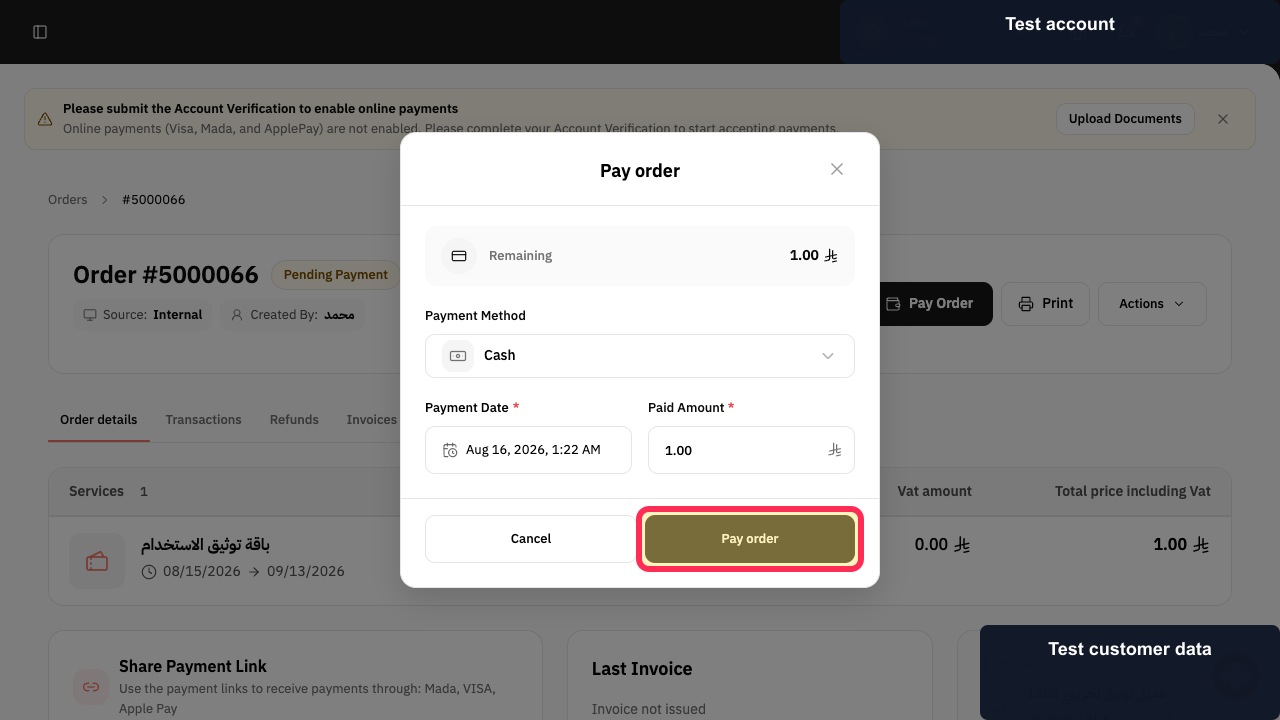
Select Pay Order to record the payment.
The payment is recorded for the order.
Illustrated guide
Step 1: Open Orders from the sidebar.
Step 2: Open the pending-payment order details.
Step 3: Select Pay Order to open the payment form.
Step 4: Choose the payment method.
Step 5: Review the payment date and amount paid.
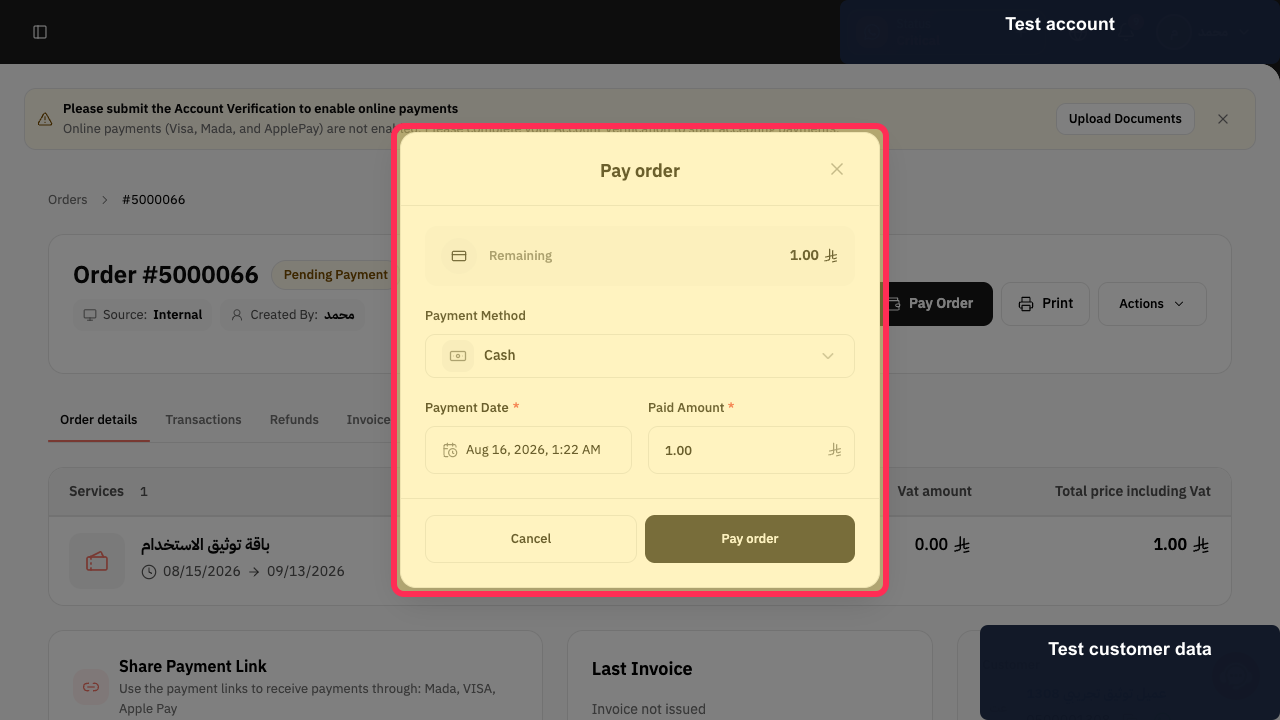
Step 6: Confirm the order payment.
Full and partial payments
Check the Remaining Amount at the top of the payment form before confirming the payment.
To record a full payment, enter the full remaining amount. Entering an Amount Paid that is lower than the remaining amount records a partial payment and changes the order status to Partially Paid.
Related questions
How do I pay an order invoice in Rekaz?
Where can I record a cash payment for an order in Rekaz?
How do I add a payment to an order in Rekaz?


