How do I add or edit a service or product in an order in Rekaz?
In Rekaz, you can add a registered product or service while creating or editing an order. Search for the item, select it, review the price and quantity, then save the order.
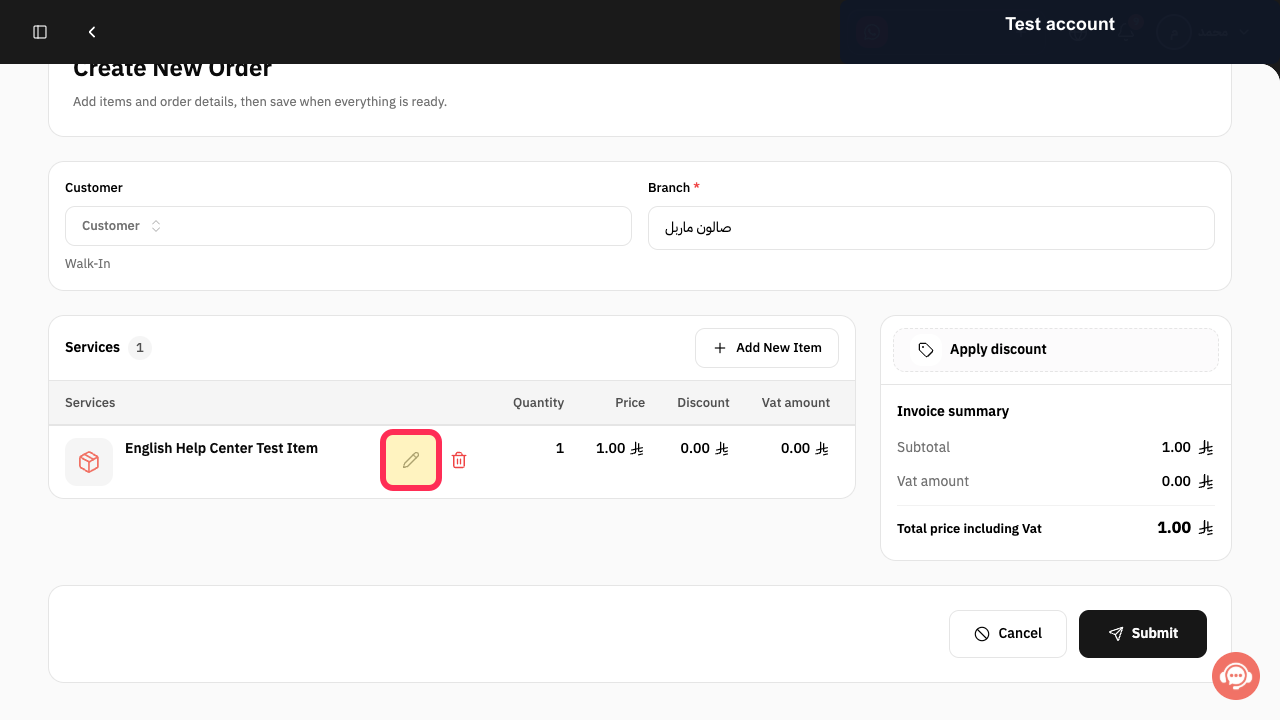
To change an item already listed in the order, use the pencil icon in that item’s row before saving. Reservation services may also require you to choose a Service Provider and time.
Steps
From the sidebar, select Orders.
The Orders area opens.
Select Create New Order to start an order draft where you can add and edit items.
The Create New Order form opens.
Select Add New Item.
Options for adding an item appear.
Select Product / service.
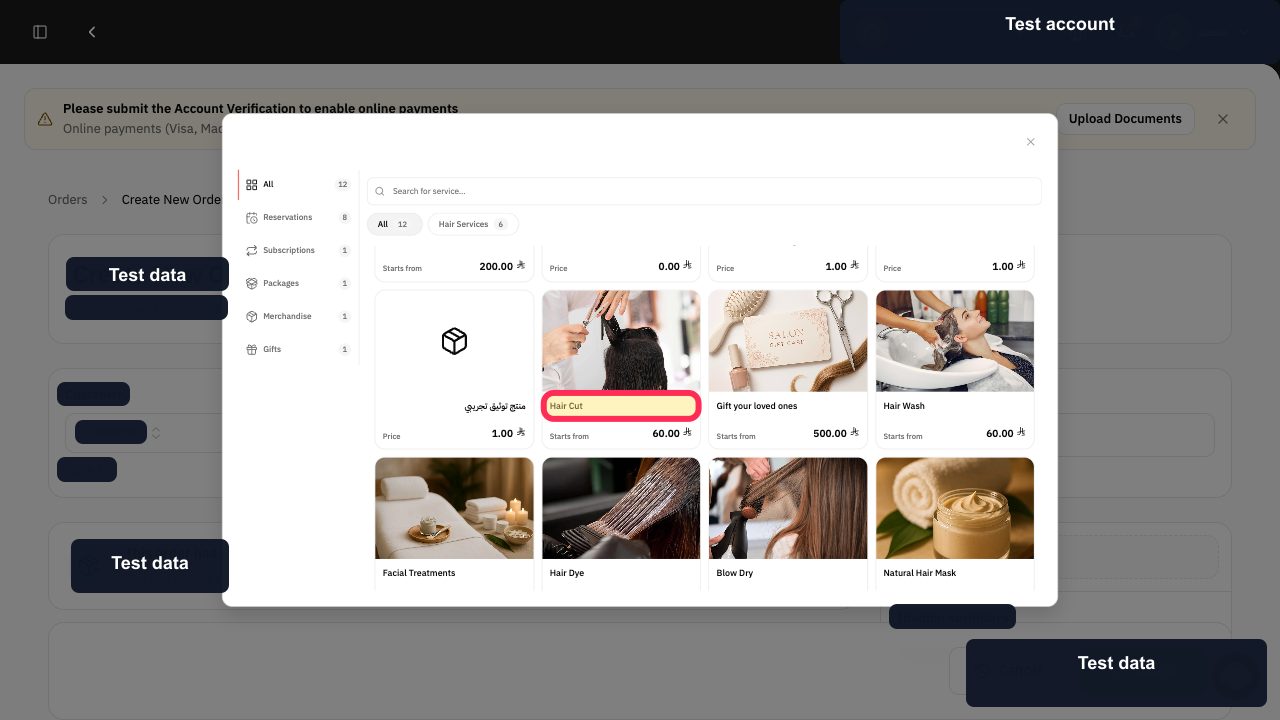
You can search for registered products and services.
In Search for service..., enter the service or product name.
Matching services and products remain visible in the selector.
Select the matching result. For example, select Hair Cut when that is the service you intend to add.
The selected service or product is added to the order draft.
To edit an item already in the order, select the pencil icon in that item’s row.
The selected order item opens for editing.
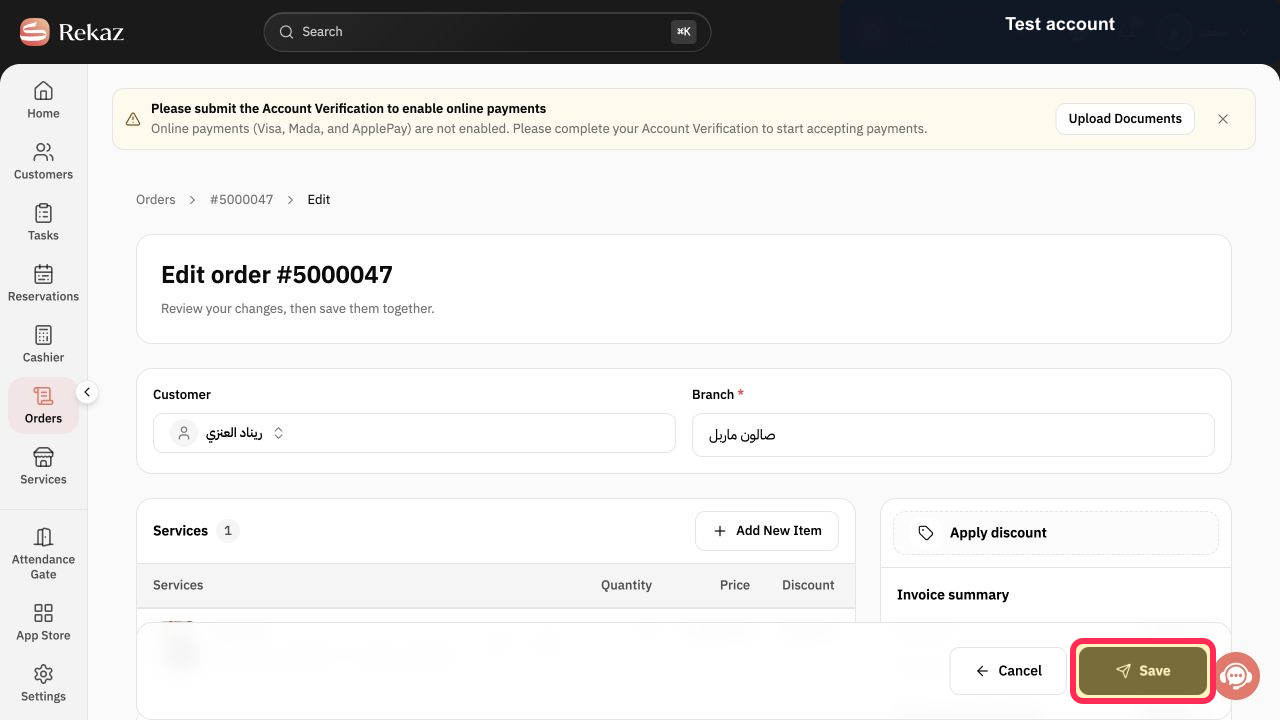
Review the items, including their price and quantity, then select Save.
Your order changes are saved.
Illustrated guide
Step 1: Select Orders from the Rekaz sidebar.
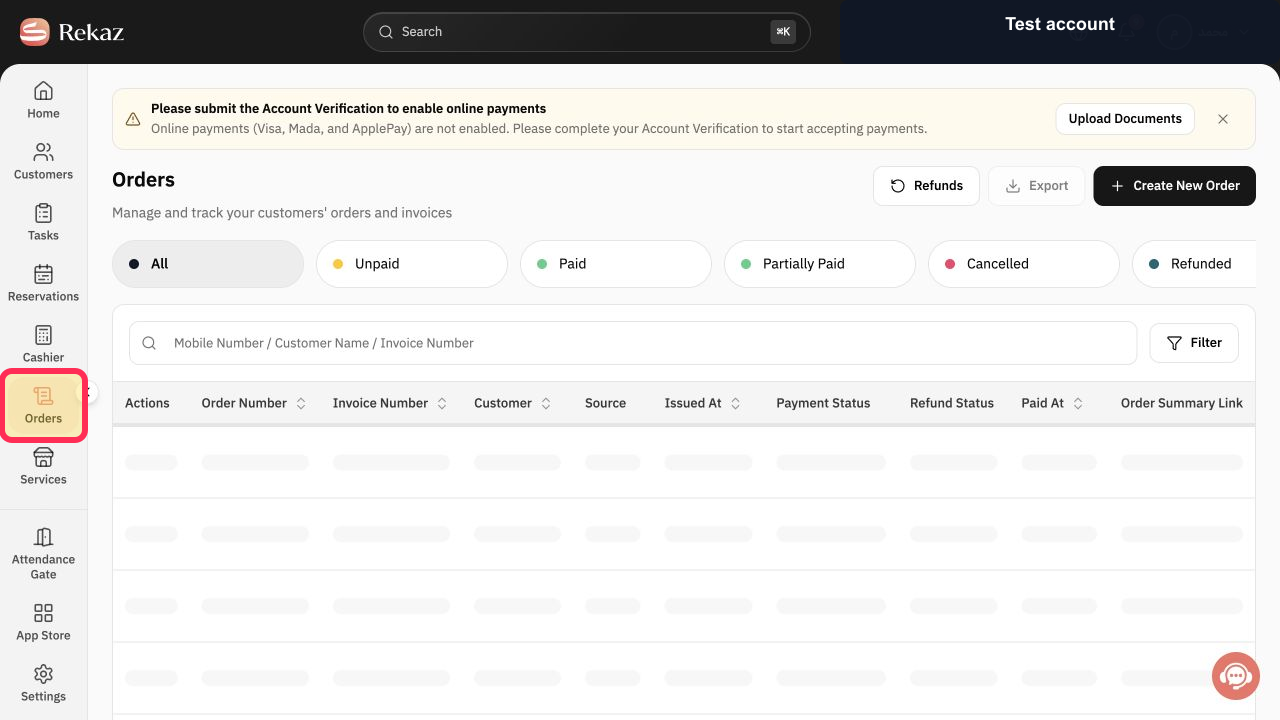
Step 2: Open the Create New Order form.
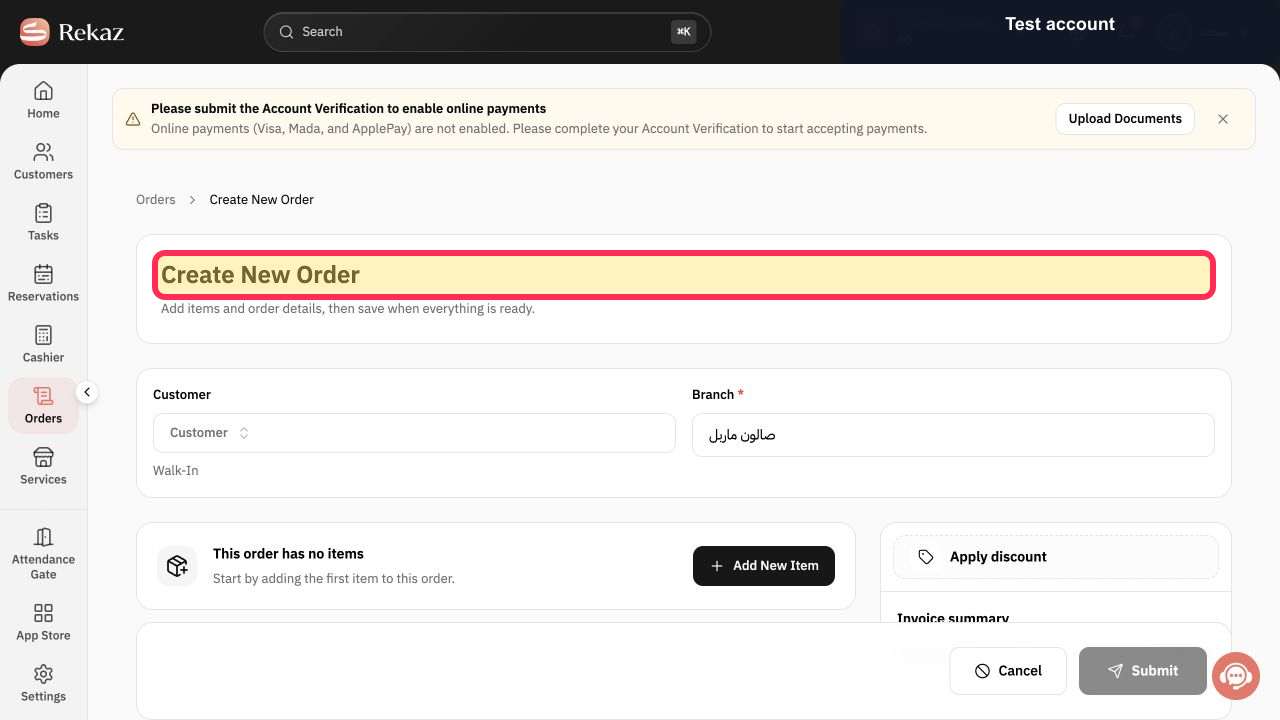
Step 3: Select Add New Item in the order screen.
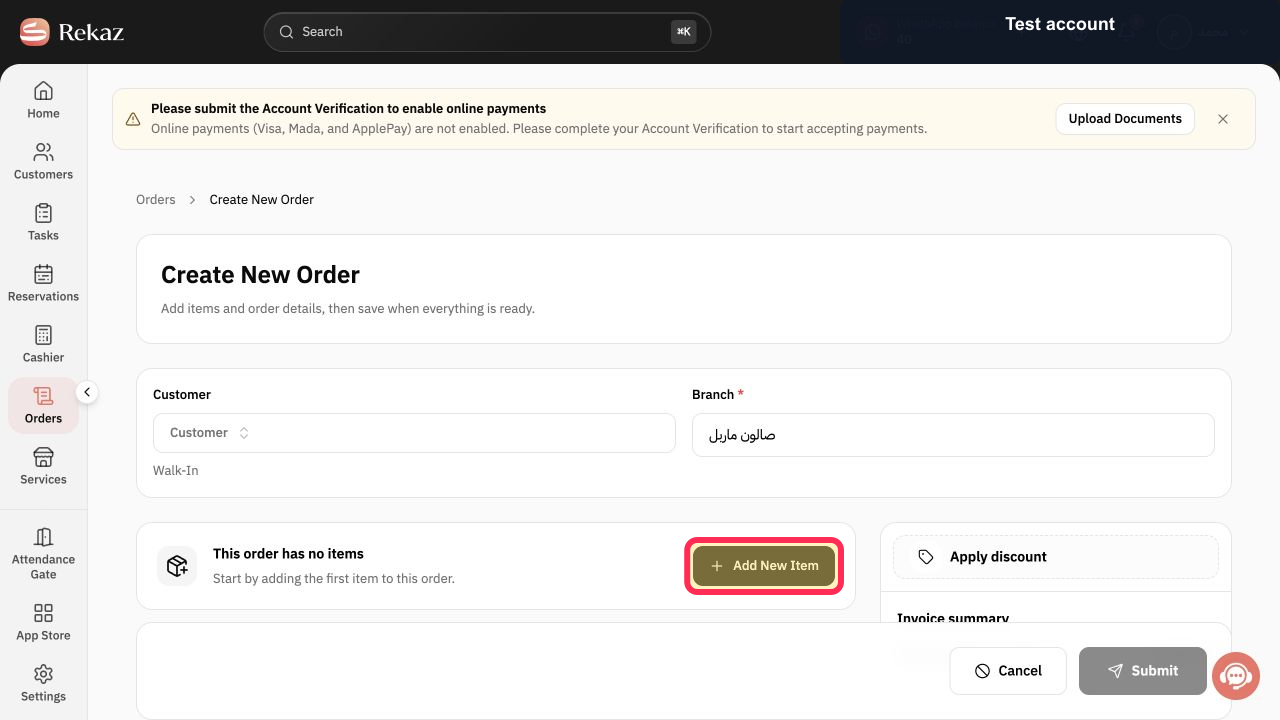
Step 4: Choose Product / service.
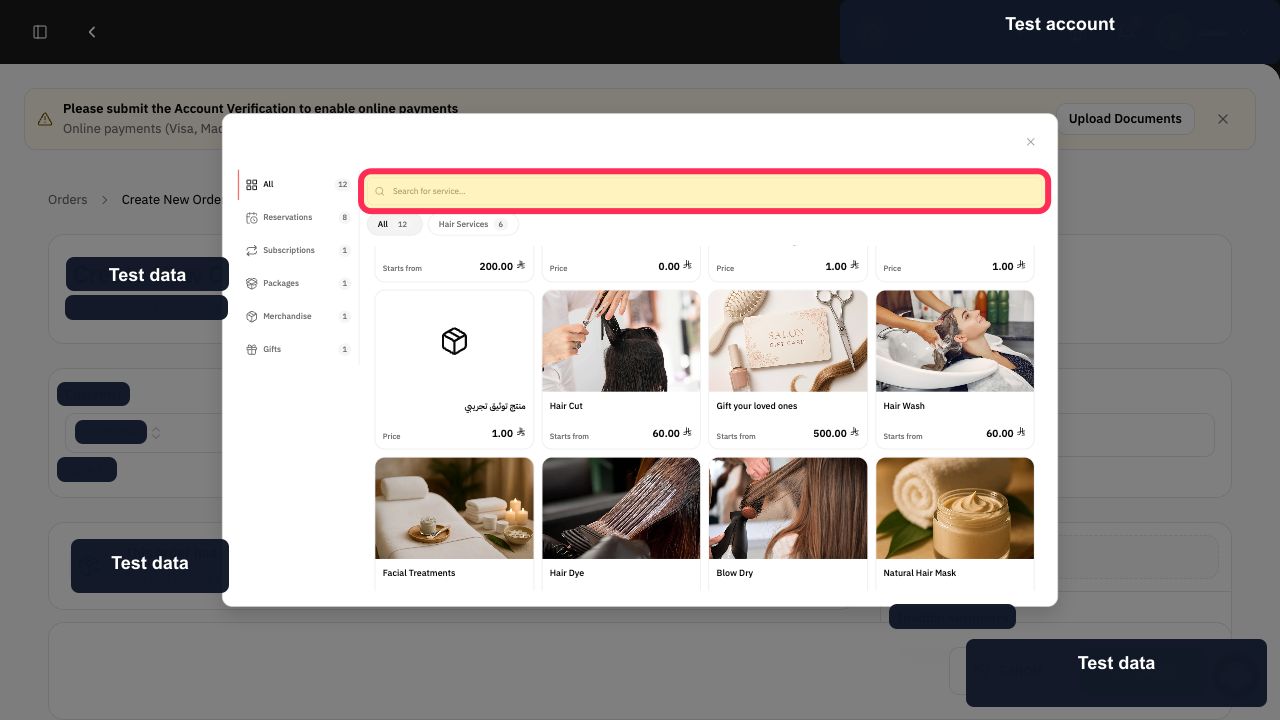
Step 5: Search for the service or product to add.
Step 6: Select the matching service or product result.
Step 7: Use the pencil icon to edit an existing order item.
Step 8: Review the order items and save the order.
Important notes
Check the price and quantity before you save the order.
For reservation services, you may need to select a Service Provider and a time.
Related questions
How do I add a service to an order in Rekaz?
How do I edit a product in an order in Rekaz?
Where do I add a new item to an order in Rekaz?


