How do I edit an order in Rekaz?
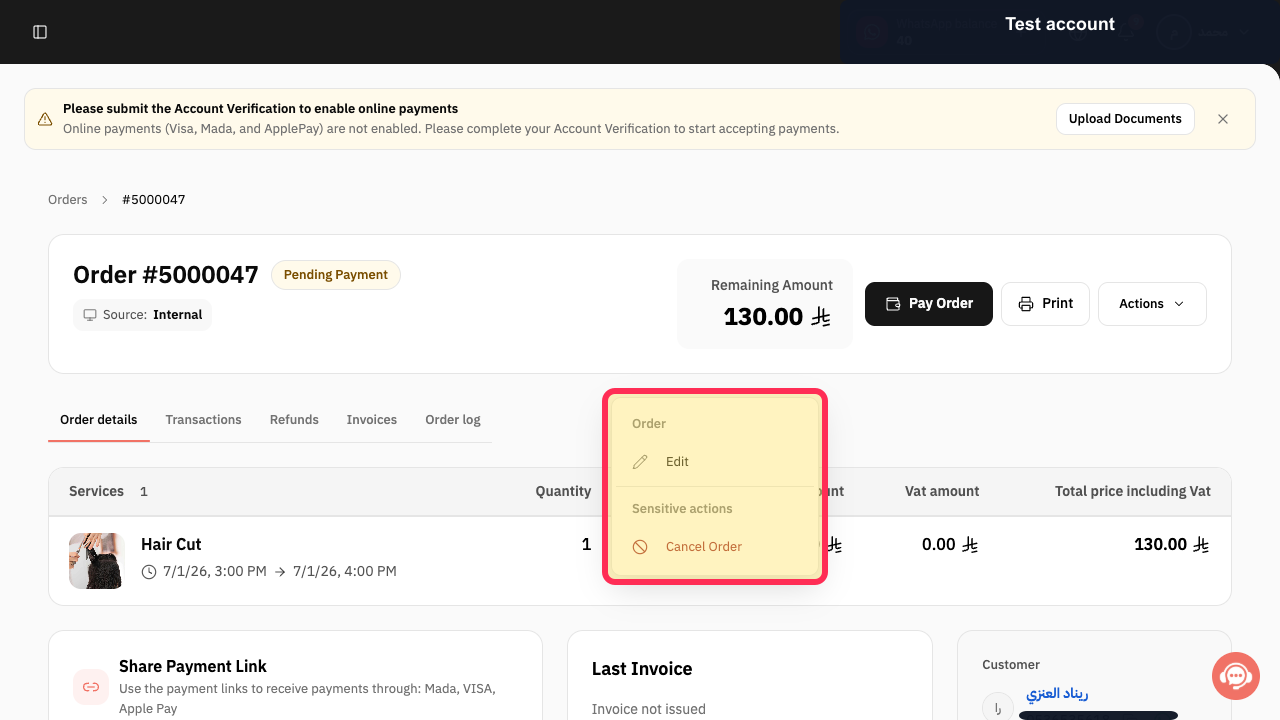
In Rekaz, the order actions menu includes an Edit option that opens the Edit order screen.
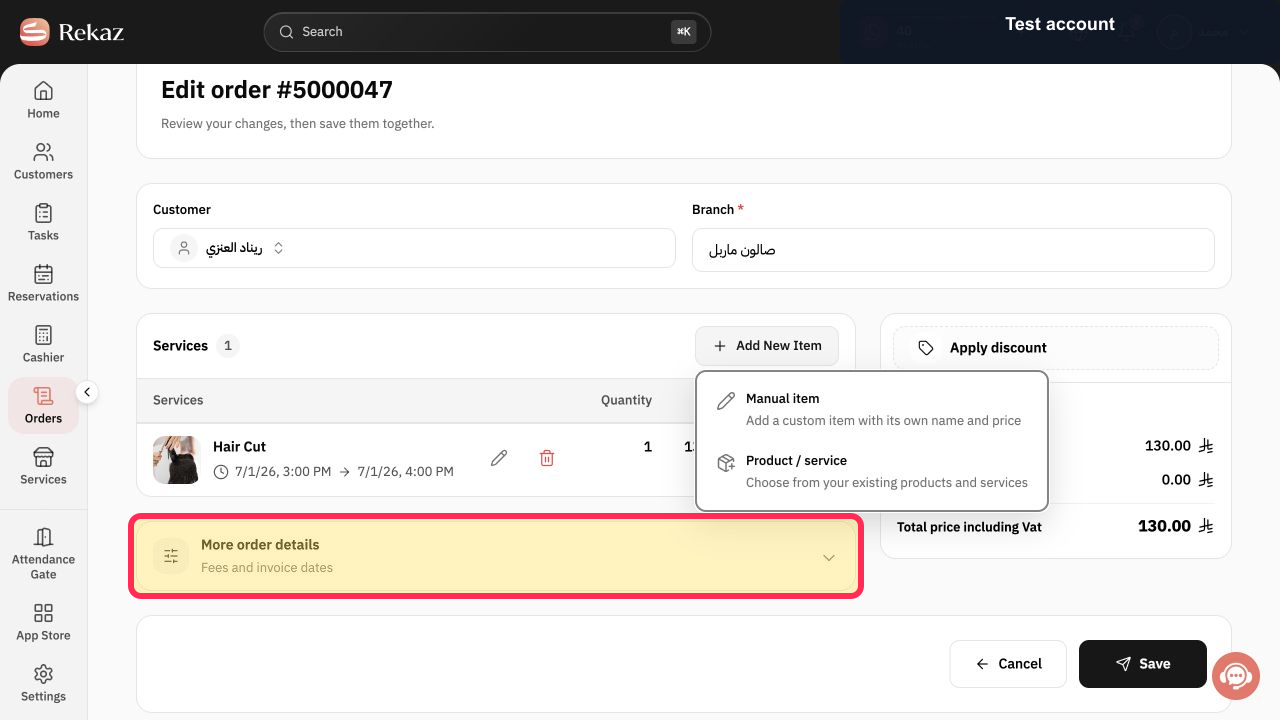
Open Edit and use the More order details section for fees and invoice dates.
Steps
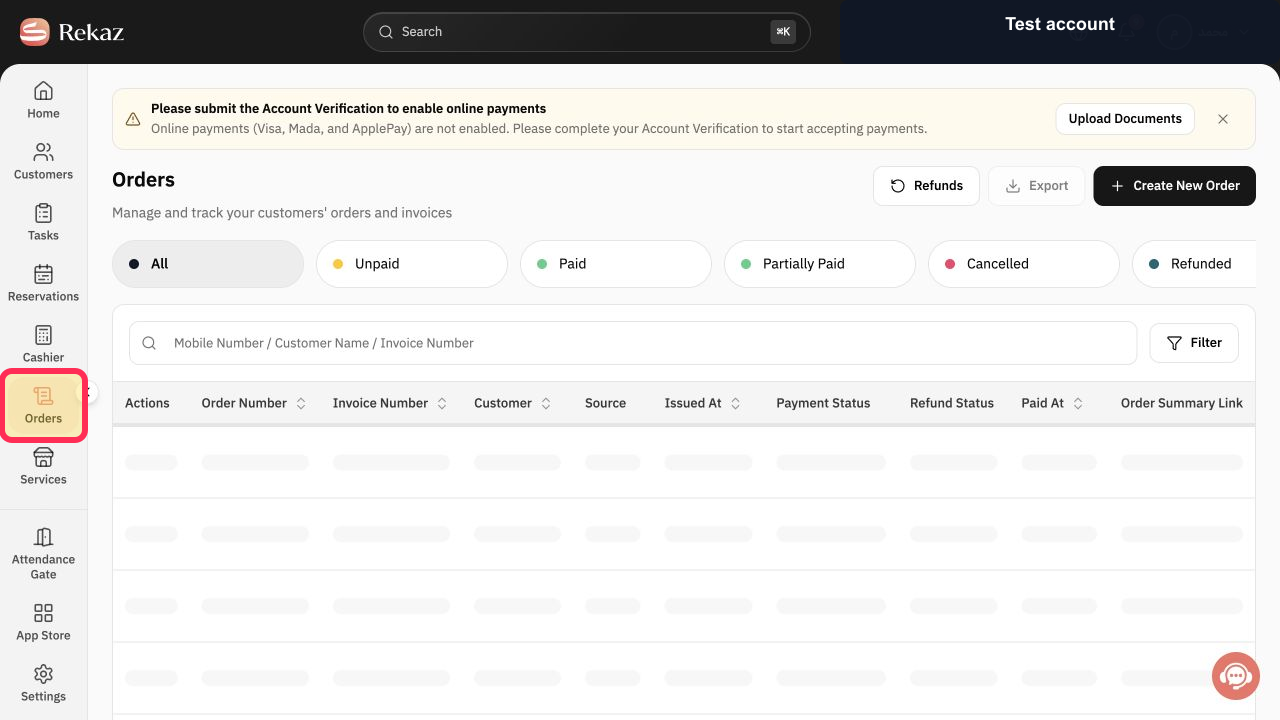
From the Rekaz sidebar, select Orders.
The Orders page opens.
With the required order’s details open, select Edit in the order actions menu.
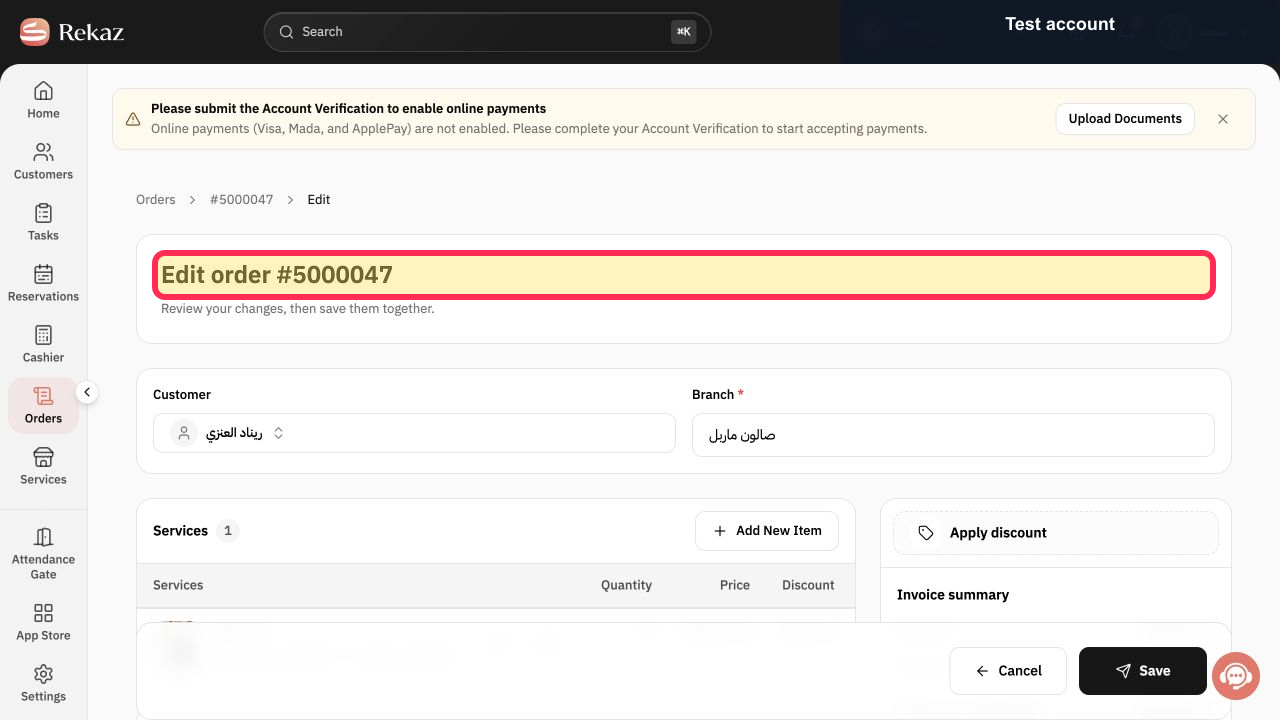
The Edit order screen opens.
Confirm that the Edit order screen is open before continuing.
The page heading identifies the screen as an Edit order page.
Select More order details to view the fees and invoice dates section.
The More order details section for fees and invoice dates is opened.
Illustrated guide
Step 1: Select Orders from the Rekaz sidebar.
Step 2: Choose Edit from the order actions menu.
Step 3: Verify that you are on the Edit order screen.
Step 4: Open More order details for fees and invoice dates.
What you can change
On the Edit order screen, you can change the customer, branch, items, discount, and additional details before saving the updates together.
Important notes
Review the Invoice summary after every change.
Only non-cancelled orders can be edited.
Available actions may change after payment is recorded or after an order is cancelled.
Related questions
How do I change an order’s details in Rekaz?
Where can I edit an invoice before payment in Rekaz?
How do I add an item to an existing order in Rekaz?


