How do I create a new order in Rekaz?
Create an internal order in Rekaz from Orders. Choose a registered Customer or use Walk-In, confirm the Branch, then add an existing product or service or enter a Manual item.
The order is not created until you review the Invoice summary and select Submit.
Steps
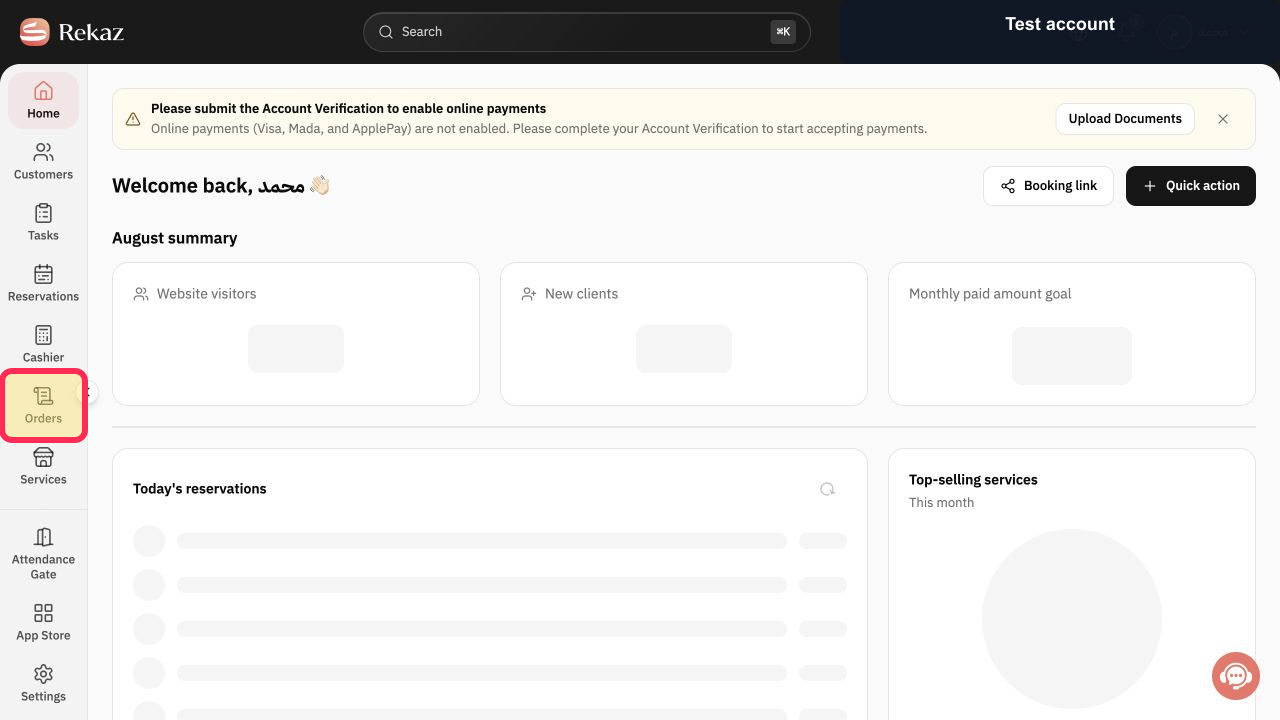
Select Orders in the Rekaz sidebar.
The Orders page opens.
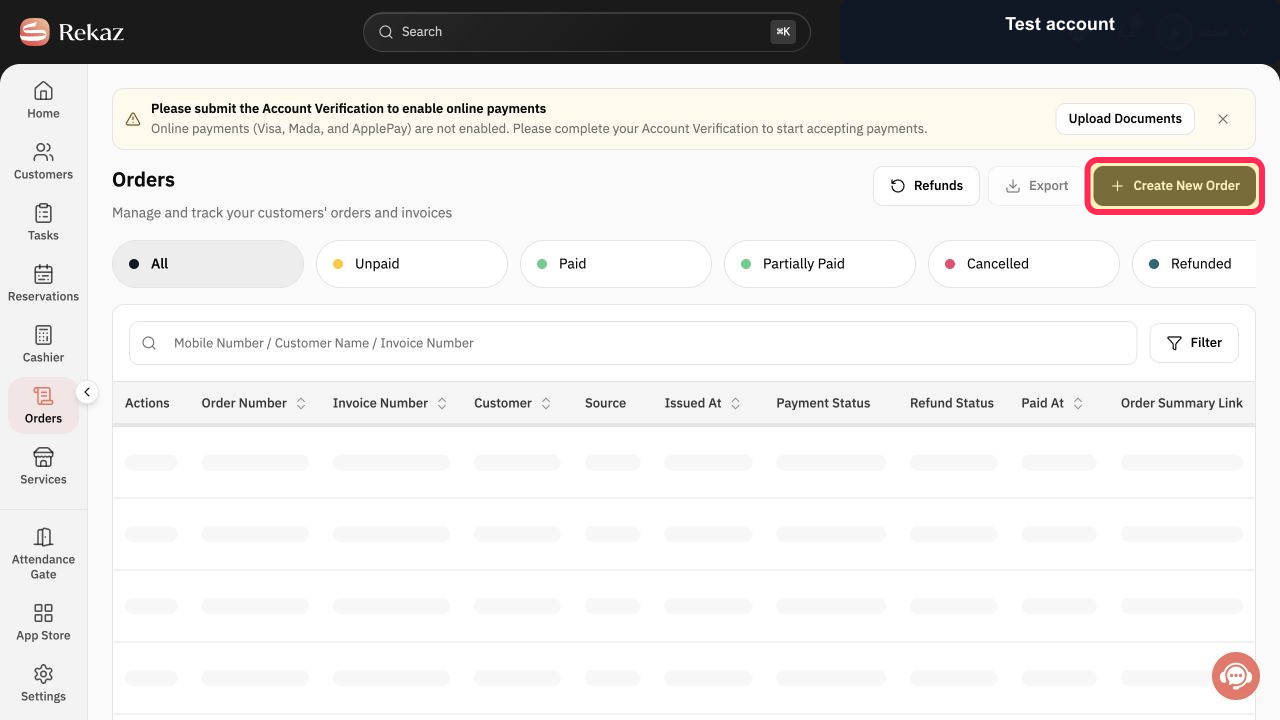
Select Create New Order.
The new-order form opens.
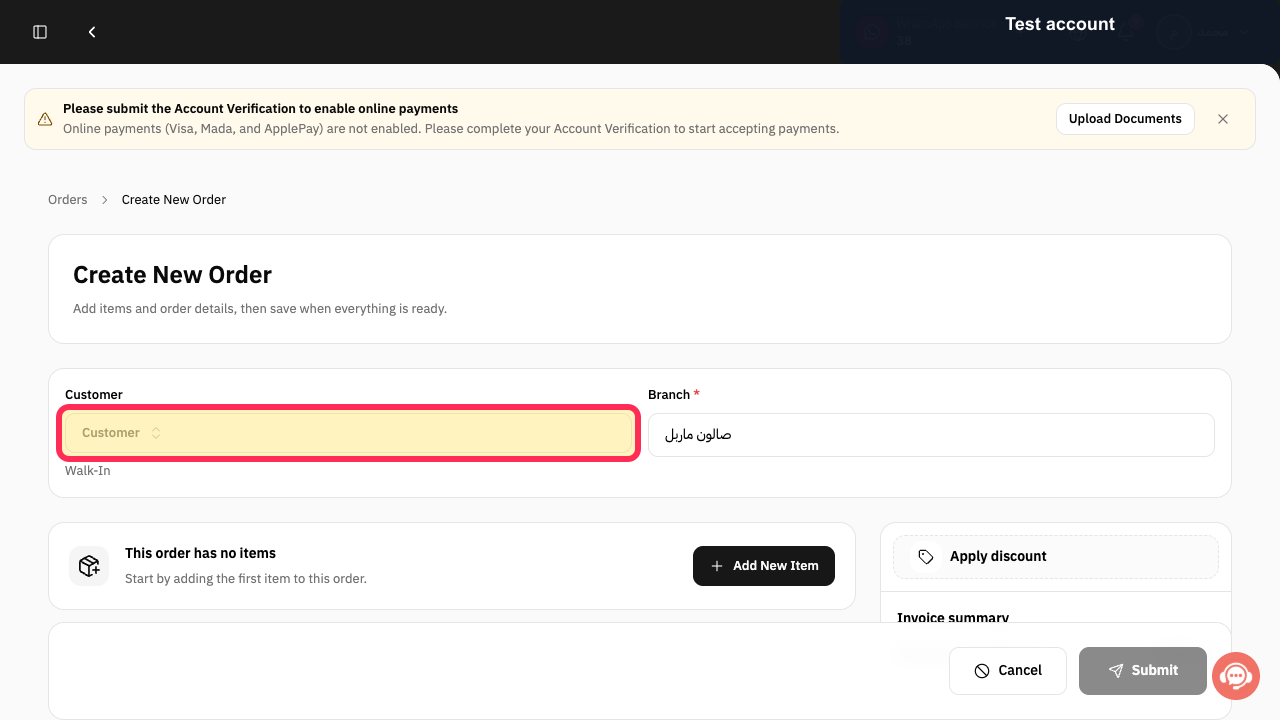
Choose a Customer, or select Walk-In when the sale is not assigned to a saved customer. Confirm the Branch before adding items.
The order shows the selected customer treatment and branch.
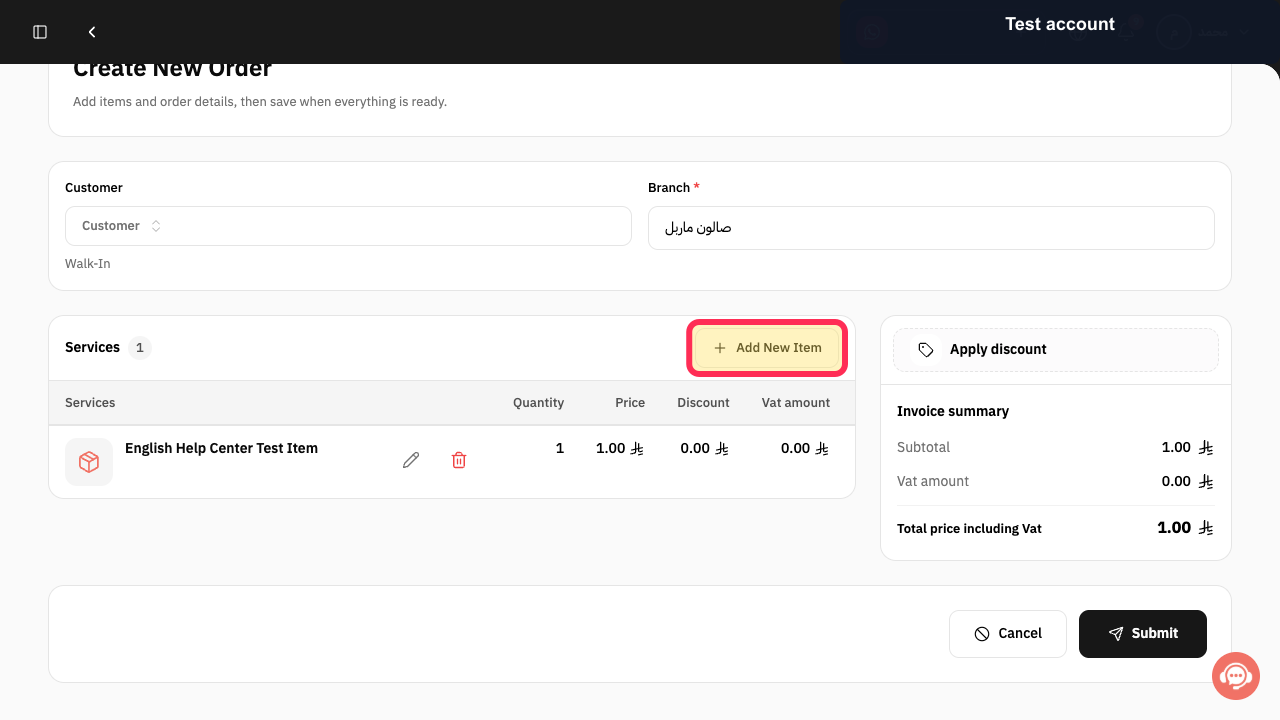
Select Add New Item.
The item-type menu opens.
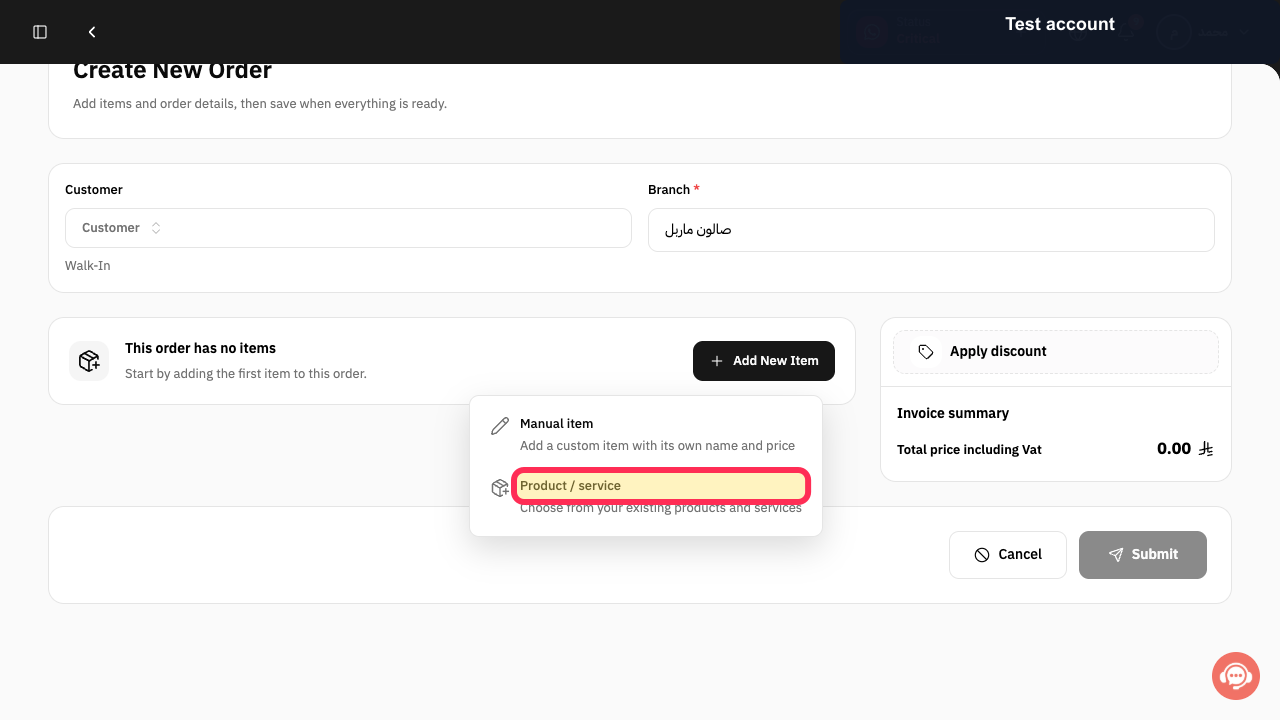
To add an existing Rekaz item, select Product / service.
The product and service selector opens.
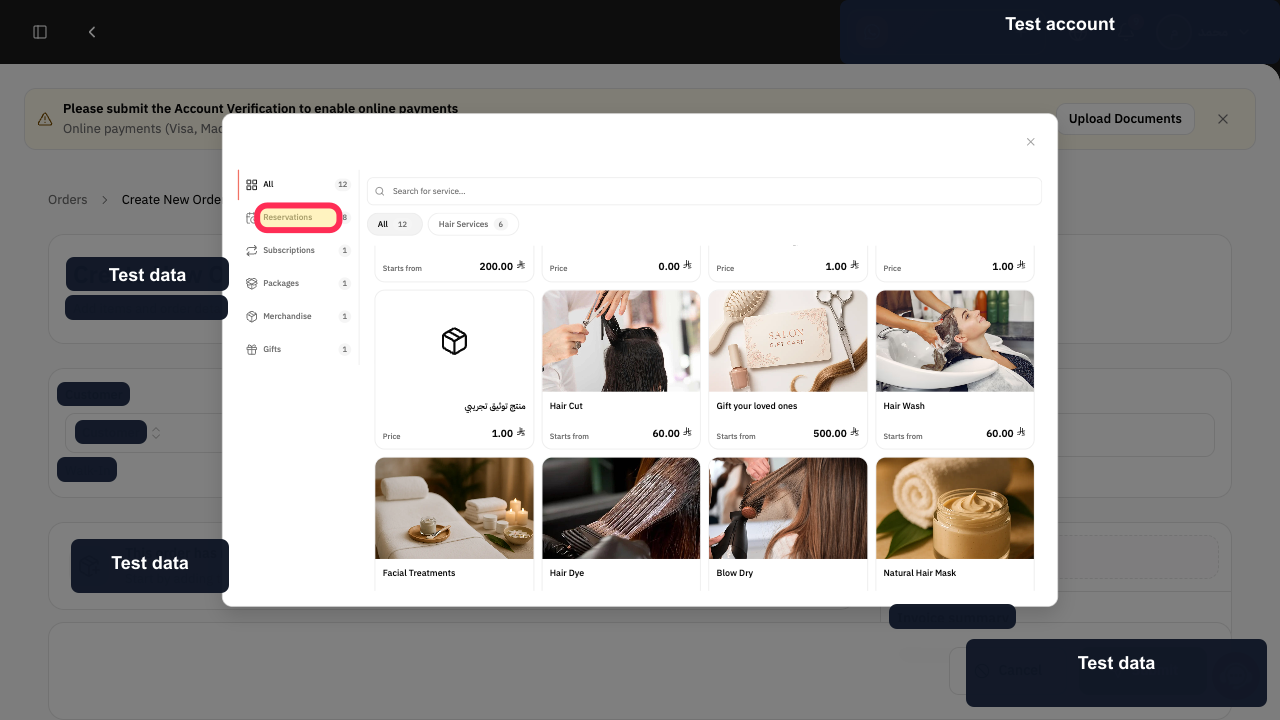
Choose All, Reservations, Subscriptions, Packages, Merchandise, or Gifts to limit the item type.
Only items from the selected type are shown.
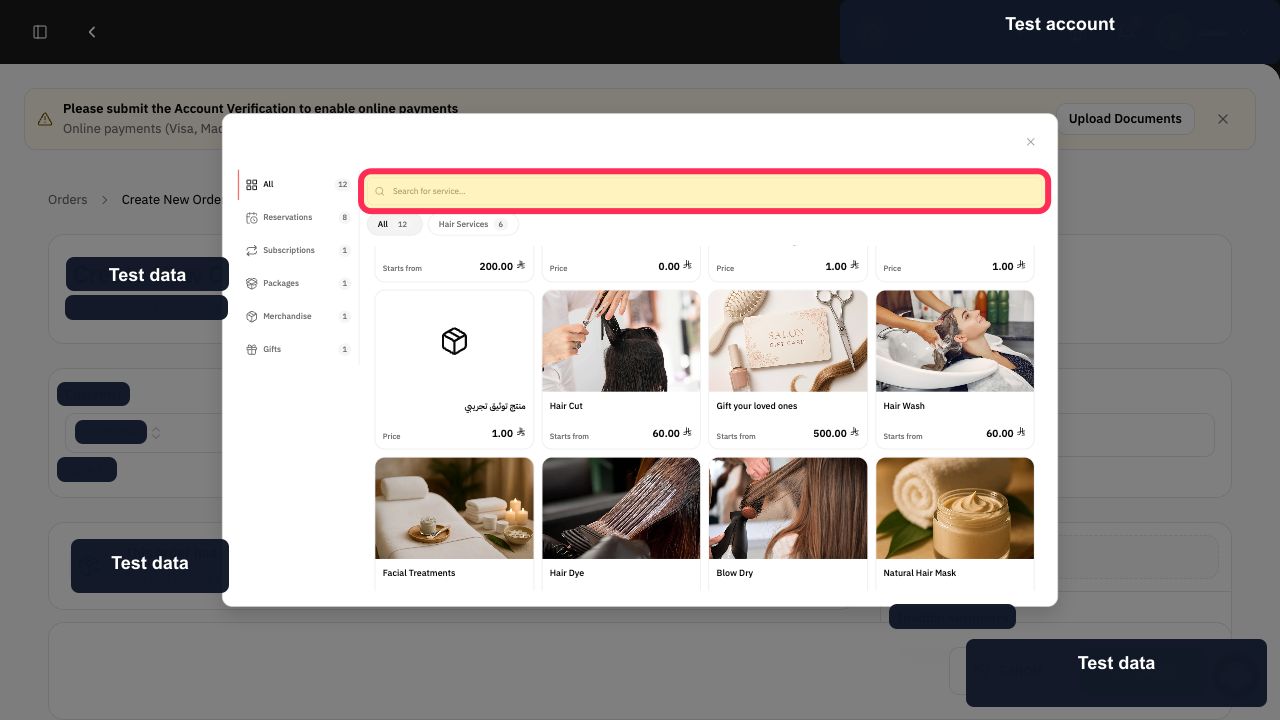
Use Search for service... to find the item, then select its card.
The selected product or service is added to the unsaved order.
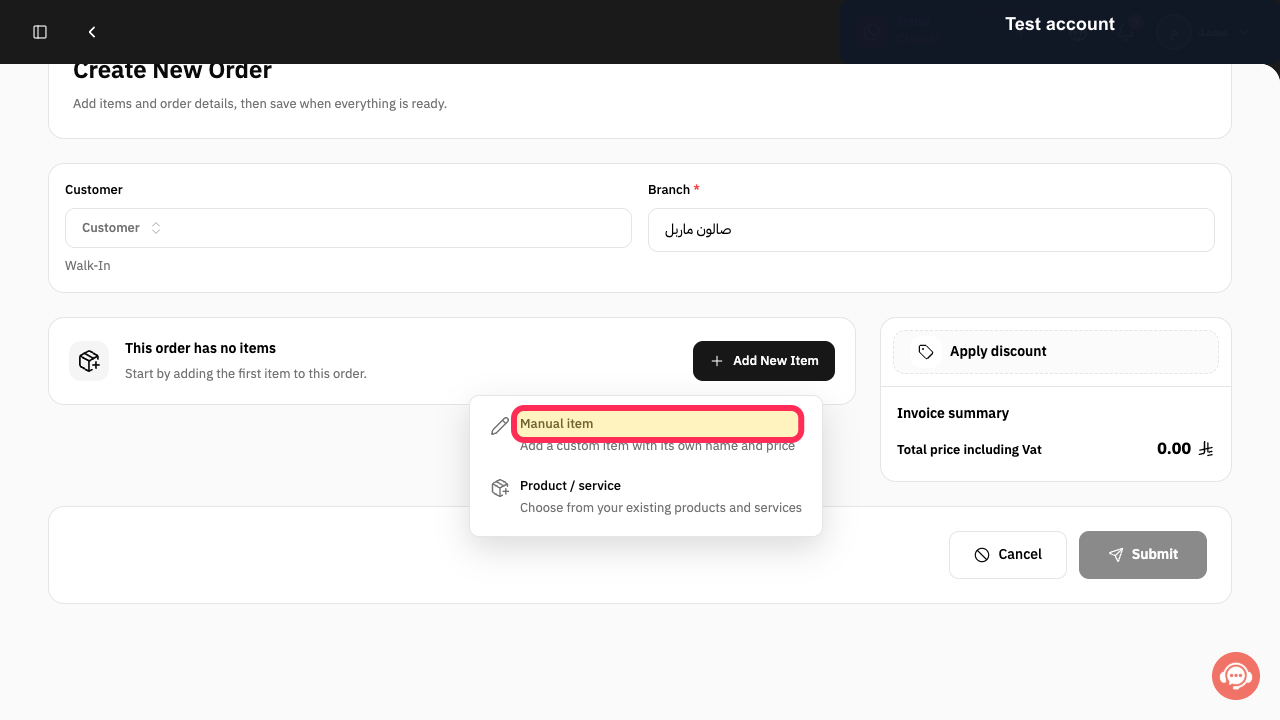
To add a custom line instead, select Add New Item again.
The item-type menu opens again.
Select Manual item.
The Add custom item dialog opens.
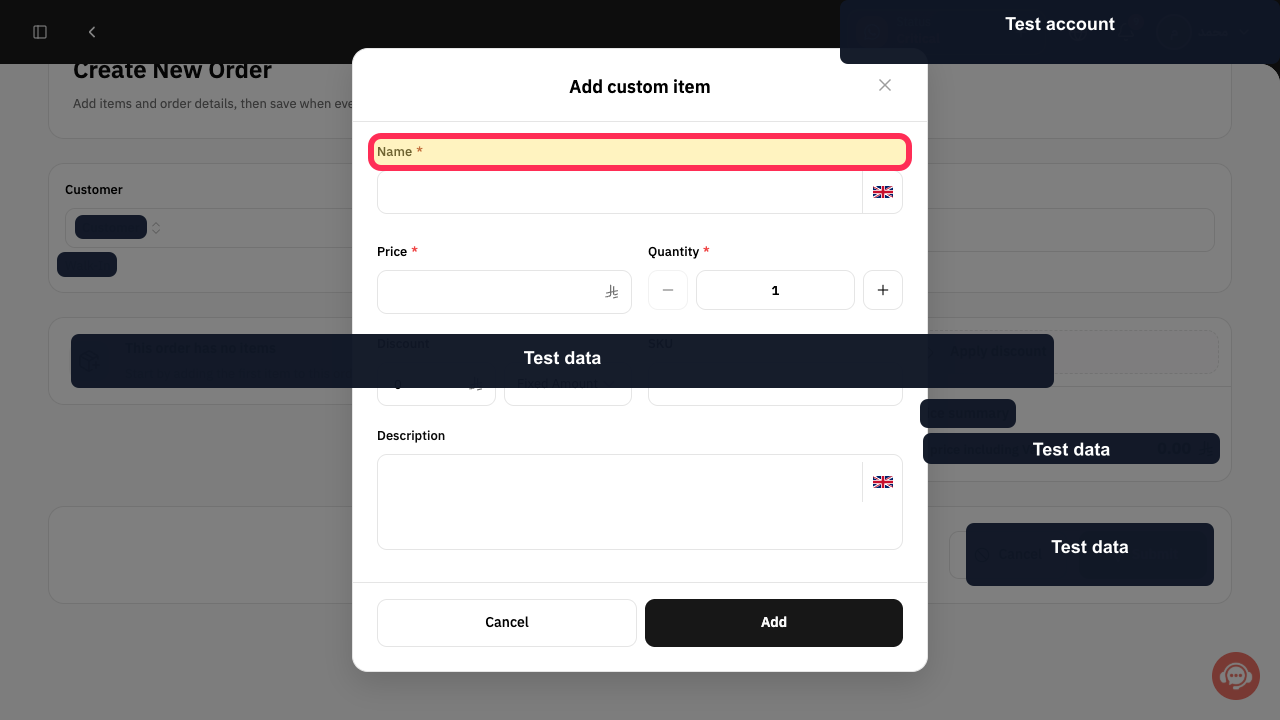
Enter a clear Name for the custom item.
The required custom-item name is entered.
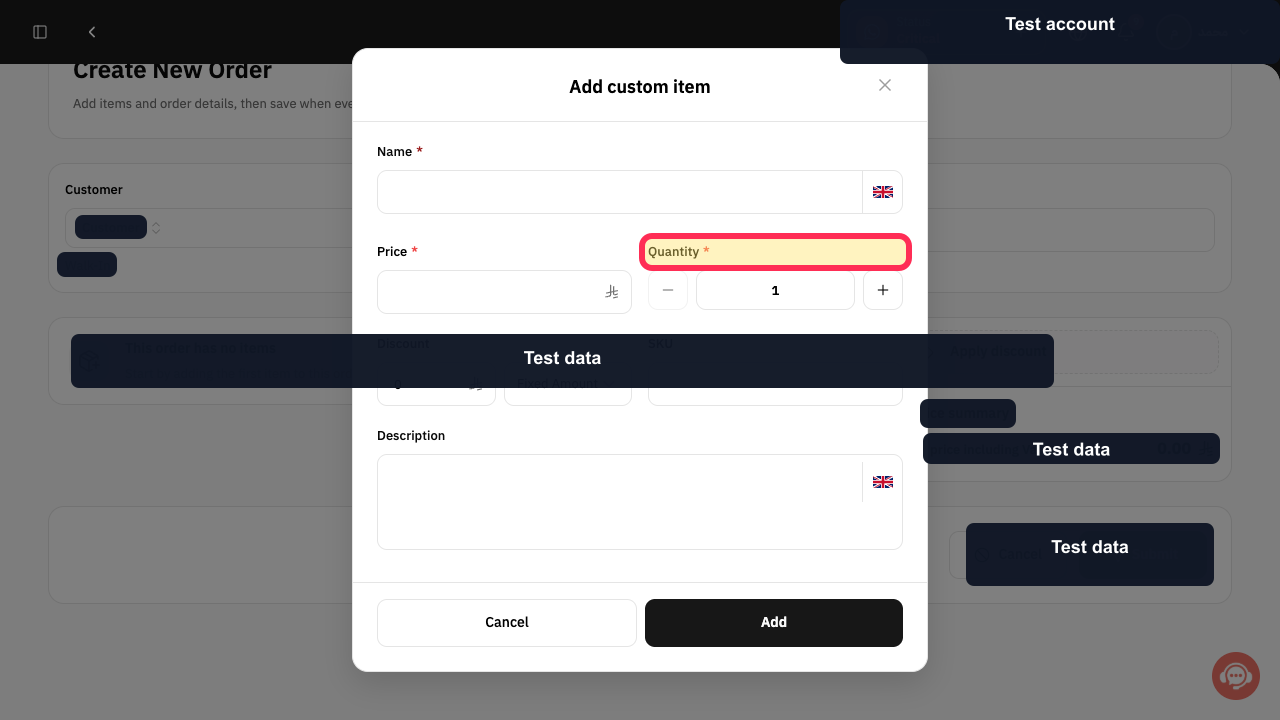
Enter its Price and Quantity.
The custom-item price and quantity are entered.
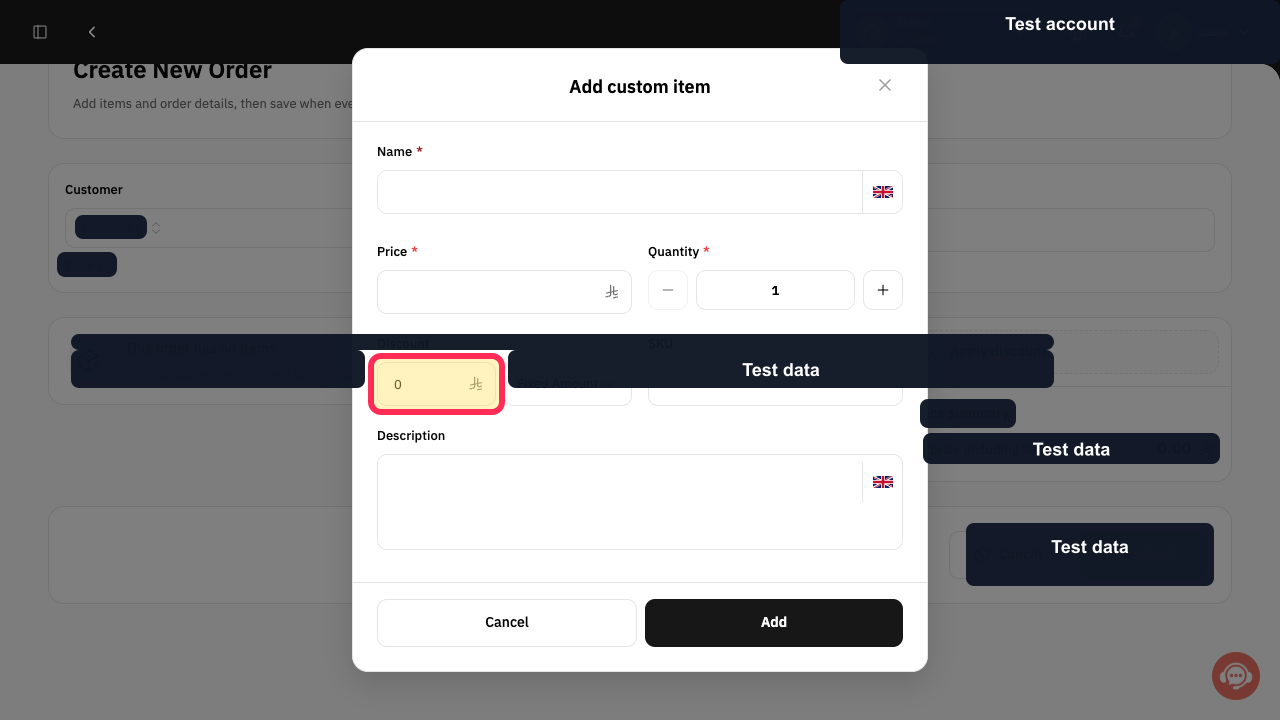
Optional: enter a Discount, SKU, or Description when the manual line needs one.
The optional custom-item details are entered.
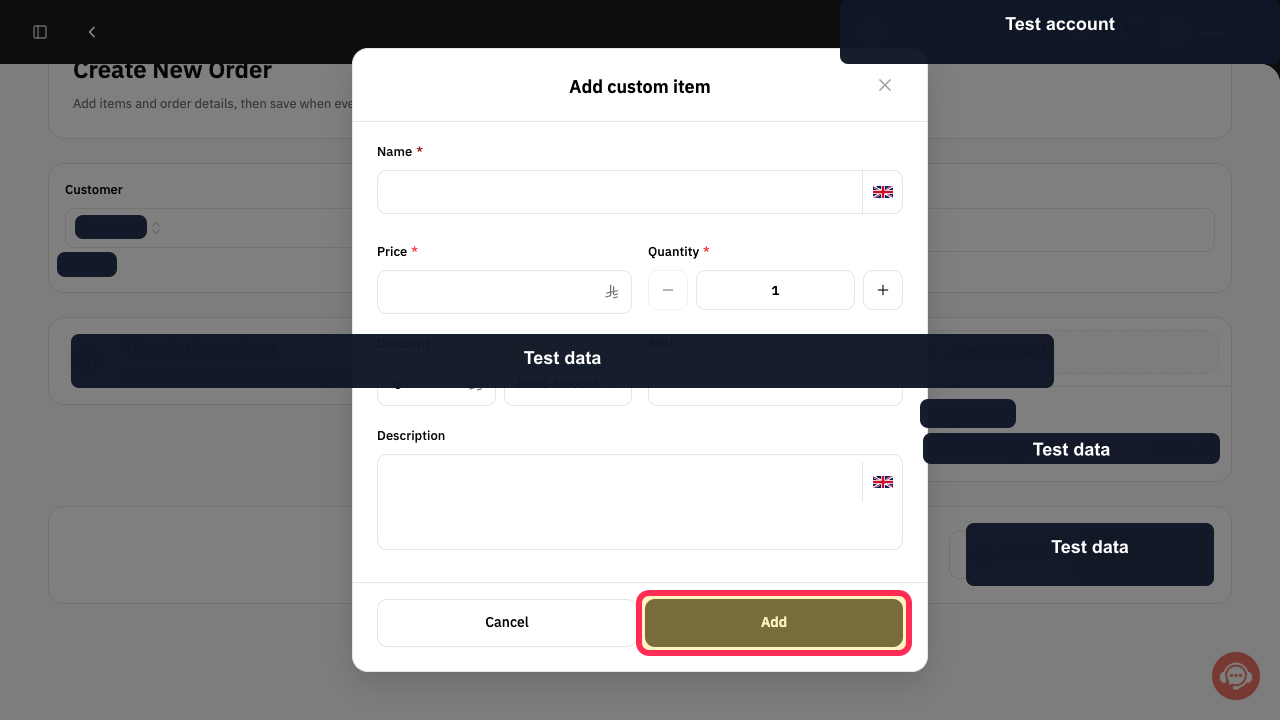
Select Add.
The manual item is added to the unsaved order.
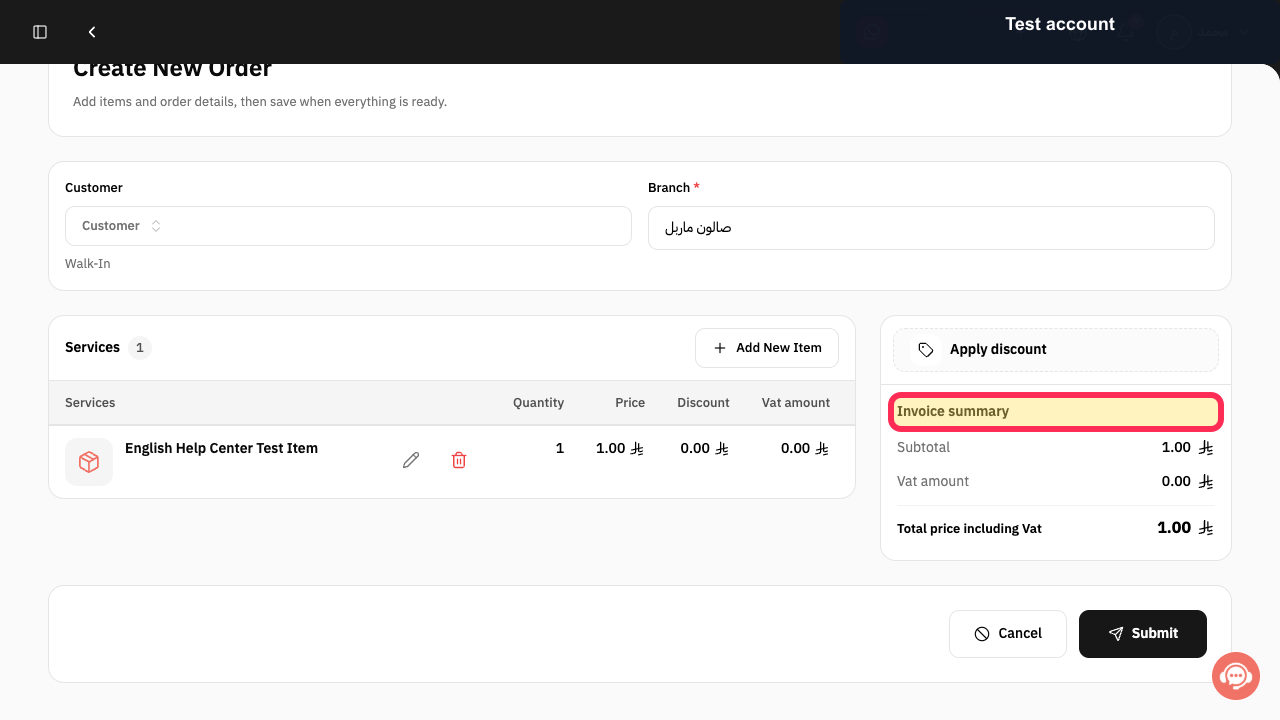
Review Invoice summary and select Apply discount only when the whole order needs a discount.
The order totals, tax, and any order discount are ready for final review.
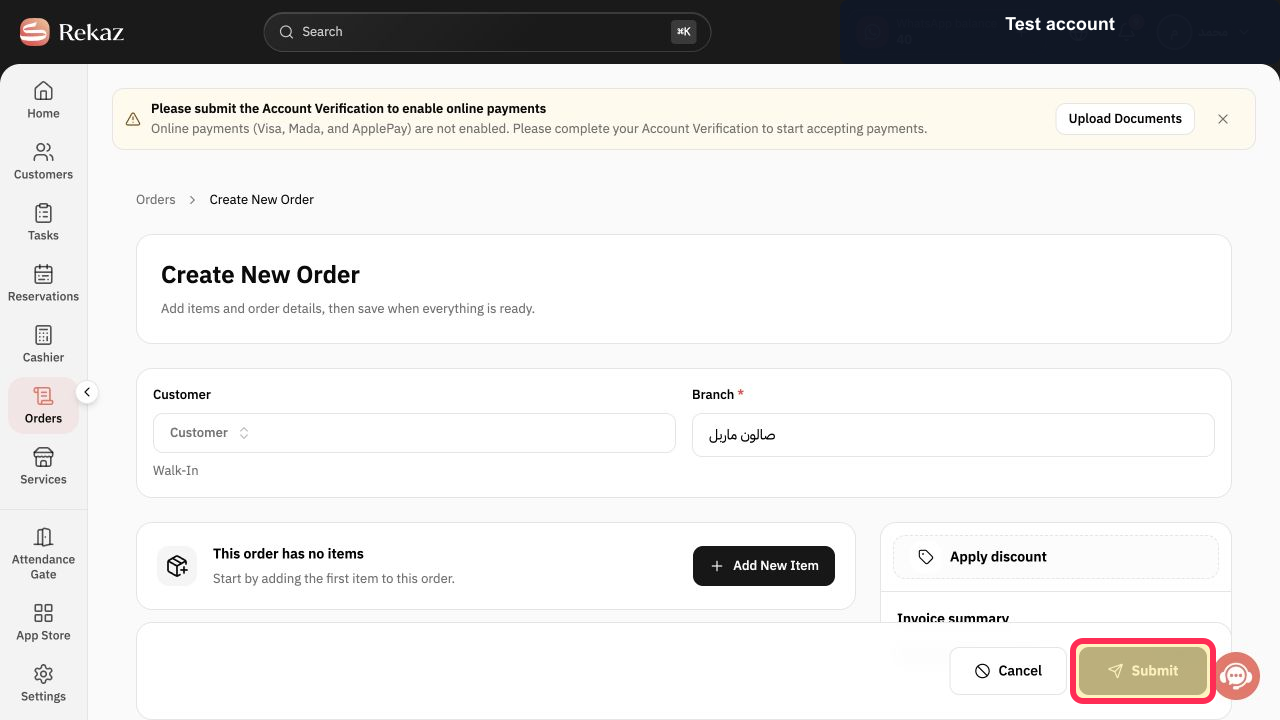
Select Submit to create the order, or Cancel to leave without creating it.
The order is created only after Submit is selected.
Illustrated guide
Step 1: Open Orders from the Rekaz sidebar.
Step 2: Start a new order.
Step 3: Choose Customer or Walk-In and confirm the Branch.
Step 4: Open the Add New Item menu.
Step 5: Choose Product or service.
Step 6: Choose the required product or service type.
Step 7: Search for and select the required service.
Step 8: Open Add New Item for a manual line.
Step 9: Choose Manual item.
Step 10: Enter the manual item's Name.
Step 11: Enter the manual item's Price and Quantity.
Step 12: Add optional manual-item details.
Step 13: Add the manual item to the order.
Step 14: Review the Invoice summary and optional order discount.
Step 15: Submit the new order.
Important notes
You can use Walk-In when it is appropriate not to register a customer.
For a custom item, use a clear name and price.
Related questions
How do I create an internal order in Rekaz?
How do I add an order for a customer in Rekaz?
How do I create a new order invoice in Rekaz?


