How do I give a manager different permissions from an employee in Rekaz?
In Rekaz, you can separate manager and employee access by creating a dedicated role for each job function. Assign the manager’s user account to the manager role, then select only the Permissions and Actions required for their responsibilities.
Avoid using Grant all permissions unless it is genuinely necessary. Before relying on the role, test it with a non-owner account.
Steps
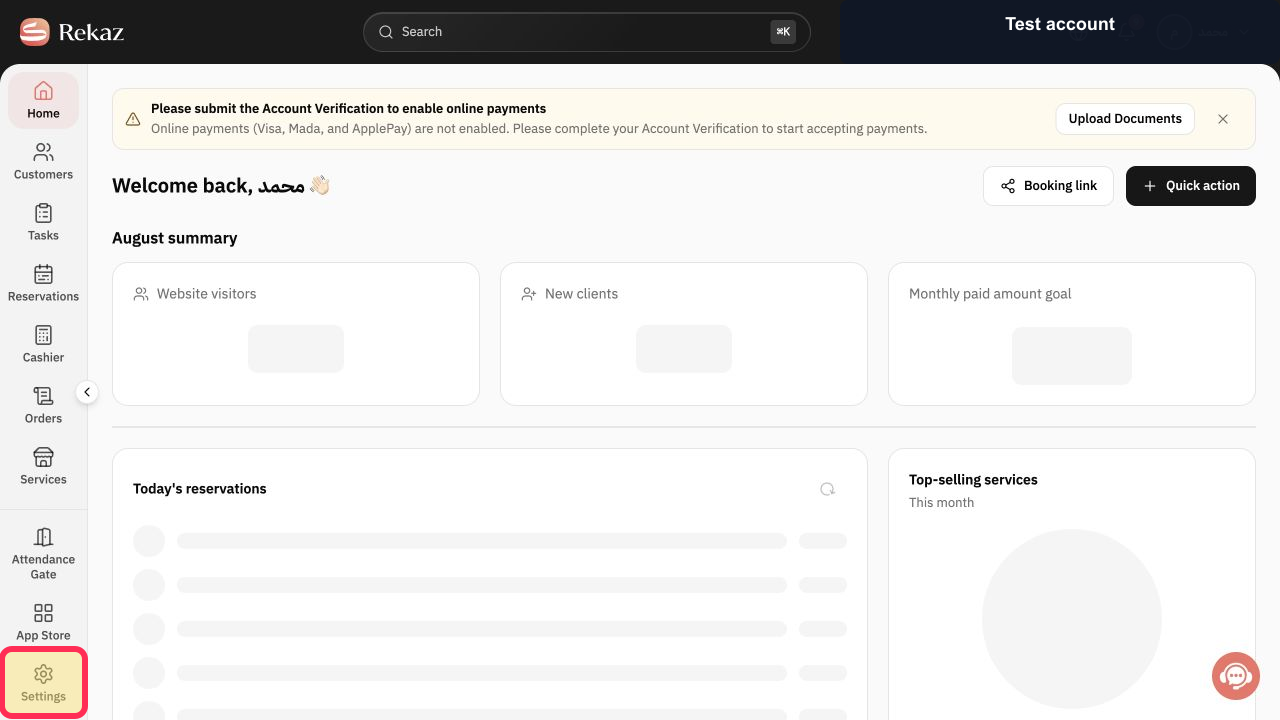
From the main sidebar, select Settings.
The Settings area opens.
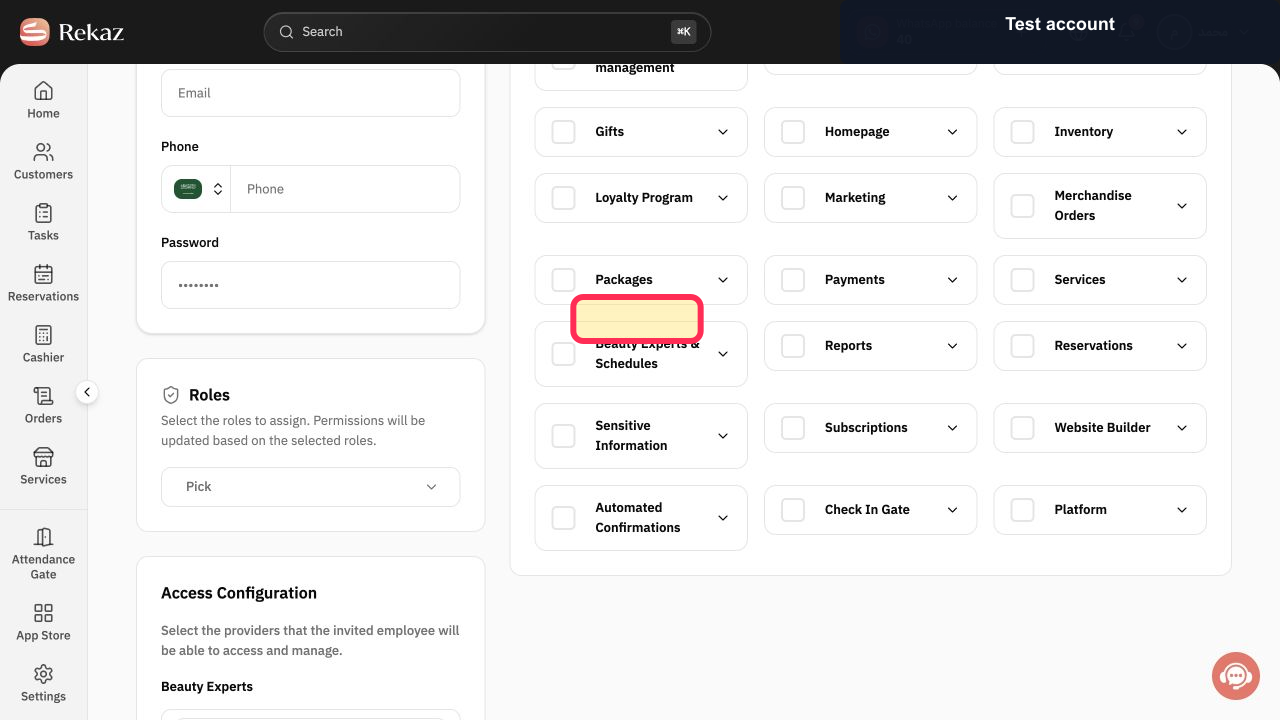
Open User Management.
The User Management settings open.
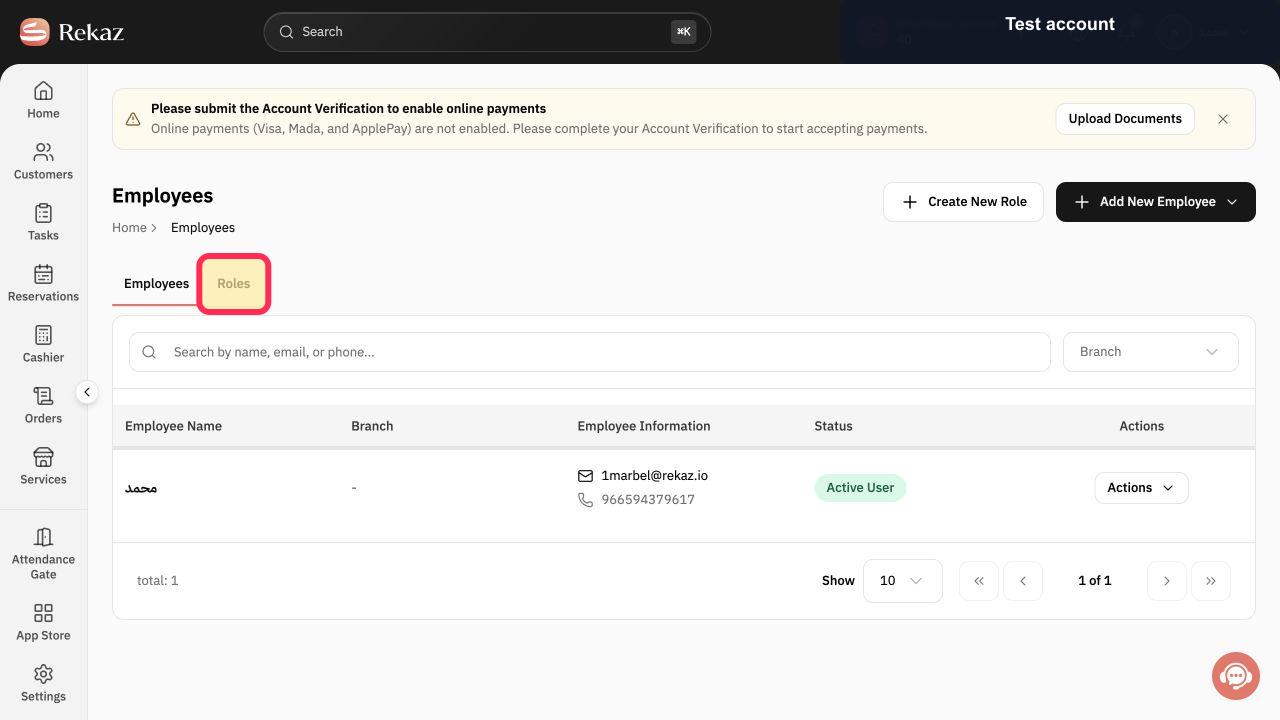
Select Roles.
The Roles tab or page opens, showing existing roles if any.
Select Create to start a new role.
A form for creating a role opens.
Enter a clear Role name that describes the manager’s area of responsibility.
The Role name field contains the new manager role name.
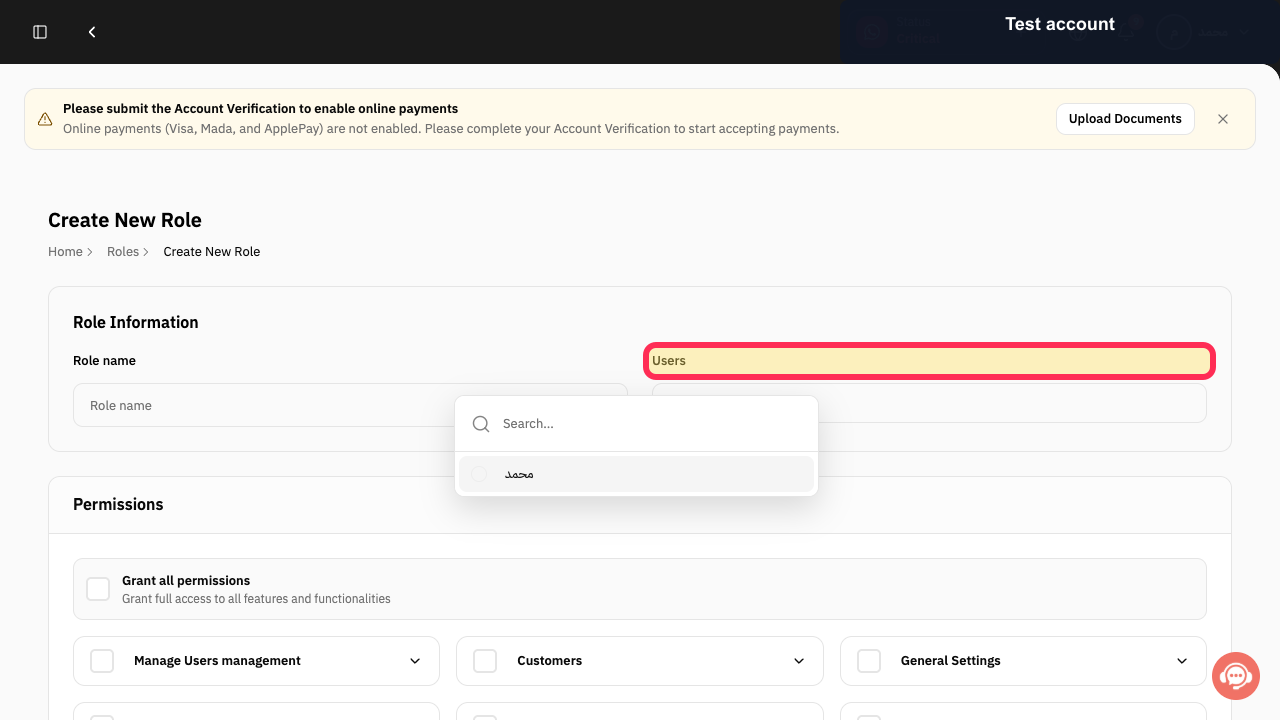
Under Users, select the manager’s user account.
The selected manager is assigned to the role.
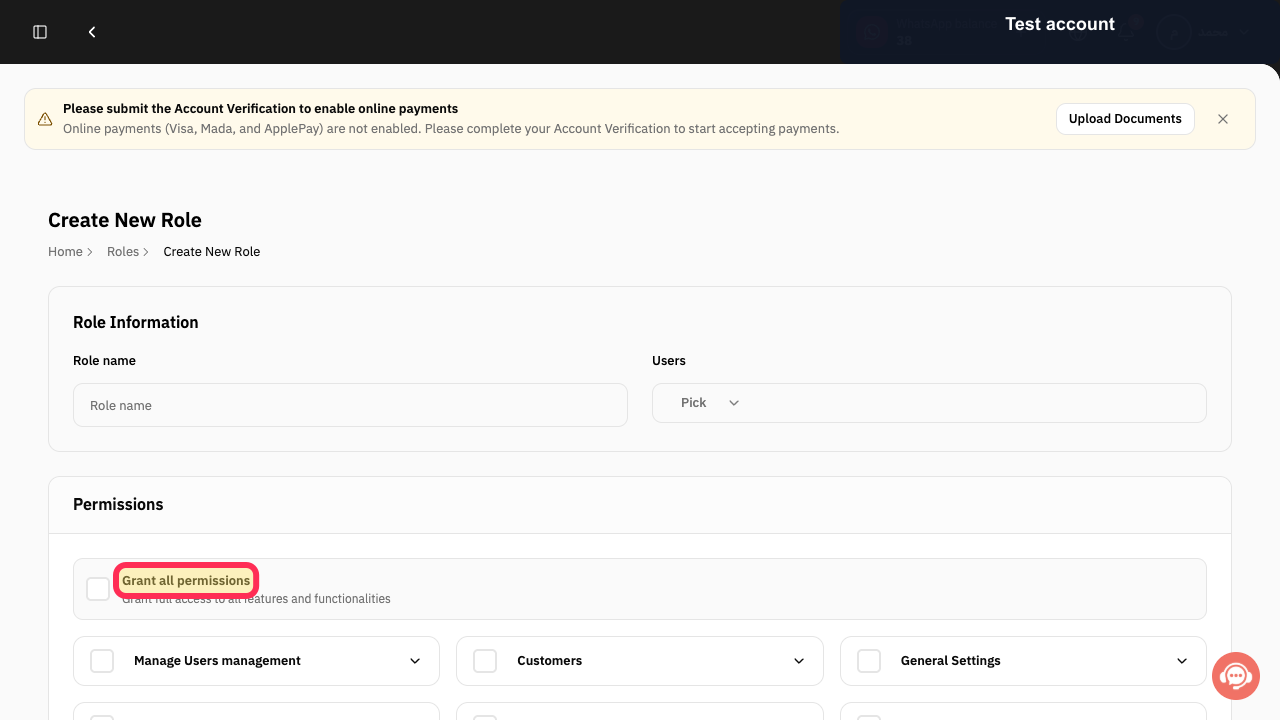
Review Grant all permissions and leave it unselected unless the manager genuinely needs unrestricted access.
The role is not automatically given every permission.
Under Permissions, select the permission groups and Actions the manager needs, separately from employee access.
Only the selected Permissions and Actions are included in the manager role.
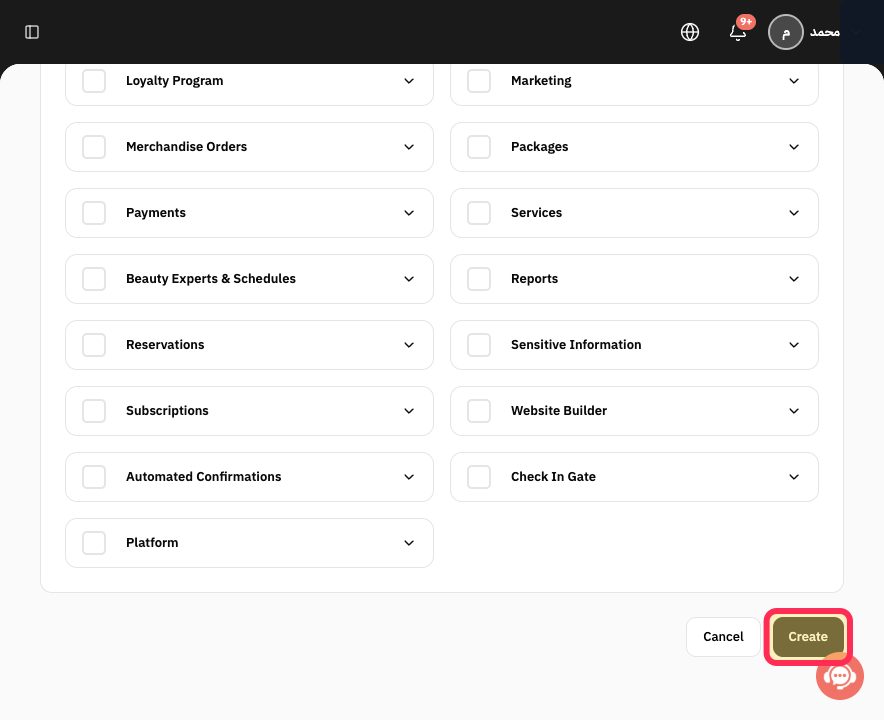
Select Create to finish creating the role.
The manager role is created with its assigned user and selected access.
Illustrated guide
Step 1: Open Settings in Rekaz.
Step 2: Open User Management.
Step 3: Open Roles from User Management.
Step 4: Create a new manager role.
Step 5: Name the manager role clearly.
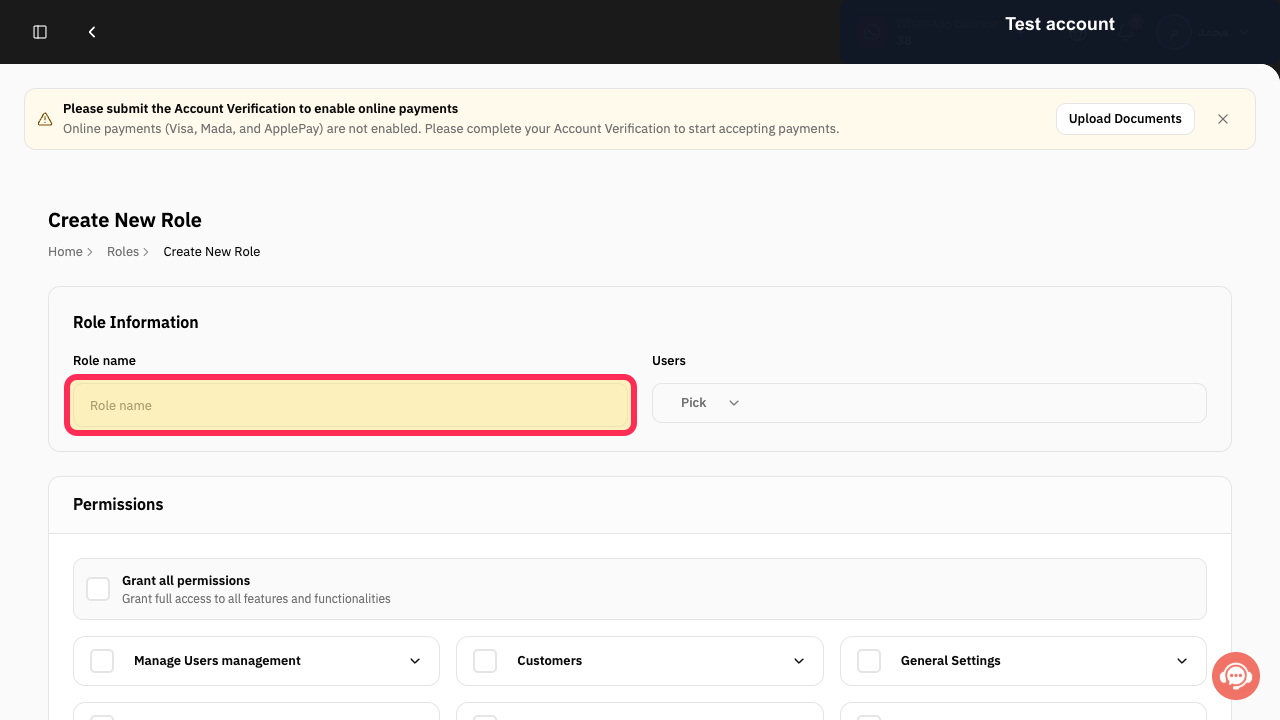
Step 6: Assign the manager’s user account to the role.
Step 7: Do not grant all permissions unless necessary.
Step 8: Choose the manager’s required Permissions and Actions.
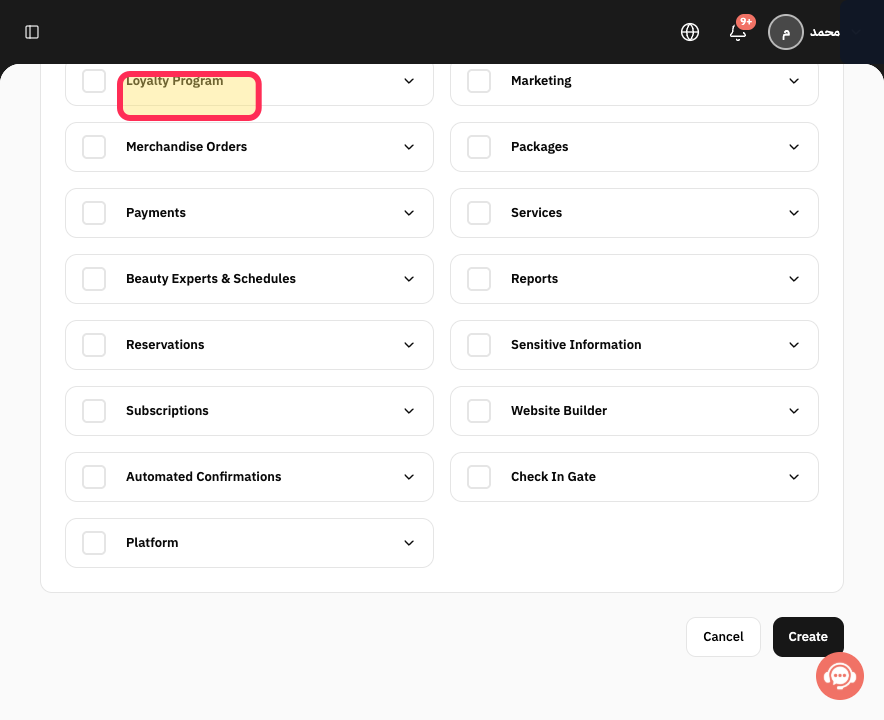
Step 9: Create the manager role.
Important notes
Use Grant all permissions only when there is a real business need.
Test the role with a non-owner account before depending on it for daily work.
Related questions
How do I create manager permissions in Rekaz?
How do I separate manager and employee access in Rekaz?
Where do I select the users assigned to a role in Rekaz?


