How do I record an order payment in Rekaz?
To record a payment for an order in Rekaz, open the order from Orders, select Pay Order, then enter the payment amount, payment method, and payment date before confirming.
Available payment methods are Cash, Point of Sales, and Bank Transfer.
Steps
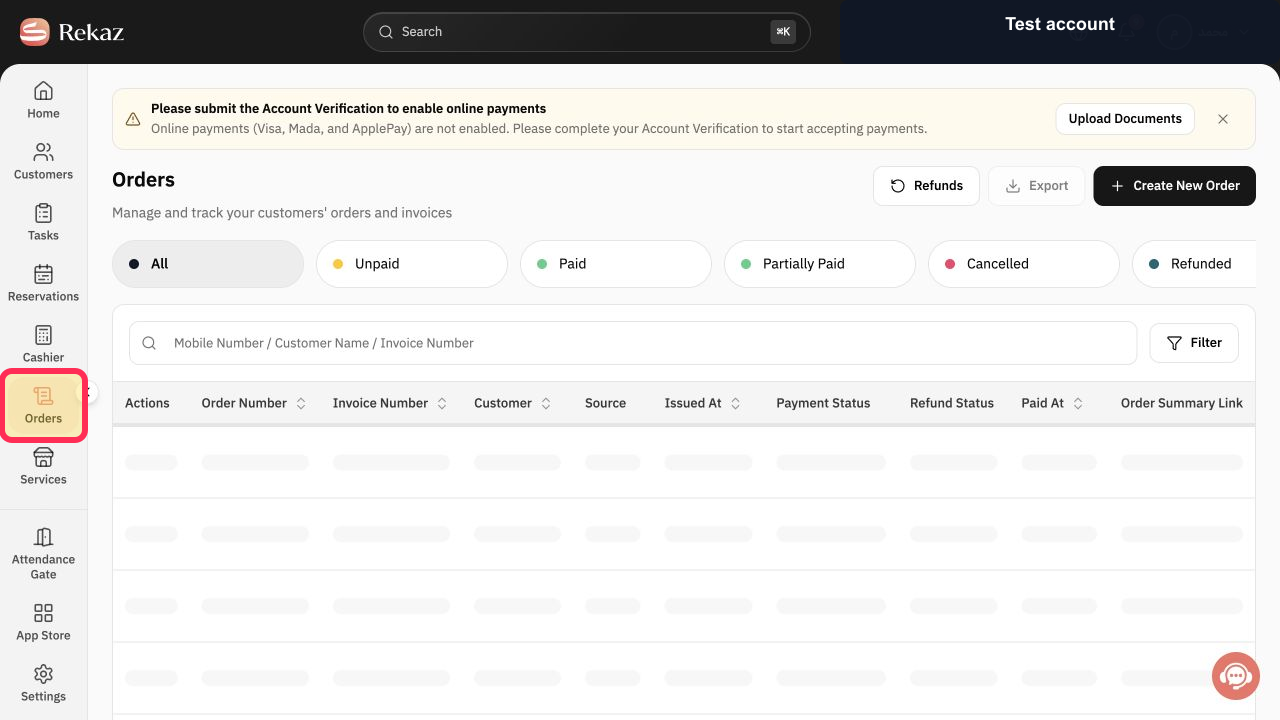
From the sidebar, select Orders.
The Orders page opens and displays your orders.
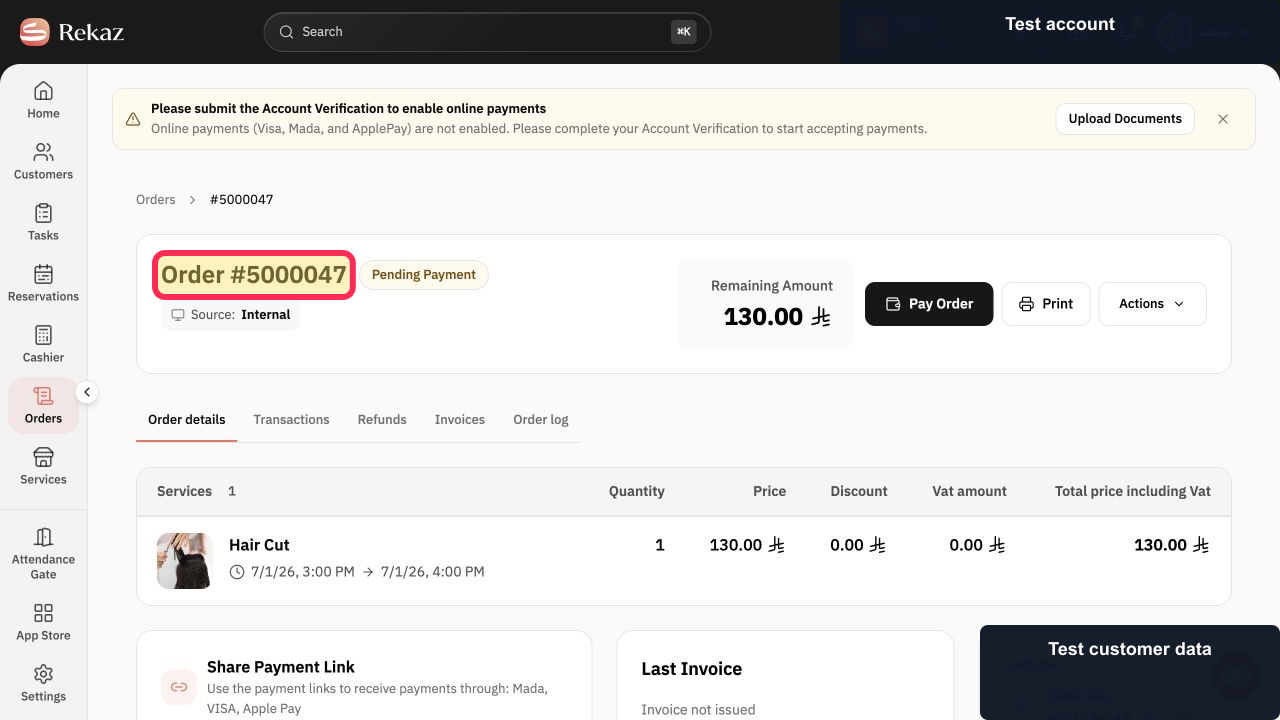
Open the order for which you want to record a payment.
The selected order opens.
Select Pay Order.
The payment form opens.
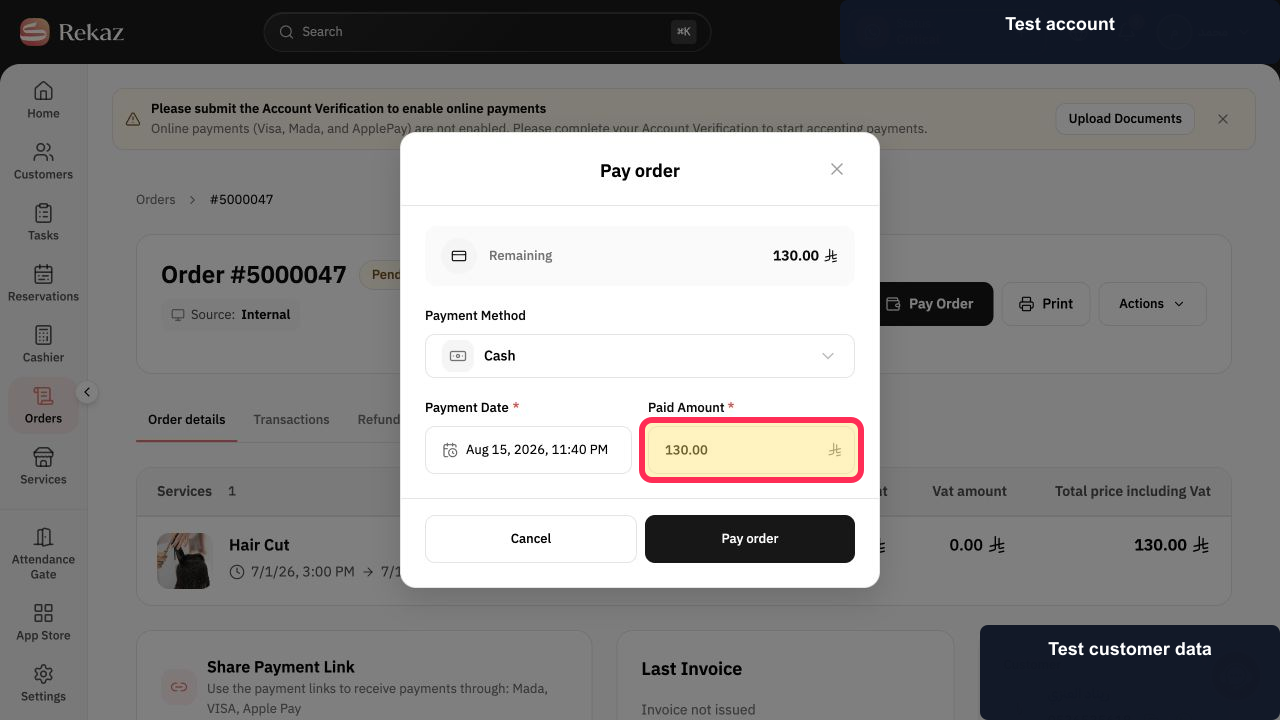
Enter the payment amount.
The amount is entered in the payment form.
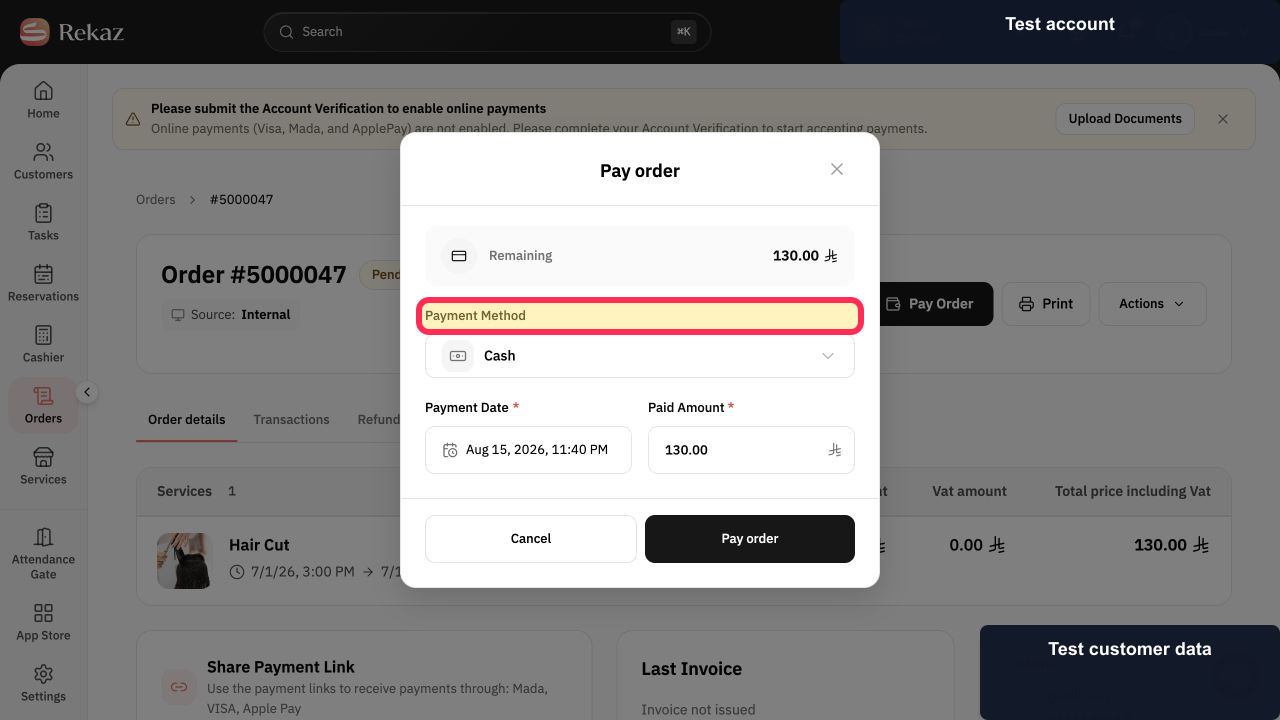
Select a payment method: Cash, Point of Sales, or Bank Transfer.
The selected payment method is shown on the payment form.
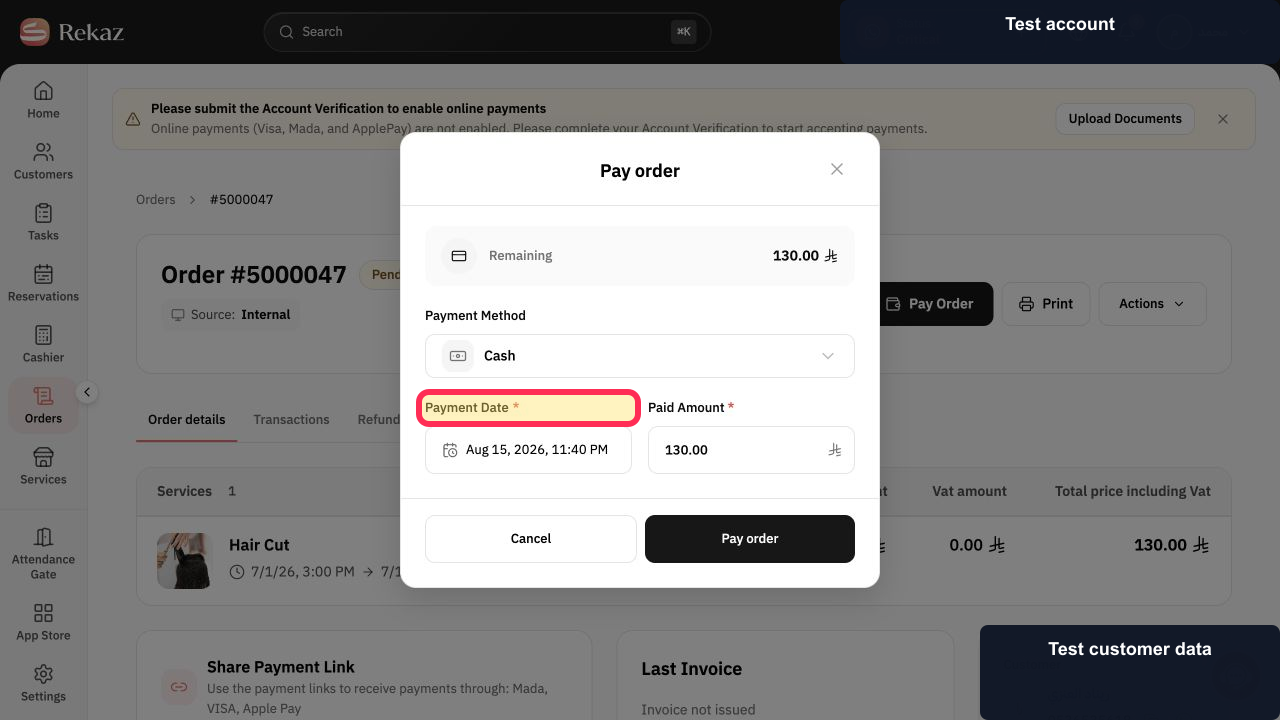
Set the Payment Date.
The payment date is selected.
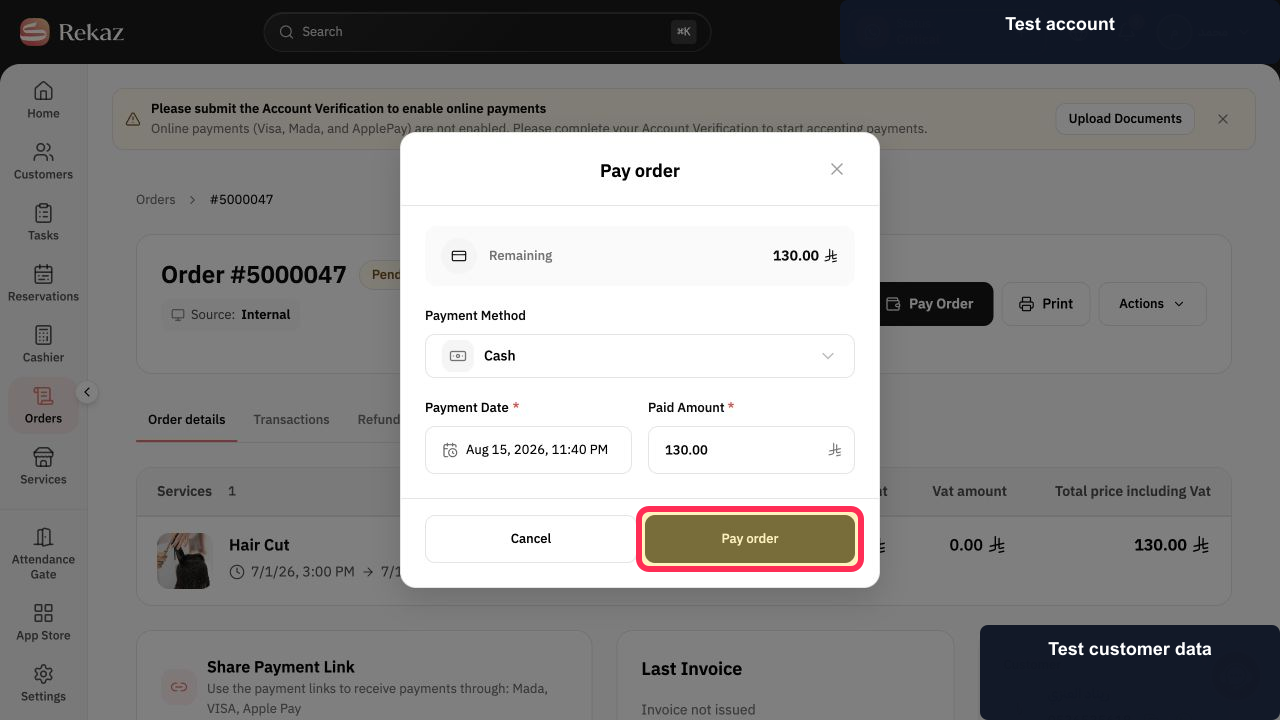
Select Pay Order to record the payment.
The payment is recorded for the order.
Illustrated guide
Step 1: Open Orders from the sidebar.
Step 2: Open the order to be paid.
Step 3: Start recording a payment for the order.
Step 4: Enter the amount being paid.
Step 5: Choose how the order was paid.
Step 6: Set the date on which the payment was made.
Step 7: Confirm and record the order payment.
Payment methods
When recording an order payment, select the method used by the customer.
Cash: payment received in cash.
Point of Sales: payment made by card through a point-of-sale terminal.
Bank Transfer: payment received by bank transfer.
Related questions
How do I mark an order as paid in Rekaz?
How do I add a partial payment to an order in Rekaz?
Which payment methods can I select when recording an order payment in Rekaz?


