How do I cancel an order in Rekaz?
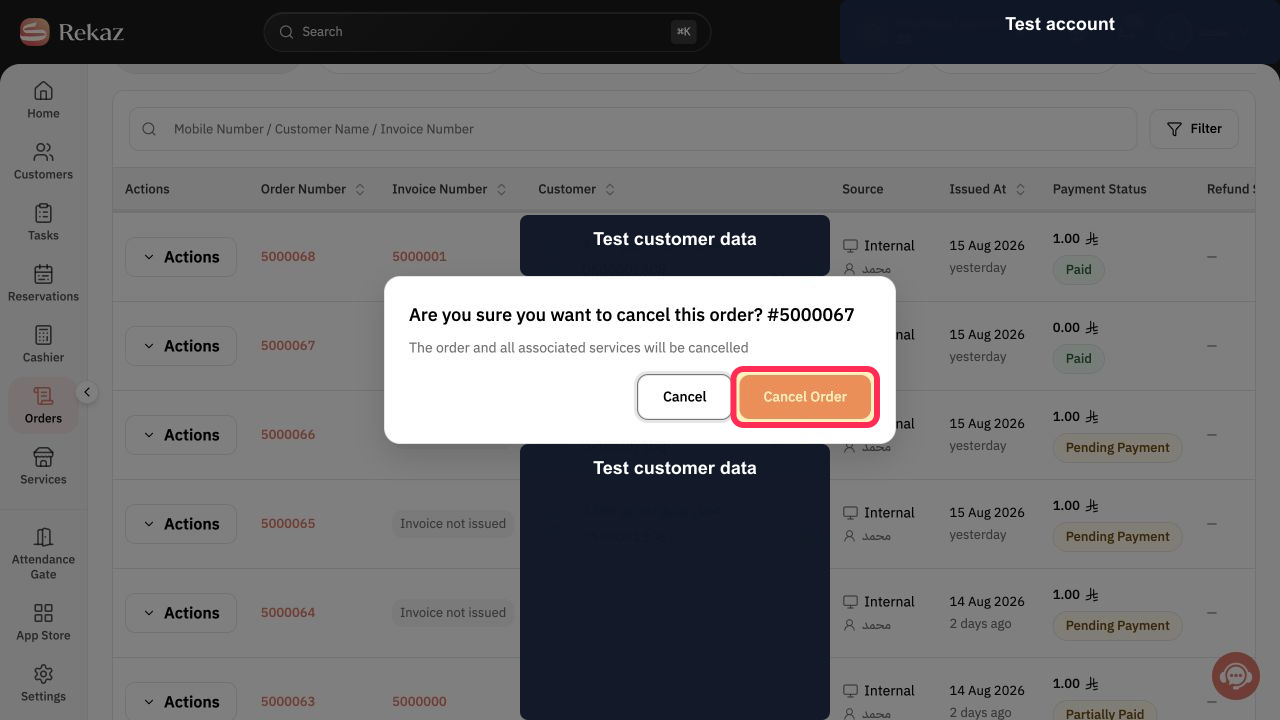
Cancelling an order also cancels its associated services according to the current warning. Confirm the order number and operational impact before proceeding.
Use Cancel in the warning dialog if you opened the workflow by mistake.
Steps
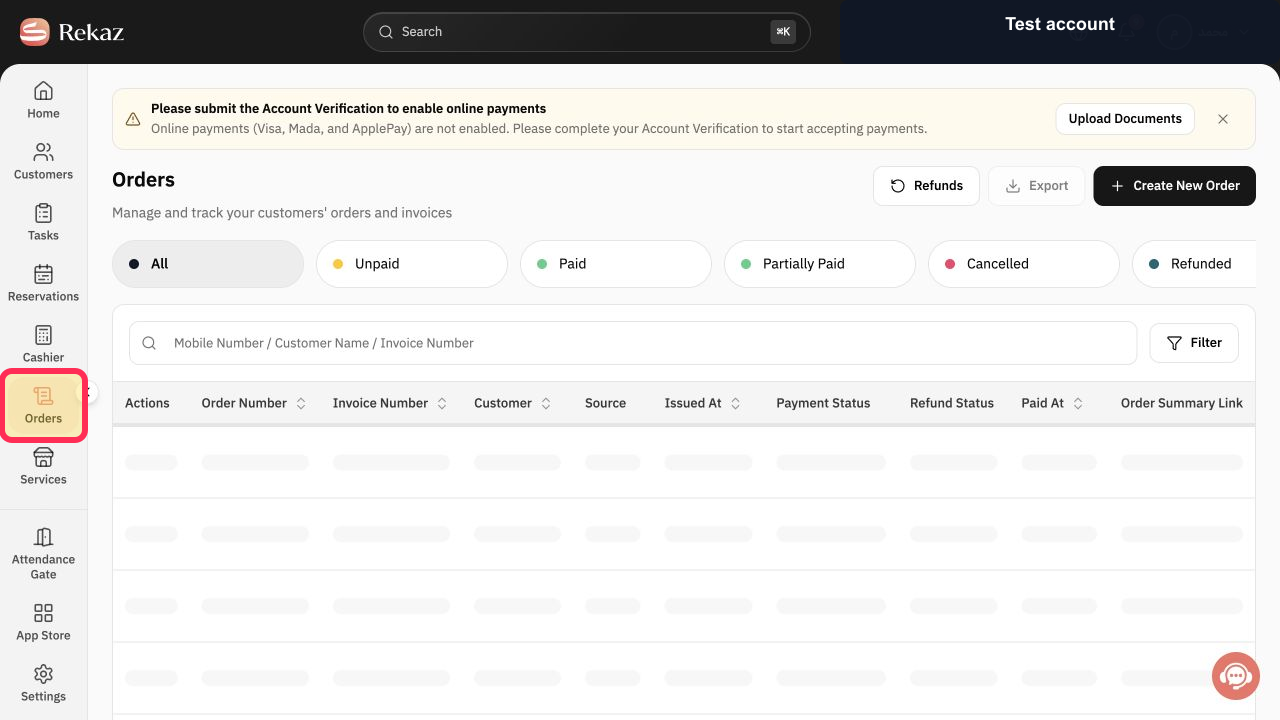
From the Rekaz navigation, select Orders.
The Orders page opens.
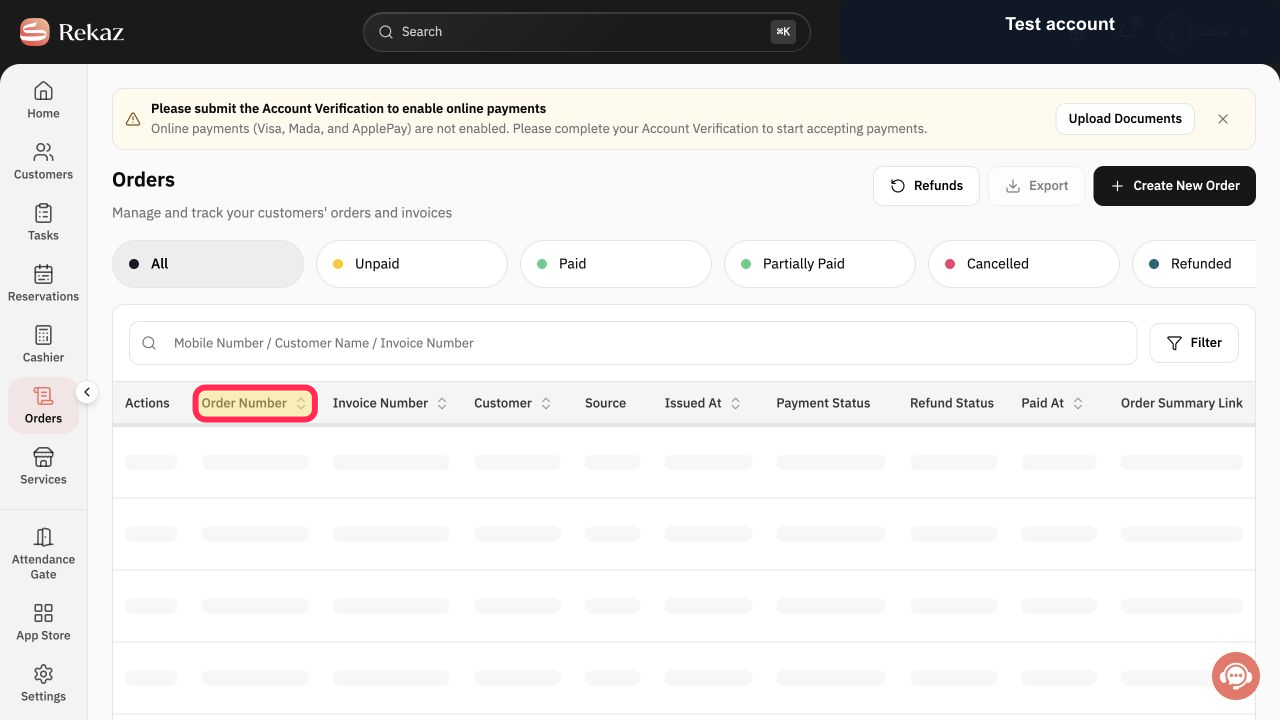
Locate the intended order using its order number, invoice number, customer, or payment status.
The required order row is identified.
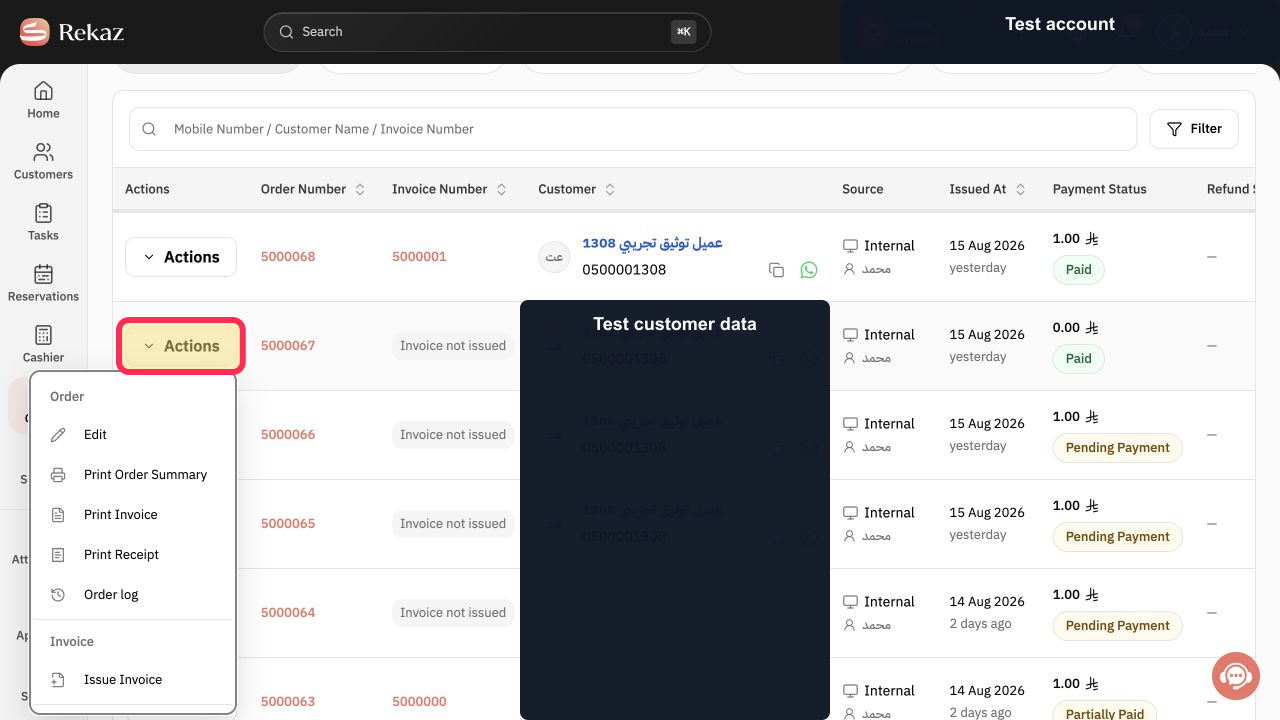
Select Actions in the cancellable order row.
The order Actions menu opens.
Select Cancel Order from the sensitive actions available for that order.
Rekaz opens the final cancellation warning.
Verify the order number and warning, then select Cancel Order only when you intend to cancel the order and its associated services.
The order is cancelled only after the final confirmation.
Illustrated guide
Step 1: Open Orders in Rekaz.
Step 2: Locate the order using the order-number column.
Step 3: Open the cancellable order's Actions menu.
Step 4: Open the Cancel Order confirmation.
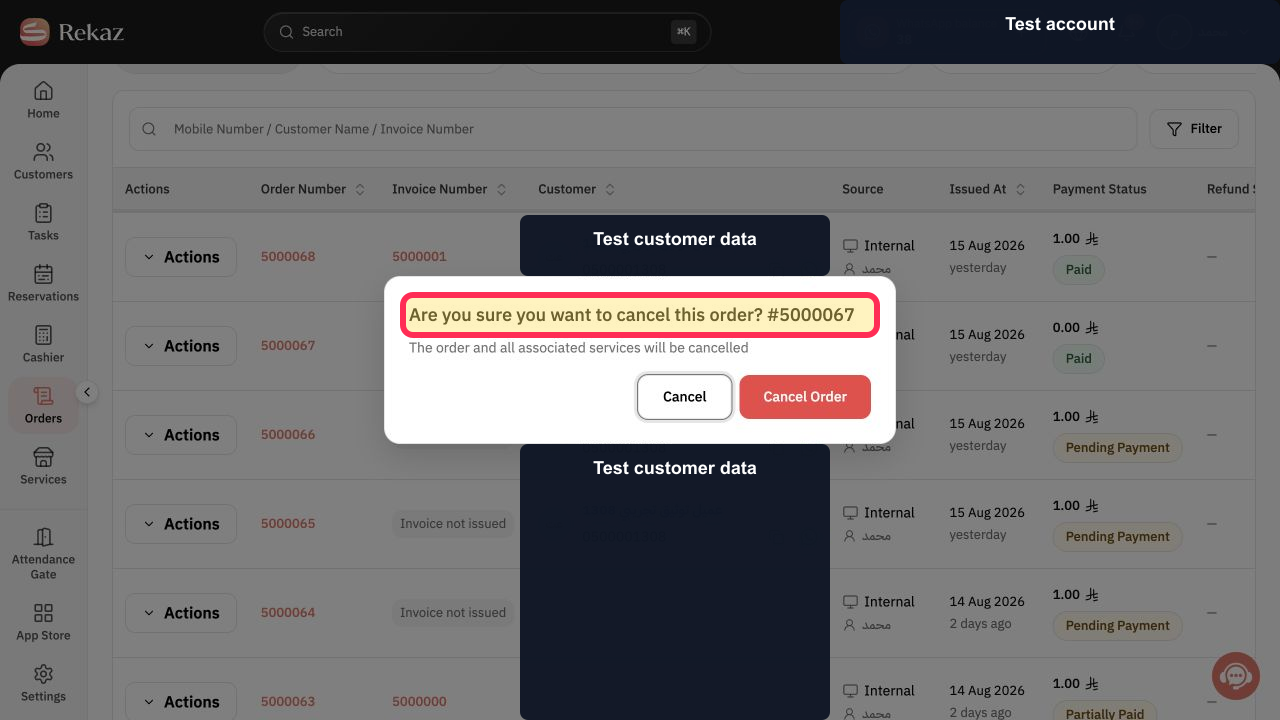
Step 5: Confirm cancellation of the selected order.
Related questions
How can I cancel an existing order in Rekaz?
Where can I find the option to cancel an order in Rekaz?
How do I use the Actions menu for an order in Rekaz?


