How do I add an announcement banner to my website in Rekaz?
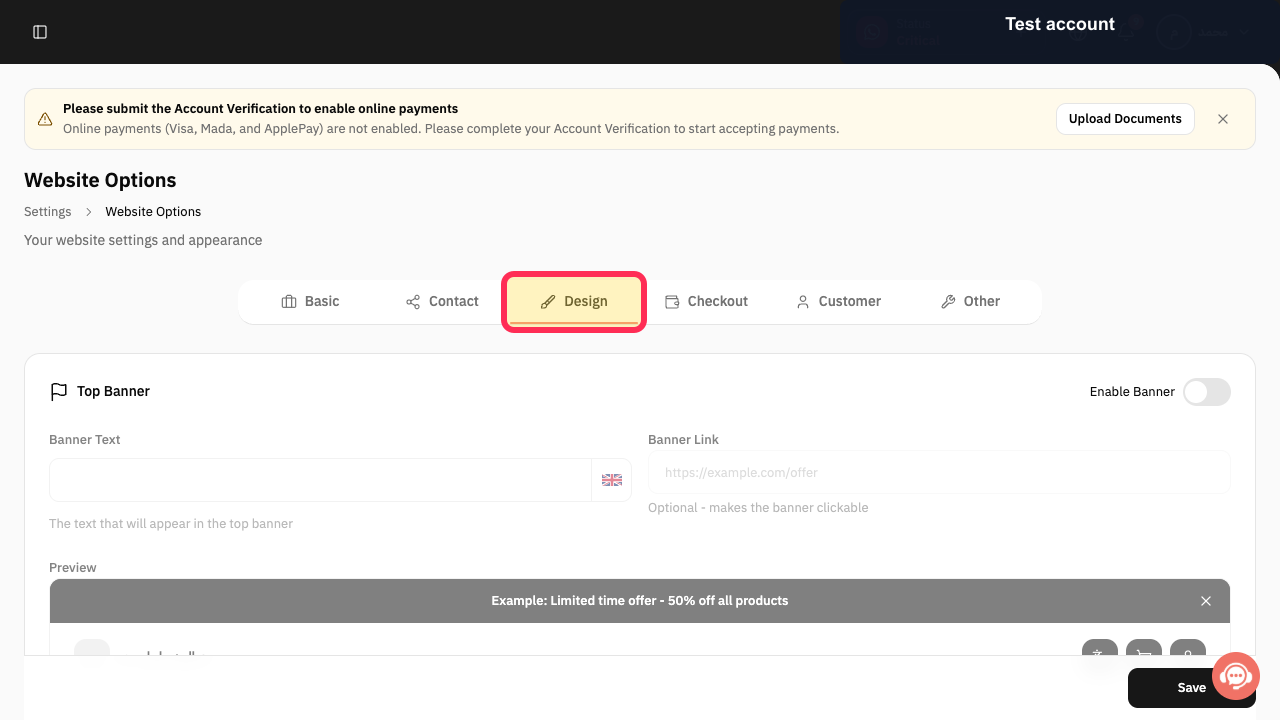
The current Rekaz interface places announcement-banner controls under Website Options > Design.
Keep the message short, and add a link only when it sends customers to a trusted destination relevant to the announcement.
Steps
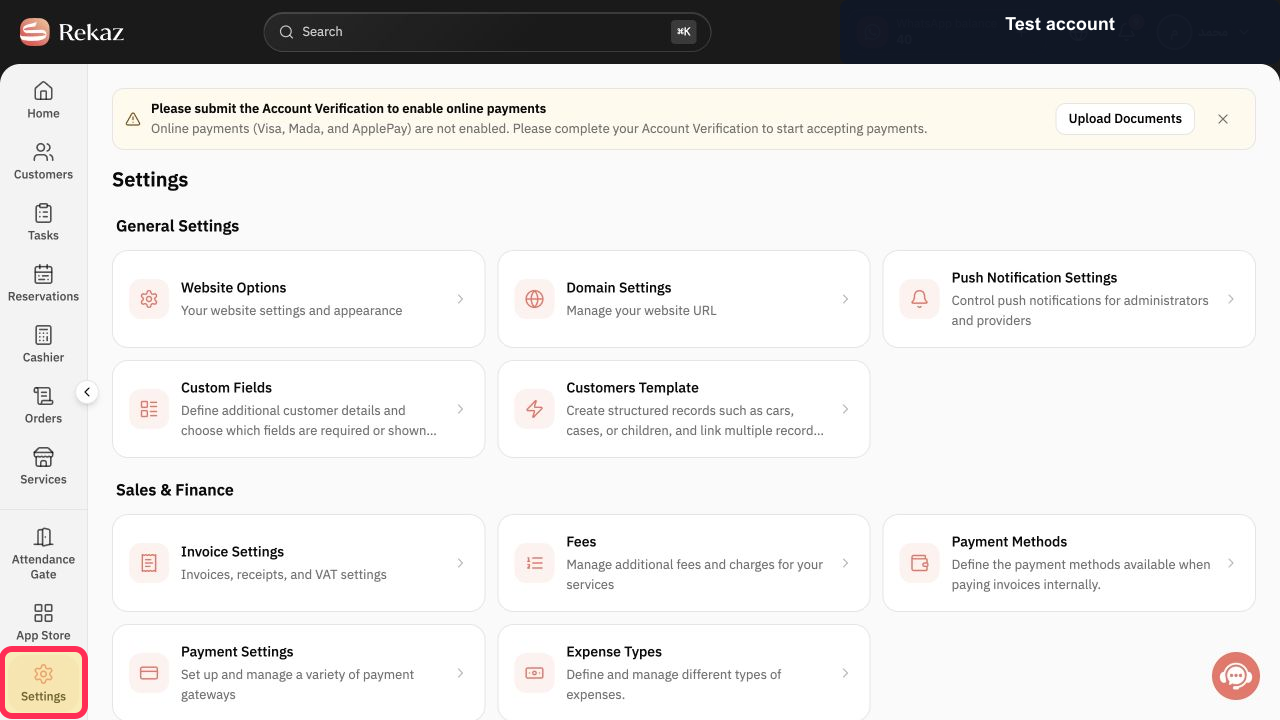
From Home, select Settings in the sidebar.
The Settings area opens.
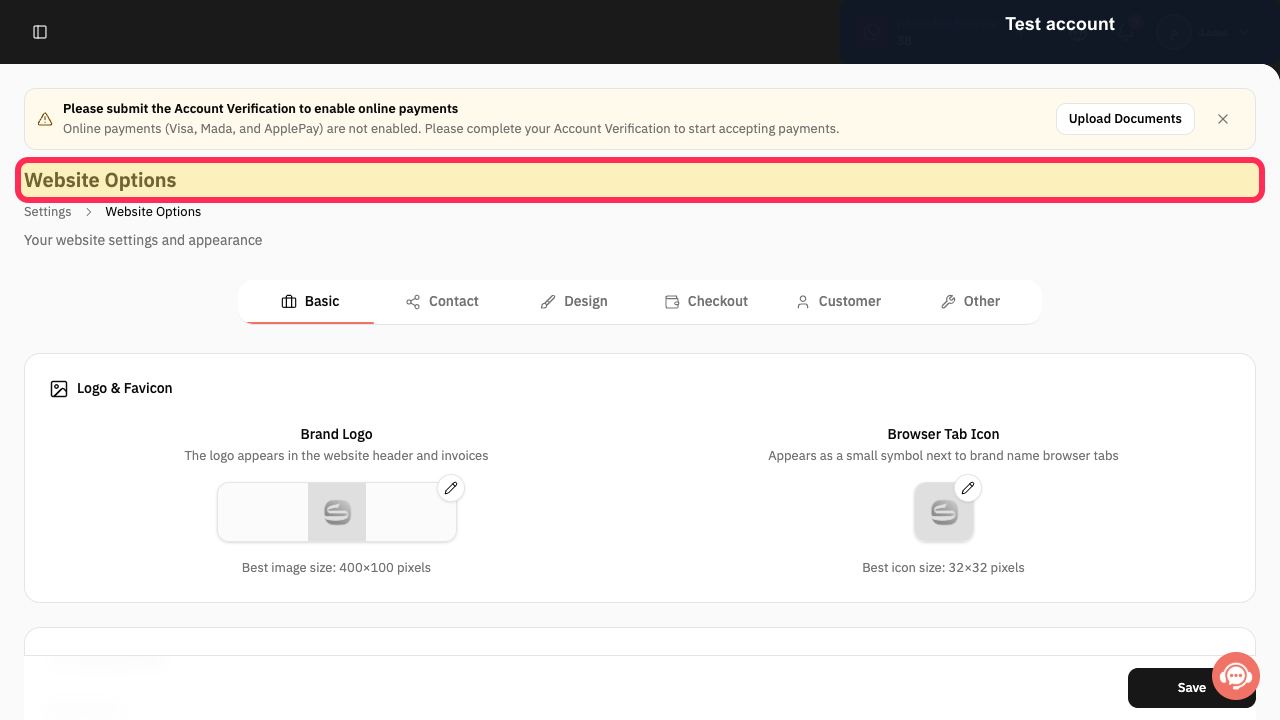
Select Website Options.
The current website settings and appearance area opens.
Open Design.
The website design controls are displayed.
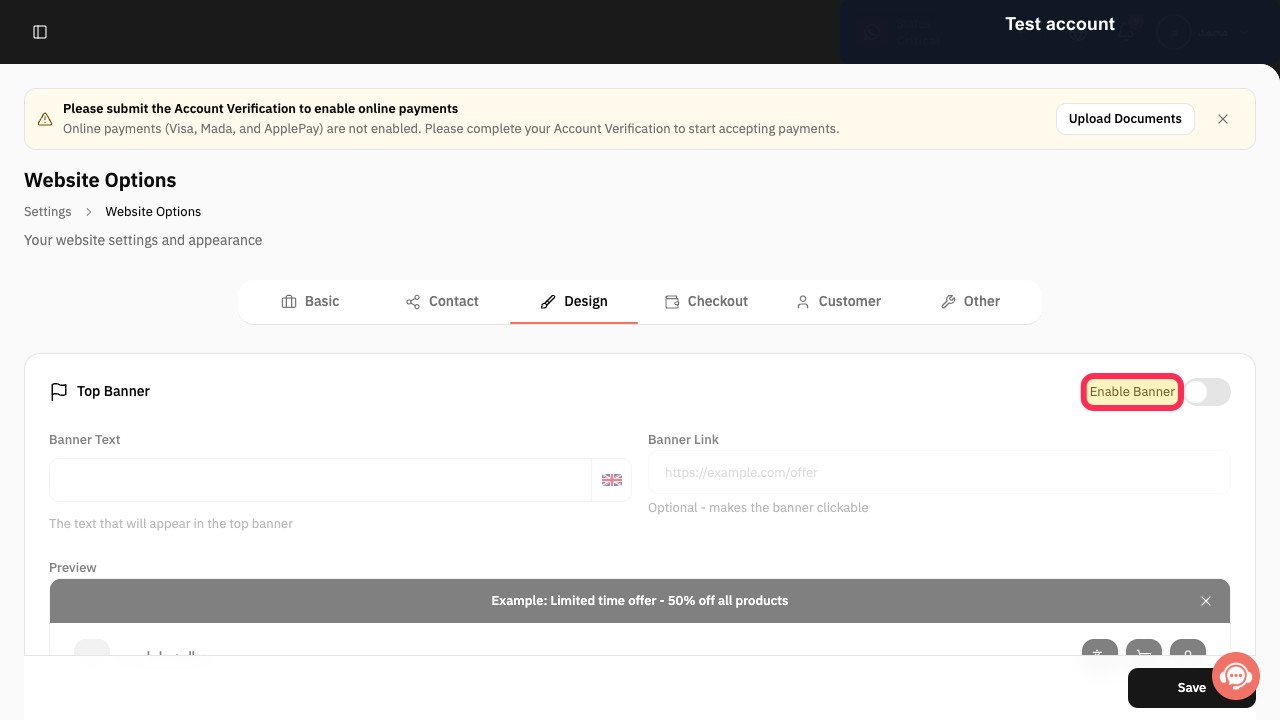
Turn on Enable Banner.
The announcement-banner fields become available.
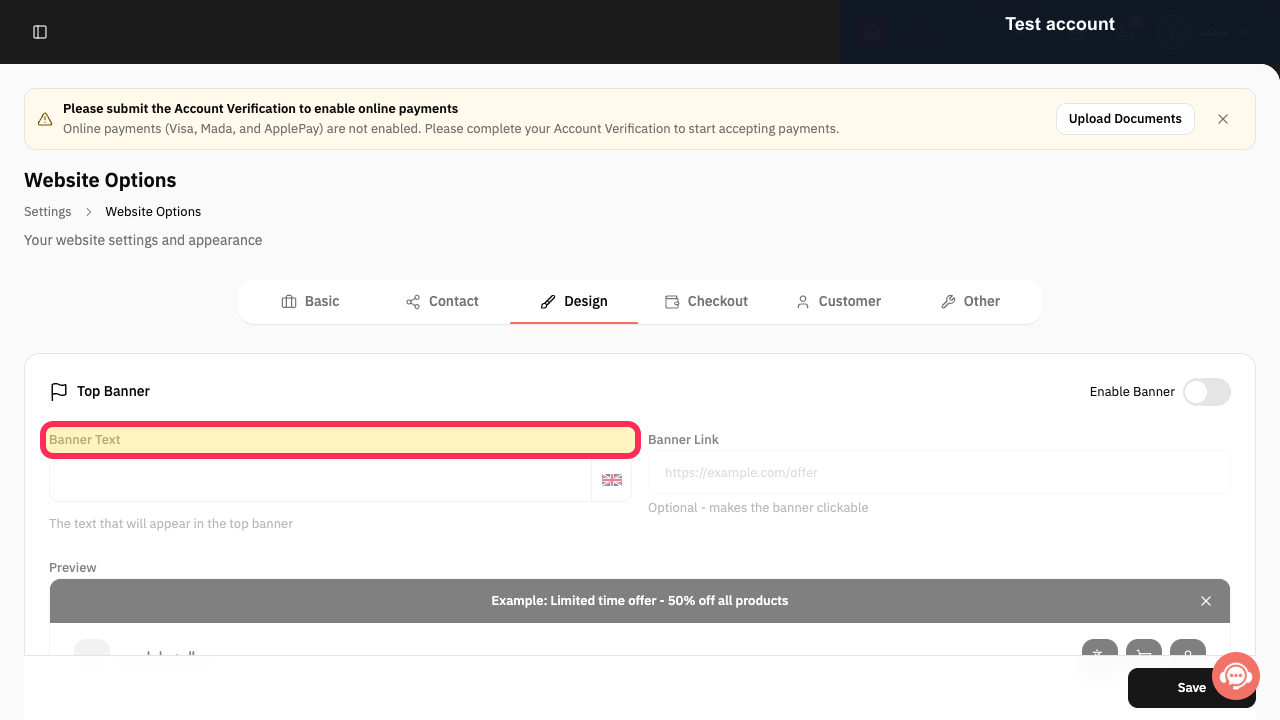
Enter the announcement in Banner Text.
The banner preview uses the entered announcement text.
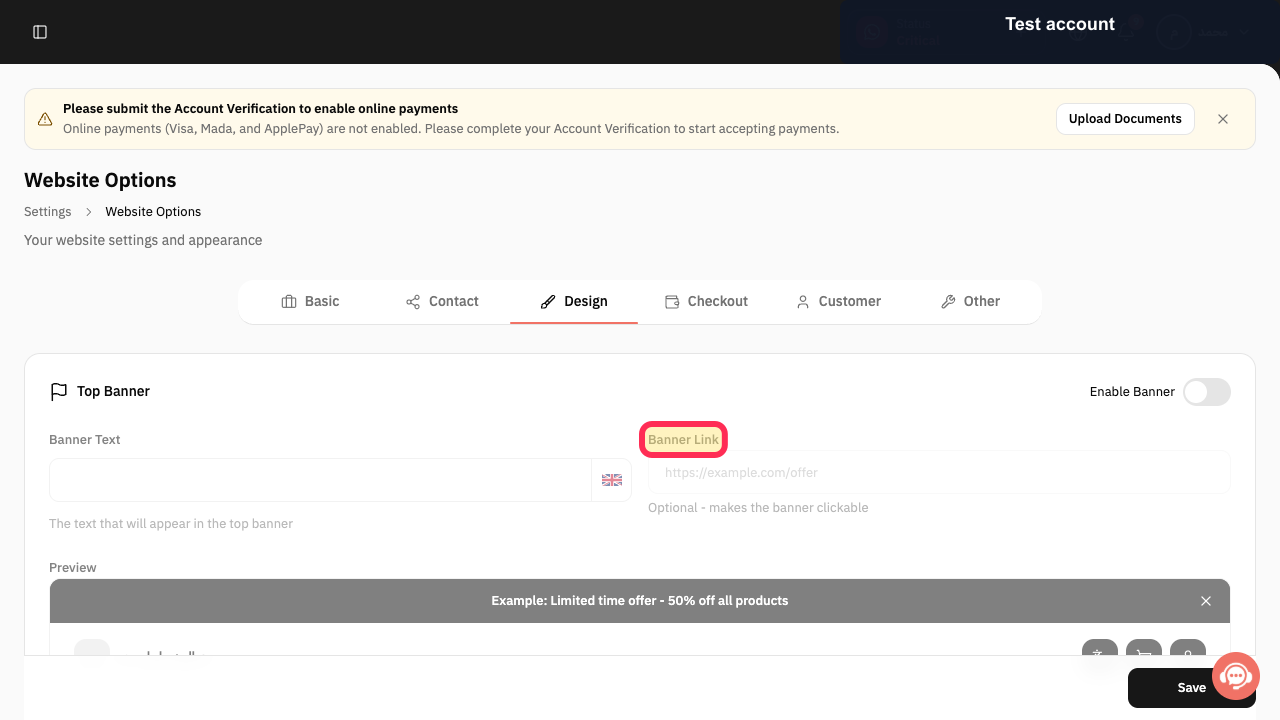
Optional: enter a trusted destination in Banner Link.
The banner can direct customers to the selected destination.
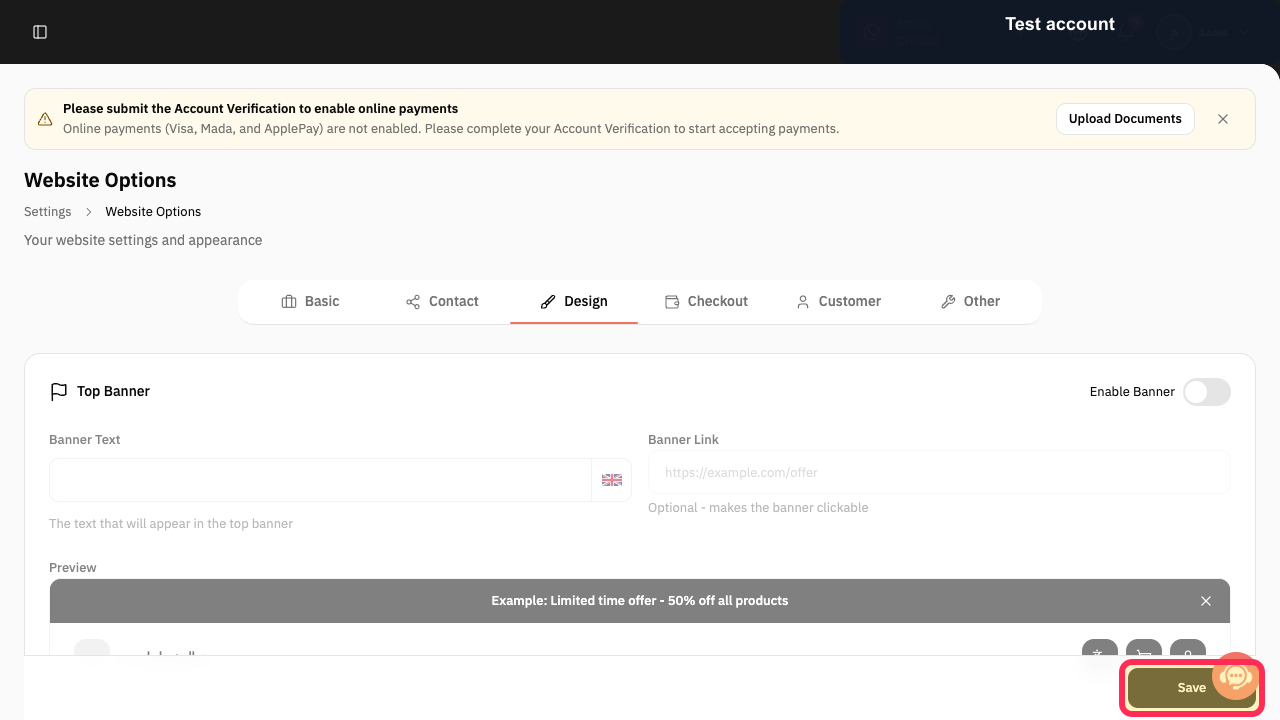
Review the preview, then select Save.
The announcement-banner settings are saved.
Illustrated guide
Step 1: Open Settings in Rekaz.
Step 2: Open Website Options.
Step 3: Open the Design tab.
Step 4: Enable the website announcement banner.
Step 5: Enter the announcement banner text.
Step 6: Add an optional trusted banner link.
Step 7: Save the announcement banner.
Banner link
Adding a Banner Link is optional. Use it when you want customers to open a specific page after selecting the announcement banner.
Related questions
How do I enable a website banner in Rekaz?
How do I add text to a website banner in Rekaz?
How do I add a link to an announcement banner in Rekaz?


