How do I add a CNAME record for my website in Rekaz?
For an existing domain, Rekaz now presents Link Existing Domain and says the domain is connected by pointing its nameservers. The actual DNS screen belongs to your registrar or DNS provider, so its layout will vary.
Steps
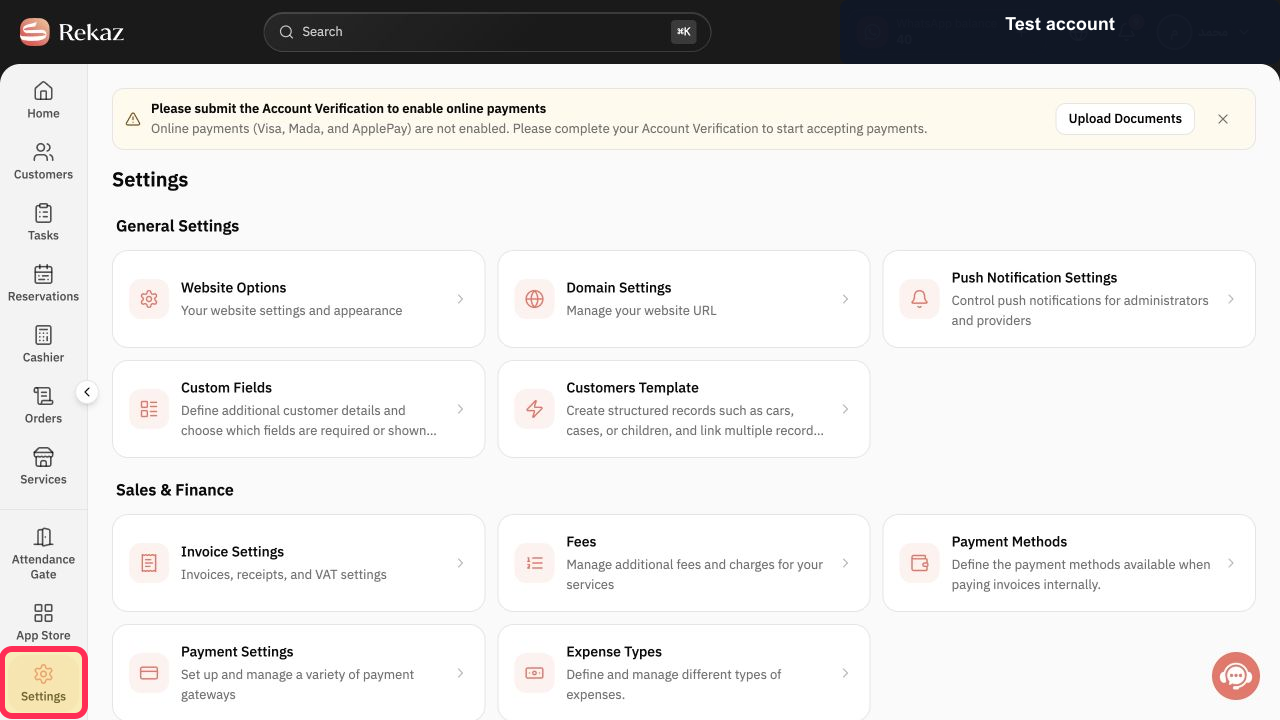
Select Settings in the Rekaz sidebar.
The Settings page opens.
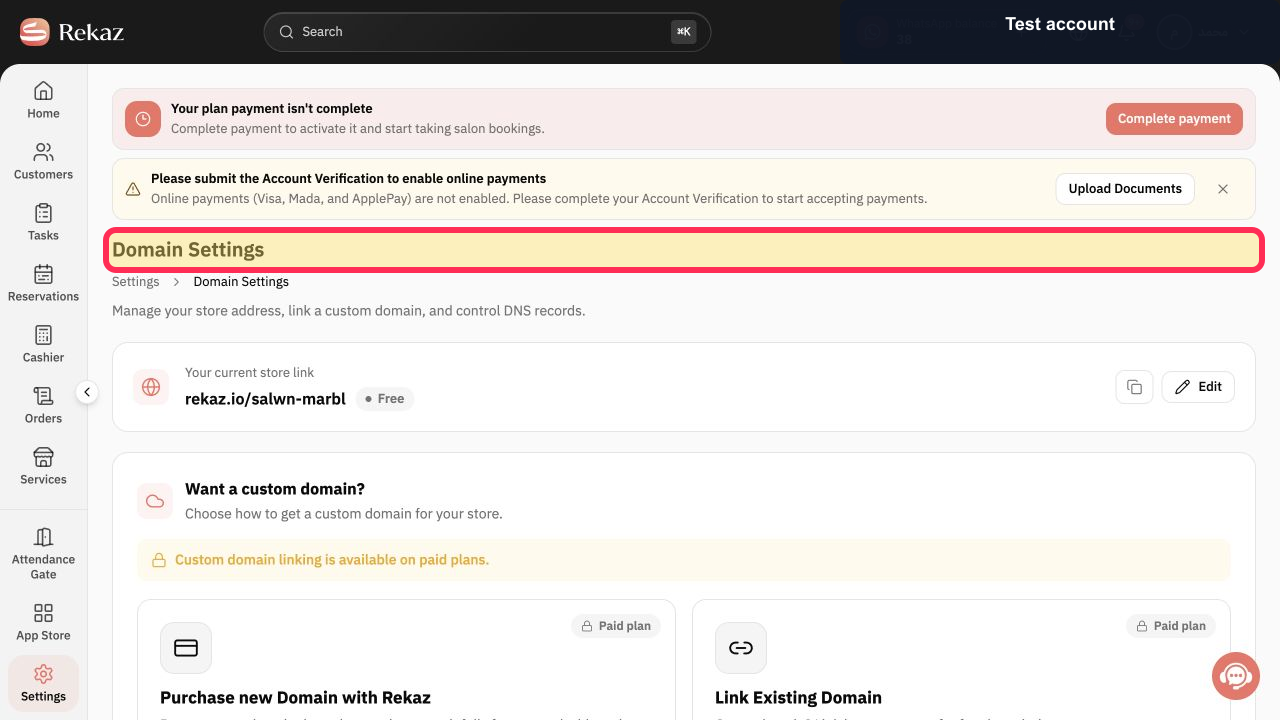
Open Domain Settings.
The current store link and custom-domain options are displayed.
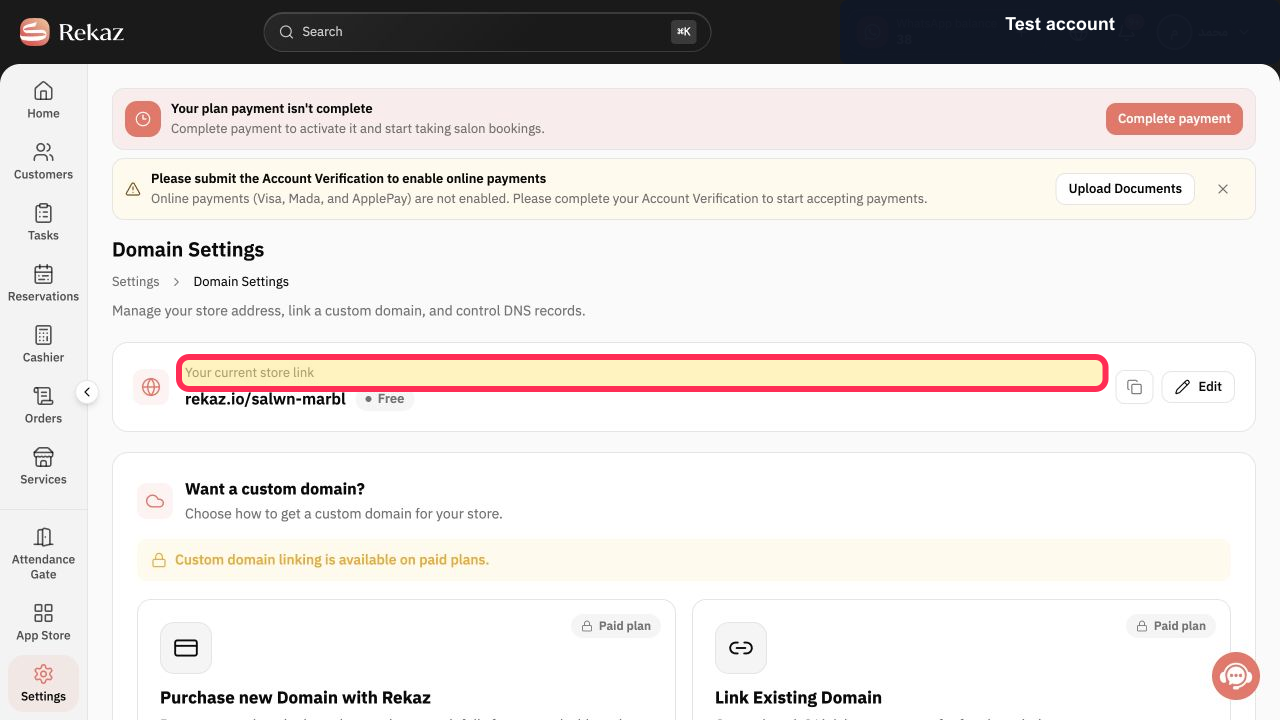
Review your current store link and confirm that the free Rekaz address works before changing the domain.
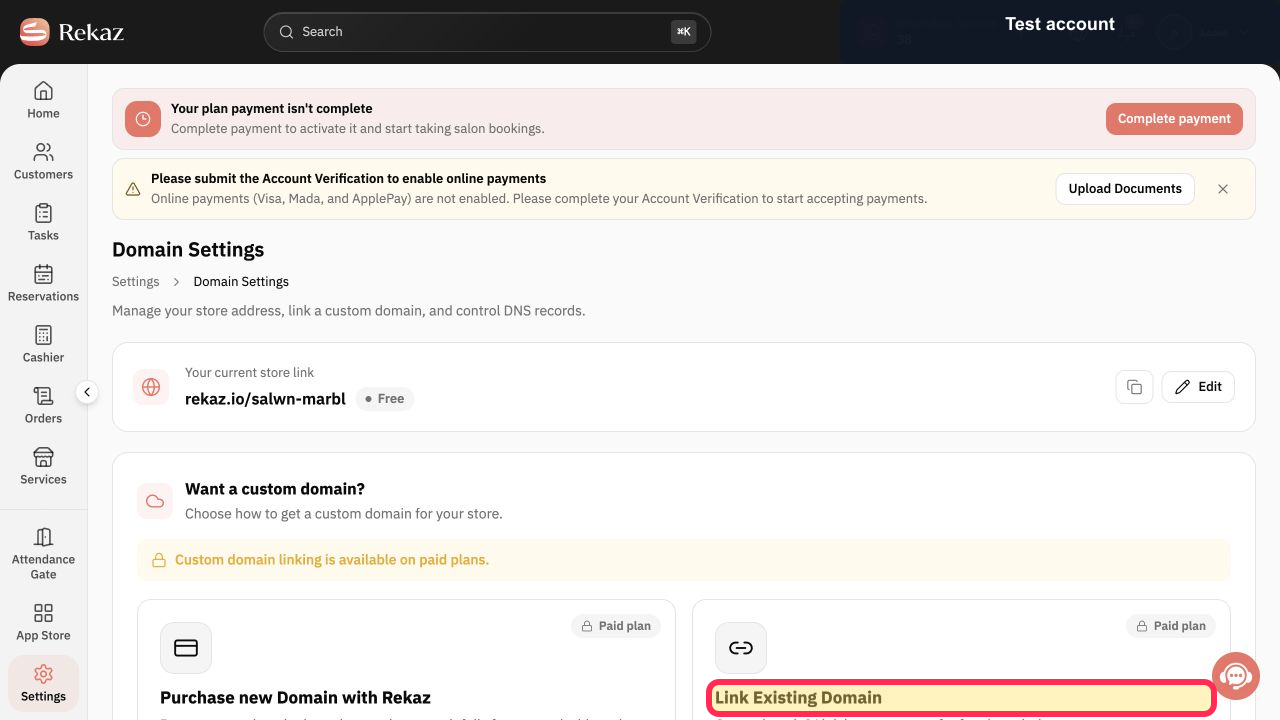
Select Link Existing Domain when you already own a domain.
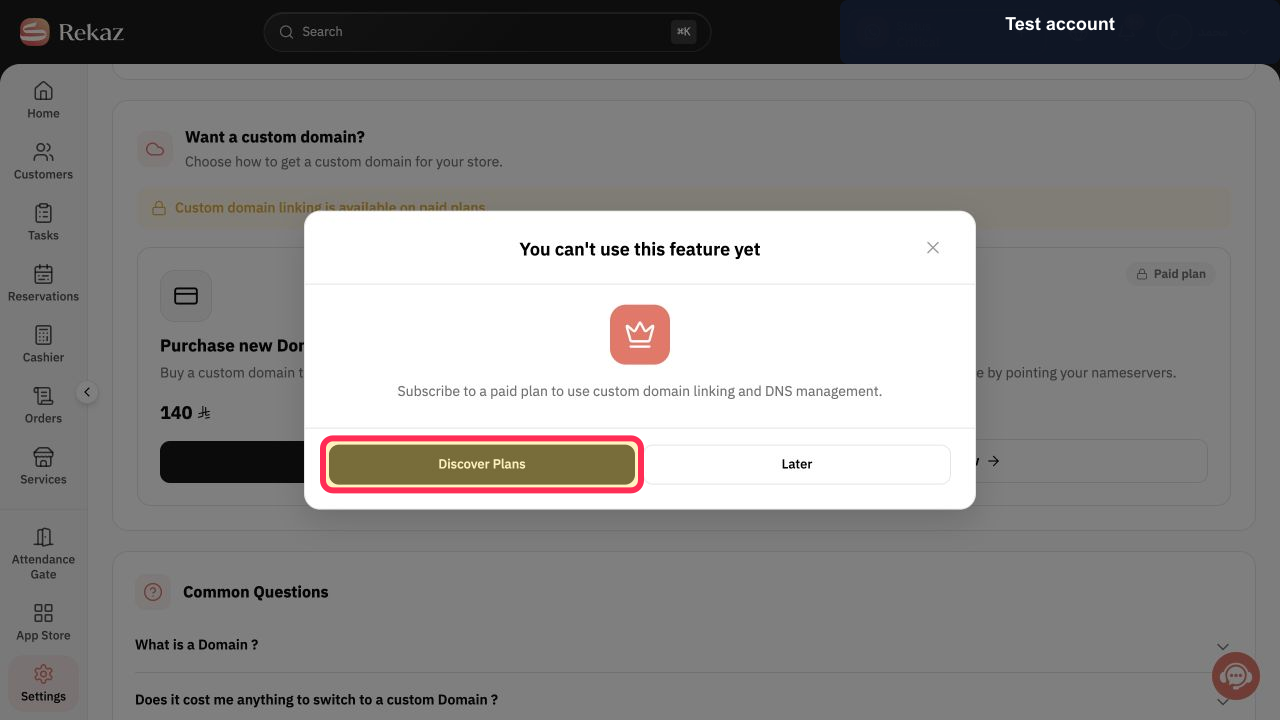
Rekaz checks whether custom-domain linking is available for the plan.
If You can't use this feature yet appears, select Discover Plans or upgrade before continuing.
Once the feature is available, follow the nameserver values shown by Rekaz and enter them at your domain registrar or DNS provider. Do not invent a CNAME target when Rekaz asks for nameservers. The external DNS provider is configured with the exact values supplied by Rekaz.
Return to Domain Settings after saving the external DNS change.
The domain connection can be reviewed from Rekaz.
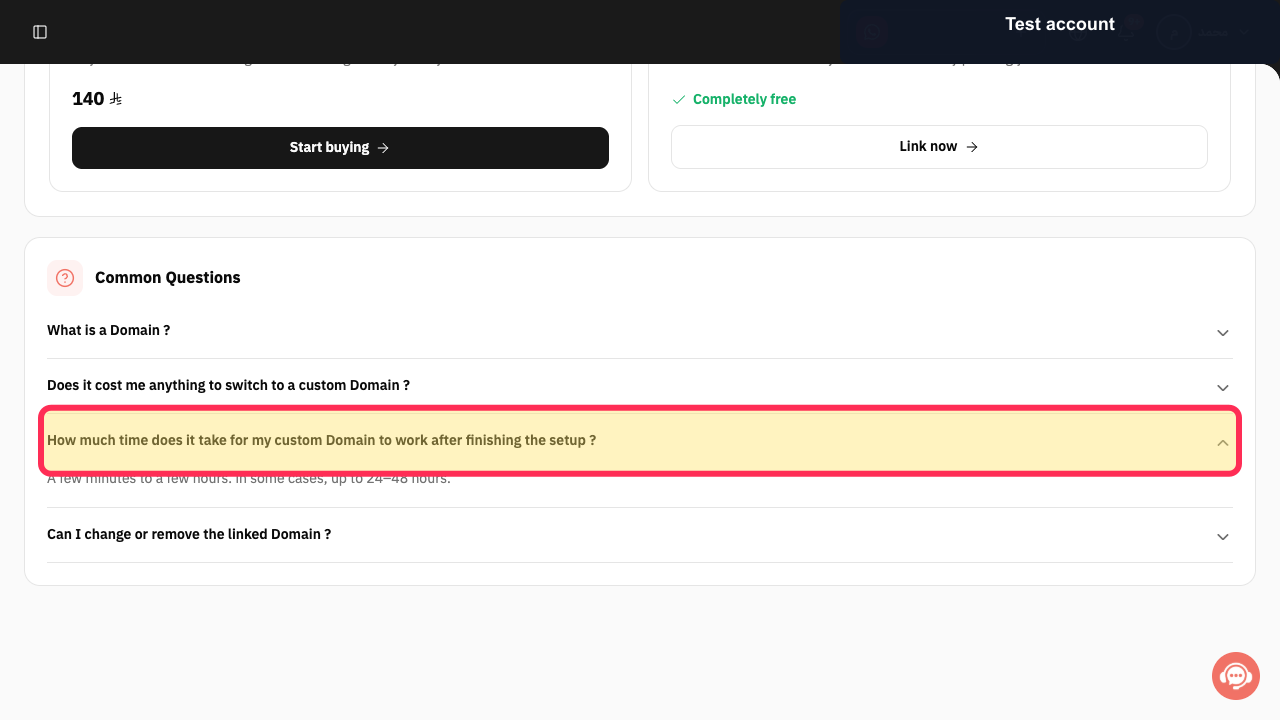
Allow a few minutes to a few hours for propagation; Rekaz notes that some cases take up to 24–48 hours.
Illustrated guide
Step 1: Open Settings in Rekaz.
Step 2: Open Domain Settings.
Step 3: Verify the current Rekaz store link.
Step 4: Choose Link Existing Domain.
Step 5: Review the paid-plan requirement for custom domains.
Step 6: Use the nameserver method required by Link Existing Domain.
Step 7: Return to Rekaz Domain Settings.
Step 8: Review the custom-domain propagation time.
CNAME record values
Use the following values when creating the record:
Record type: CNAME
Name: @
Target / Value: cname.rekaz.io
Propagation time
After saving, DNS changes may not take effect immediately. Allow time for the record to propagate fully.
Related questions
What CNAME value should I use for my Rekaz website?
How do I configure DNS records for my domain in Rekaz?
Why is my CNAME record not active immediately after saving it in Rekaz?


