How do I add a loyalty card to Apple Wallet in Rekaz?
The Apple Wallet page lets you enable reservation and subscription passes, upload the two pass images, and save the setting. Do not promise a loyalty-card pass unless Rekaz adds that control to your account.
Steps
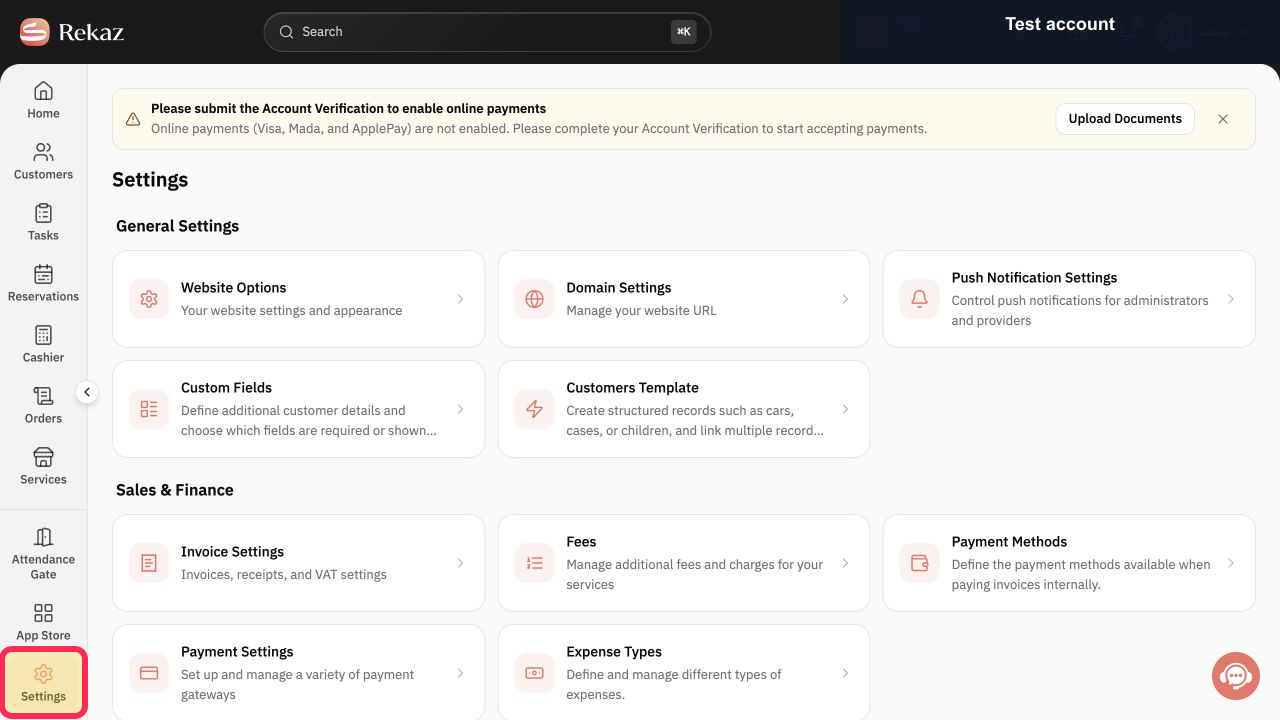
Select Settings in the Rekaz sidebar.
The Settings page opens.
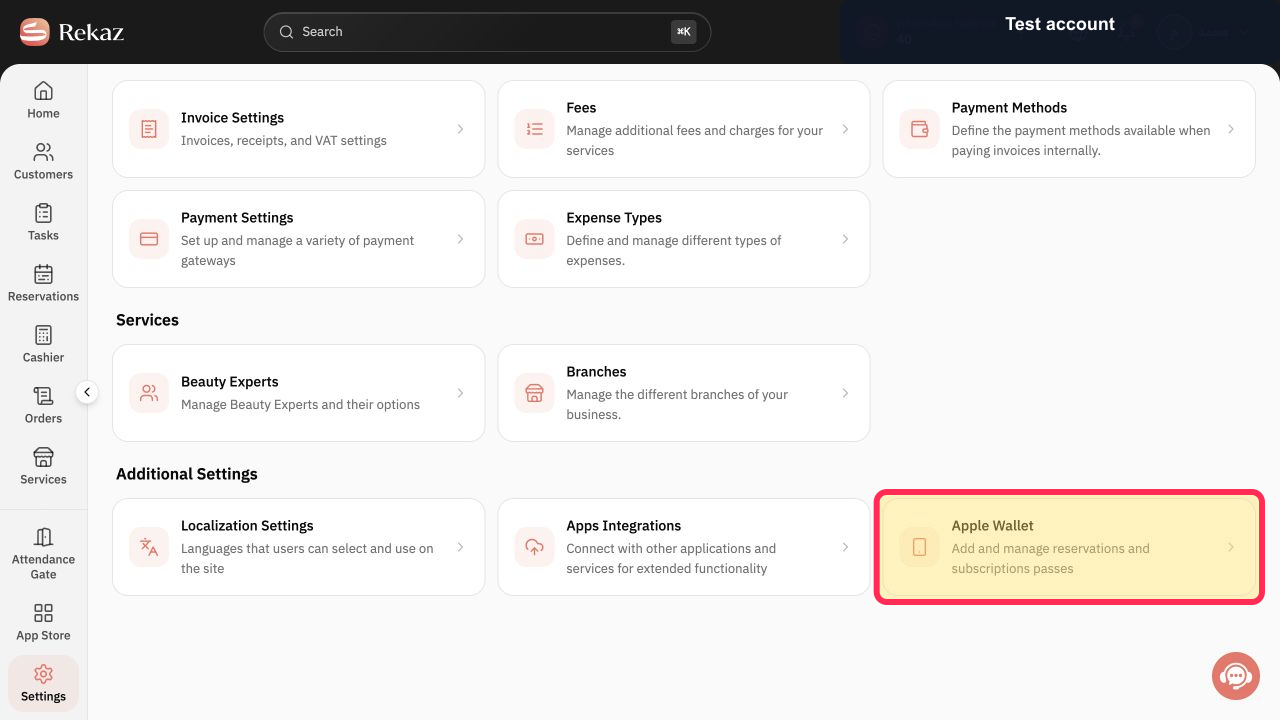
Open Apple Wallet.
The Apple Wallet settings page opens.
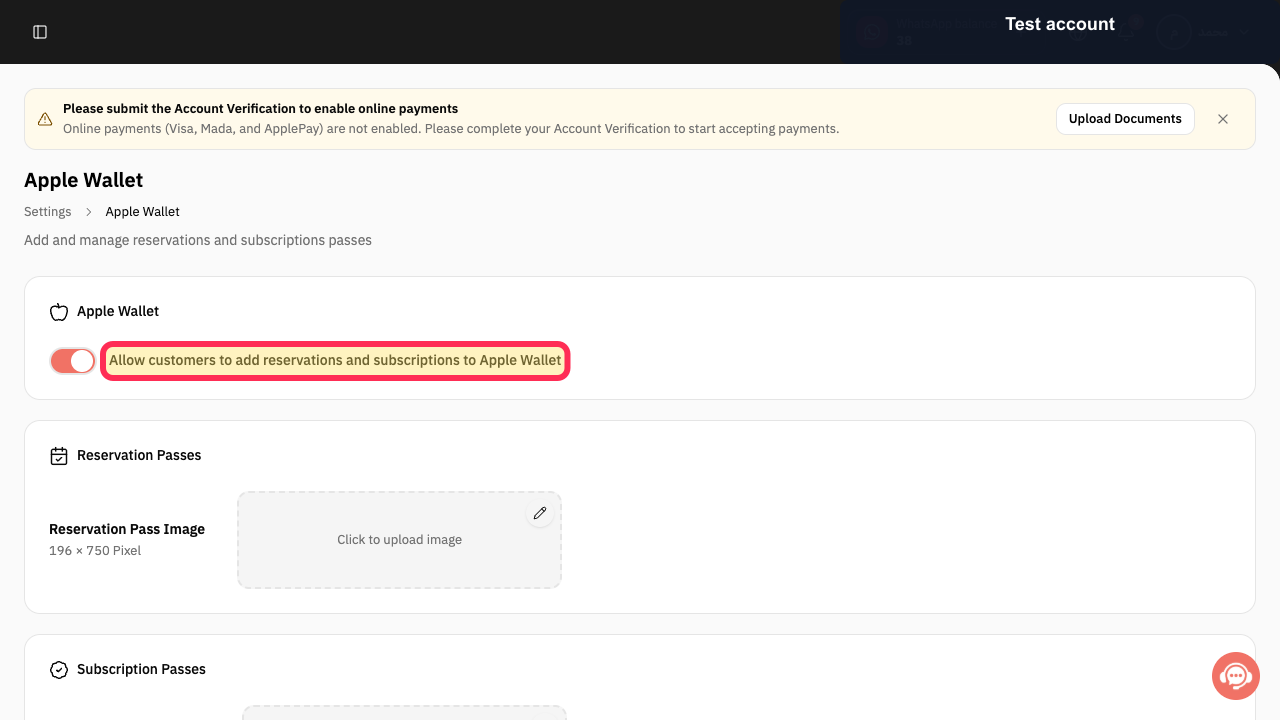
Allow customers to add reservations and subscriptions to Apple Wallet. The setting names only those two pass types, not loyalty cards.
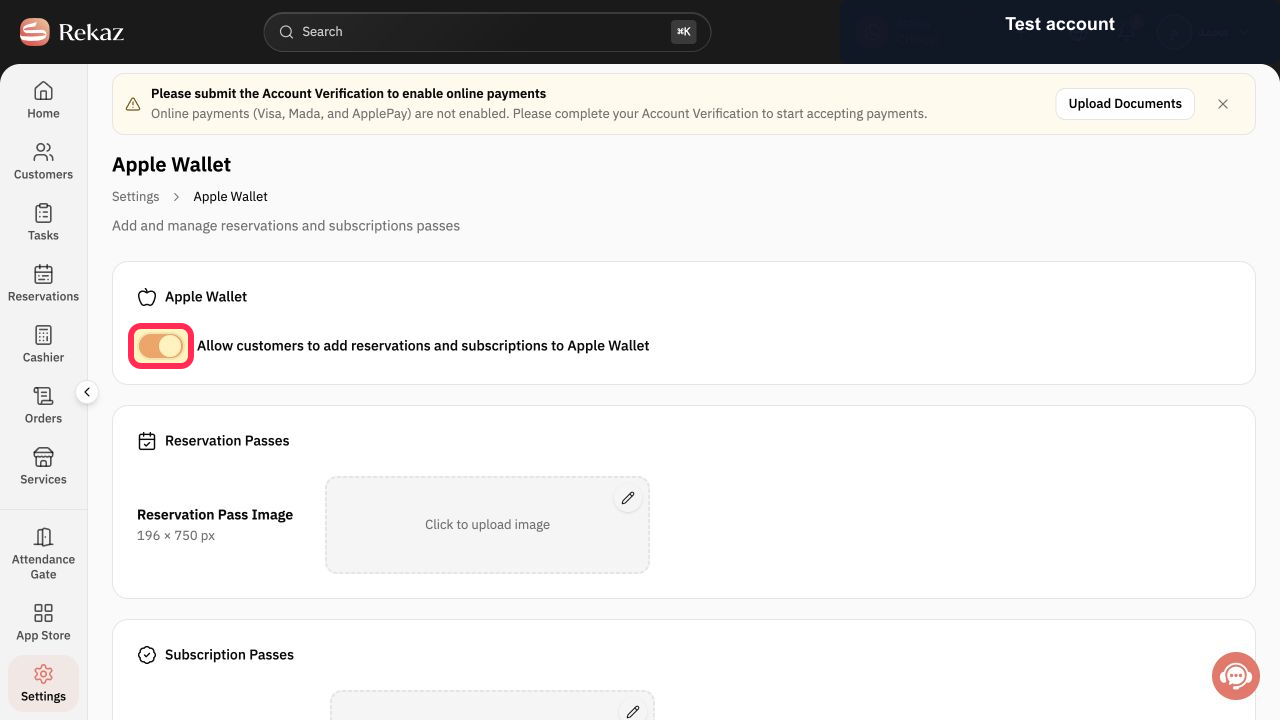
Enable the Apple Wallet switch when customers should receive reservation and subscription passes.
Apple Wallet passes follow the enabled setting.
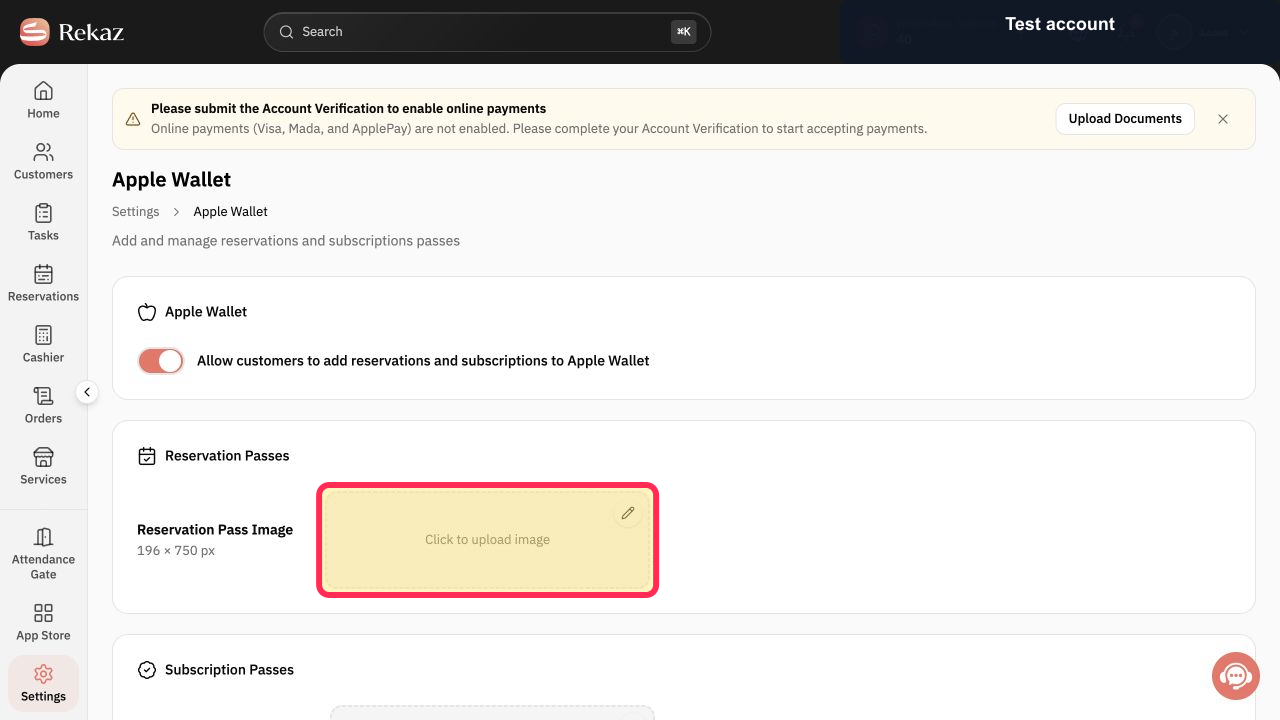
Configure Reservation Pass Image and Subscription Pass Image by selecting Click to upload image or Change in each section.
The supported passes use the selected images.
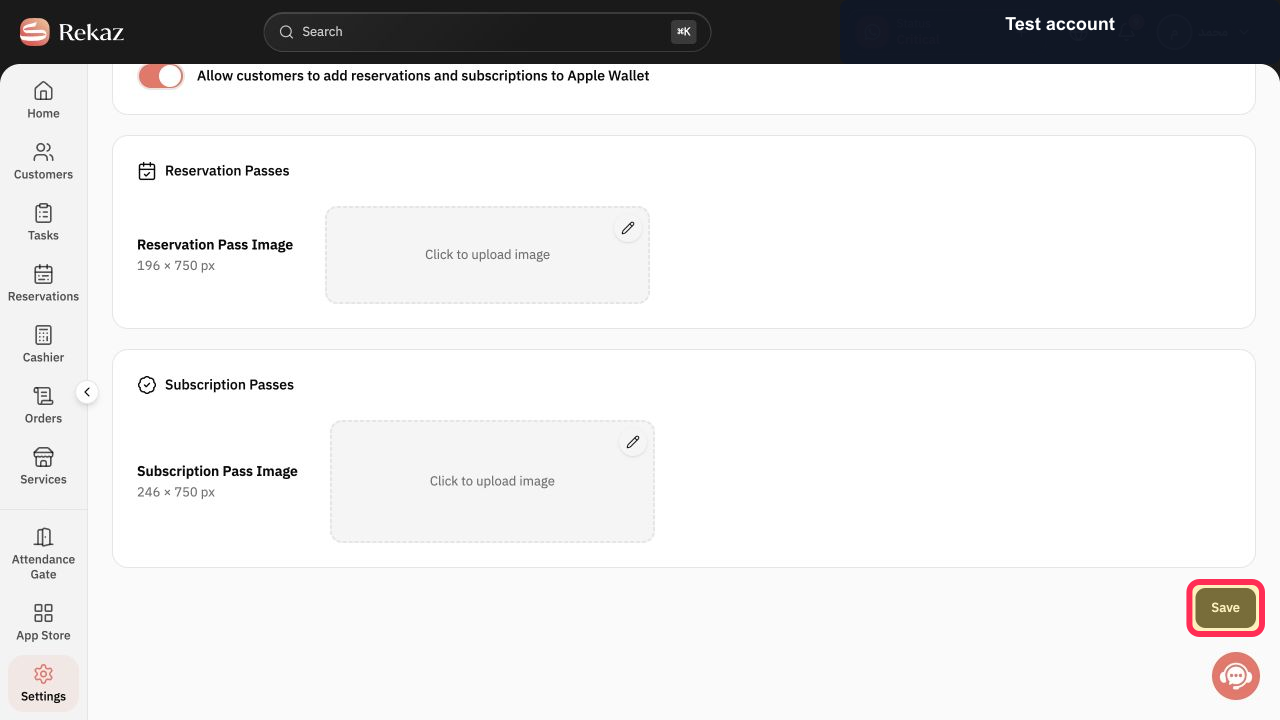
Select Save.
The Apple Wallet reservation and subscription pass settings are submitted.
Illustrated guide
Step 1: Open Settings from the Rekaz sidebar.
Step 2: Open Apple Wallet settings.
Step 3: Review the Apple Wallet pass support shown in Rekaz.
Step 4: Enable reservation and subscription Apple Wallet passes.
Step 5: Configure the reservation and subscription pass images.
Step 6: Save Apple Wallet settings.
Two ways to add the card
Businesses can display a customer’s loyalty card QR code from Rekaz for the customer to scan with an iPhone.
Customers who complete a booking through the Website can add the loyalty card that appears automatically after the booking.
What the customer sees in Apple Wallet
The number of stamps earned.
The number of stamps remaining to receive their gift.
Related questions
How can a customer add their Rekaz loyalty card to Apple Wallet?
How do I show a customer’s loyalty card QR code in Rekaz?
Can customers add a loyalty card to Apple Wallet after a Website booking?


