How do I add English to my website in Rekaz?
Rekaz lets customers use English after you enable it under Localization Settings. Enabling the language does not translate service content automatically.
After saving, add an English name and description to each service that appears on the website, then verify the website language switcher and English pages.
Steps
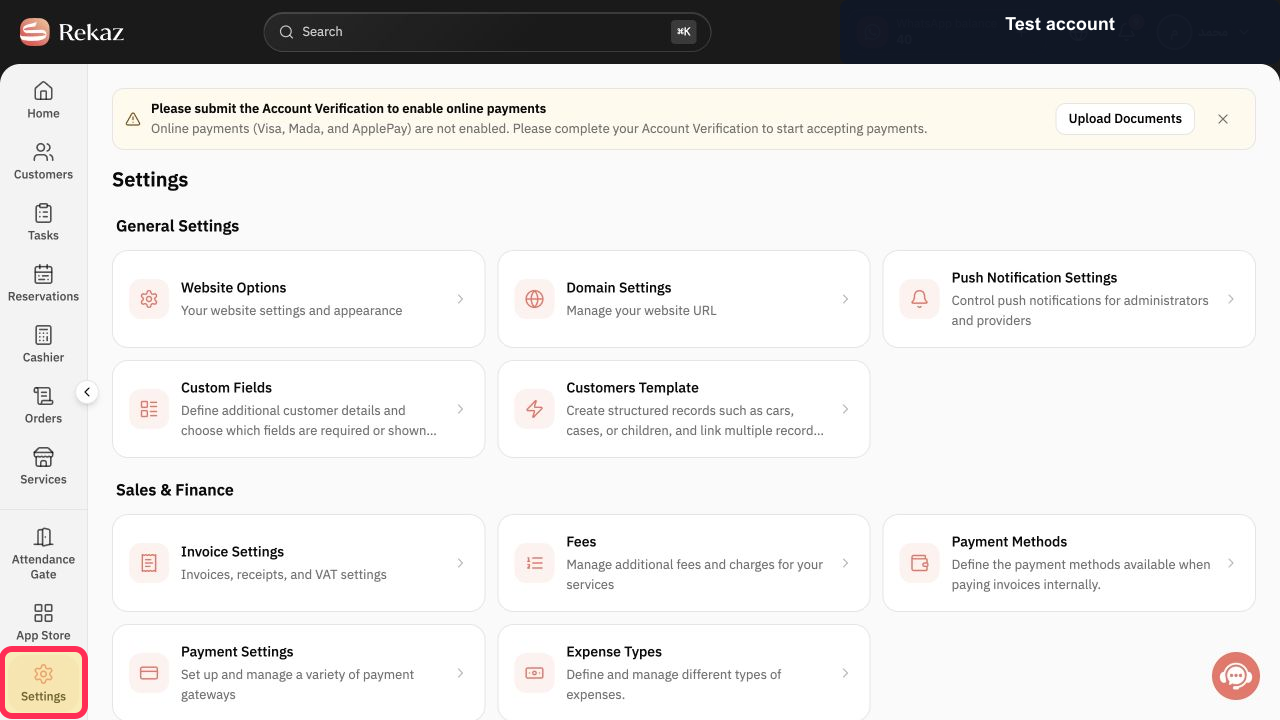
Select Settings in the Rekaz sidebar.
The Settings page opens.
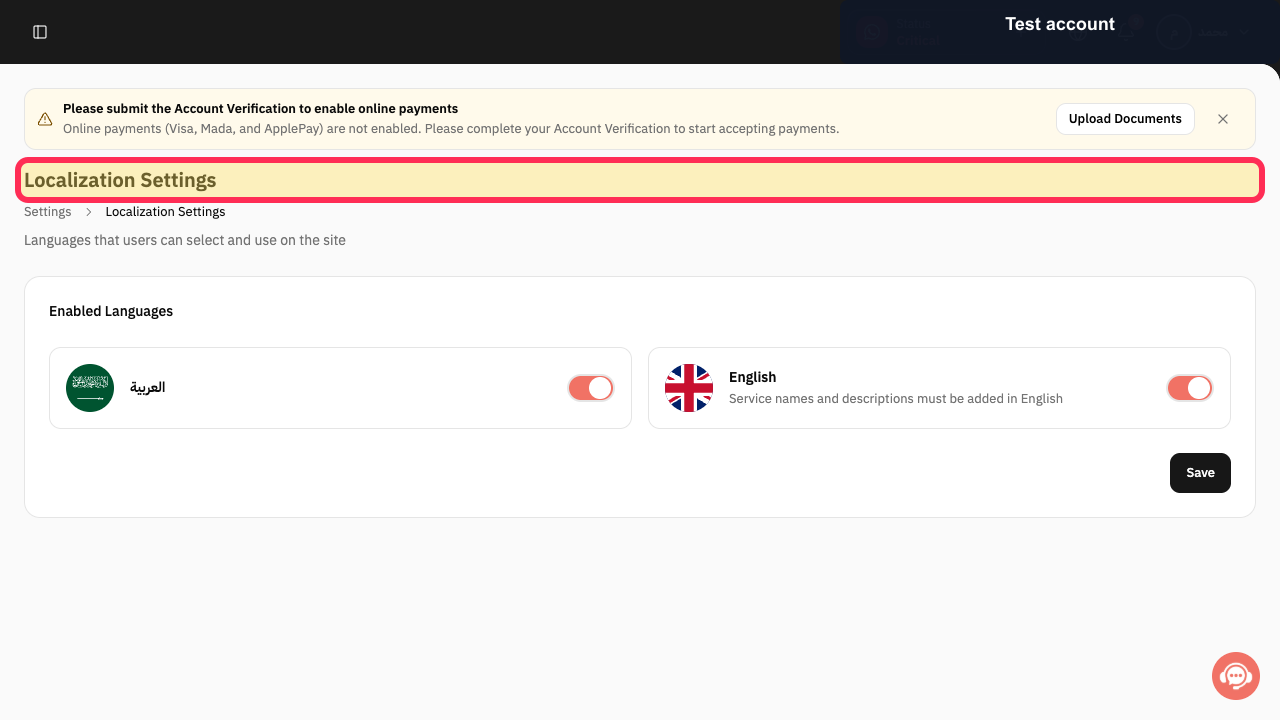
Open Localization Settings.
The Enabled Languages settings open.
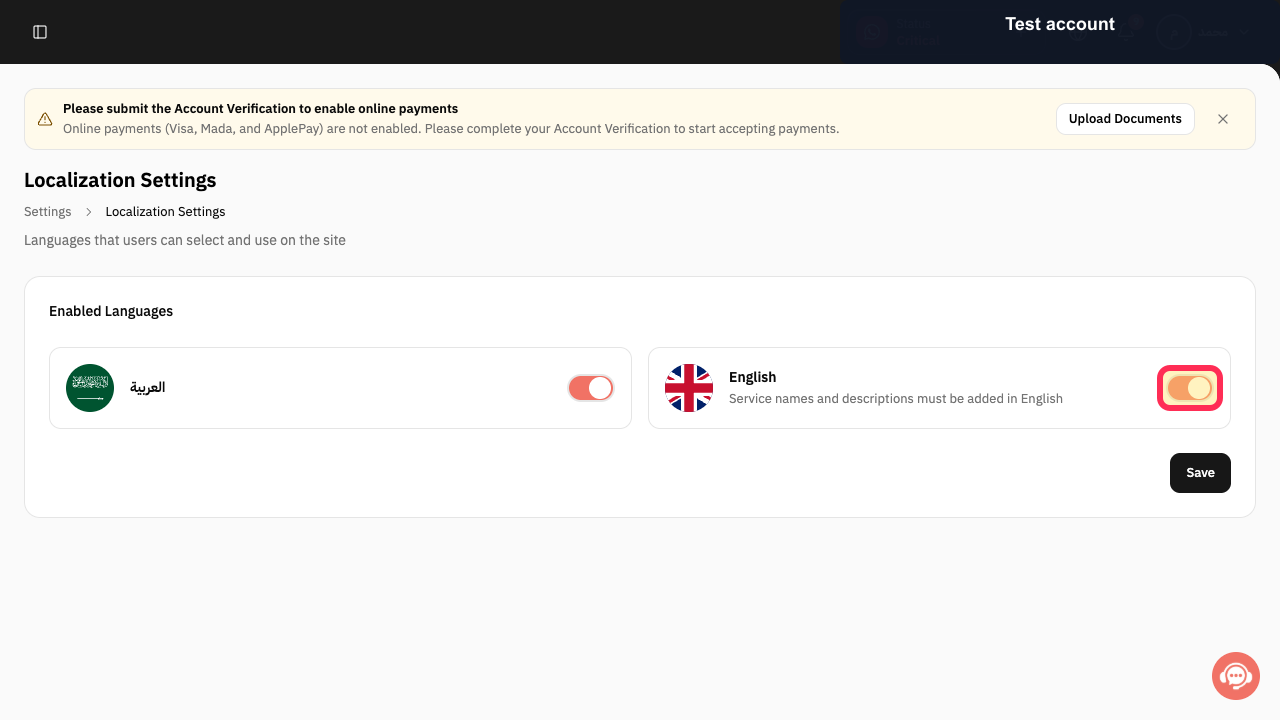
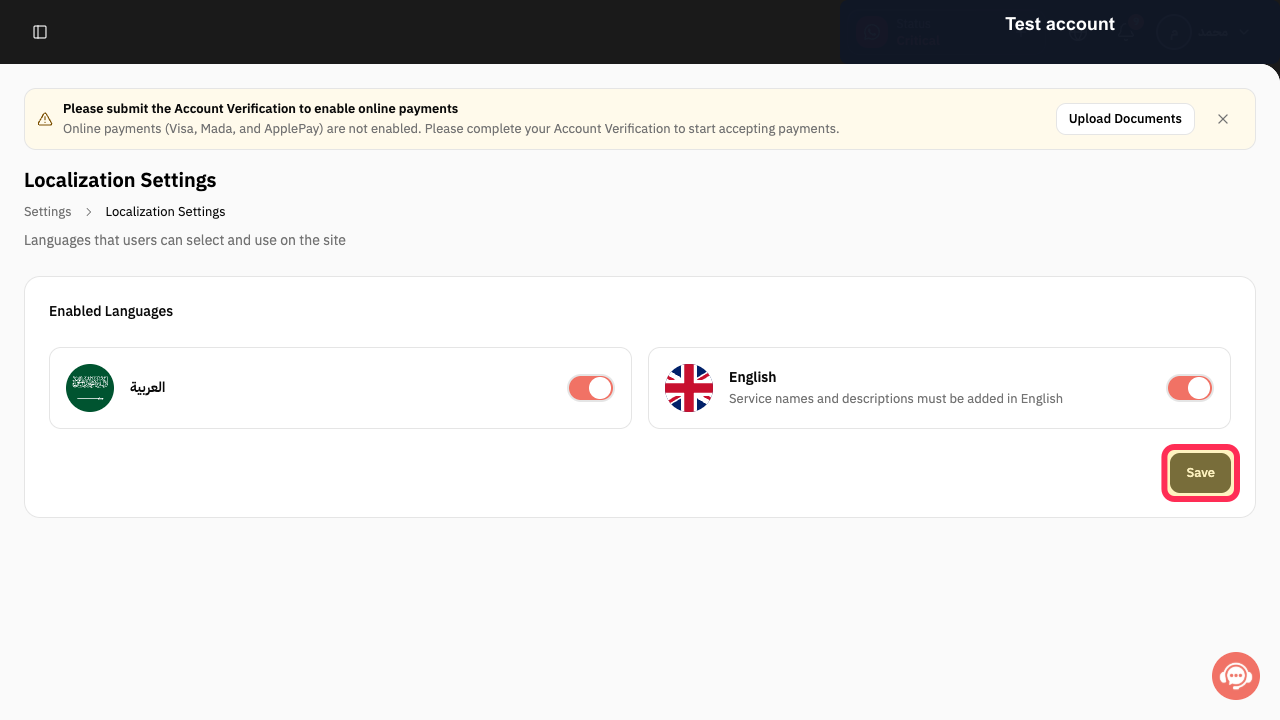
Enable English under Enabled Languages.
English is selected as an available website language.
Review the note that service names and descriptions must be added in English.
The translation requirement is clear before saving.
Select Save.
The enabled-language selection is submitted.
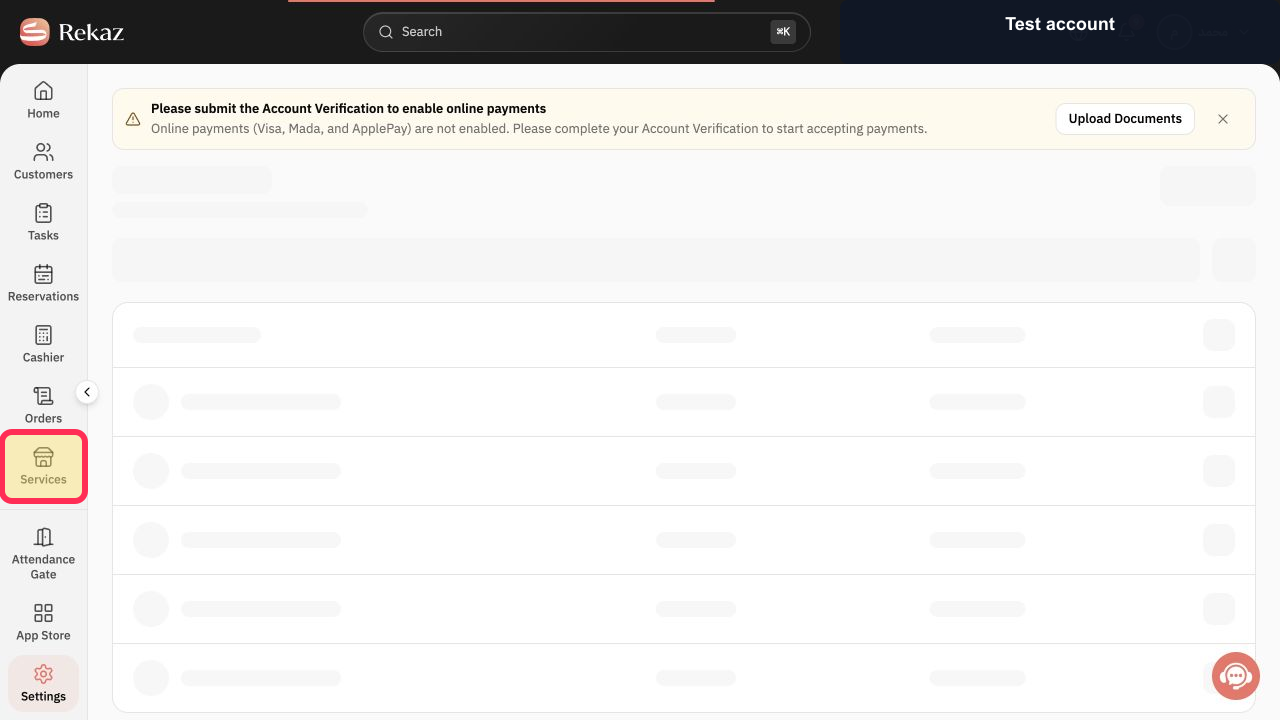
Select Services in the Rekaz sidebar and open each customer-facing service that needs English content.
The selected service editor opens.
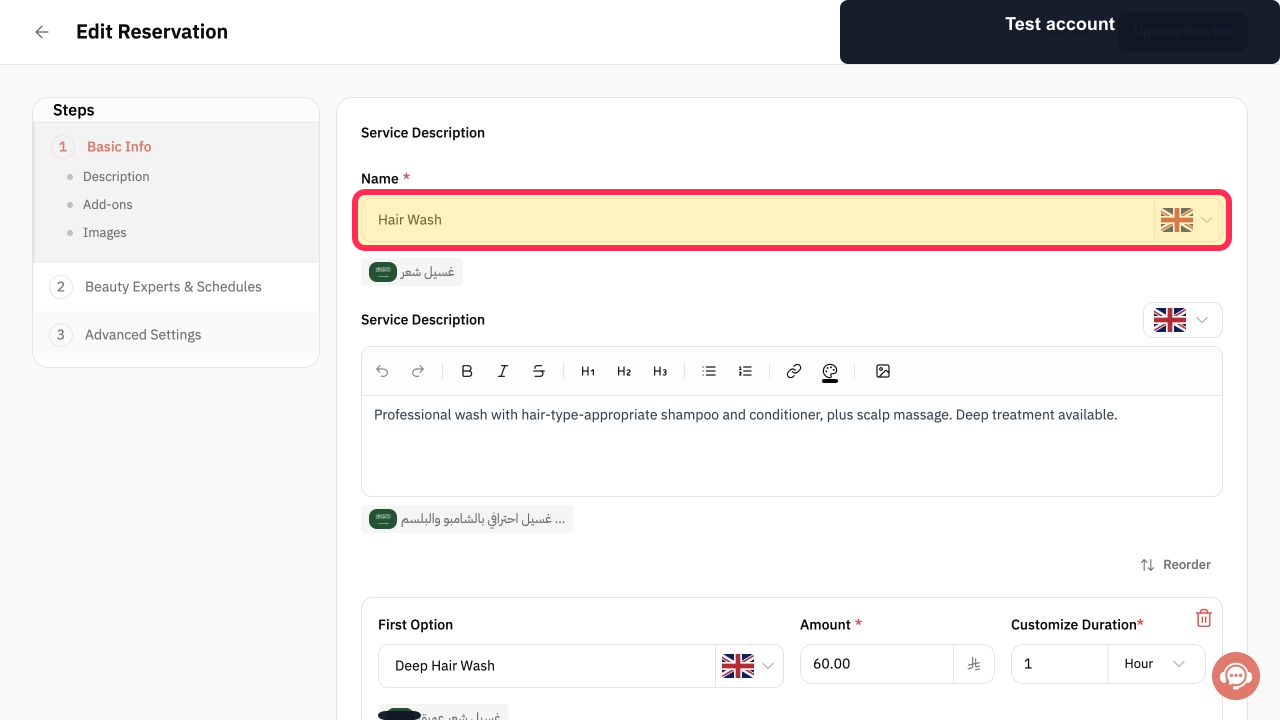
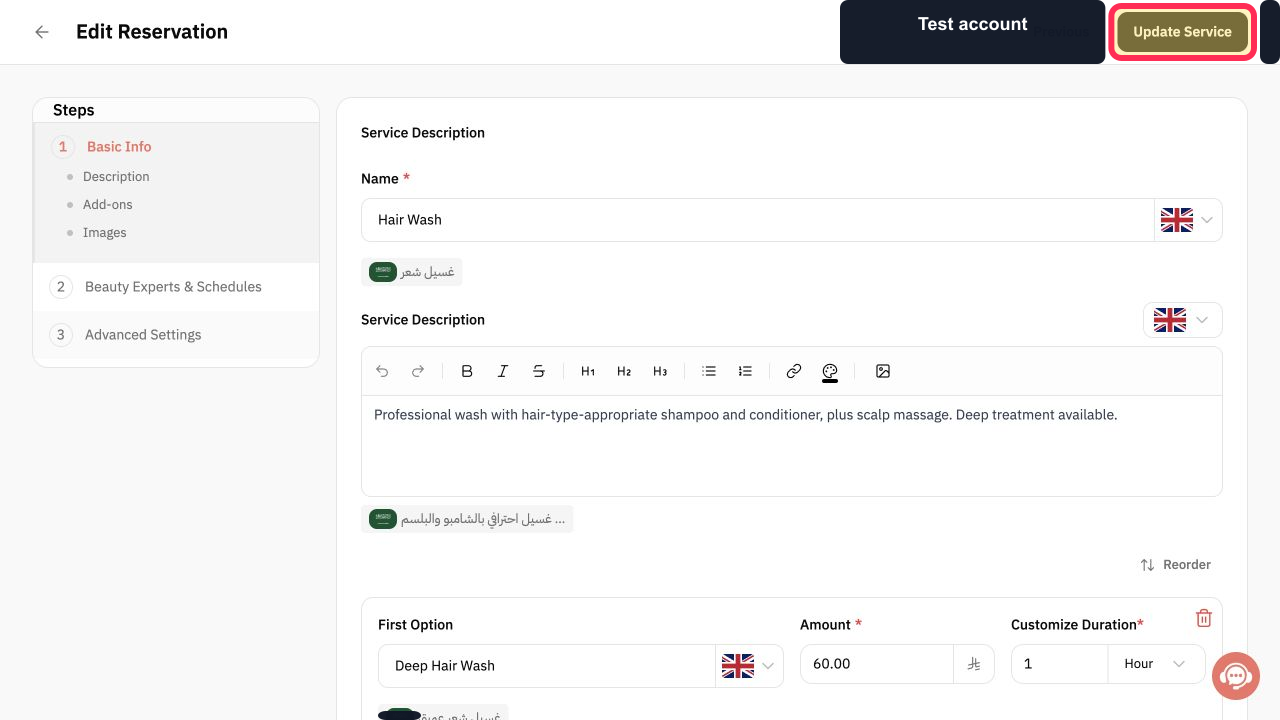
Use the English language selector and enter the service name and description in English.
The service has English customer-facing text.
Select Update Service, then repeat for every service shown on the website.
The service's English content is submitted.
Illustrated guide
Step 1: Open Settings from the Rekaz sidebar.
Step 2: Open Localization Settings.
Step 3: Enable English for the Rekaz website.
Step 4: Review the English service-content requirement.
Step 5: Save the Localization Settings.
Step 6: Open Services to add English content.
Step 7: Add the service name and description in English.
Step 8: Update the service with its English content.
What customers will see
Once English is activated and all services have English names and descriptions, customers can switch between Arabic and English on your website.
Related questions
How do I enable English on my Rekaz website?
Why is English not showing for services on my Rekaz website?
How do I add English names and descriptions to services in Rekaz?


