How do I add a scrolling promotional banner to my website in Rekaz?
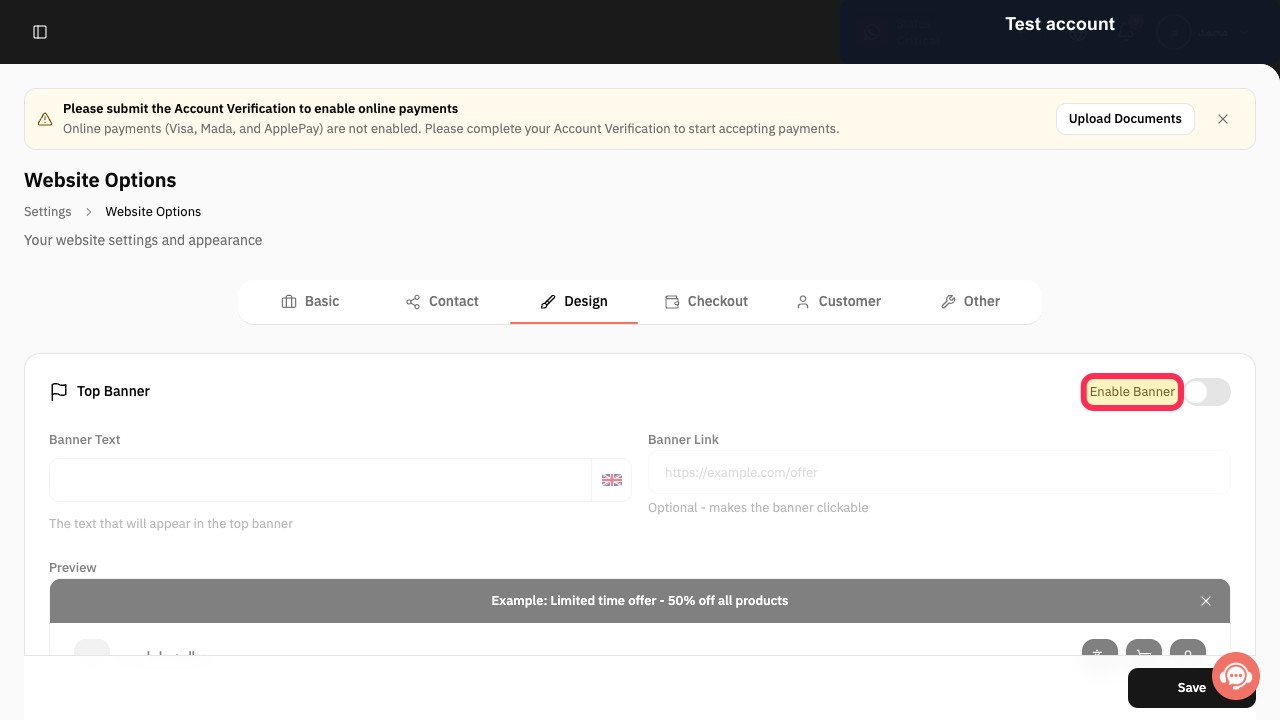
The current Rekaz Website Options screen includes an Enable Banner setting in the Design section, along with Banner Text and an optional Banner Link.
Steps
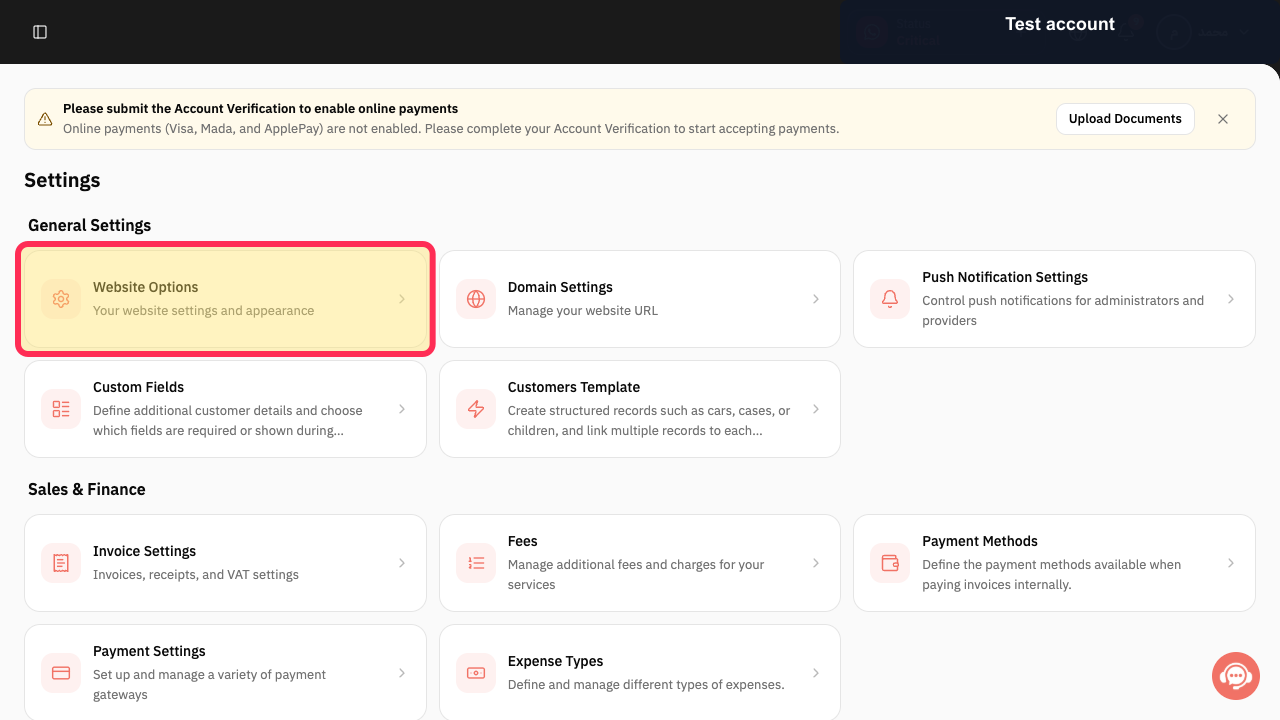
In Settings, select the **Website Options** card.
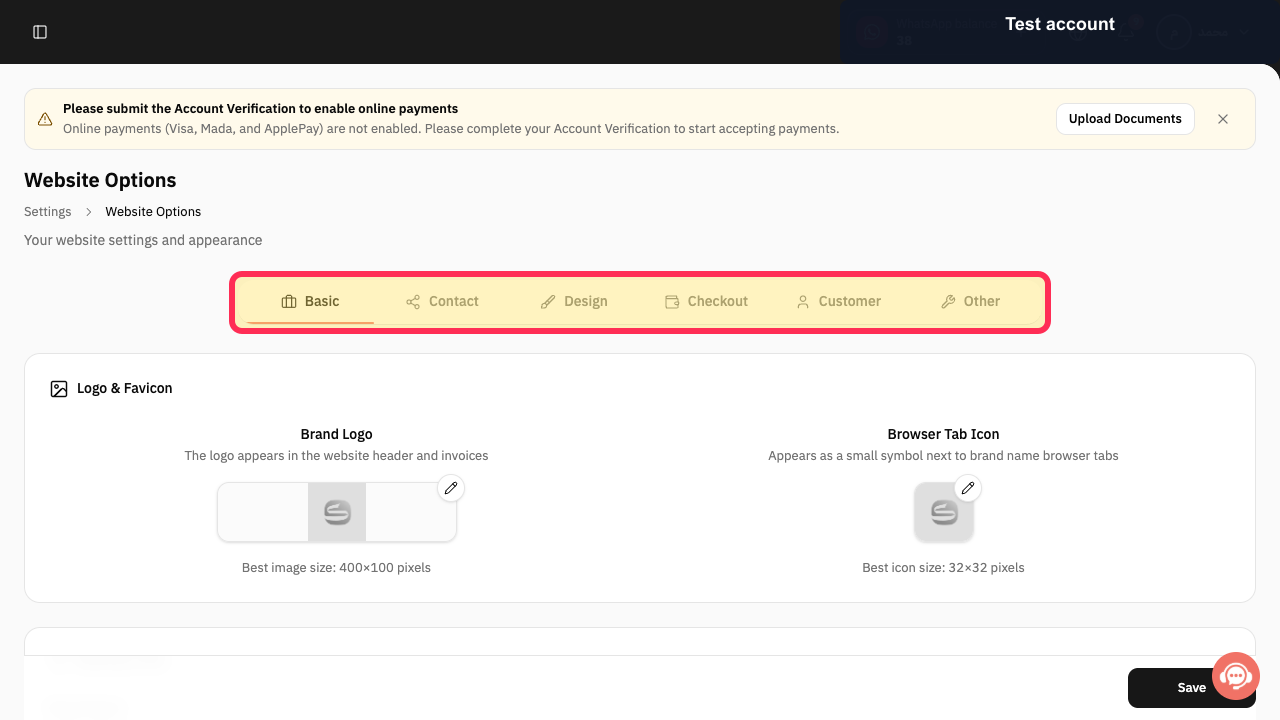
Website Options opens, showing the website settings and appearance area.
Select **Design** in the Website Options navigation.
The Design section opens.
Turn on **Enable Banner**.
The banner setting is enabled and the banner fields are available.
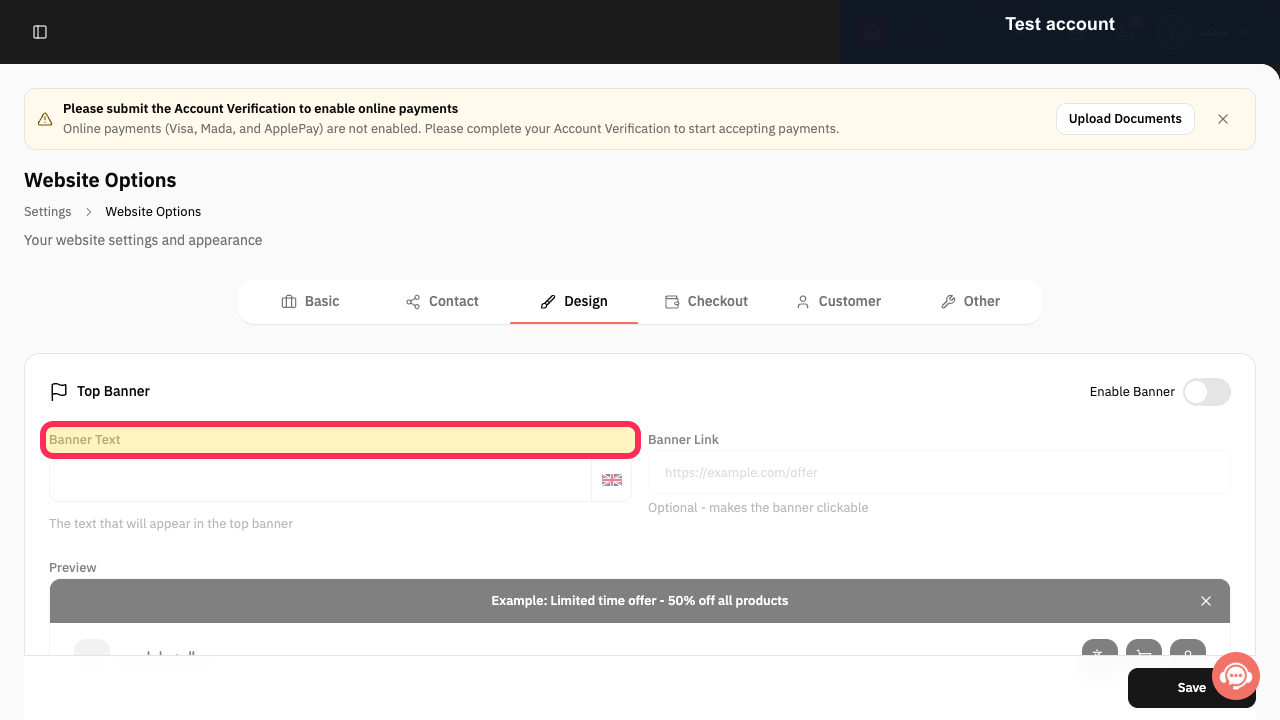
Enter your promotional message in **Banner Text**.
Your message is entered as the text intended for the top banner.
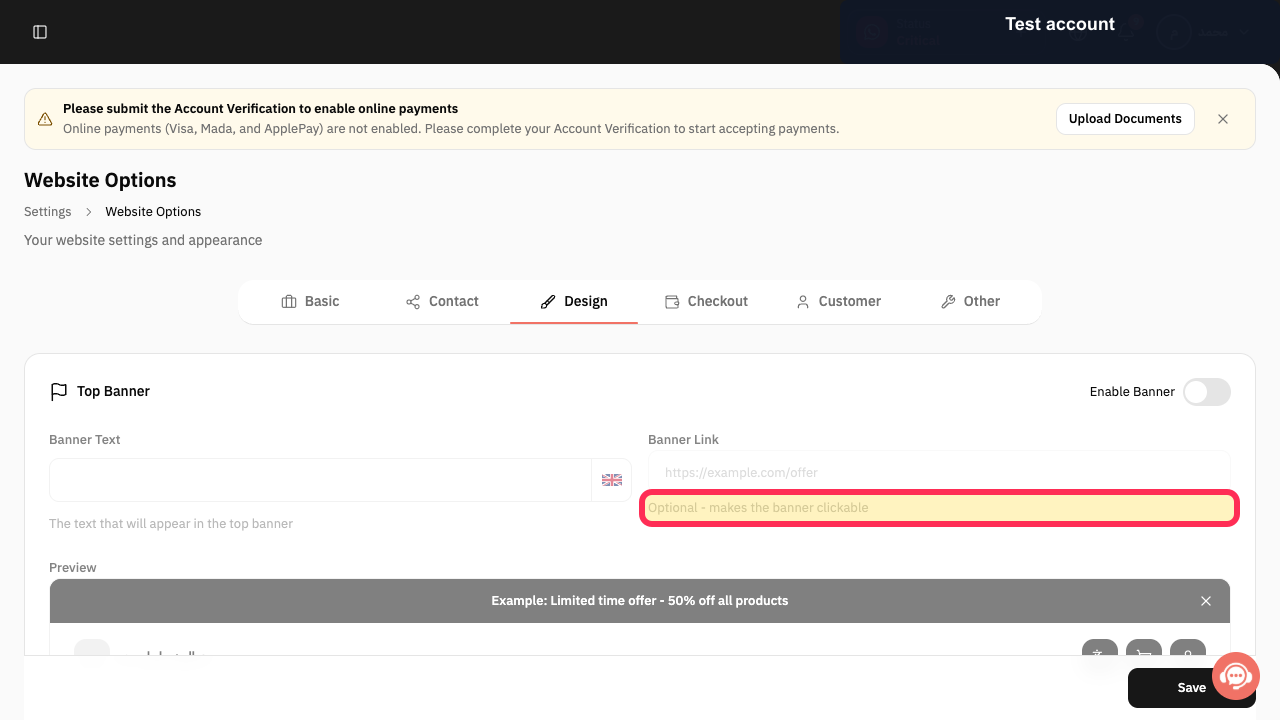
Optional: use **Banner Link** to provide a destination for the banner.
A banner link can be configured to make the banner clickable.
Illustrated guide
Step 1: The Website Options card in Rekaz Settings.
Step 2: Website Options navigation with the Design option available.
Step 3: The Design section showing the Enable Banner setting.
Step 4: The Banner Text field in the Design section.
Step 5: The helper text explaining that the banner link is optional and makes the banner clickable.
Before you start
Prepare the short message you want visitors to see in the banner. Do not include confidential or sensitive information.
Related questions
How do I enable the Top Banner on my Rekaz website?
How do I change the banner text on my Rekaz website?
Where can I find website customization settings in Rekaz?


