How do I add or edit Terms & Conditions in Rekaz?
In Rekaz, open Website Options and choose the Checkout tab to manage the Terms & Conditions checkbox shown during website checkout.
The current interface does not show the Terms & Conditions content field, so adding or editing the Terms & Conditions text cannot be completed from this screen.
Steps
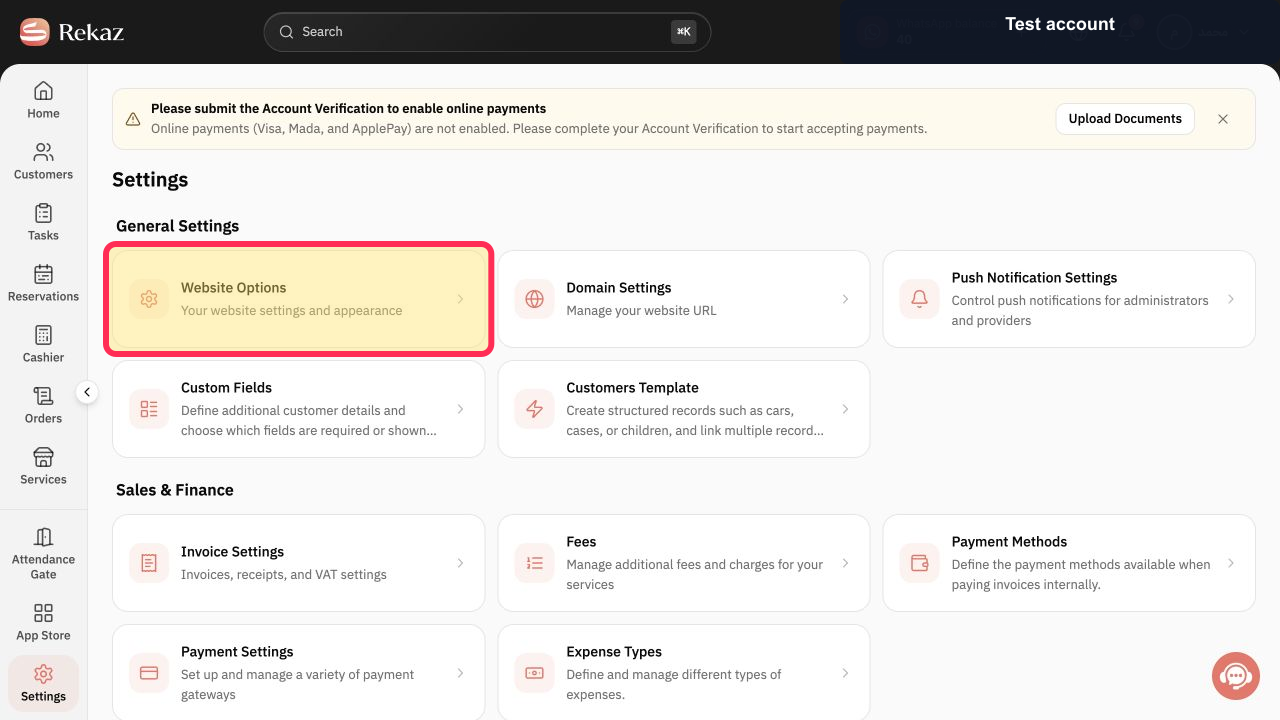
In Settings, select Website Options.
The Website Options settings page opens.
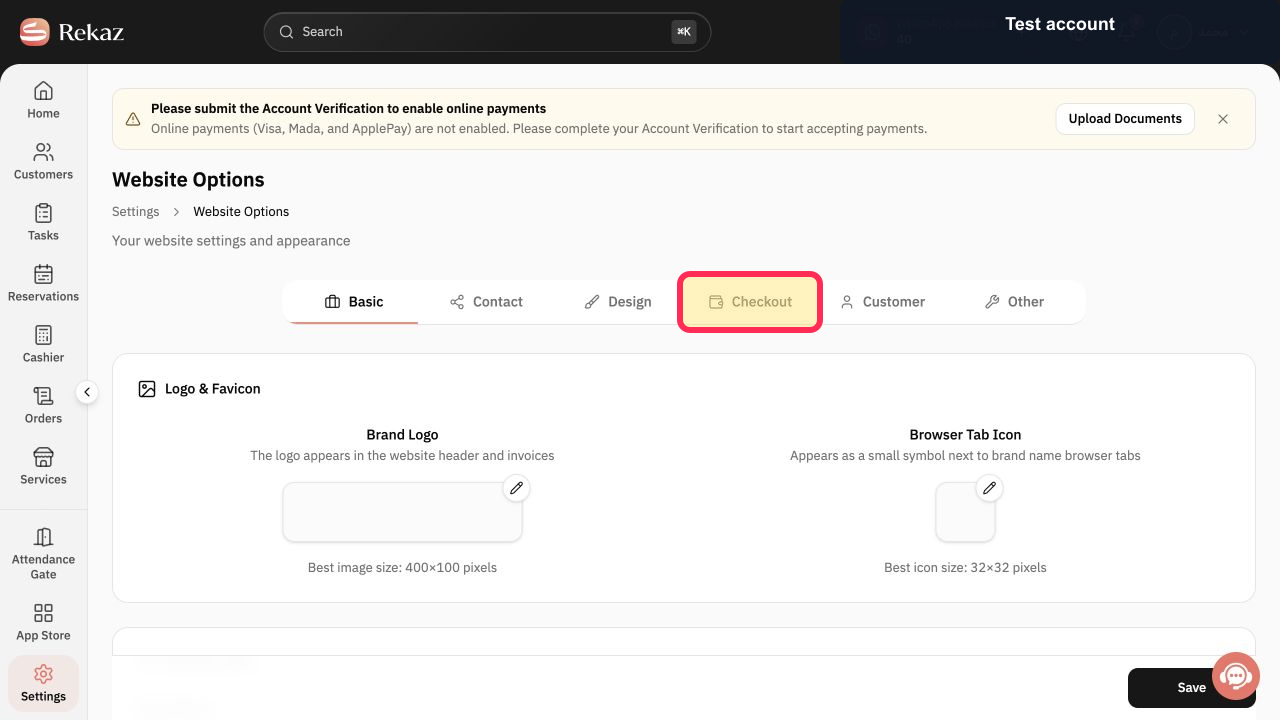
Select Checkout.
The Checkout settings are displayed.
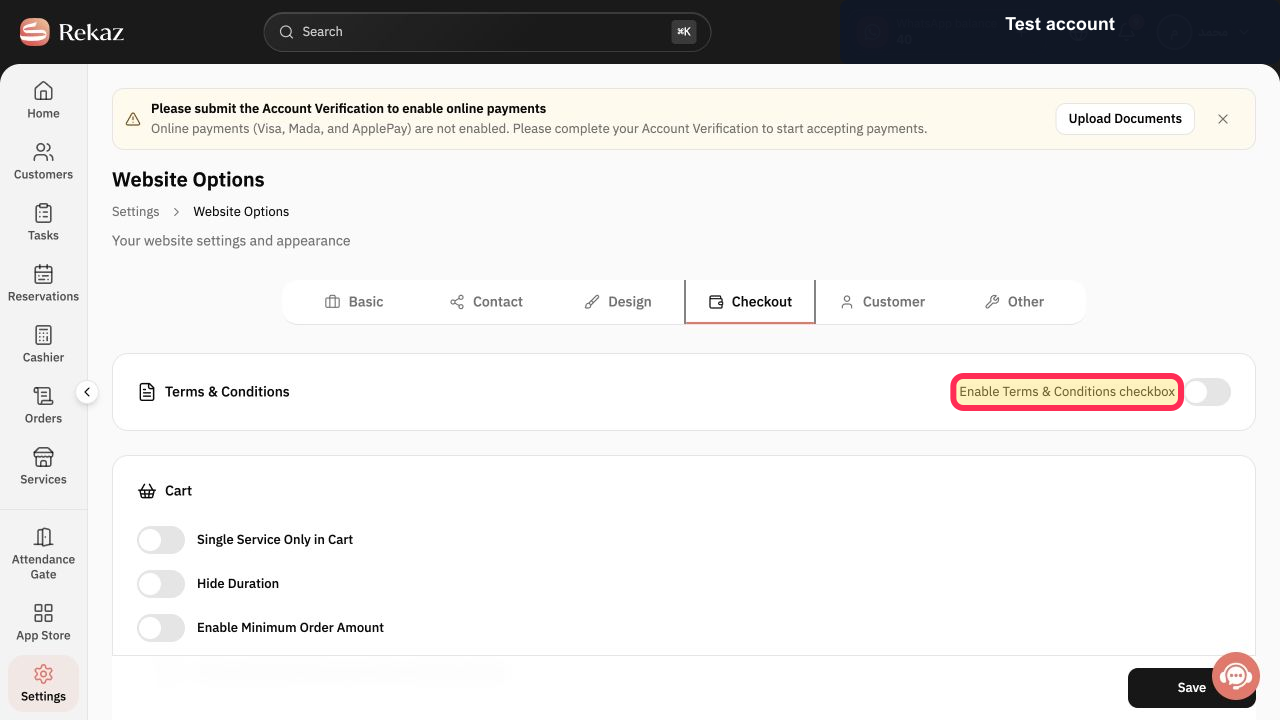
Select Enable Terms & Conditions checkbox to enable or disable the checkbox at checkout.
The Terms & Conditions checkbox setting is available to change.
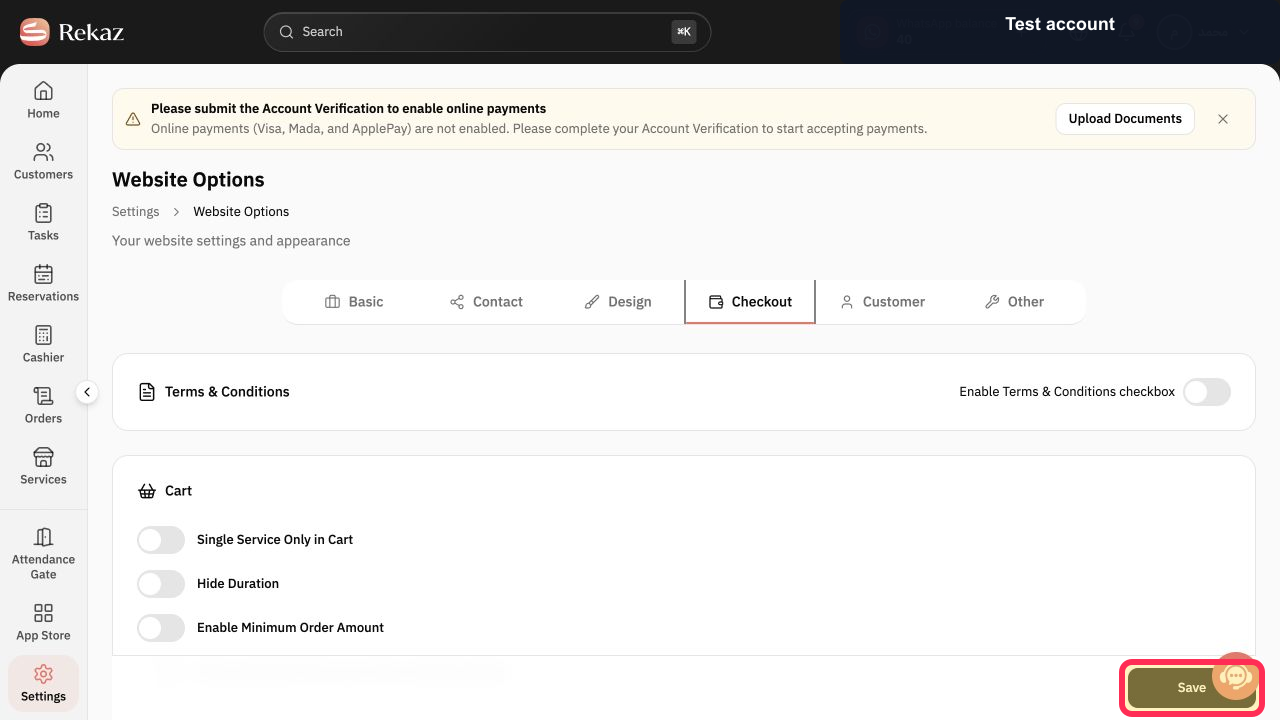
Select Save.
Your Checkout setting changes are saved.
Illustrated guide
Step 1: The Website Options card in Settings.
Step 2: The Checkout tab in Website Options.
Step 3: The Enable Terms & Conditions checkbox setting in Checkout.
Step 4: The Save button in the Checkout settings.
Before you save
Review the text carefully before saving to make sure it contains the terms you want to use at checkout.
Related questions
How can I change the Terms & Conditions displayed at checkout in Rekaz?
Where do I find the checkout Terms & Conditions settings in Rekaz?
How do I update my website checkout terms in Rekaz?


