How do I add Terms and Conditions in Rekaz?
To enable Terms and Conditions for your Rekaz website payment settings, open Website Options and select the available Terms & Conditions checkbox.
The current interface does not show the action for entering Terms and Conditions content, nor does it show a Save control for this setting.
Steps
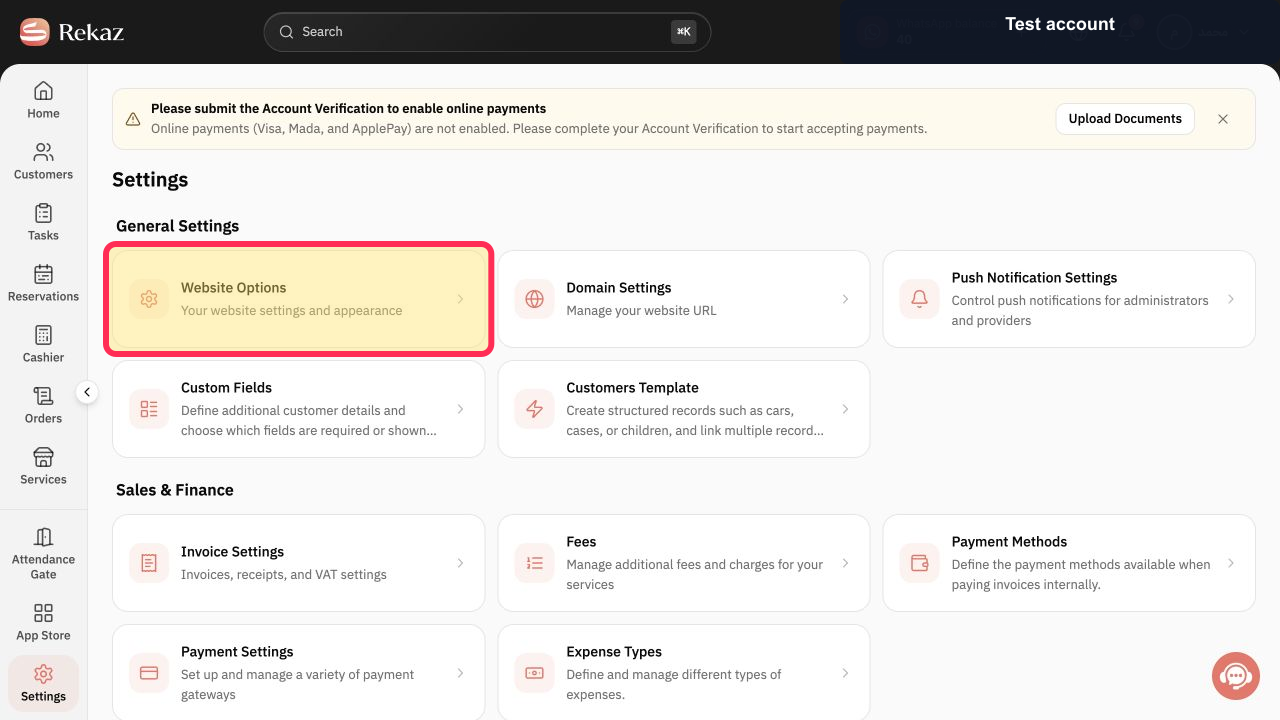
Open Website Options from Settings.
Website Options opens, where you can access the website payment settings.
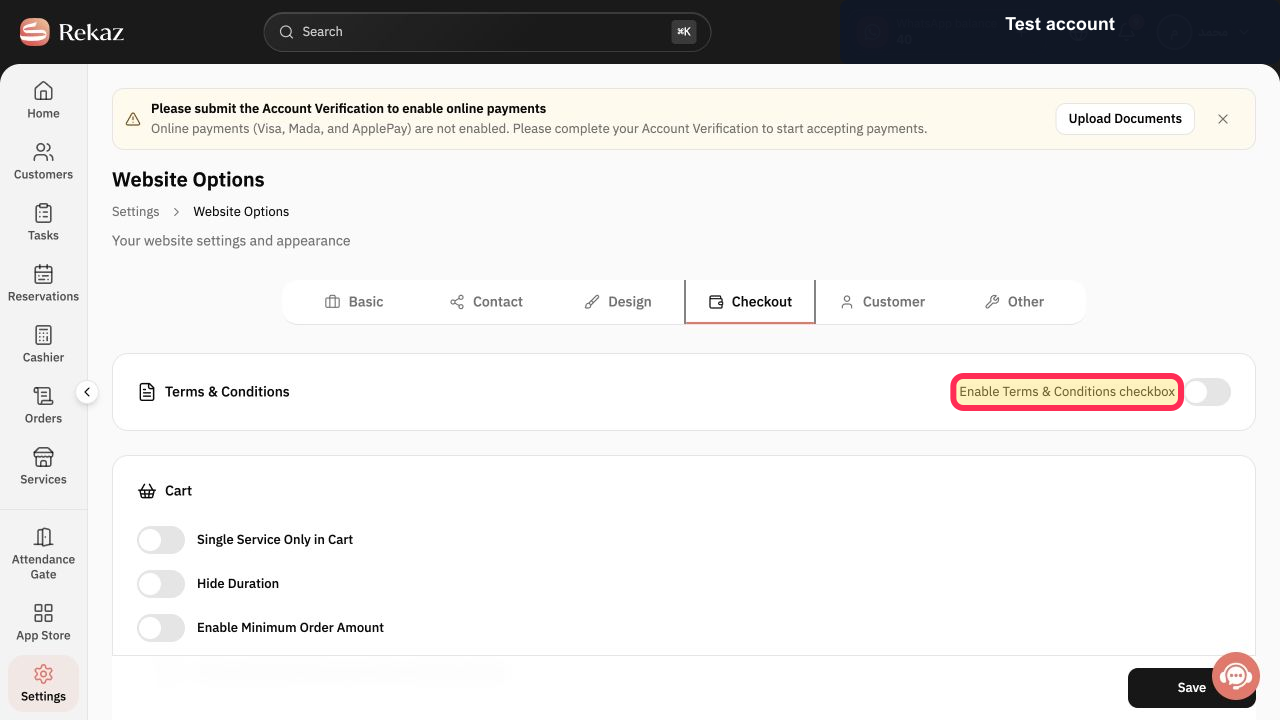
In the website payment settings, select Enable Terms & Conditions checkbox.
The Terms & Conditions checkbox is enabled.
Illustrated guide
Step 1: The Website Options card in Rekaz Settings.
Step 2: The Enable Terms & Conditions checkbox in the website payment settings.
Before you save
Review the Terms and Conditions text carefully before saving. Customers will see this content when the option is enabled on the payment page.
Related questions
How do I enable Terms and Conditions on my Rekaz payment page?
Where can I edit my website payment Terms and Conditions in Rekaz?
How do I add policy text before customers pay in Rekaz?


