How do I create a last-minute promotion in Rekaz?
Create a Last-Minute Deal in Rekaz to automatically discount unbooked appointment times shortly before they begin.
The current wizard covers the internal name, activation time and discount, included services, schedule, and advanced exclusions.
Steps
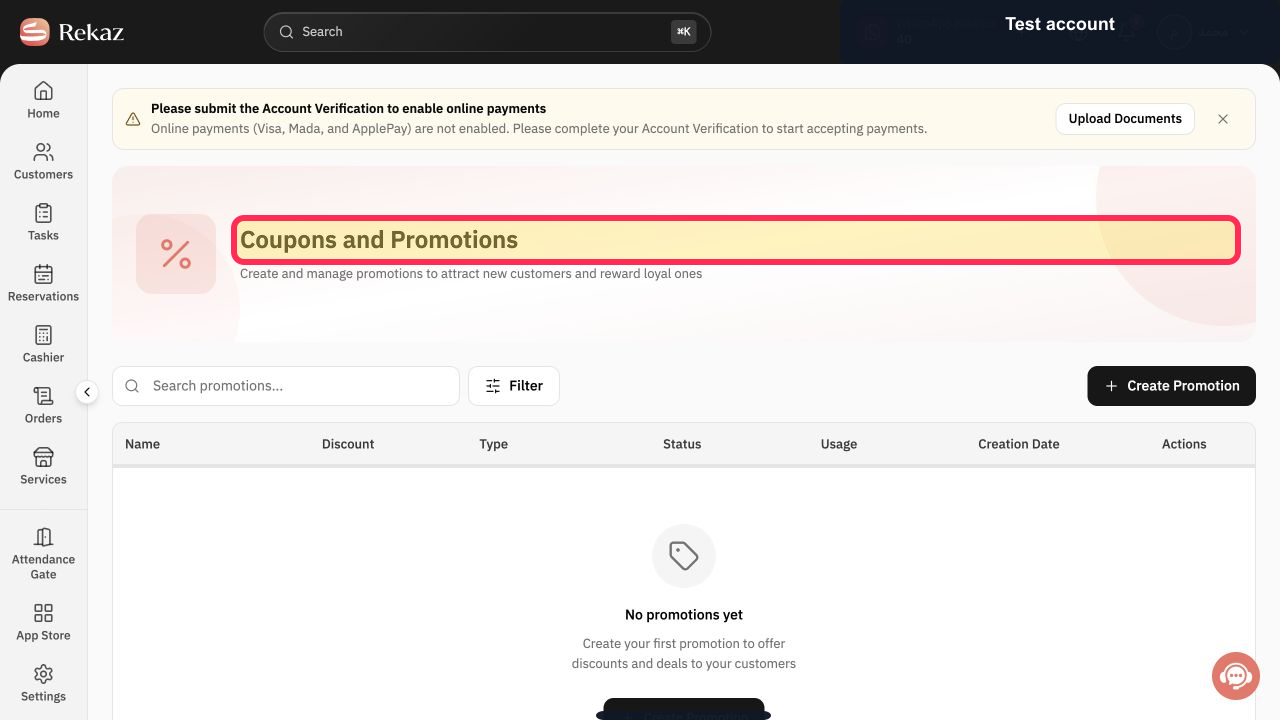
Open Coupons and Promotions in Rekaz.
The Coupons and Promotions page opens.
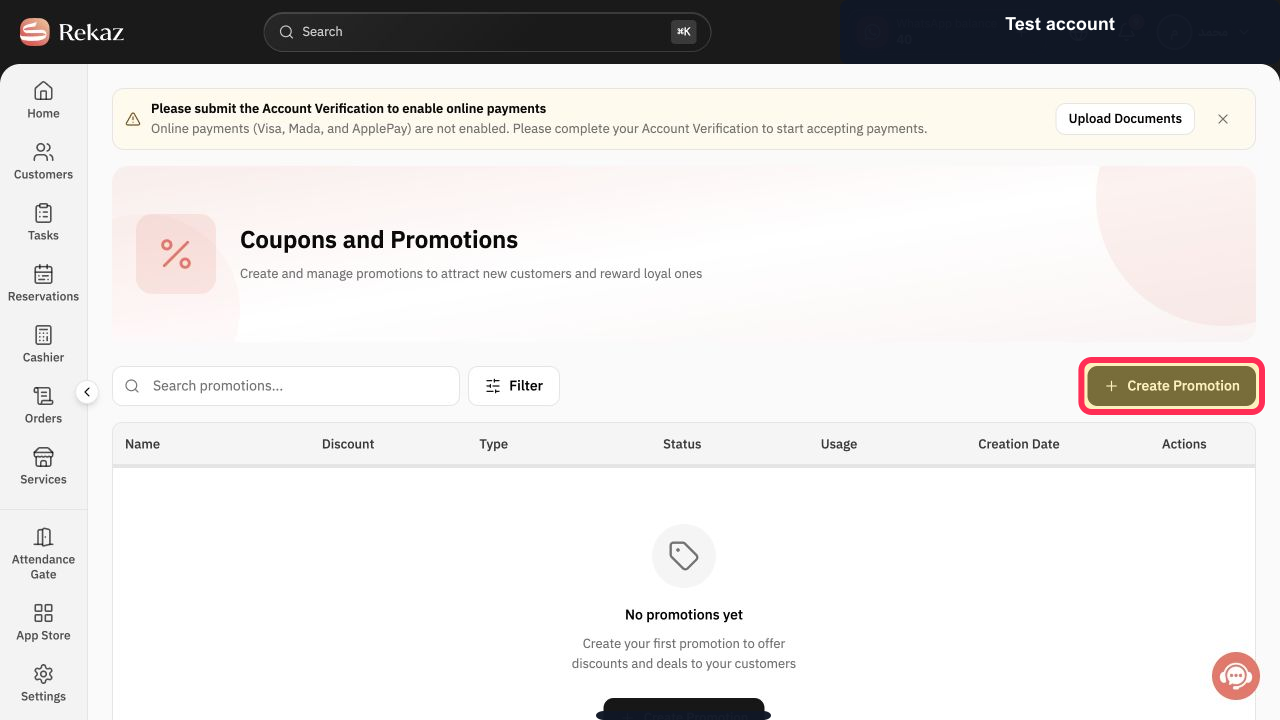
Select Create Promotion.
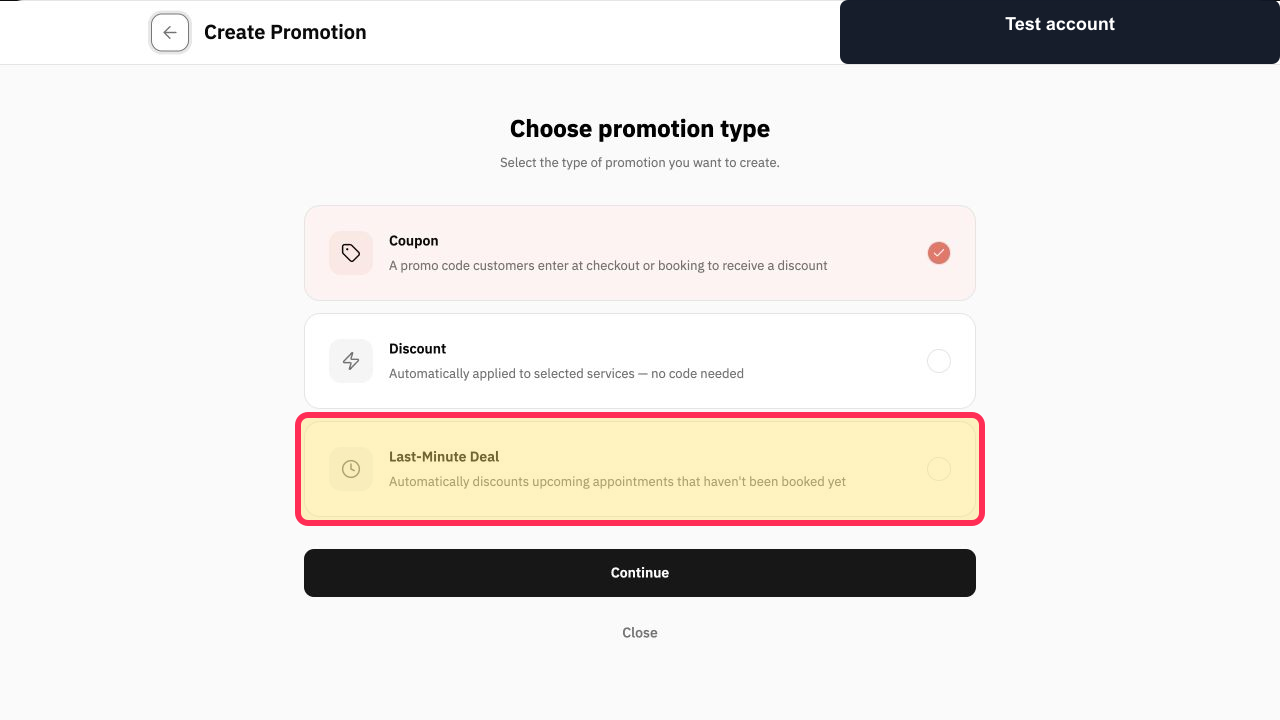
The promotion-type chooser opens.
Select Last-Minute Deal, then select Continue.
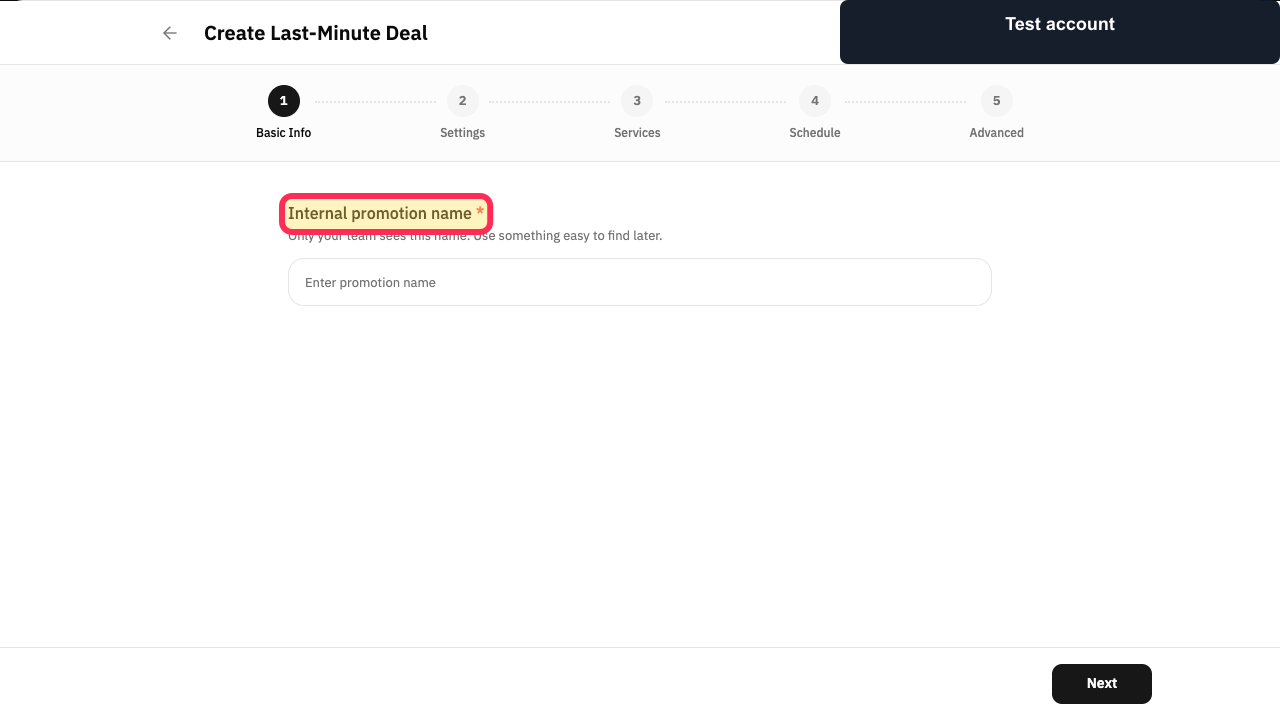
The Create Last-Minute Deal wizard opens.
Enter the Internal promotion name and select Next.
The team-only deal name is entered and Settings opens.
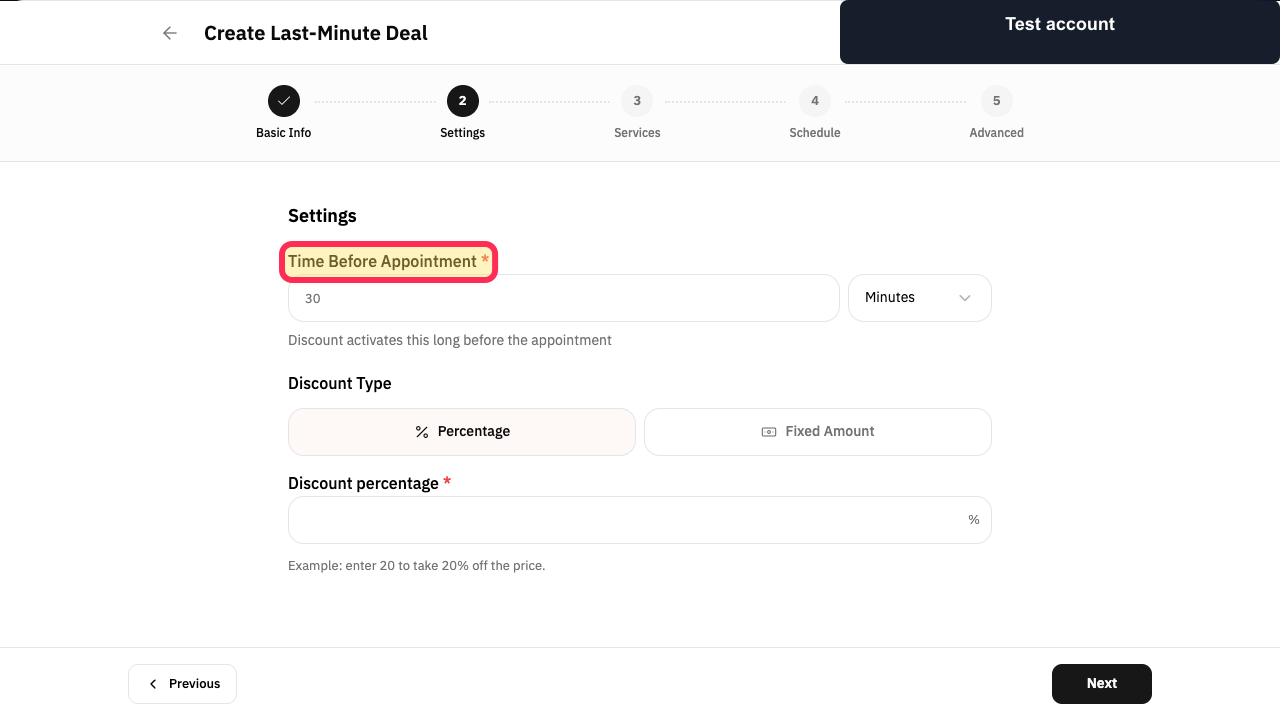
Enter Time Before Appointment and choose Minutes or the available time unit.
The deal activation window is configured.
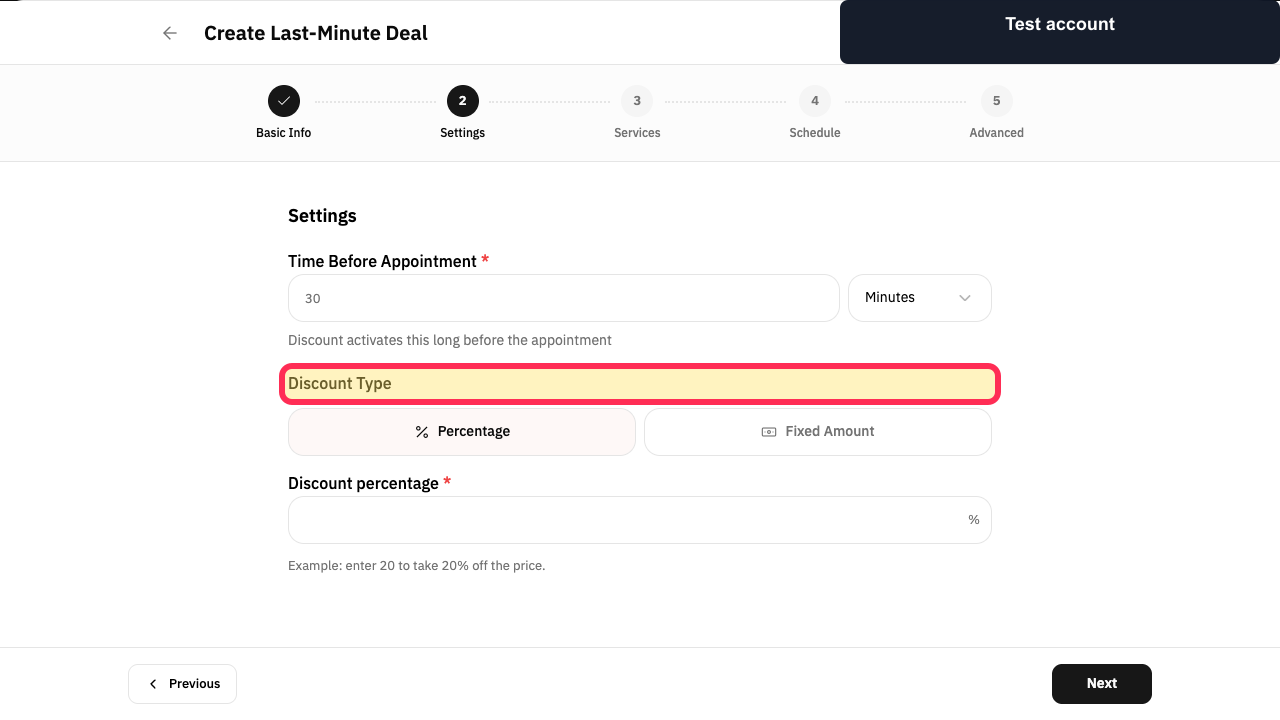
Choose Percentage or Fixed Amount, enter the discount value, and select Next.
The last-minute discount is configured and Services opens.
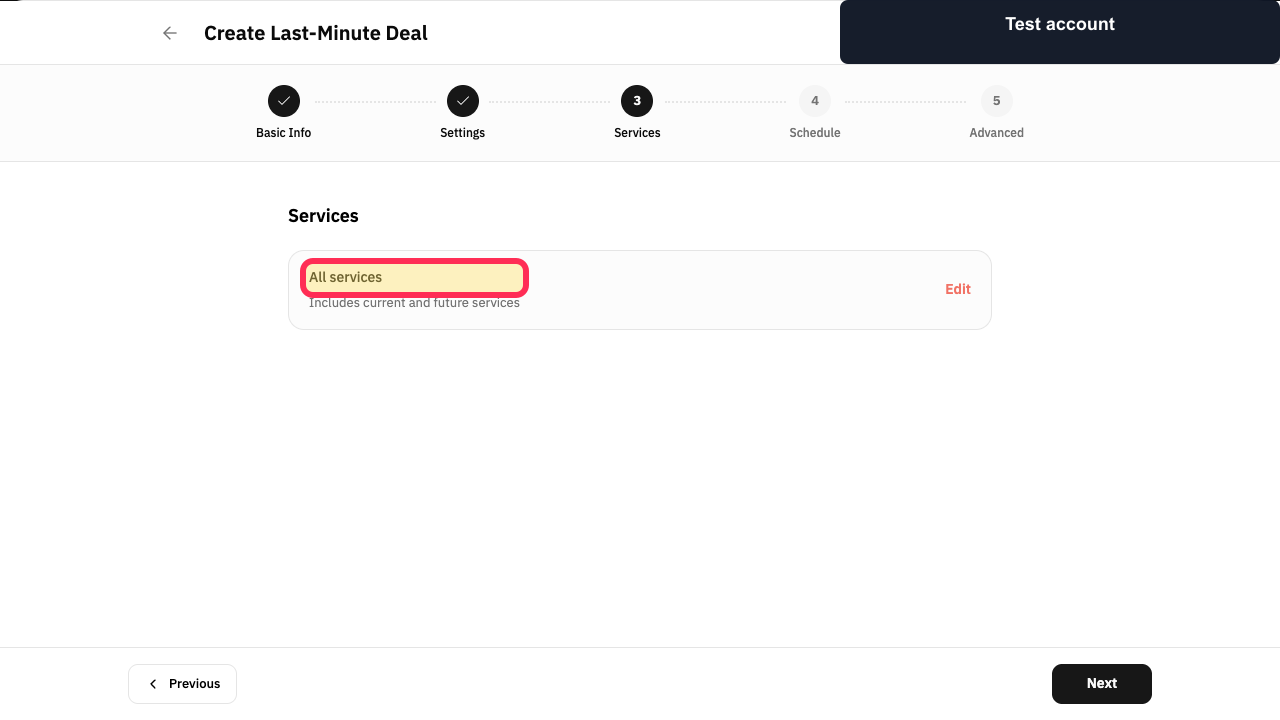
Under Services, keep All services or select Edit to choose specific services, then select Next.
The services covered by the deal are configured.
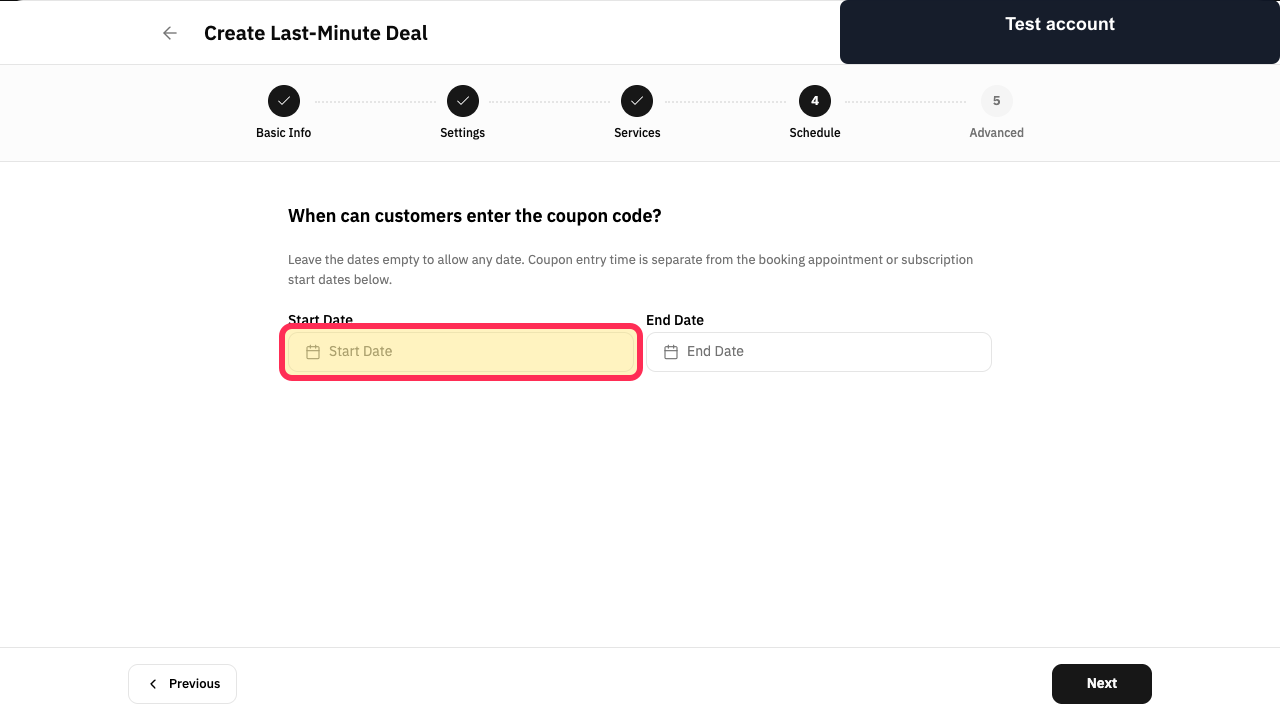
Set Start Date and End Date for the promotion, or leave them empty when no date window is needed, then select Next.
The last-minute deal schedule is configured.
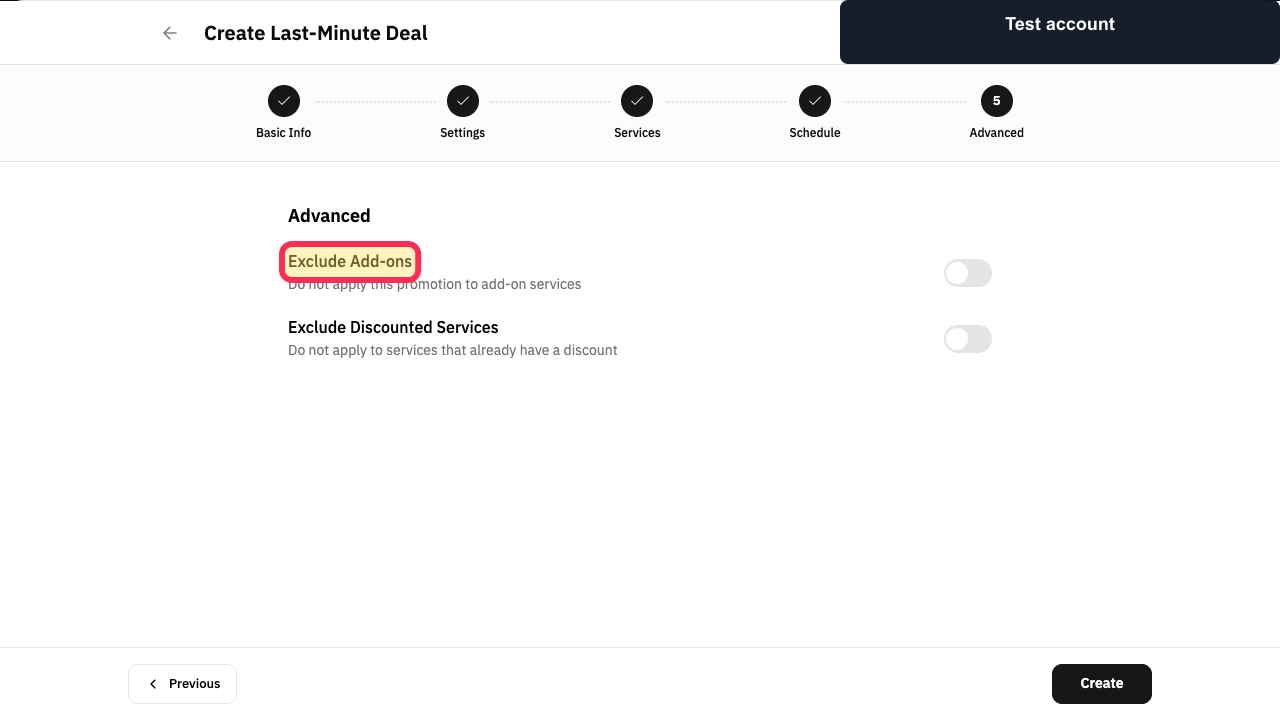
Choose whether to Exclude Add-ons.
Add-on services follow the selected exclusion rule.
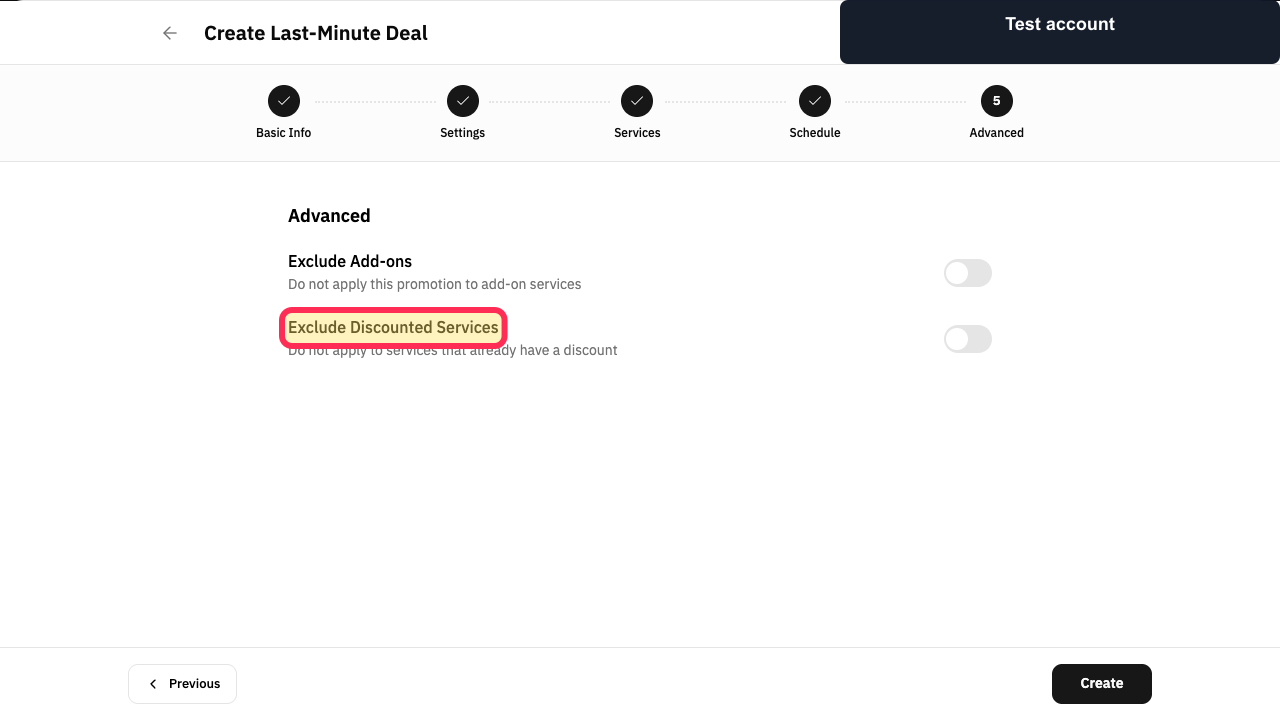
Choose whether to Exclude Discounted Services.
Services that already have a discount follow the selected exclusion rule.
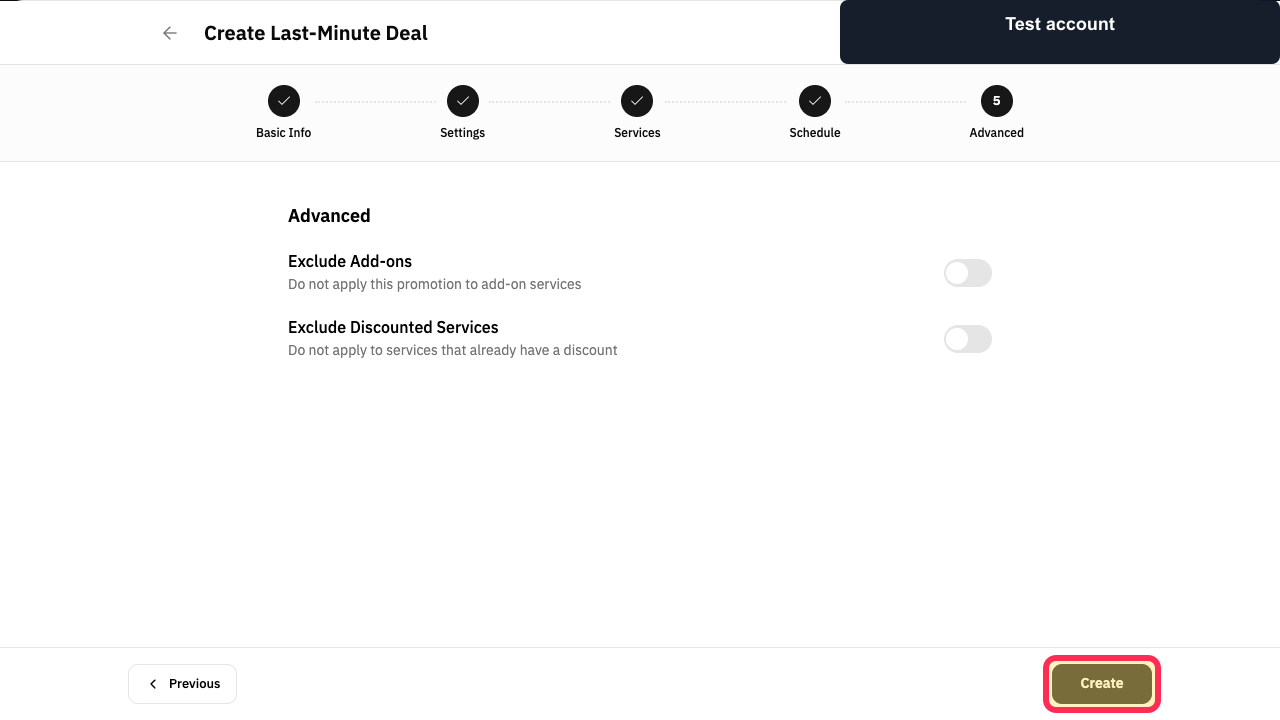
Review every wizard step and select Create.
The Last-Minute Deal is submitted for creation.
Illustrated guide
Step 1: Open Coupons and Promotions.
Step 2: Start creating a promotion.
Step 3: Choose Last-Minute Deal as the promotion type.
Step 4: Enter the internal last-minute deal name.
Step 5: Set how long before the appointment the deal activates.
Step 6: Set the last-minute discount type and value.
Step 7: Choose services for the last-minute deal.
Step 8: Set the last-minute deal dates.
Step 9: Choose whether to exclude add-ons.
Step 10: Choose whether to exclude already discounted services.
Step 11: Create the Last-Minute Deal.
How the promotion works
The promotion is intended for bookings made shortly before a service or stay. It can help reduce unused time slots by offering customers a lower price.
The promotion applies automatically to all services unless you choose to edit the service selection.
Set the activation lead time in minutes, hours, or days.
Set the discount as a percentage or a fixed amount.
Choose the booking dates during which the promotion is active.
Optionally exclude service add-ons from the discount.
Optionally exclude services that already have a discount.
Related questions
How do I offer a discount shortly before an appointment in Rekaz?
How do I apply a last-minute promotion to selected services in Rekaz?
How do I exclude add-ons from a promotion discount in Rekaz?
How do I exclude services that already have a discount from a promotion in Rekaz?


