How do I remove or permanently deactivate a staff member in Rekaz?
You cannot delete a staff member yourself from the current Rekaz staff Actions menu. The menu shows Edit, not Delete.
Keep the staff member’s records if they are linked to orders or invoices. Contact Rekaz support to request deletion or permanent deactivation and to confirm the effect on those linked records.
Steps
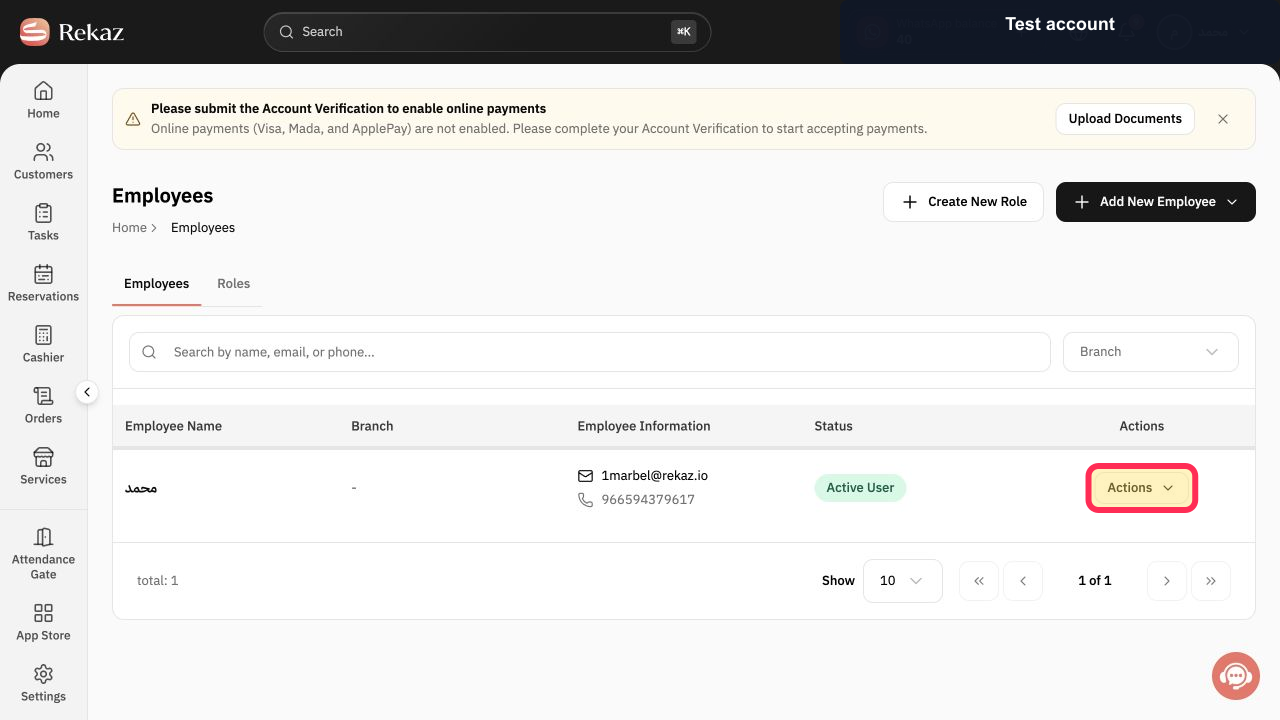
In the staff member’s record, open Actions and check the available options.
The Actions menu shows Edit and does not show a Delete option.
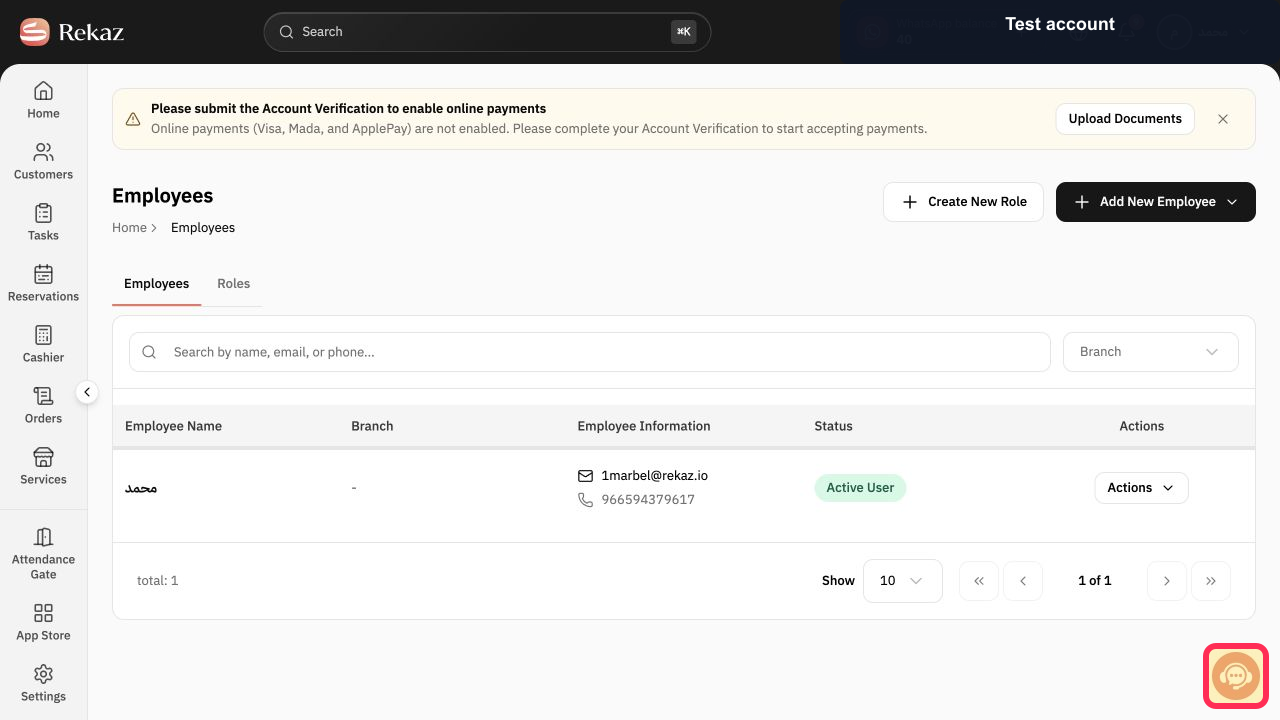
Contact Rekaz support to request deletion or permanent deactivation after the staff member’s linked records have been reviewed.
Rekaz support can review the account and advise on the deletion or permanent deactivation request.
Illustrated guide
Step 1: Open Actions for the staff member. The menu shows Edit, not Delete.
Step 2: Contact support to request deletion or permanent deactivation after reviewing linked records.
Important limitations
Do not assume that deleting a staff member is available as a self-service action in Rekaz.
Review linked orders and invoices before requesting a final action. Keep the staff member’s records where needed, and ask support about the impact of deletion.
The current staff Actions menu provides Edit, not Delete.
Deletion or permanent deactivation requires a request to Rekaz support.
Related questions
Where is the option to delete a staff member in Rekaz?
Can I permanently deactivate a staff member in Rekaz?
Why is there no Delete option in staff Actions in Rekaz?


