How do I add a new employee in Rekaz?
The current Rekaz employee workflow is under Employees, not a User Management card inside Settings. Each employee receives their own name, email, phone, and password.
Give the employee only the roles, Beauty Experts, branches, and permissions required for their job. The final action on the current form is Create.
Steps
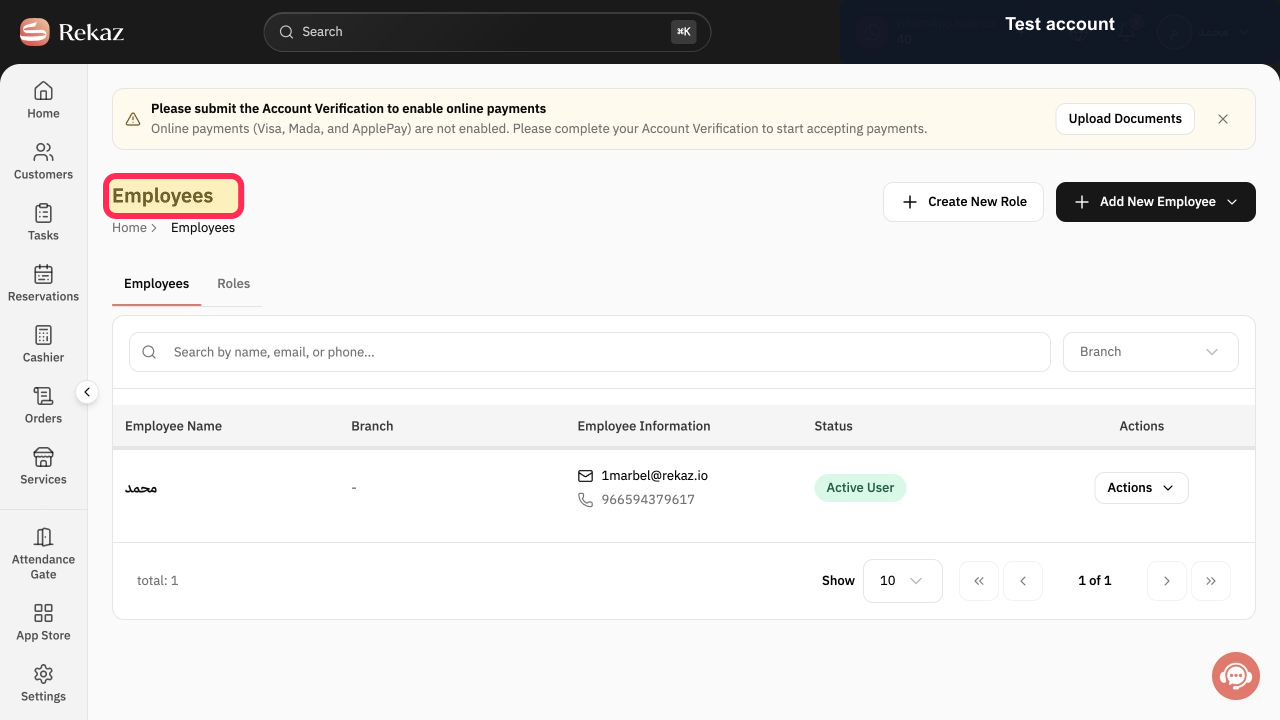
Open Employees in Rekaz.
The Employees page opens.
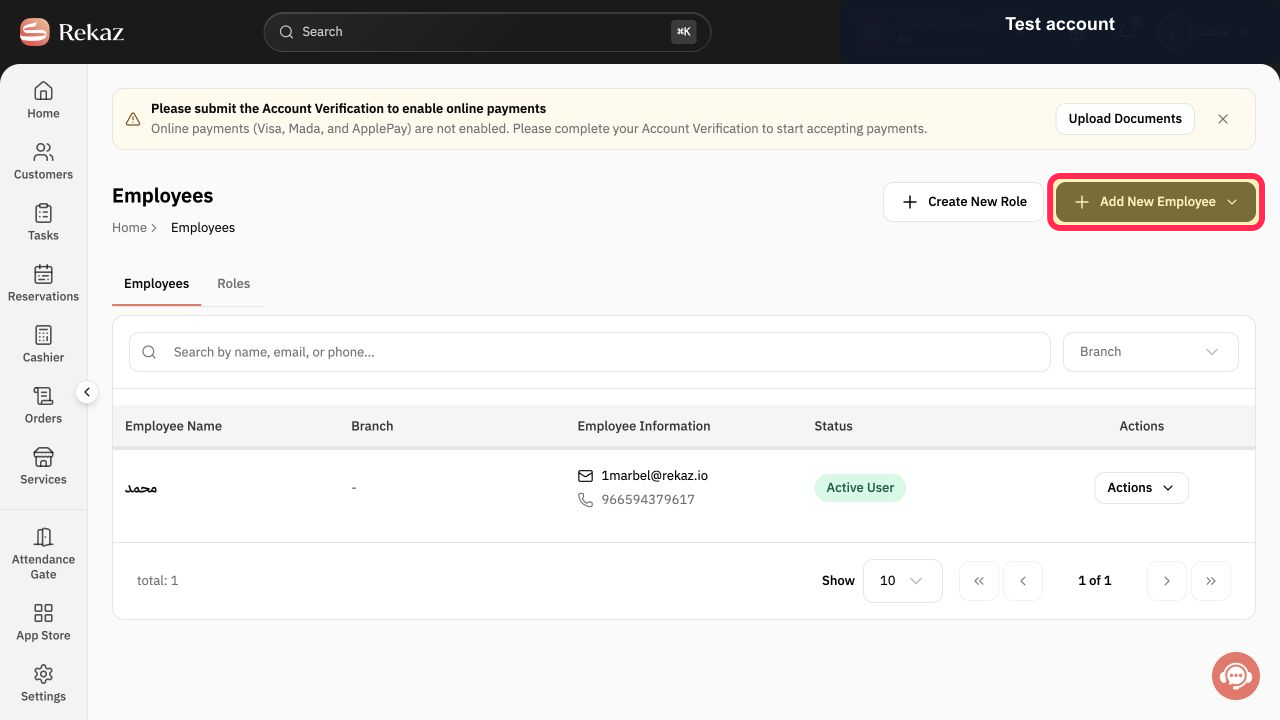
Select Add New Employee.
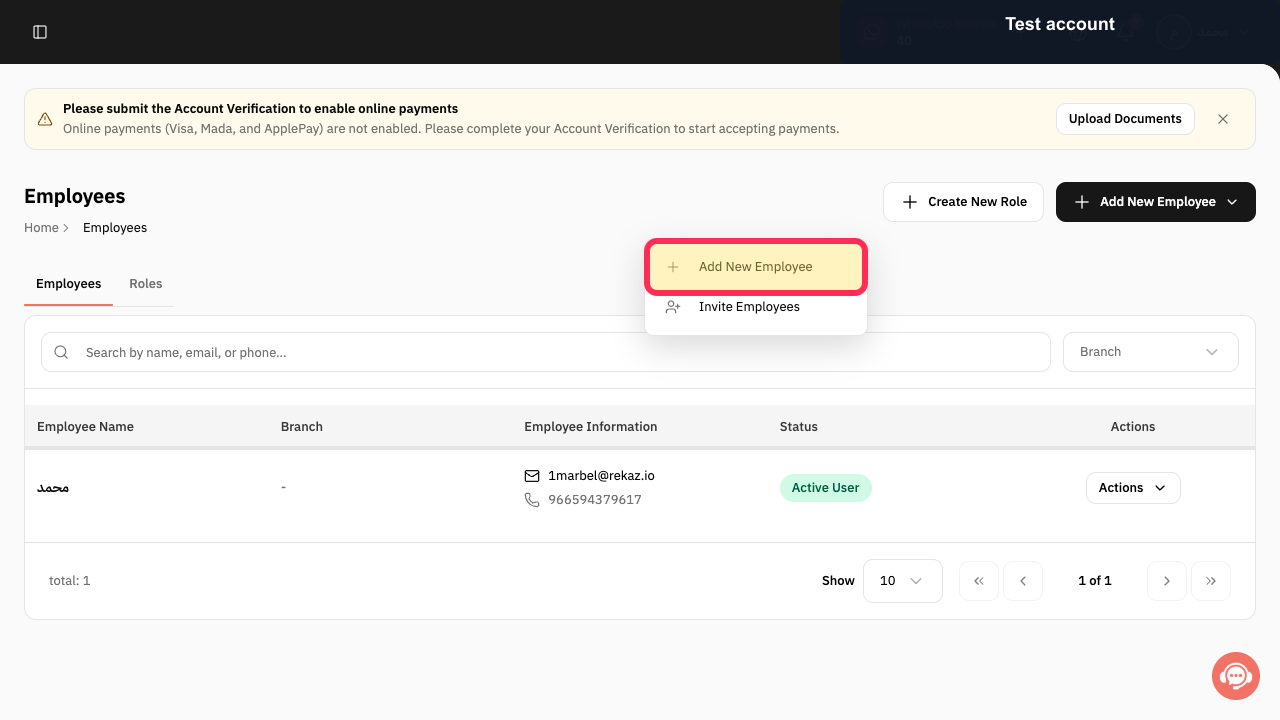
A menu with Add New Employee and Invite Employees opens.
Select Add New Employee from the menu.
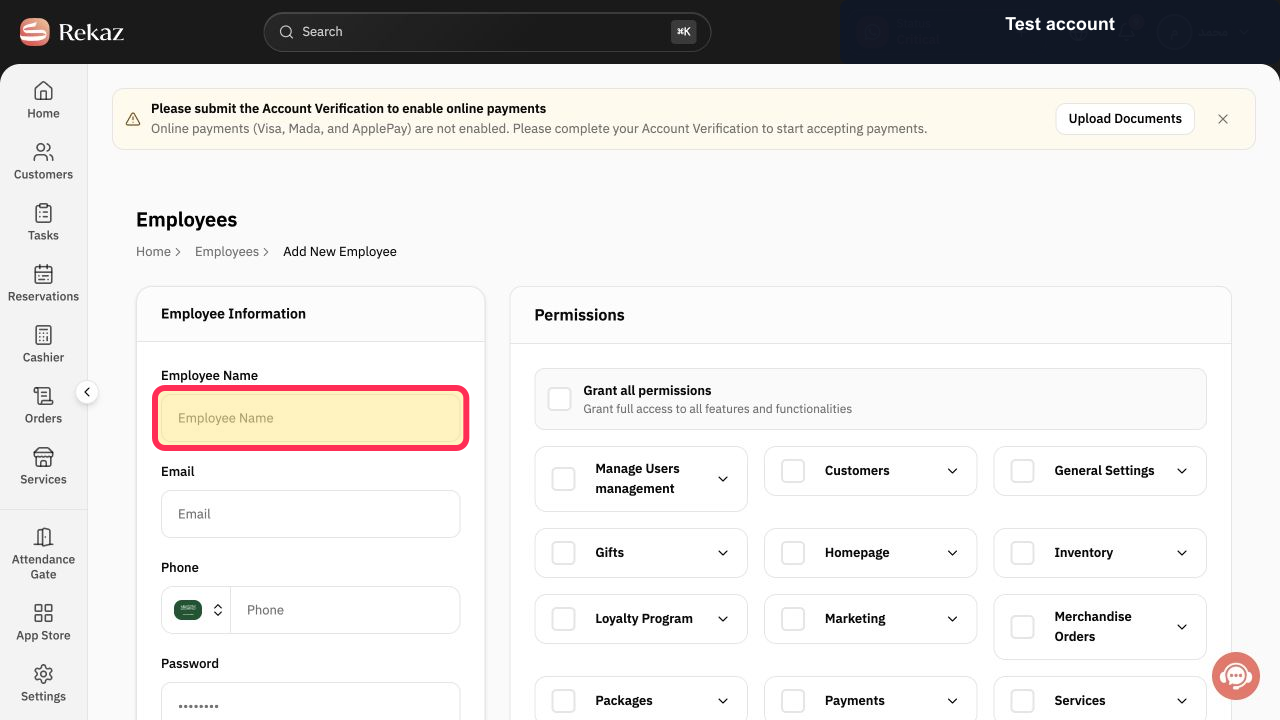
The employee creation form opens.
Enter the employee's name in Employee Name.
The employee name is entered.
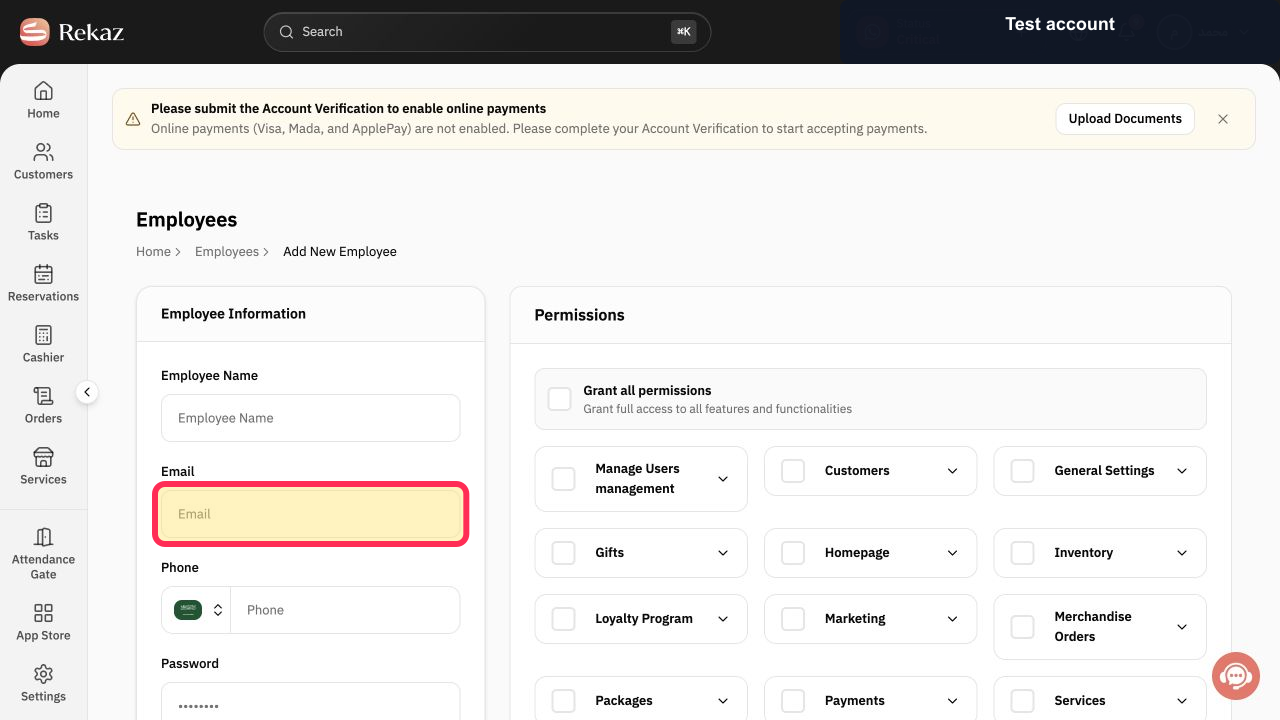
Enter the employee's Email.
The employee email is entered for sign-in and communication.
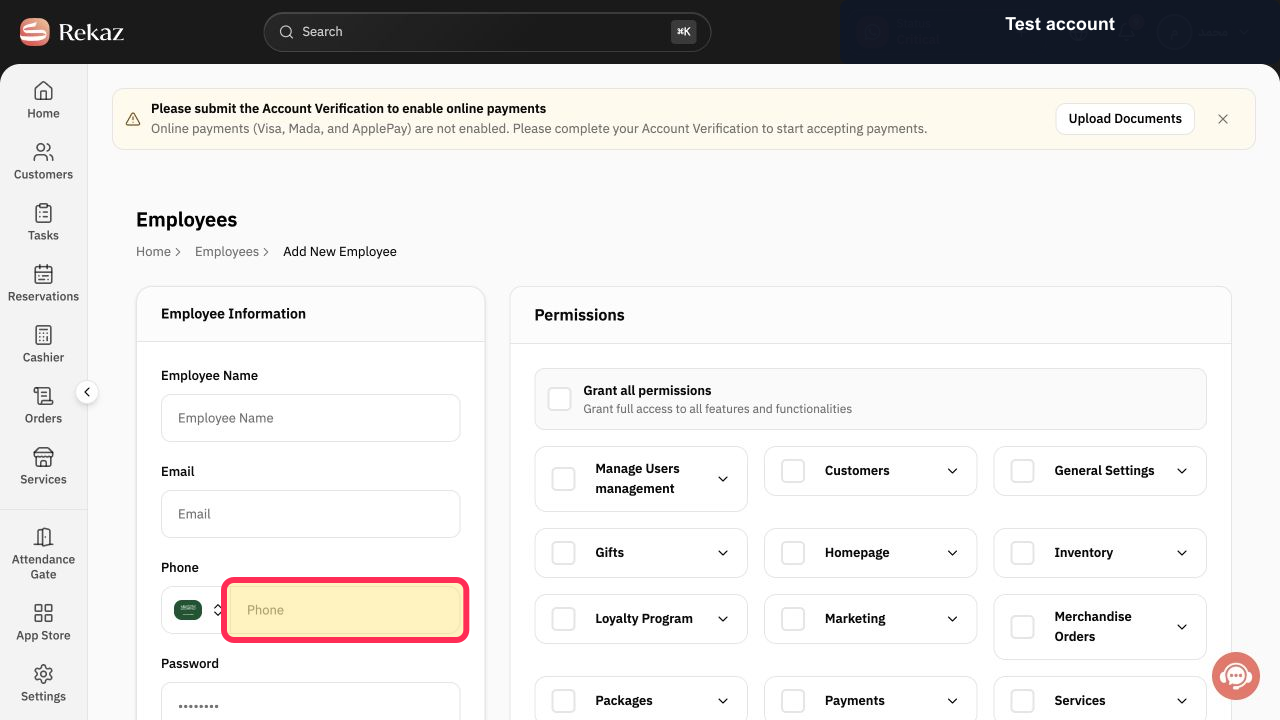
Choose the country code and enter the employee's Phone number.
The employee phone number is entered.
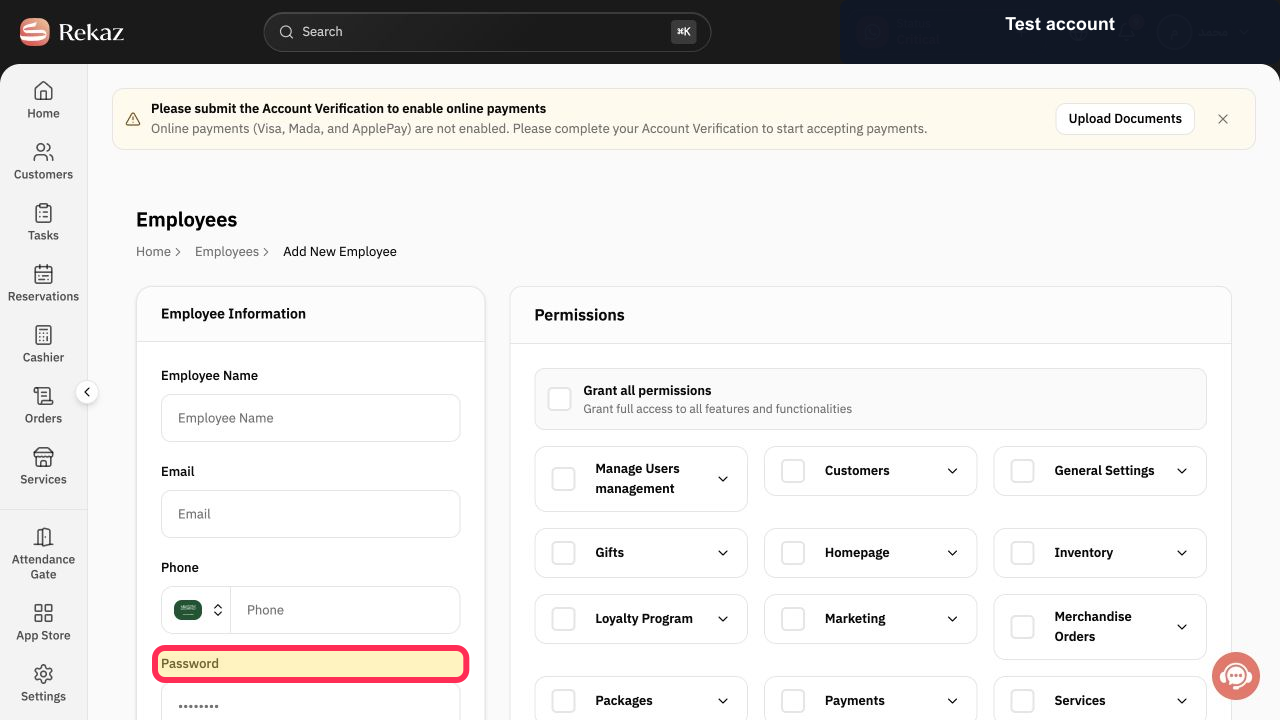
Create the employee's initial Password.
The required employee password is entered.
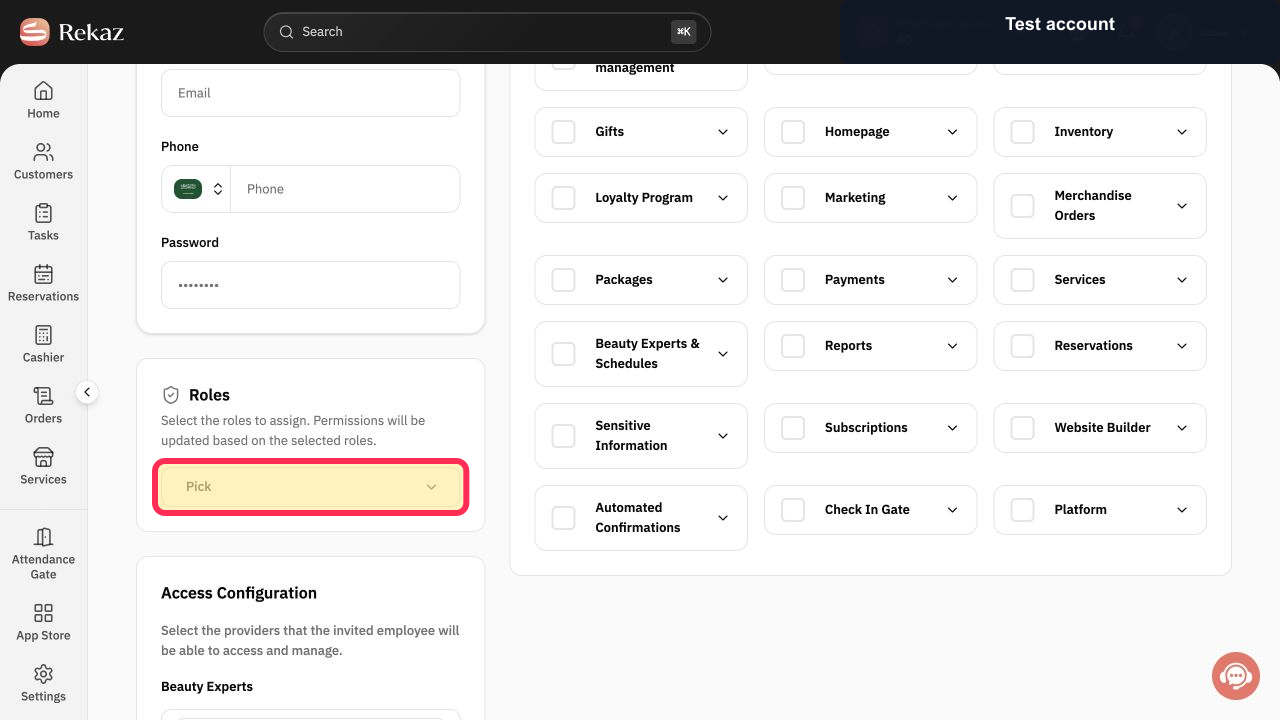
Optional: under Roles, select Pick and assign one or more existing roles.
The selected roles are attached to the employee and can update the permission selection.
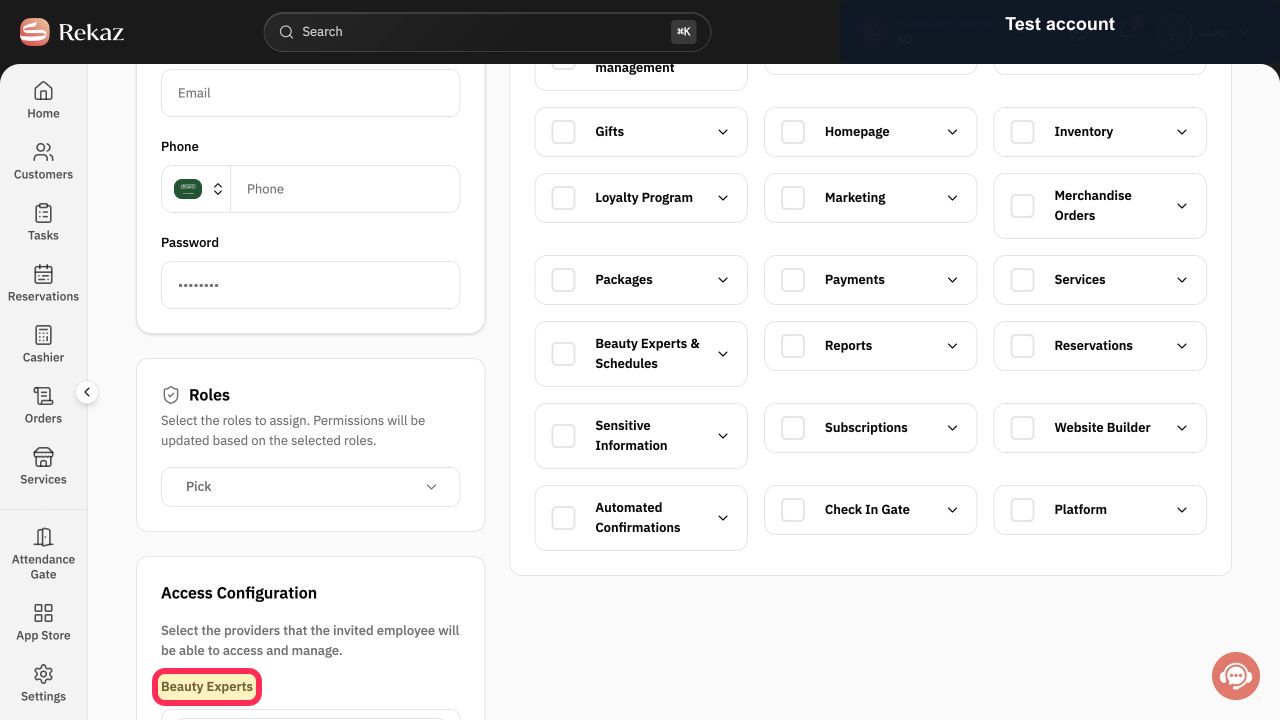
Under Access Configuration, choose the Beauty Experts the employee may access.
Beauty Expert access is limited to the selected providers.
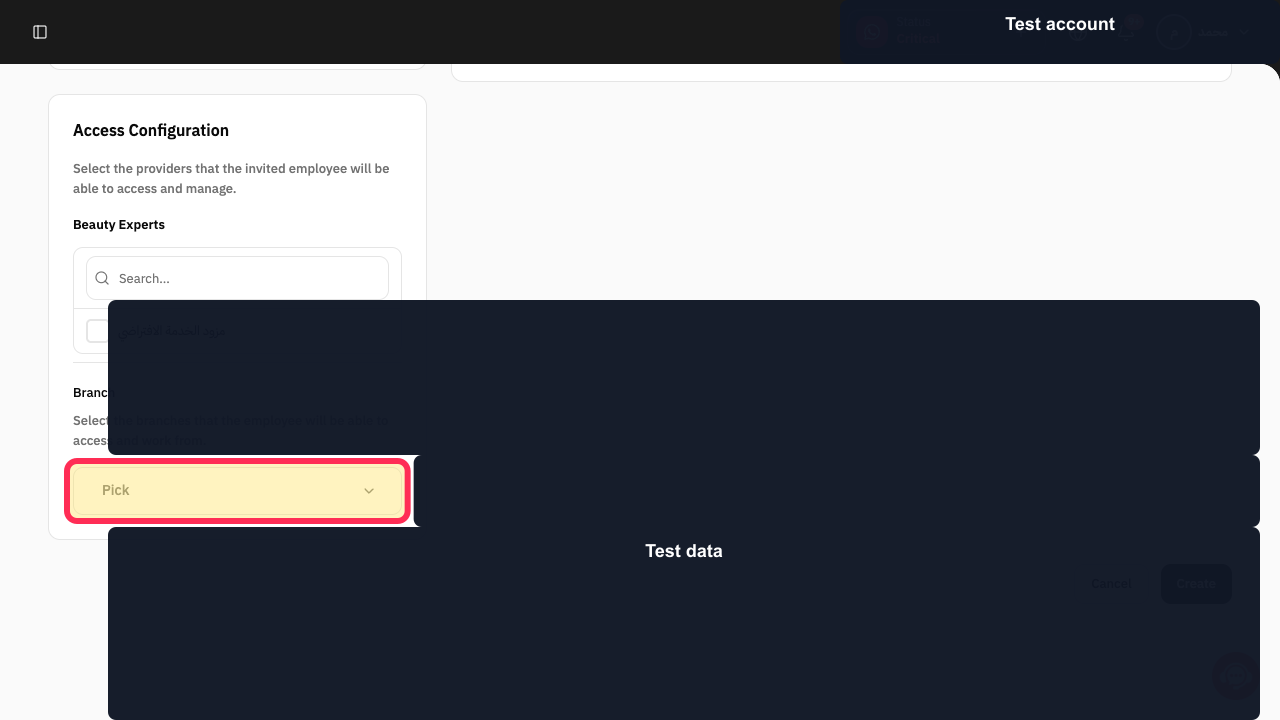
Under Branch, select Pick and choose the branches the employee may access and work from.
Branch access is limited to the selected branches.
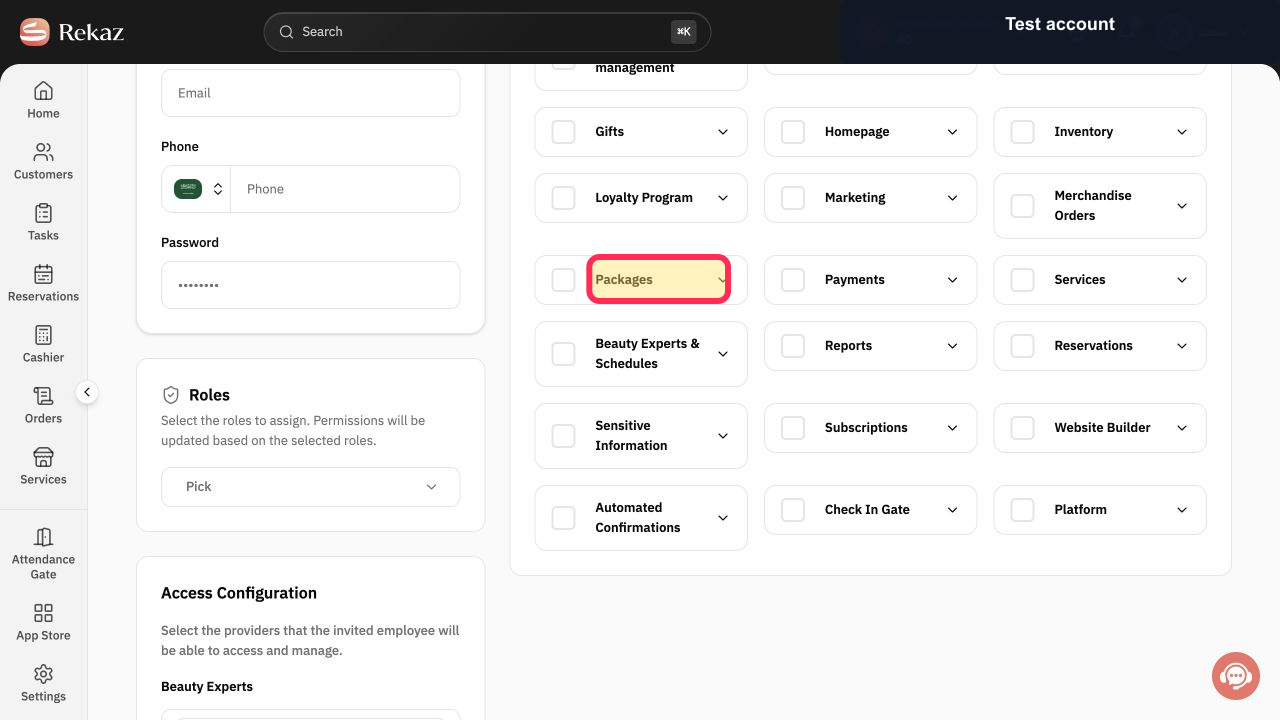
Review Permissions and enable only the permission groups and individual actions required for the role.
The employee's permission set follows least-privilege access.
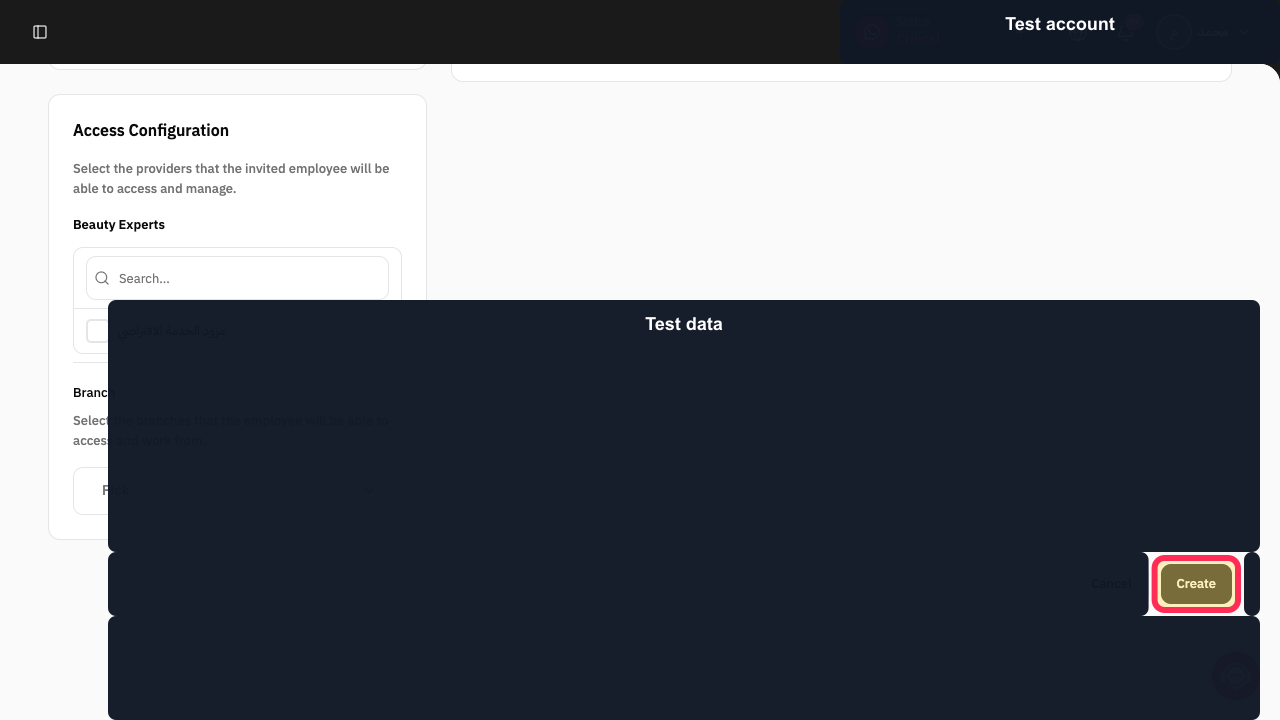
Review the complete employee account and select Create.
The employee account is submitted for creation.
Illustrated guide
Step 1: Open employee management in Rekaz.
Step 2: Open the Add New Employee menu.
Step 3: Start adding the employee account.
Step 4: Enter the Employee Name.
Step 5: Enter the employee Email.
Step 6: Enter the employee Phone number.
Step 7: Enter the employee Password.
Step 8: Assign employee Roles when needed.
Step 9: Choose the employee's Beauty Expert access.
Step 10: Choose the employee's Branch access.
Step 11: Review and configure employee Permissions.
Step 12: Create the employee account.
Important notes and limits
Use separate sign-in details for each employee. Do not share the owner account.
If a plan user-limit message appears, employee creation will not be completed. Review your plan or the number of users before trying again.
Related questions
How do I create an employee account in Rekaz?
Where can I add a new user in Rekaz?
How do I give an employee access to Rekaz?


