How do I assign a service provider to a branch in Rekaz?
To assign a service provider to a specific branch in Rekaz, open the provider’s profile from Specialists and set their Branch Availability. Leave the branch selection empty if the provider should be available in all branches.
Steps
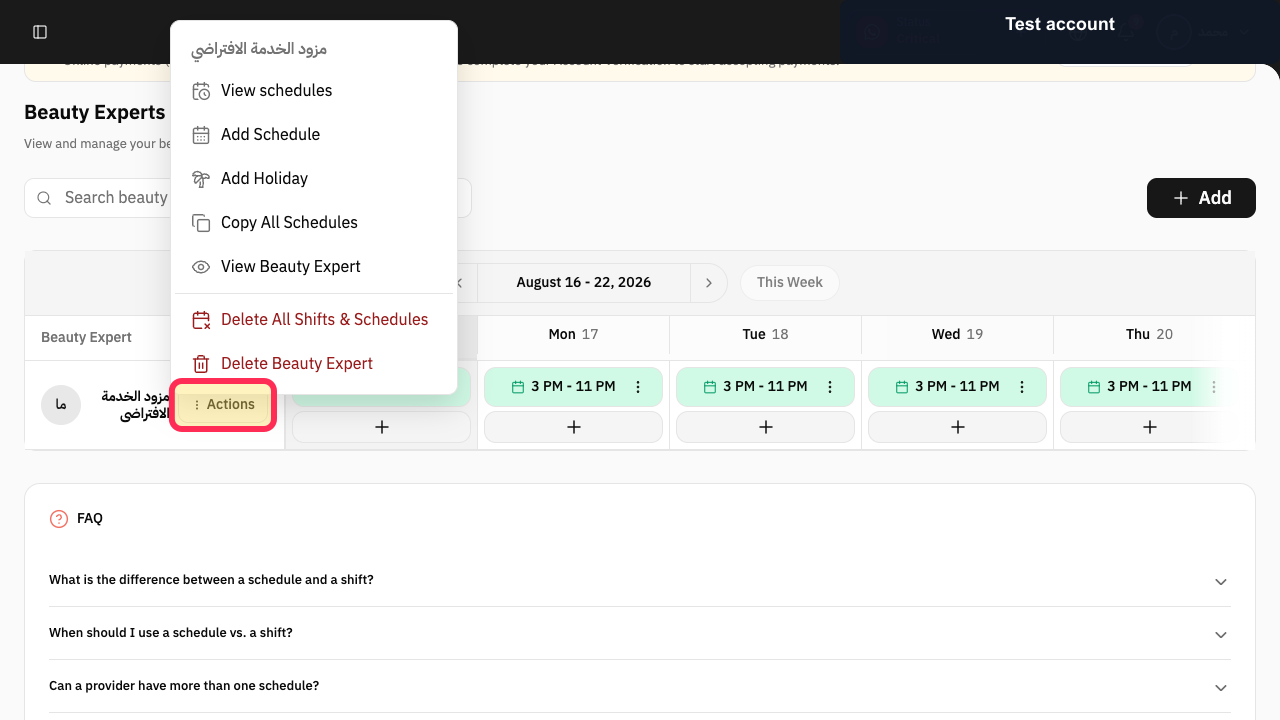
Open Beauty Experts and select Actions for the required provider.
The provider Actions menu opens.
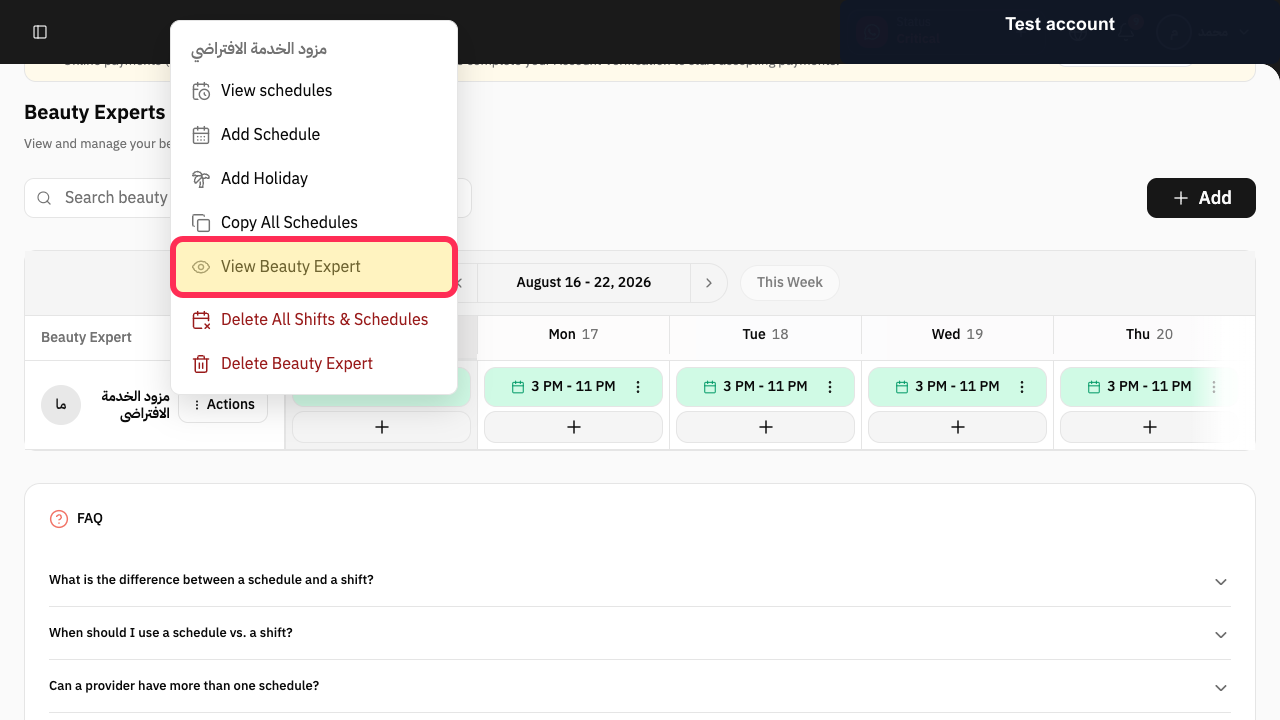
Select View Beauty Expert.
The provider profile opens.
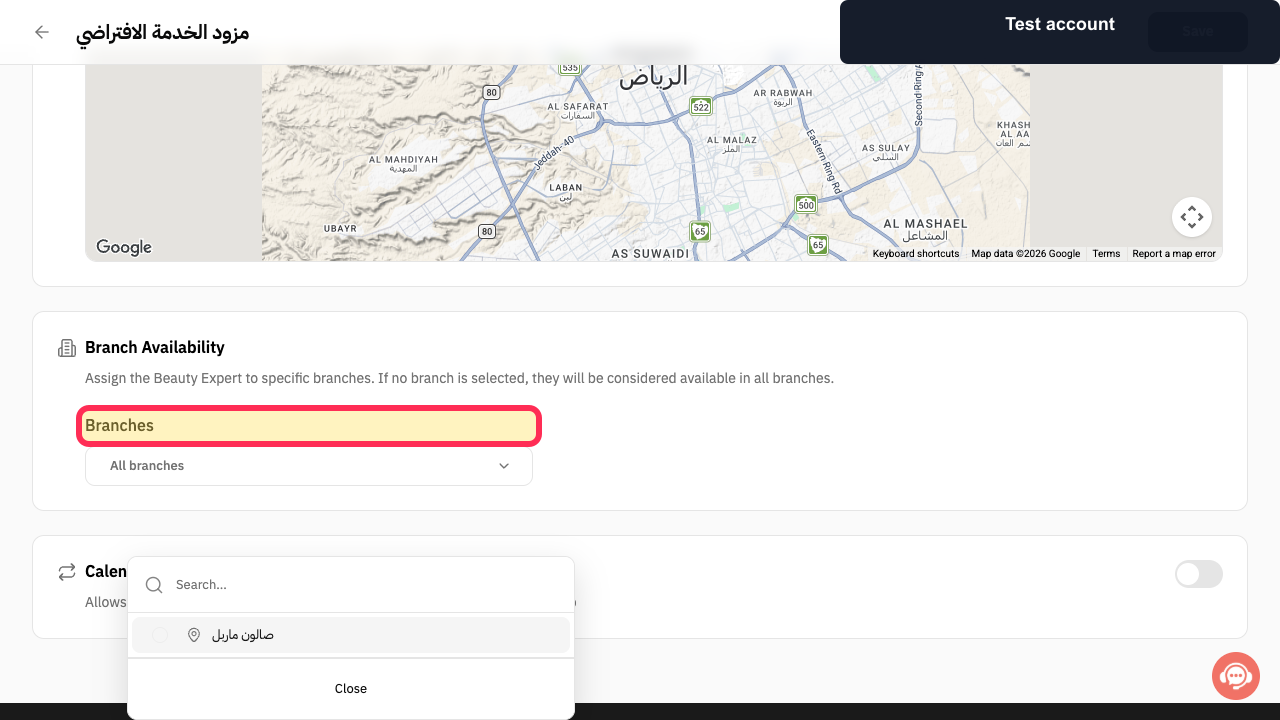
Scroll to Branch Availability and select Branches.
The branch selector opens and shows the available branches.
Select the branch or branches where the provider should be available.
The chosen branch assignment appears in the selector.
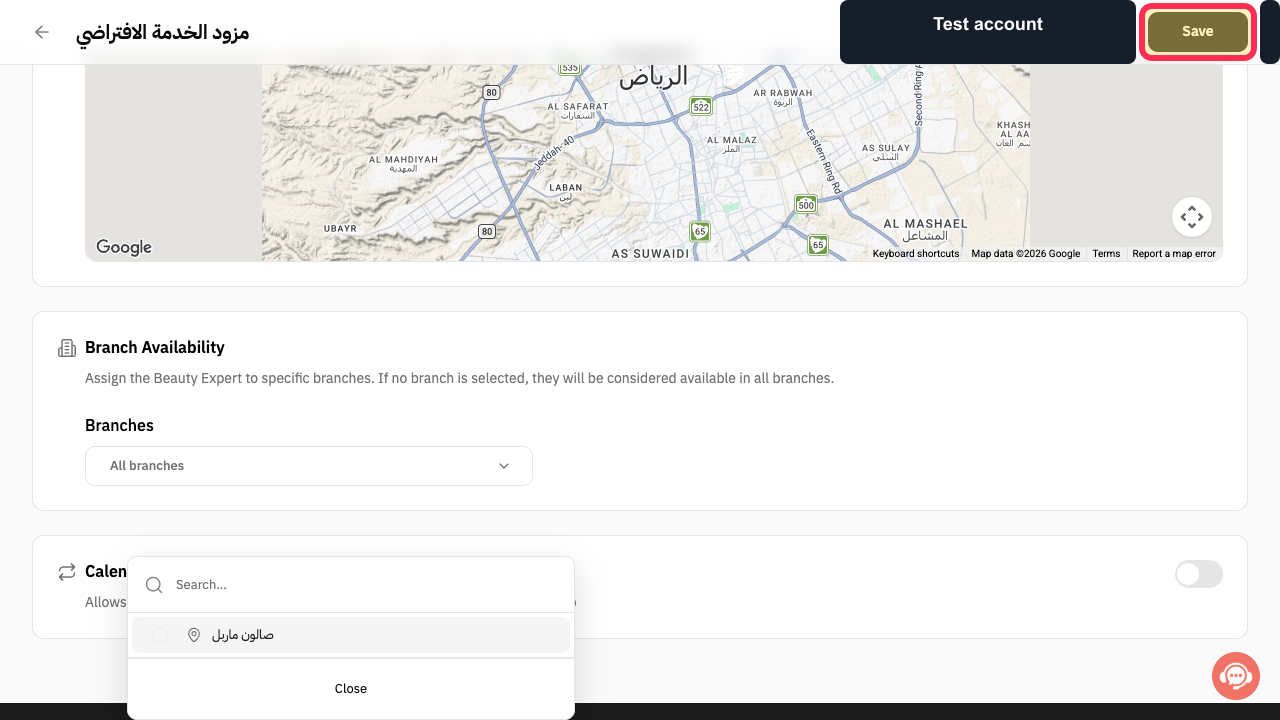
Close the selector and select Save at the top of the profile.
The provider branch assignment is submitted.
Illustrated guide
Step 1: Open Actions for the selected Beauty Expert.
Step 2: Open the Beauty Expert profile.
Step 3: Open the Branch Availability selector.
Step 4: Choose the provider's branches.
Step 5: Save the branch assignment.
Important information
If you do not select any branch, the service provider is available in all branches.
Labels or the position of an option may differ slightly if the Rekaz interface has changed since this guidance was published.
Related questions
How do I make a service provider available at one branch in Rekaz?
Where do I assign a specialist to a branch in Rekaz?
How do I set a staff member’s branch in Rekaz?


