How do I edit a branch name or location in Rekaz?
To update an existing branch in Rekaz, open the branch from the Branches page and edit its Branch Name or the business location shown on the map. You do not need to create a new branch.
The available source shows the editing process, but no changes were saved during the recorded example. Review your updates carefully before selecting Save.
Steps
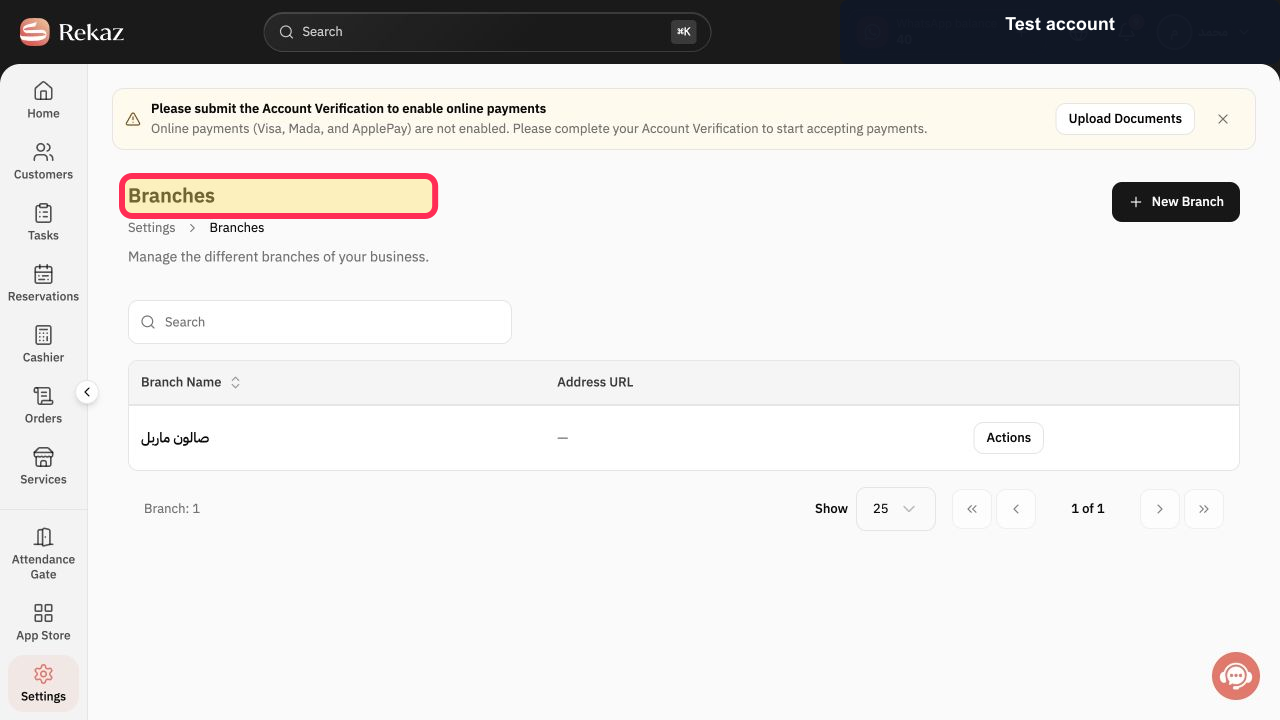
From Home, open the Branches page. The exact navigation path to this page needs verification in the current interface.
The Branches page opens and displays your existing branches.
Select the name of the branch you want to edit.
The selected branch’s details open for editing.
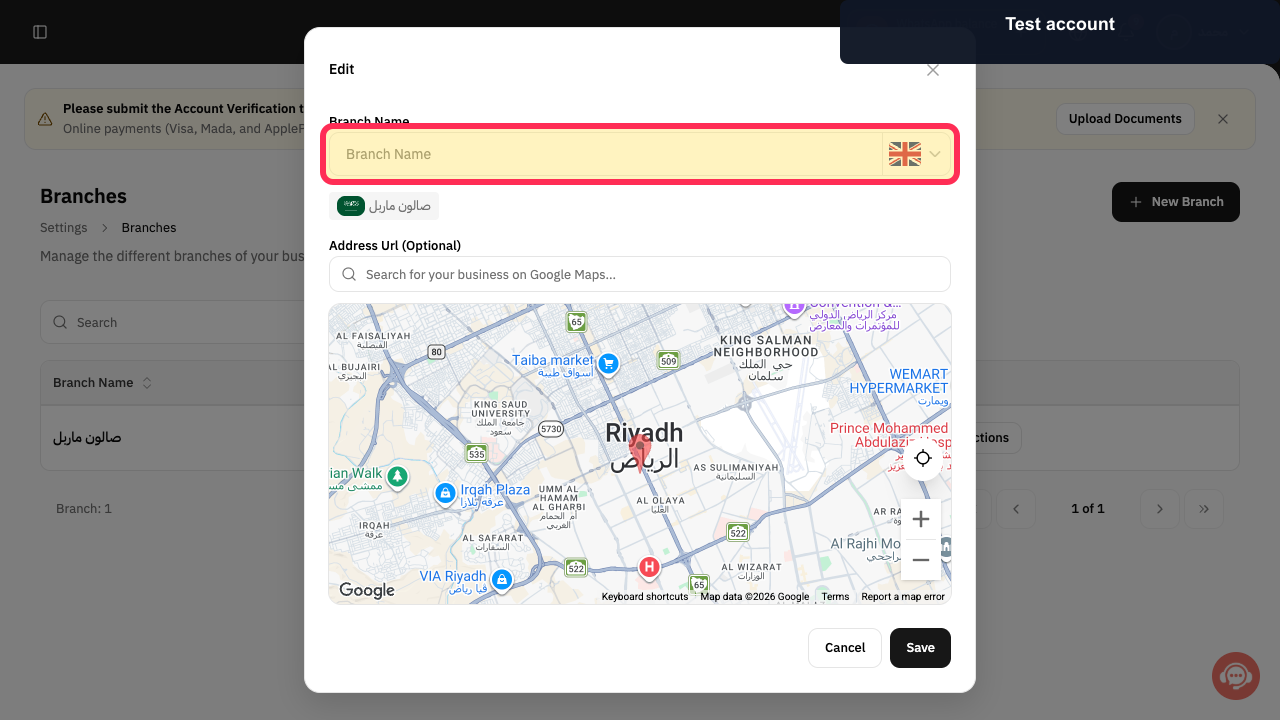
If you need to rename the branch, update the Branch Name field.
The updated branch name is shown in the field.
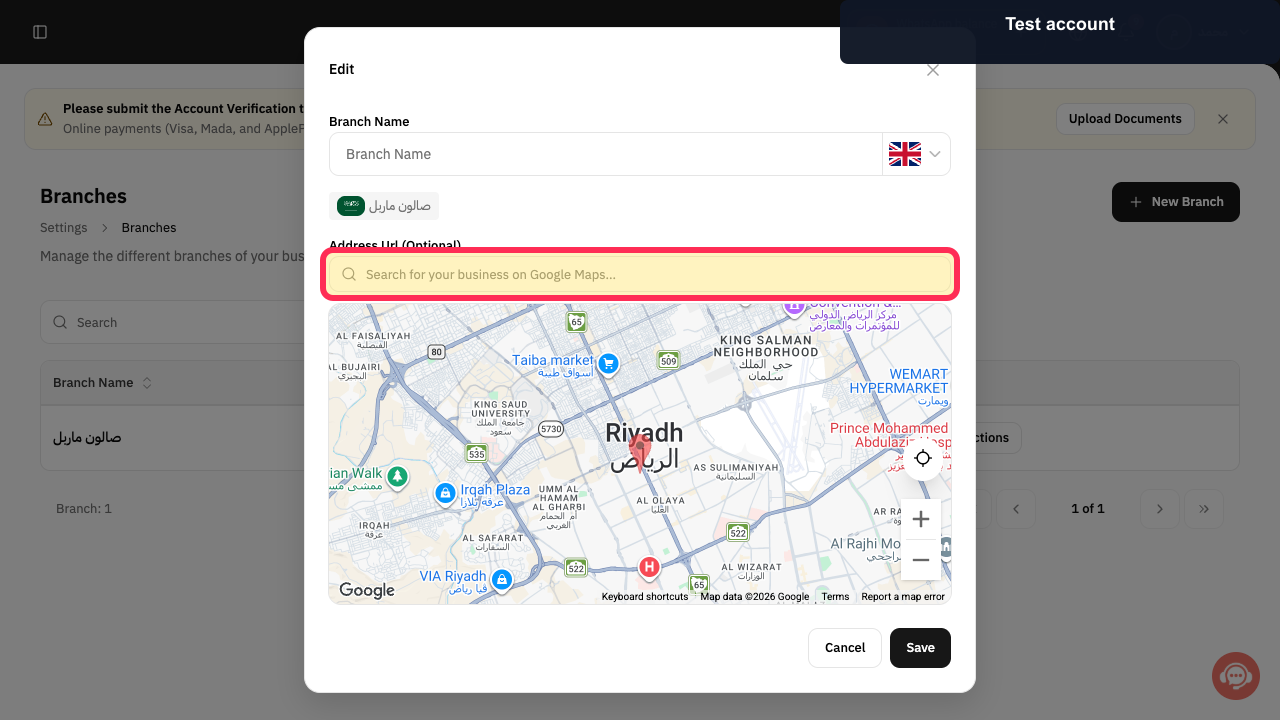
If you need to update the branch location, search for the business location on the map and select the appropriate result. The exact map-search control label needs verification.
The map reflects the selected business location.
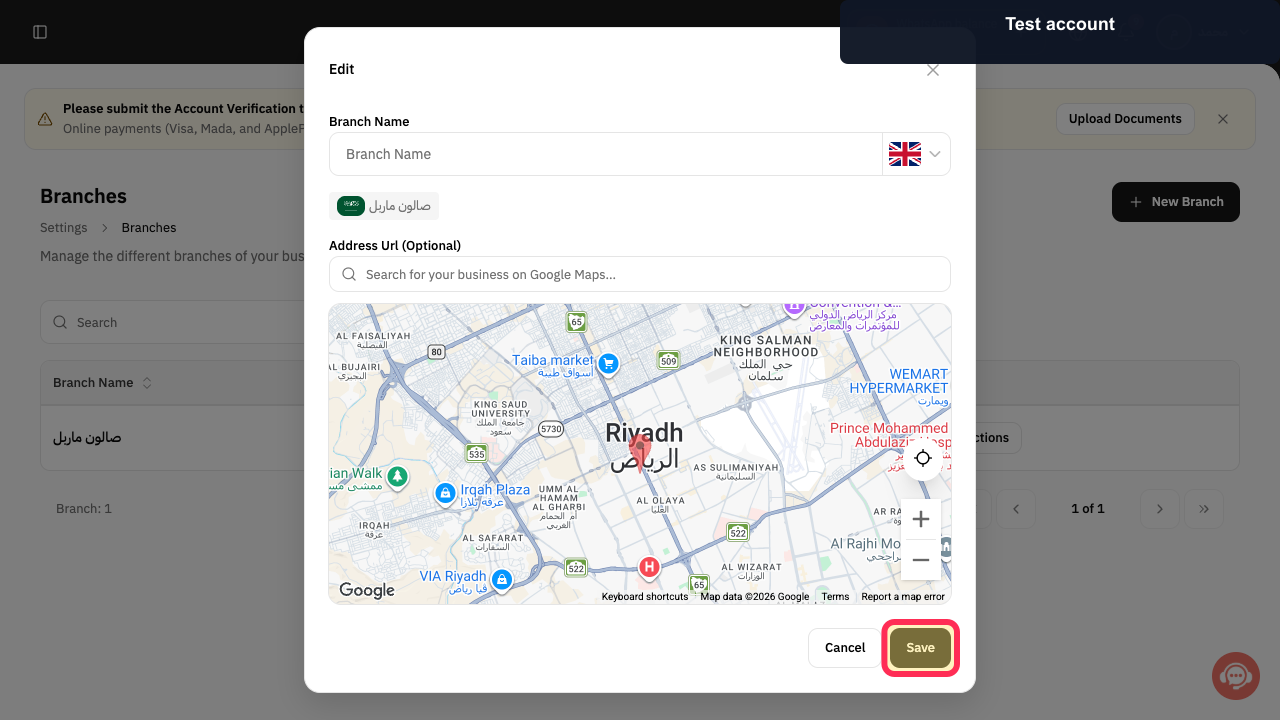
Review the changes, then select Save when you are ready to apply them.
The Save action is available. Successful saving was not verified in the recorded example.
Illustrated guide
Step 1: Open the Branches page in Rekaz.
Step 2: Select the branch you want to edit.
Step 3: Update the Branch Name.
Step 4: Search for and update the business location on the map.
Step 5: Review the updates and select Save when ready.
Important notes
Make sure you select the correct branch before making any changes.
No changes were saved during the recorded example, so a successful save was not confirmed by the source.
Related questions
How do I change a branch name in Rekaz?
How do I update my branch location in Rekaz?
Where can I edit branch details in Rekaz?


